The 3D View interface of the Drawing Options dialog enables you to determine the display characteristics of Avontus Designer's 3D View pane.
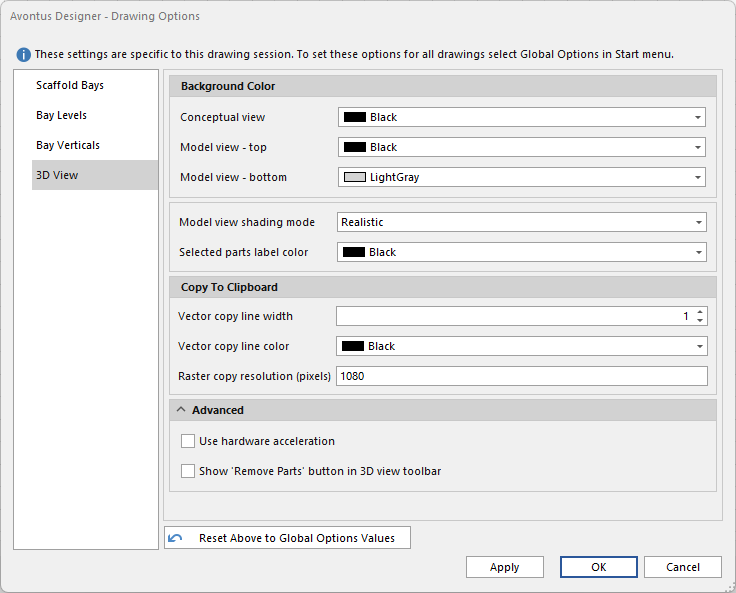
Conceptual View - Select a new default color for the background in the Conceptual tab of the 3D View dialog
Model View - top - Select a new default color for the background at the top of the Model tab of the 3D View dialog
Model view - bottom - Select a new default color for the background at the bottom of the Model tab of the 3D View dialog.
Model view shading mode - Select how you want Avontus Designer to shade the models it displays.
Selected parts label color - Select how you want the labels to be displayed on the 3D view
Vector copy line width - Enter how thick you want the lines to be in the vector drawing that is copied to the Clipboard.
Vector Copy line color - Select what color you want the lines to be in the vector drawing that is copied to the Clipboard
Raster copy Resolution (pixels) - Enter how large/detailed you want the raster image to be when it is copied to Clipboard.
Use hardware acceleration - Enable this if you wish to use hardware acceleration.
Show “remove Parts” button in 3D view Toolbar - Enable this to add a Remove Part button to the 3D view.