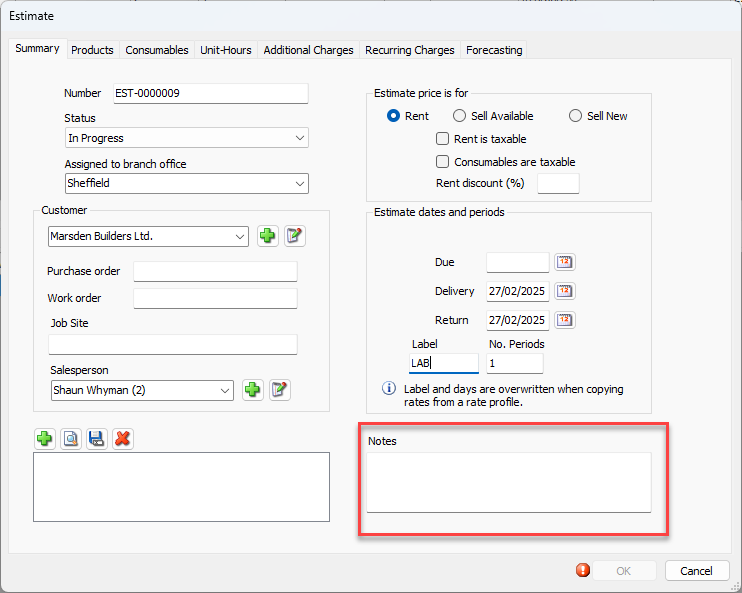
Use the Summary tab to provide basic and background information for the Estimate. Such information includes Estimate number, status, applicable customer, significant dates, etc.

General Section
The General section of this tab enables you to define basic information for the Estimate. Quantify automatically enters information into the Estimate Number, Status and Assigned to branch office fields (the Assigned to branch office defaults to the Branch Office selected in the Organization Tree). However, you can change this information.
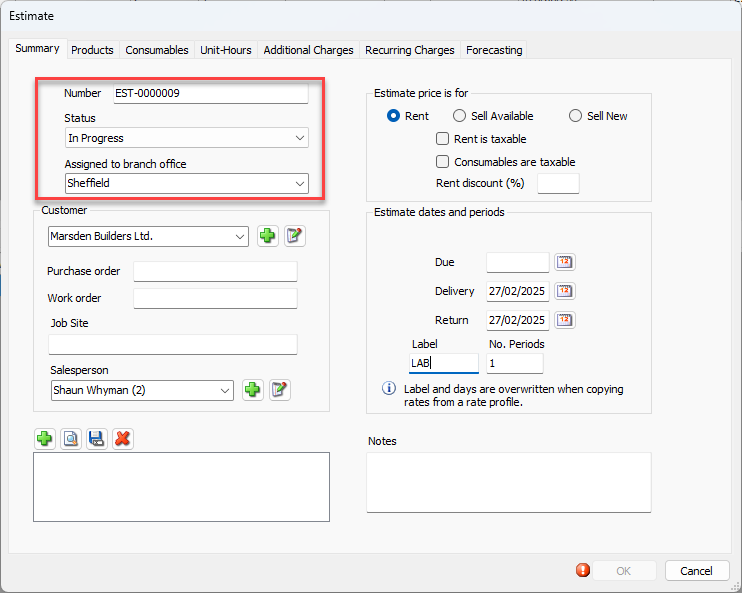
Number | Use this text field to enter or edit the number of the current Estimate. |
Status | Use this dropdown to select the status of the current Estimate. Your options are: In Progress, Approved my Management, Awarded by Customer and rejected by Customer. |
Assigned to Branch Office | Use this dropdown to assign the current Estimate to a Branch Office. |
Customer Section
The Customer section of this tab enables you to define information about and from the Customer.
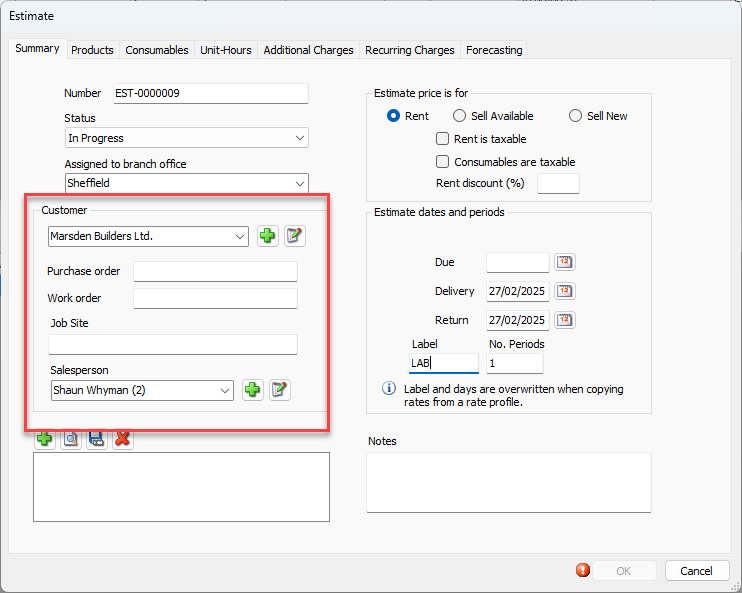
Select Customer | Use this dropdown to select which Customer the current Estimate applies to. You can also use the buttons to the right of this dropdown to add a new Customer or edit a current Customer's information. |
Purchase Order | Use this text field to assign a purchase order to the current Estimate. |
Work Order | Use this text field to assign a work order to the current Estimate. |
Job Site | Use this text field to assign the current Estimate to a Job Site. |
Salesperson | Use this drop-down to assign a salesperson to the estimate |
Estimate Price Section
The Estimate Price section of this tab enables you to define transaction information. For example, whether the transaction is a rental or sale, whether fees are taxable and whether there is a discount.
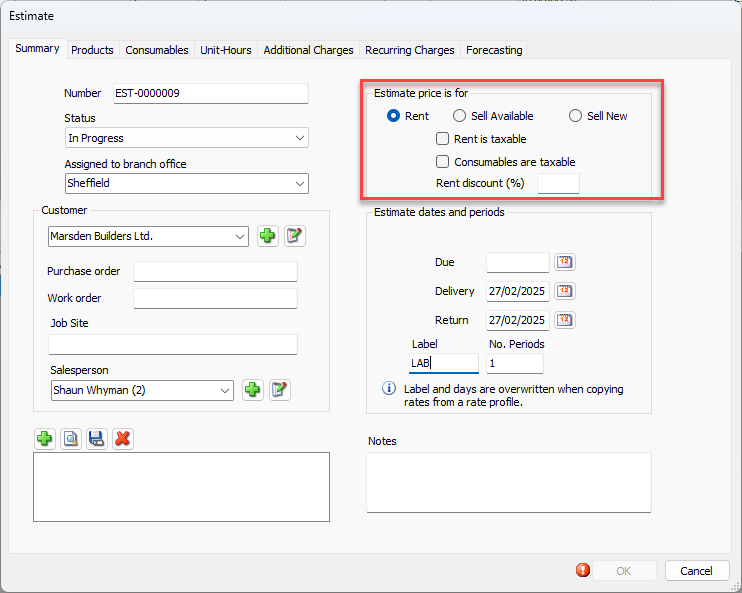
Rent | Use this radio button to determine whether the current Estimate is for equipment rental. |
Sell Available | Use this radio button to determine whether the current Estimate is for selling currently on-hand equipment. |
Sell New | Use this radio button to determine whether the current Estimate is for selling new, unused equipment. |
Rent is Taxable | Use this checkbox to determine whether tax applies to rental fees. This option is only available when the Rent radio button is selected. |
Sell is Taxable | Use this checkbox to determine whether tax applies to equipment sales. This option is only available when the Sell Available or the Sell New radio button is selected. |
Consumables are Taxable | Use this checkbox to determine whether tax applies to Consumable sales. |
Rent Discount (%) | Use this text field to determine whether a discount applies to rental fees and, if they do, how much. |
Estimate Dates and Periods Section
The Estimate Dates and Periods section enables you to define significant dates for the Estimate.
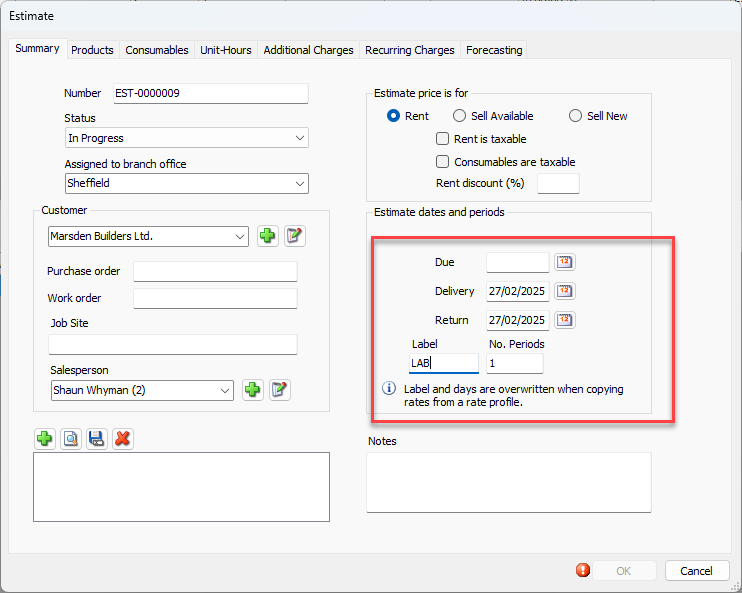
Due | Locate and click the appropriate due date. The due date is a reminder of when the Estimate is due to the customer. The due date will appear on the printed estimate. |
Delivery | Use this date field to determine when equipment will be delivered. |
Return | Use this date field to determine when equipment will be returned. |
Label | Use this text field to determine the label for the rental time period. This text field is only active when the Rent radio button is selected. Note: This field is required, but may be automatically updated when a Rate Profile is selected in the Products tab. |
No. Periods | Use this text field to determine the length of the rental. This text field is only active when the Rent radio button is selected. Note: This field is required, but may be automatically updated when a Rate Profile is selected in the Products tab. It also sets up the length of the rental and affects the Estimate total. |
Attachments and Notes
You can add, view, save and delete attachments
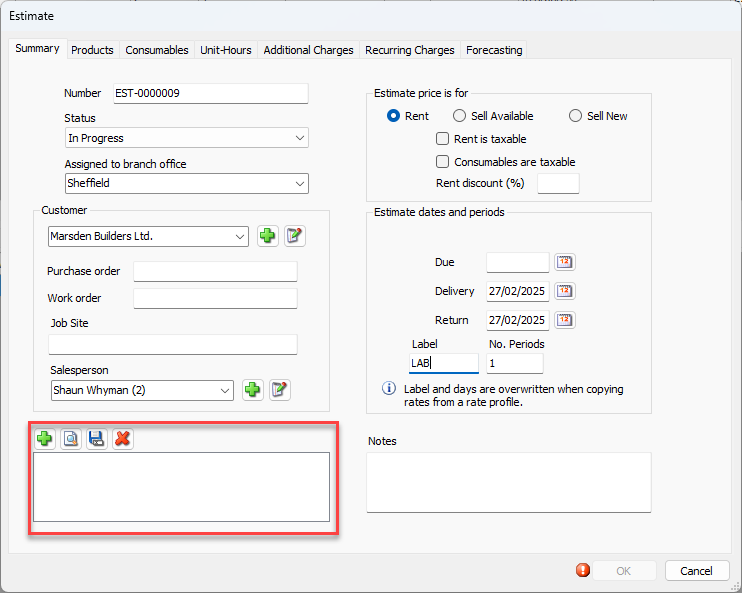
You can also add notes related to the Estimate.