The Scaffold Register tab provides an overview of all current Scaffold Registers and enables you to see the details of specific Registers. Use this tab to create and manage Scaffold Registers. If you click a Job Site, Quantify displays the Scaffold Registers assigned to that Job Site. If you click a Branch Office, Quantify displays all the Scaffolds assigned to all the Job Sites under that Branch Office. The areas in the Scaffold Register tab provide details of each available Scaffold Register.
Note: To see Scaffolds, you have to click on the Job Site or Branch Office. You cannot see Scaffolds when viewing from the main Organization tree (the organization).
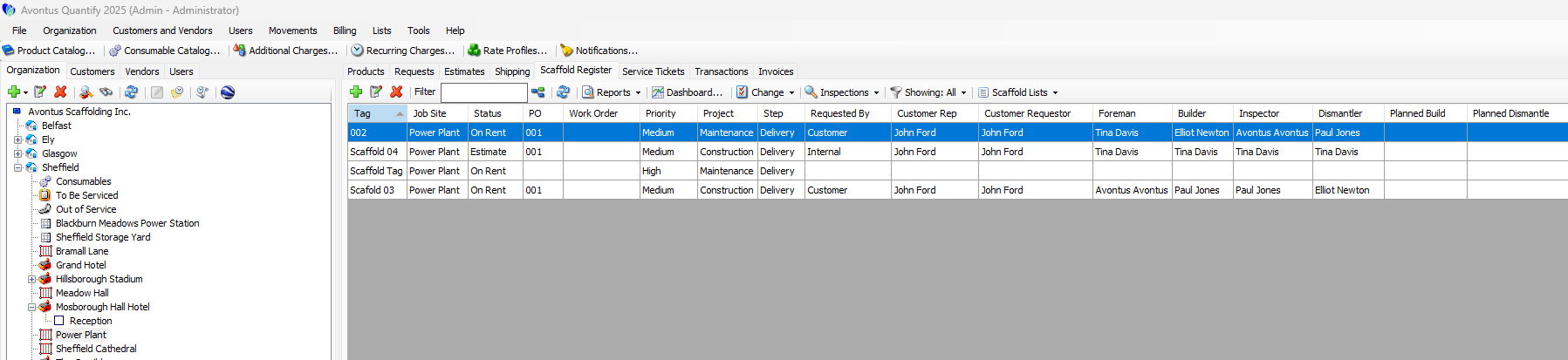
The table shows information about all the registers in the tab and provides features for viewing and working with Scaffold Registers, including:
Note: The features mentioned in these articles are only available in the Industrial Edition of Quantify.
Reports dropdown | The Reports dropdown enables you to:
|
Dashboard | The Dashboard button enables you to view the Dashboard for a selected Scaffold Register. For more information about the Dashboard, refer to The Scaffold Register Dashboard. |
Change dropdown | The Change dropdown enables you to reset one or more Invoice rent rates and job costs from the Rate Profile set in the related shipment(s). |
Inspections dropdown | The Inspections dropdown enables you to add and enable inspections for selected Scaffold Registers. |
Filter dropdown | The Filter dropdown options enable you to filter the Scaffold Register tab by:
|
Scaffold Lists dropdown | The Scaffold Lists dropdown enables you to manage the lists used with Scaffold Registers: Priority, Project, Step, Shifts, Activity Types and Unit-Hour Profiles. |
The bottom area shows details about the selected Scaffold Register, including:
Bill of Materials tab | The Bill of Materials tab displays a list of materials in the Transaction. |
Shipping tab | The Shipping tab displays a list of Shipments assigned to the selected Scaffold Register, and the details of that Shipment: Product, Consumables, Additional Charges, Recurring Charges and Attachments. It also enables you to create a delivery to a selected Scaffold, a return from a selected Scaffold and a transfer from a selected Scaffold to another Scaffold. You can also edit or void the selected Shipment. |
Activities tab | The Activities tab displays any activities assigned to a selected Scaffold Register. It enables you to add, edit and delete an Activity. You can also create a delivery Shipment to or a return Shipment from the selected Activity. |
Inspections tab | The Inspections tab displays any Inspections assigned to a selected Scaffold Register. It also enables you to add, edit and delete an Inspection. |
Access Points tab | The Access Point tab displays any access points assigned to a selected Scaffold Register. It also enables you to add, edit and delete an access point. |
Attachments tab | The Attachments tab displays any items attached to the Scaffold Register and enables you to attach new items. |
Details tab | The Details tab displays the the physical details of the selected Scaffold Register, the date the it was created, who created it and any notes associated with the Scaffold Register. |
History tab | The History tab displays a list of all changes made to the Scaffold Register and enables you to generate a History pivot report for the selected Scaffold Register or for all Scaffold Registers assigned to a selected location. |