The Transactions tab provides an overview of all current Transactions and enables you to see the details of specific Transactions. Use this tab to create, edit, receive and manage all the equipment purchases and sales your company makes. You create Transactions for Branch Offices and Sub-Branches. The areas in the Transactions tab provide details of each available Transaction.
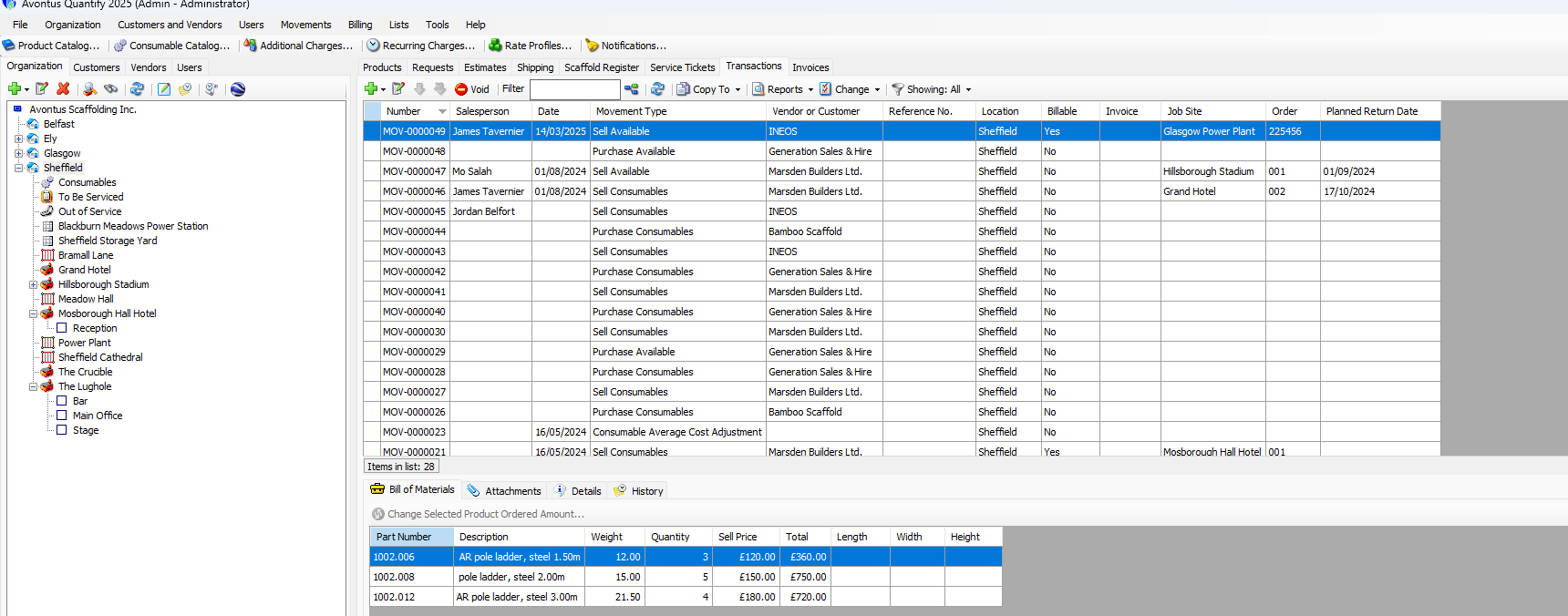
The top table shows information about all the Transactions for the selected location on the Organization Tree, and provides features for viewing and working with Transactions, including:
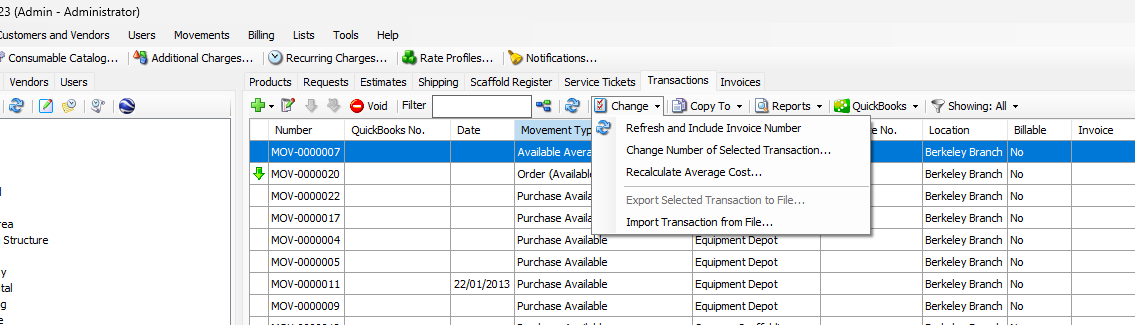
Change dropdown | The Change dropdown enables you to: Change the number of the selected Transaction Recalculate average cost from all purchase Transactions Export the selected Transaction to a file Import a Transaction from a file |
Copy To dropdown | The Copy To dropdown enables you to copy a selected Transaction to a delivery |
Reports dropdown | The Reports dropdown provides access to: A preview of the selected Transaction A preview of the selected Transaction as a pick ticket A preview of received quantities Transaction Pivot Transaction Products Pivot Pivot for all order Transactions Pivot for the selected order Transaction |
Filter | The Filter dropdown enables you to filter the Transactions tab by Transaction status: Show All Show All Orders Transfer New to Rental Re-Rent Sell Purchase Average Cost Adjustment Voided |
The bottom area shows details about the selected Transaction, including:
Bill of Materials tab | The Bill of Materials tab displays a list of materials in the Transaction. |
Attachments tab | The Attachments tab displays any items attached to the Transaction and enables you to attach new items. |
Details tab | The Details tab displays the date the Transaction was created, who created it and any notes associated with the Transaction. |
History tab | The History tab displays a list of all changes made to the Transaction and enables you to generate a History Pivot report for the selected Transaction or for all Transactions. |
The Transactions Change Dropdown
The Change dropdown enables you to edit the selected Transaction's number, and recalculate average cost from all purchases, export, or import a transaction. Keep in mind that using Recalculate Average Cost will modify all current average costs from existing purchases.
Copy To Delivery
Copy to Delivery is available for Order Available and Order Re-Rent Transactions in completed status.
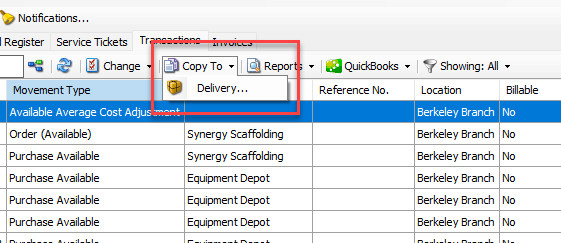
Only completed Order Available and Order Re-Rent Transactions can use Quantify's Copy To Delivery feature to create a delivery to a Job Site. Quantify rejects attempts to use Copy to Delivery for other types of Transactions.
The Transactions Report Dropdown
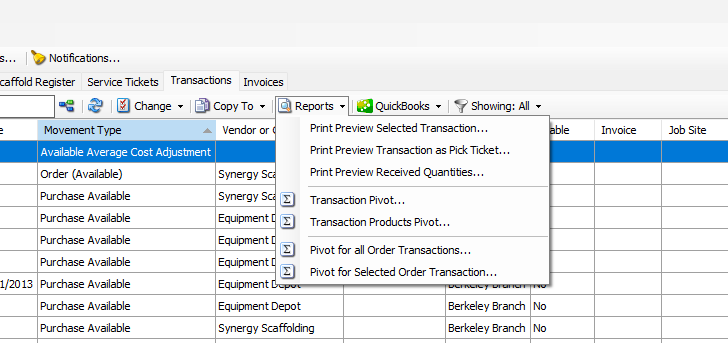
The Reports dropdown in the Transactions tab provides access to a variety of reports that enable you to have a clear view into the status of all your transactions.
Print Preview Selected Transaction | Select Print Preview Selected Transaction to view preview a report on a selected transaction. |
Print Preview Transaction as Pick Ticket | Select Print Preview Transaction as Pick Ticket to view preview the pick ticket. Only sell, return, order and backorder transactions can have a pick ticket. |
Print Preview Received Quantities | Select Print Preview Received Quantities to view preview the report. You can only view this report for order and backorder transactions. |
Transaction Pivot | The Transaction pivot displays a high-level summary of all transactions, such as total prices, total weights, total pieces, etc. |
Transaction Products Pivot | The Transaction Products pivot displays the same information as the Transaction pivot. However, this report includes the details not included in the Transaction pivot. For example, the Transaction Products pivot contains part numbers and per-item costs for each item. This information can be viewed by transactions, by transactions per location, etc. |
Pivot for all Order Transactions | The Pivot for all Order Transactions report displays detailed information about all orders that have been placed. This includes all outstanding back orders and partially filled orders. |
Pivot for Selected Order Transactions | The Pivot for Selected Order Transaction report displays detailed information about a selected order, including outstanding back ordered items and partially filled items. |
The Transactions Grid
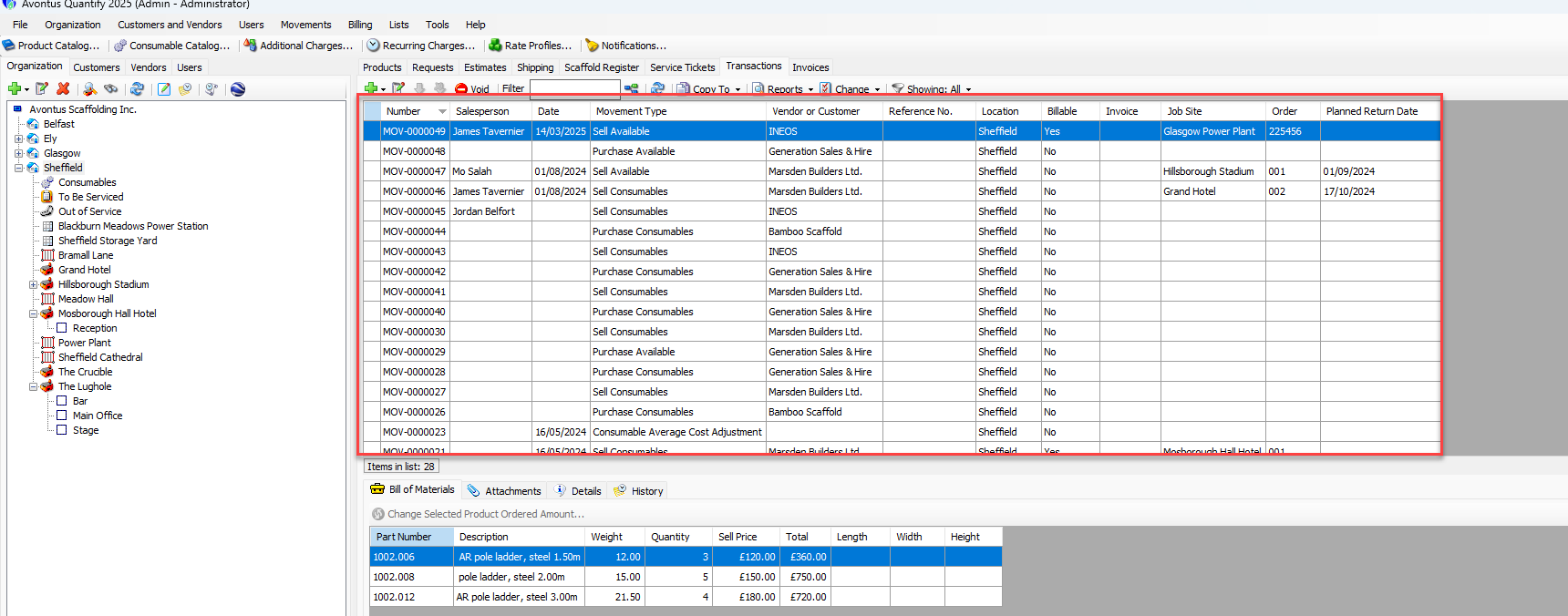
The Transactions Grid displays all of the related Transactions for the location selected on the Organization Tree. The Transactions Grid displays details about the selected Transaction in the lower tabs, including the Bill of Materials, Attachments, Details and History.