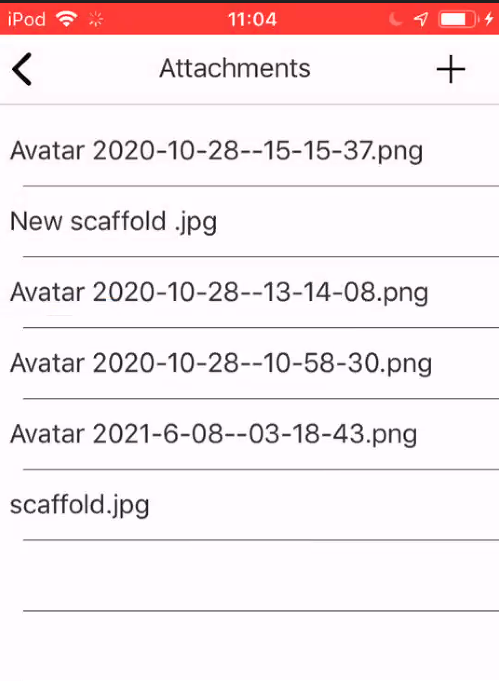
You can add an attachment to the Scaffold. This could be an image of the Scaffold or any related inspection documents.
To add an attachment to a request or scaffold.
- From the Map screen, tap on the Scaffold pin
- Tap the Scaffold details area.
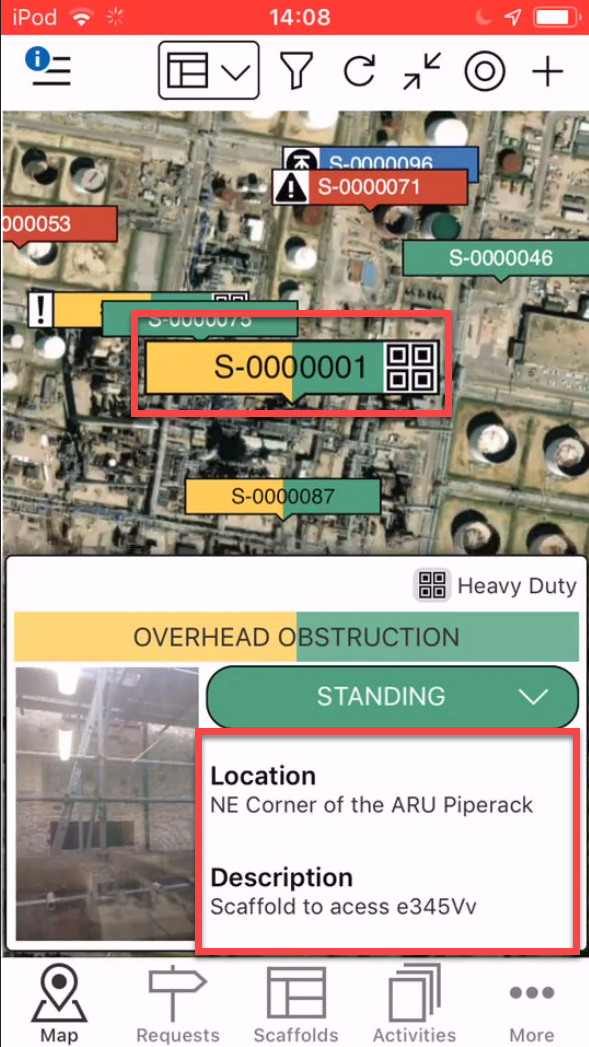
Note: You can also access the Scaffold Details by tapping on the Scaffold in the Scaffolds screen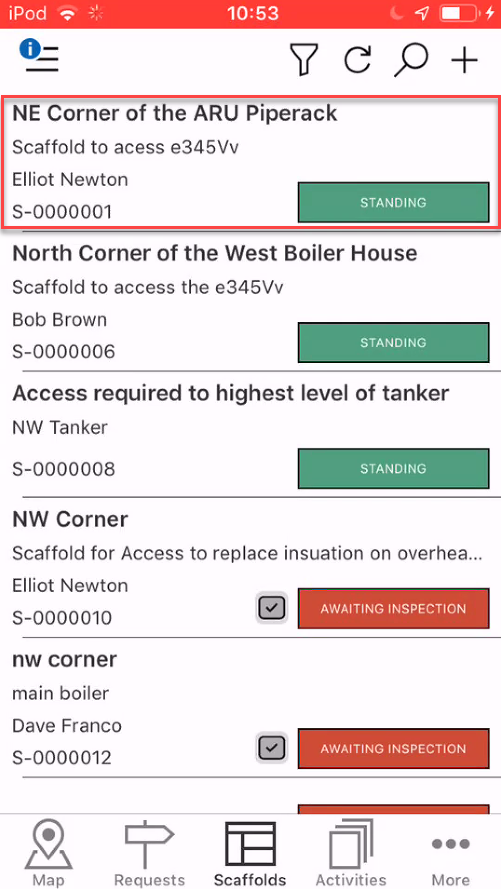
- In Scaffold Details screen, scroll down to the Attachment section and tap the Attachment section.
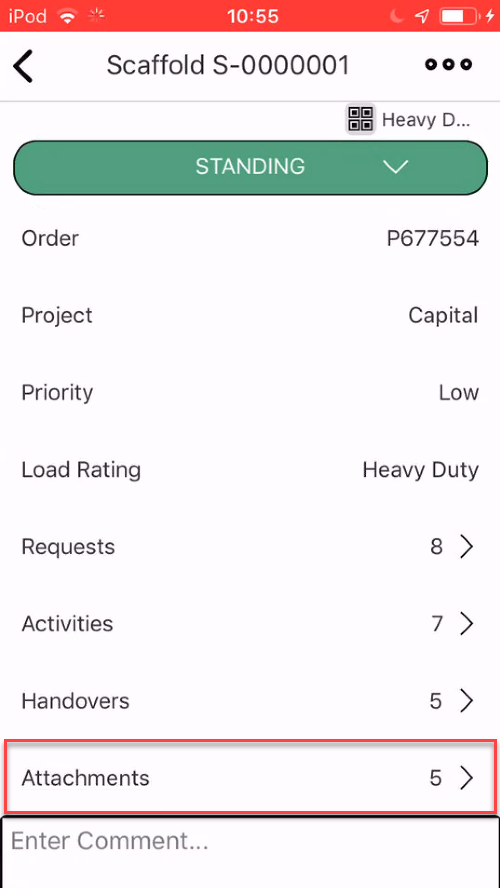
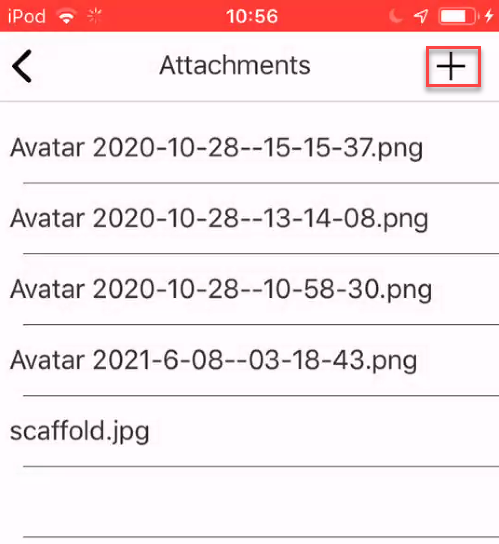
- In the Attachments screen, tap + in the top-right.
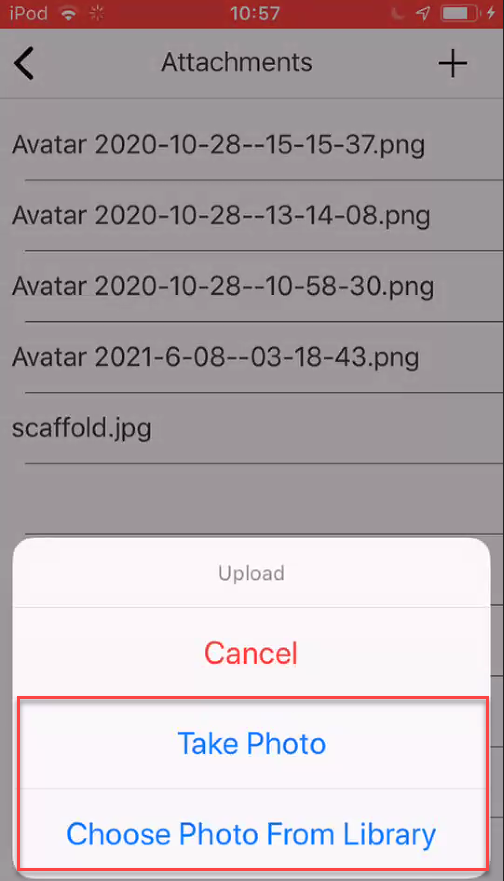
- Select to specify whether you wish to take a photo or choose a photo from your library.
- If you decide to take a photo, take the photo and tap Use Photo
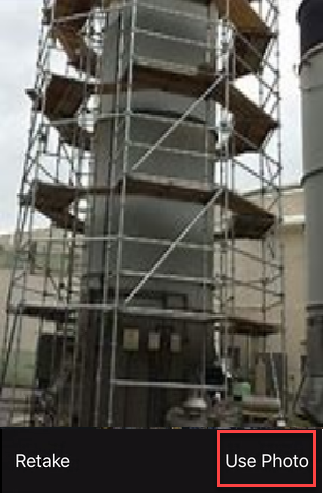
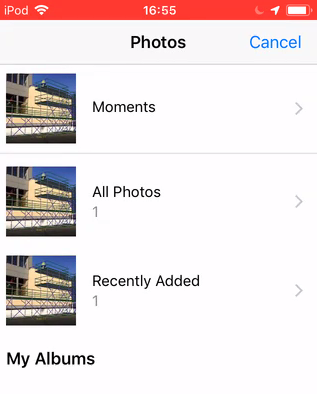
Note: Retake to take the picture again if you are not happy with the photo you have taken - Select a photo from your albums by tapping on the selected photo.
- Specify the attachment name and tap Submit.
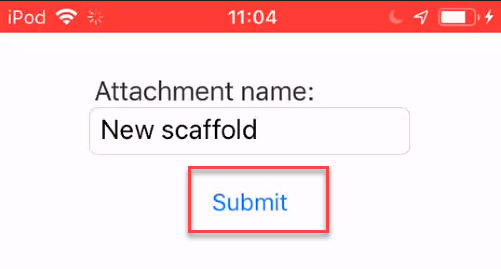
The attachment will be uploaded to the Scaffold.