A Leader is a useful annotation shape that enables you to point out and associate text with a specific location.
To add a Leader to a drawing:
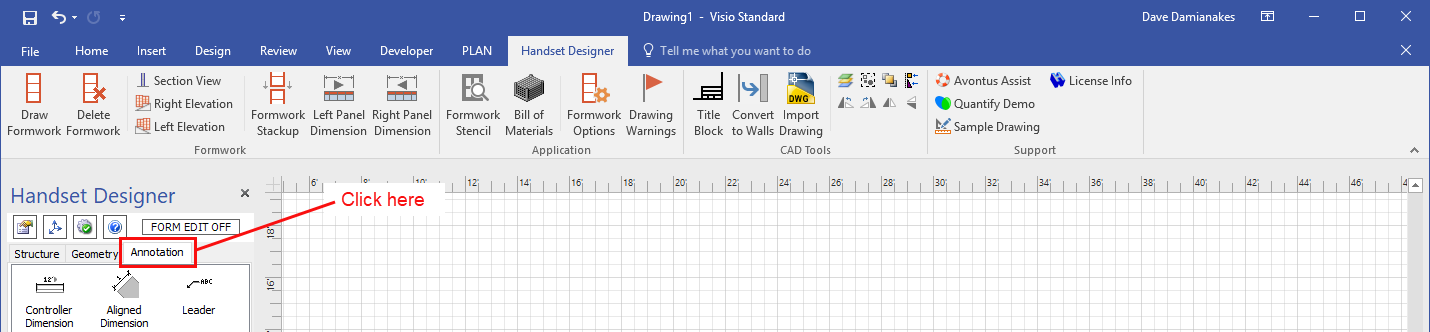
- Click the Annotation tab in the Handset Designer pane.
- Click and drag the Leader shape onto the drawing element you want to highlight.
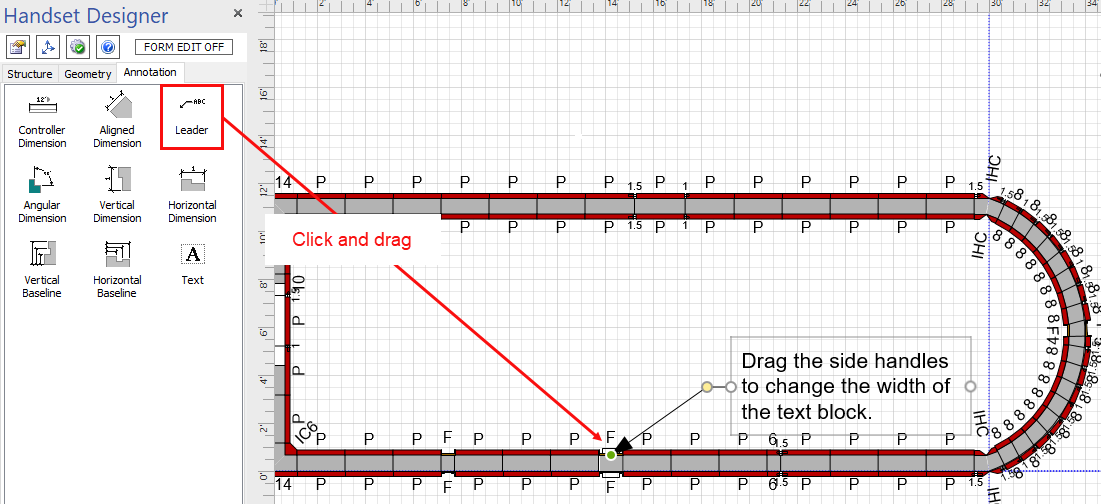
The Leader appears on the page and snaps to the green connection point.
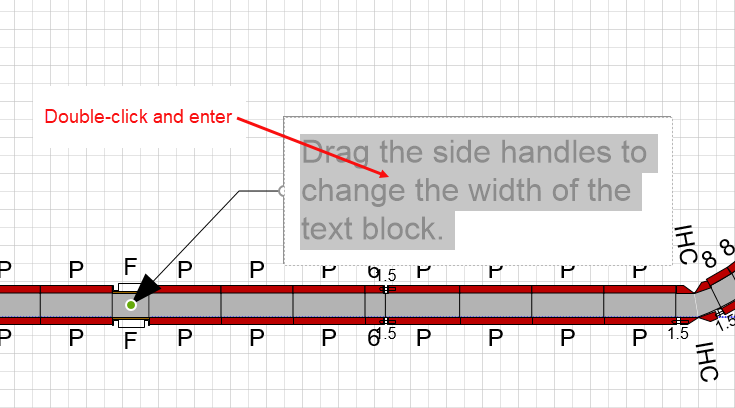
Note: Depending on your Snap and Glue settings, the front of the Leader snaps to the nearest connection point. For more information on adjusting snap and glue, refer to Key Concepts. - Double-click the text inside the Leader text box and enter the replacement text.
- Click the Drawing Page to exit edit mode.