You can change the Order number for a Scaffold if the parent Job Site is not set to invoice a single Order.
NOTE: The features mentioned in this article are only available in the Industrial Edition of Quantify.
NOTE: You can only change the order on scaffolds on a single location without any child locations
To change the Order on selected Scaffolds and Shipments to Scaffolds:
Click the appropriate location and click the Scaffold Register tab.
Select the scaffold(s)
Click the Change dropdown and select Change Order on Selected Tag and Shipments to Tag.
.gif)
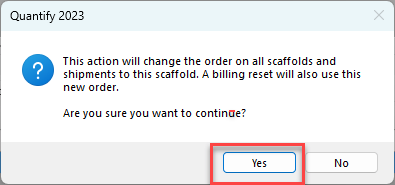
A confirmation dialog appears.Click Yes.
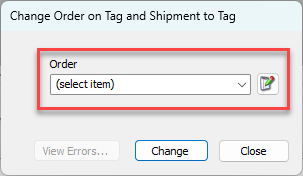
The Change Order on Tag and Shipment to Tag dialog appears.Click the Order dropdown and select the new Order number.
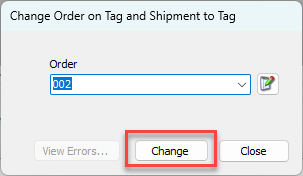
Click Change.
Quantify applies the Order number to appropriate Shipments and displays a confirmation message.
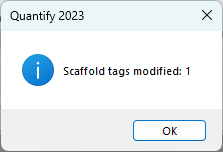
Click OK.
Note: You can also change the Order number by editing the Scaffold Tag and changing the Order number in the Scaffold dialog.
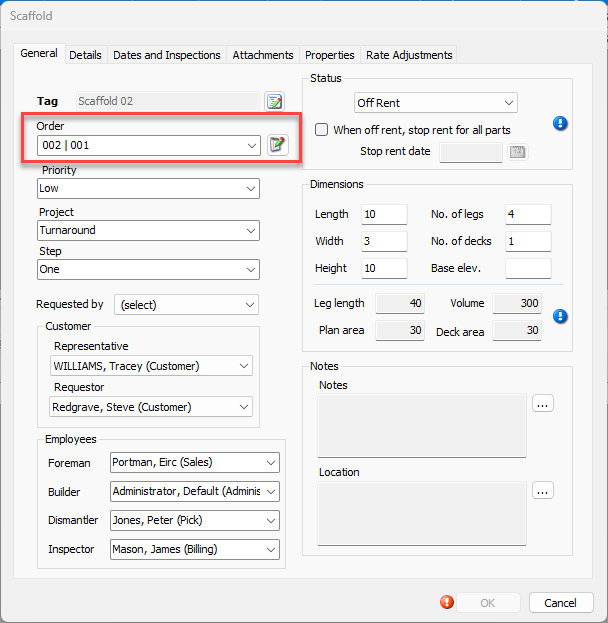
However, changing the Order number for a Scaffold Tag by editing the Order in the Scaffold dialog only applies to future shipments sent to this Scaffold. All existing Shipments to this Scaffold will still use the old Order number. To change the Order number to all existing Shipments to the Scaffold Tag as well as any future shipments, you should use the Change menu option above.