Introduction
Connect your Avontus Viewer account to Claude and ask questions about your scaffold models in plain language — bills of materials, weights, part counts, metrics, and elevations — without opening the Viewer app.
There is nothing to download or install. You add one web address to Claude and sign in with your existing Avontus Viewer account.
Before you start
Before you start, you will need:
An Avontus Viewer account - the same email and password you use to sign in to Avontus Viewer. You do not need a new account.
An active subscription - Every model this connector reads is either yours or shared with you, and both require a live subscription — see Subscriptions.
A Claude account- Custom connectors work on Free, Pro, Max, Team and Enterprise plans, on claude.ai, Claude Desktop and the mobile app. On the Free plan you can have one connector.
In Claude, you will enter two values. Both are the same for every customer — there is nothing account-specific here, and are not unique to the customer.
Field | Value |
|---|---|
Connector URL | https://viewer-mcp.avontus.com/mcp |
OAuth Client ID | viewer-connector |
Leave OAuth Client Secret empty. There isn't one: Avontus Viewer signs you in using PKCE, which is the method designed for apps that can't safely hold a secret.
Connect (Pro, Max, or Free)
The organization owner completes steps 1 to 8, then members will connect with their own accounts.
Organization Owner
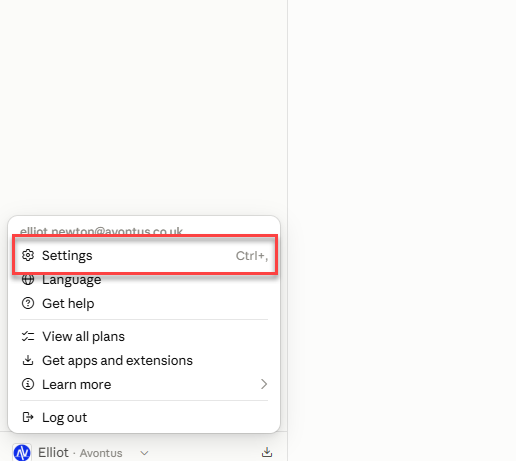
In Claude, open Settings
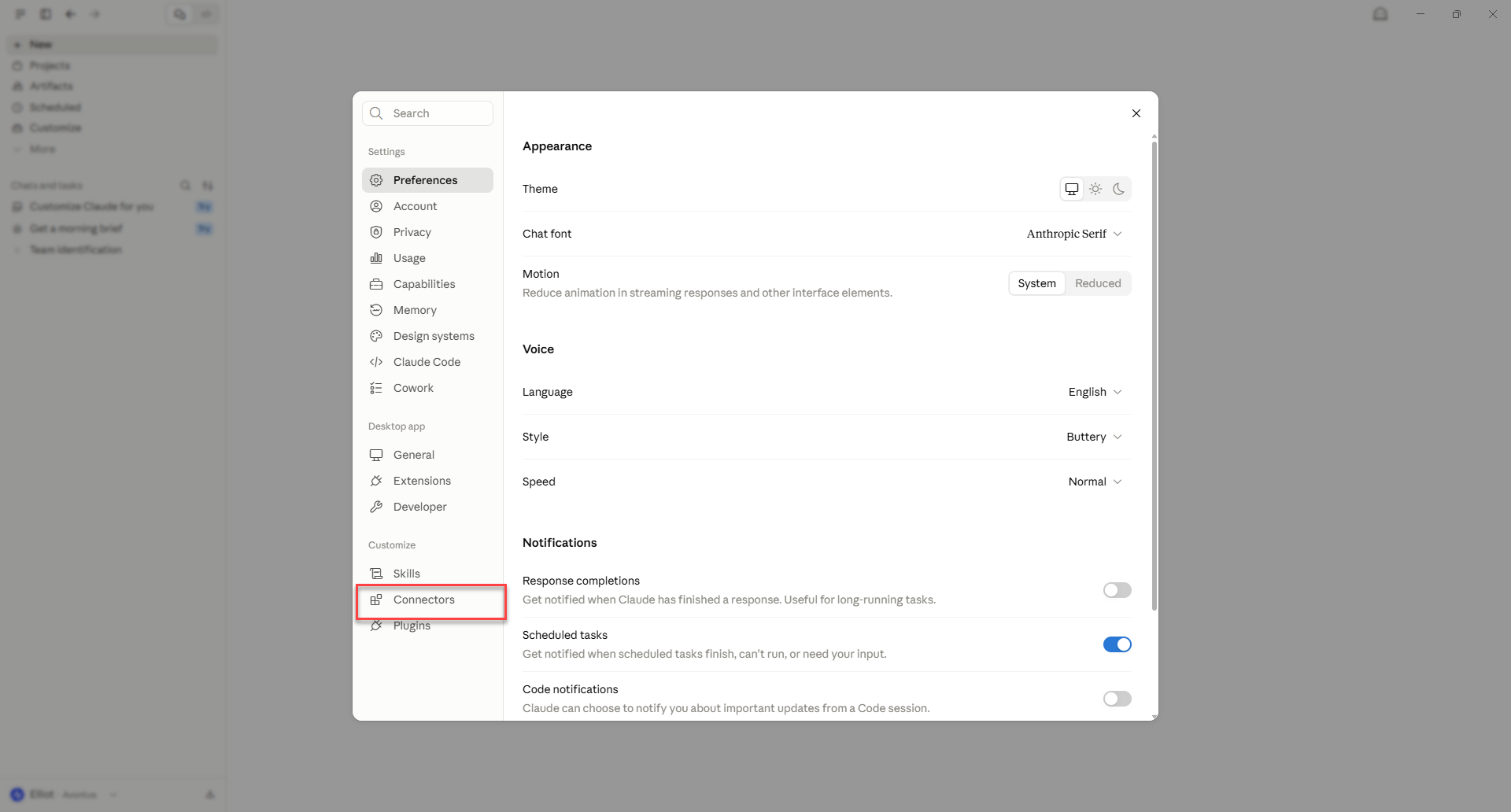
Then select Connector.
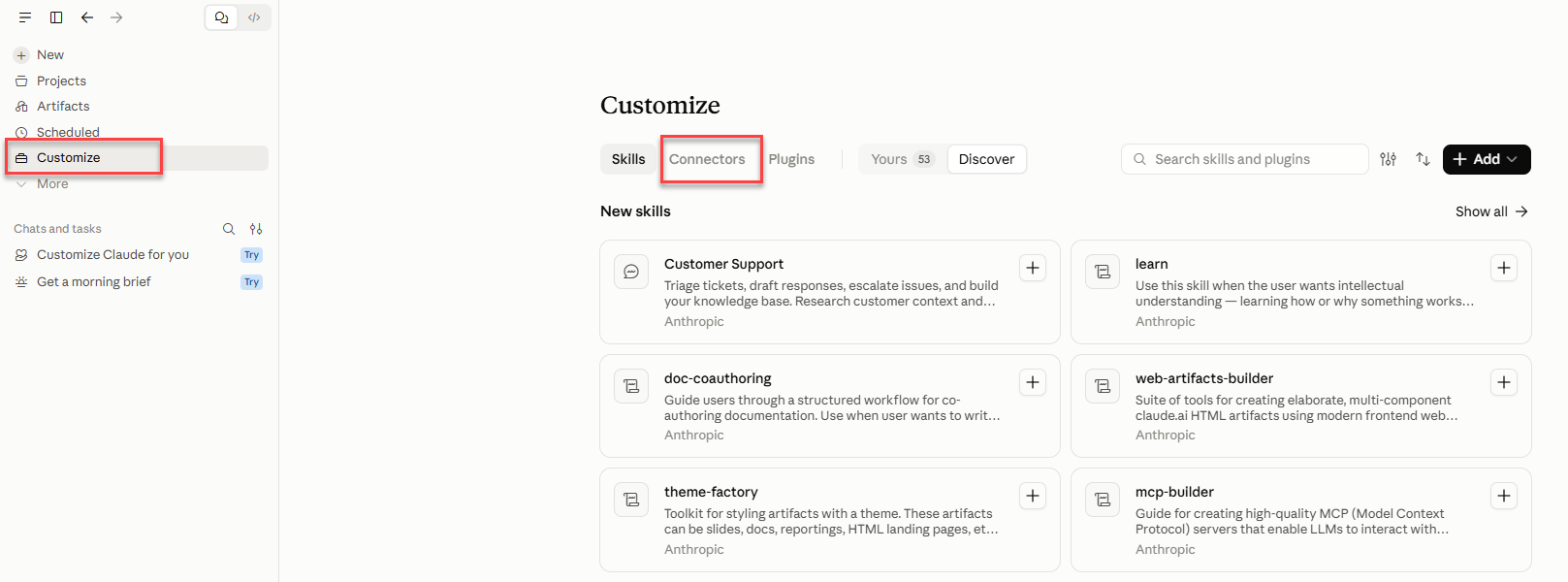
Note: On claude.ai this is also reachable by selecting Customize and then Connectors
Click Add Connector, then choose Add Custom Connector
(1).png)
Set the Name as Avontus Viewer - this is a label, so any name you specify will work.
In the Remote MCP server URL, specify https://viewer-mcp.avontus.com/mcp
.png)
Expand Advanced Settings
In OAuth Client ID, enter “viewer-connector”
Note: Ensure OAuth Client Secret is left blank
Click Add.
Avontus Viewer will now be added to the Connector list, and members can now connect.
Members
When the organizer has set up the Avontus Viewer custom connection, members can log in to Avontus Viewer.
In the Connectors List, click Connect next to Avontus Viewer
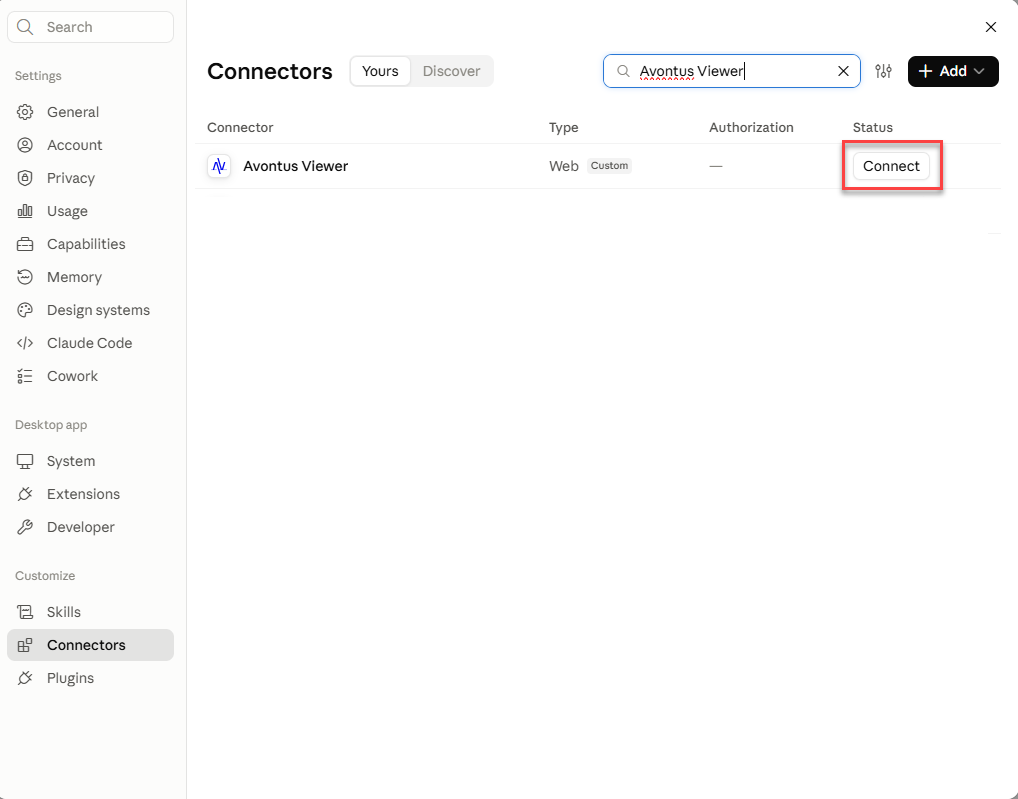
A sign-in page will open viewer-mcp.avontus.com
Click Continue Connecting
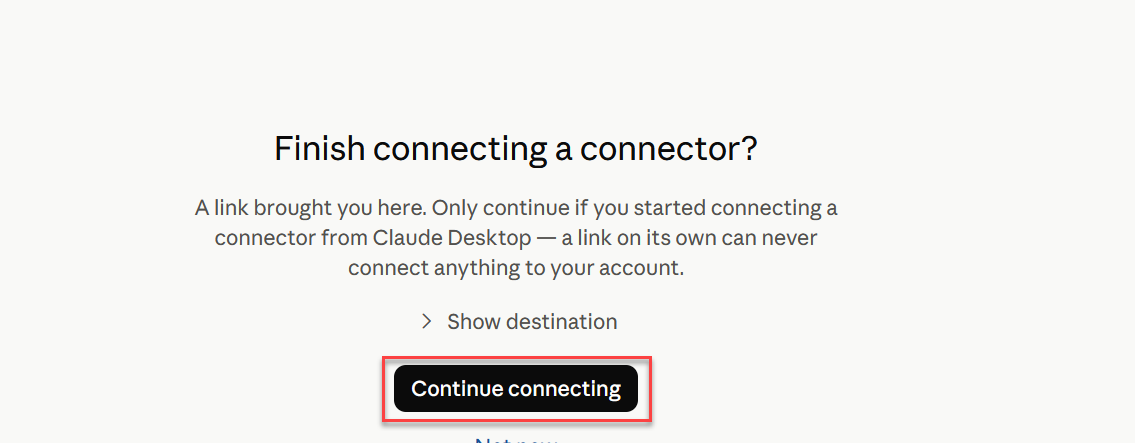
Sign in with your Avontus Viewer email and password.
.png)
The connector shows as connected when it's done.
.png)
4. Ensure Claude has access to Avontus Viewer
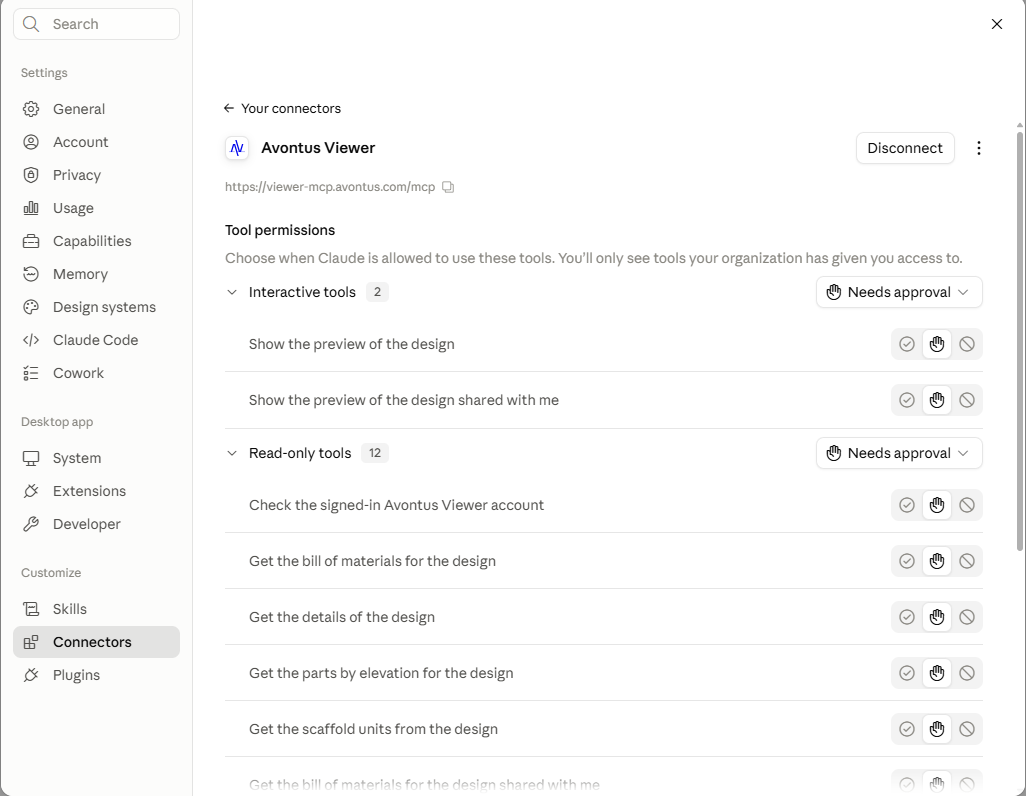
To use Claude in a conversation, click the + button, choose Connectors, and switch on Avontus Viewer.
.png)
You can now ask Claude questions about your models.
Testing Claude
Once connected, ask Claude things like:
List my Avontus Viewer models and tell me which one is the heaviest.
Give me the bill of materials for my Warehouse North scaffold, grouped by part type, and total weight.
How many standards and ledgers are in my Tank 4 model, and what's the working surface area?
Compare the part counts of my last two iterations of the same model and tell me what changed.
Sort the bill of materials for my pipe rack scaffold by elevation, bottom to top, then split it into 10,000 lb truckloads
.gif)
Troubleshooting
Sign-in fails right after clicking Connect.
The most common cause is a missing or mistyped OAuth Client ID. Open the connector's settings and confirm Advanced settings → OAuth Client ID reads exactly “viewer-connector”, with the Client Secret empty. Without it, Claude has no way to identify itself and the sign-in is rejected.
Sign in failed or the wrong models appear.
Confirm you signed in with the same Avontus Viewer account that owns the models. Disconnect and reconnect the connector to sign in again.
Claude says it can't find a model.
Ask it to list your models first — model names in Claude match the names in Avontus Viewer exactly.
Metrics are unavailable for an older model.
Models exported by older versions of Avontus Designer don't carry metrics data. Bills of materials still work. Re-exporting the model from a current version of Designer adds metrics.
Claude says a subscription has expired.
For your own models, your Avontus subscription must be active. For a model someone shared with you, the owner’s subscription must be active. Claude names the model’s owner so you know who to ask.
The connector doesn't appear in a conversation.
Enable Claude per conversation via the + button → Connectors.
The connector icon looks wrong or generic.
Cosmetic only, and it does not affect the connection. Claude derives connector icons from cached data and refreshes them on its own schedule.
Support
Questions or problems: contact Avontus support at support@avontus.com.