Quantify makes it easy for personnel at a Job Site or Group to request any needed materials.
Note Remeber to enable Manage Requests for this Location for the site
To create a new request for materials:
Click the Requests tab and click the Add button.
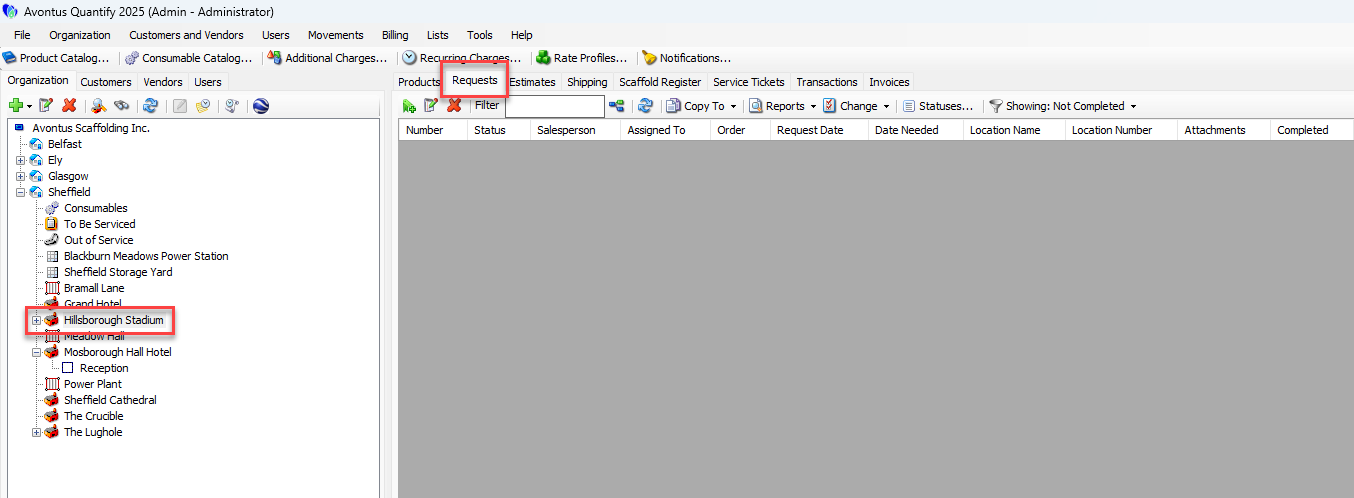
The Request dialog appears.
Click the Select job Site or Group dropdown and select the Job Site or Group that is requesting the materials.
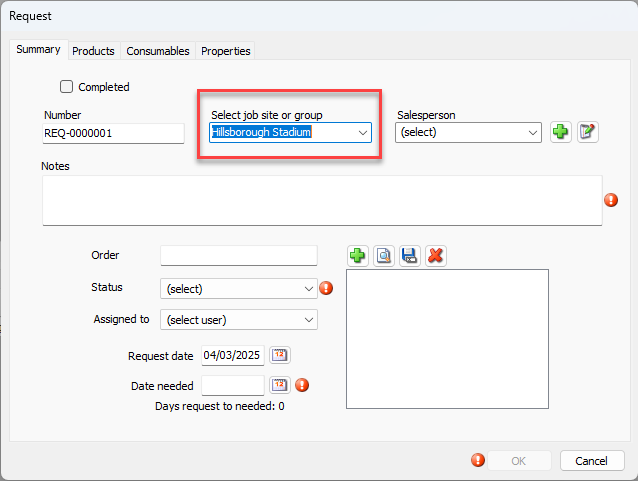
Note: The list of Job Sites in the dropdown will include only Job Sites the current user is assigned to in the Job Site's Request Users list.
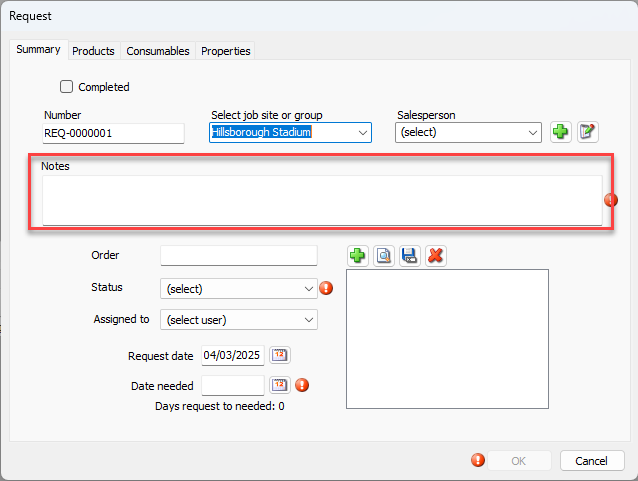
Click in the Note text field and enter notes regarding the request.
Click the Status dropdown and select the appropriate request status:
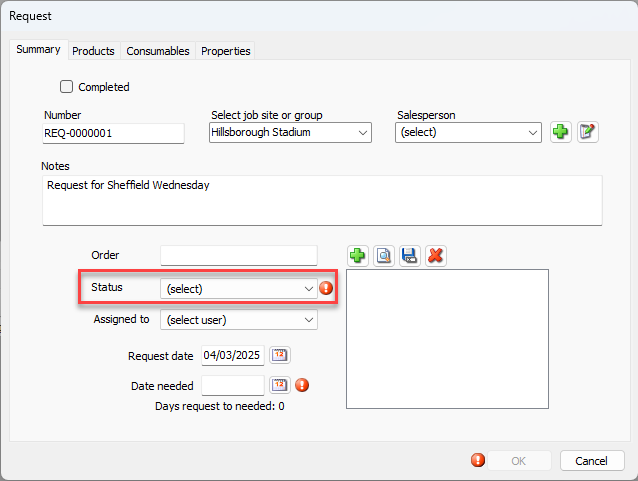
Note: New status can be created on the Requests tab of a job site. Go to Working with Statuses for more information.
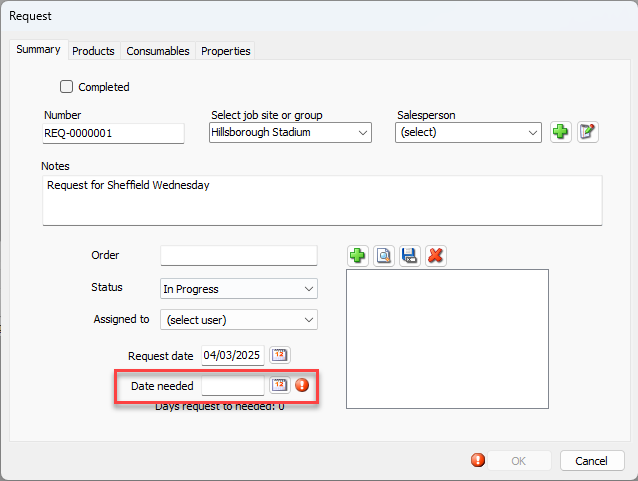
Click the Date Needed calendar icon (
 ).
).
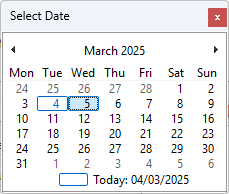
The Calendar appears.
Locate and click the date on which you need the materials.
Click the Products tab.
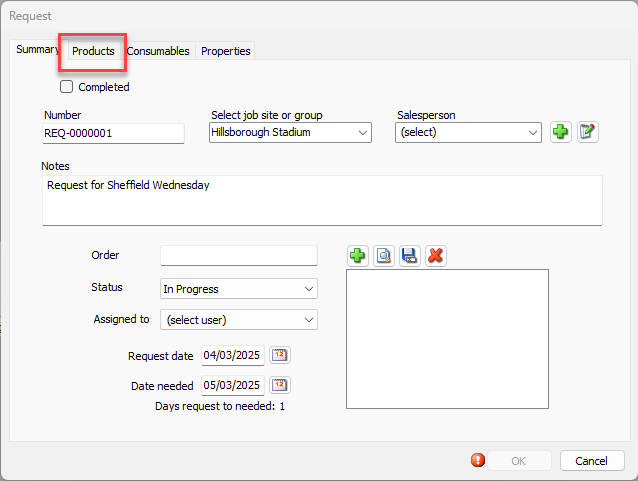
Note: Remember to enable Products in the Global Options Request Tab
The Request dialog refreshes.Locate the first item you want to request, click in its cell in the Quantity column and enter the number of items you want to request.
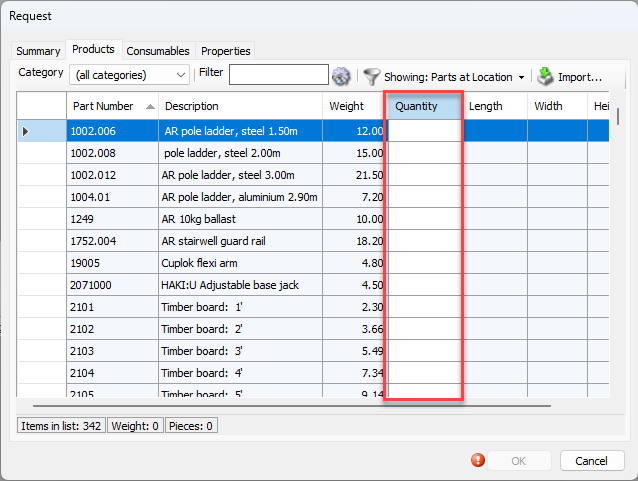
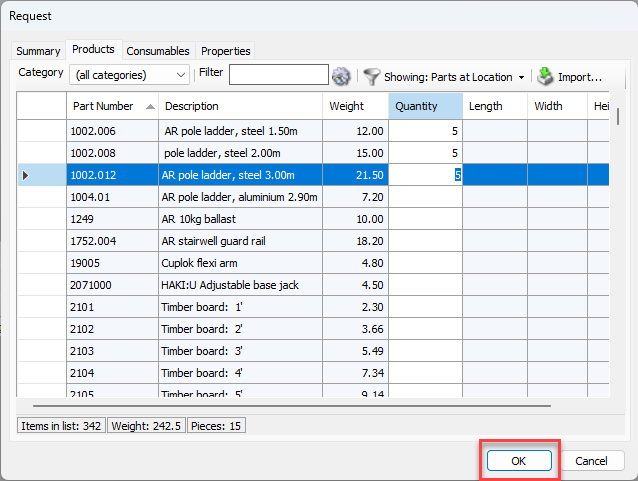
Repeat the above step as many times as necessary.
Click OK.
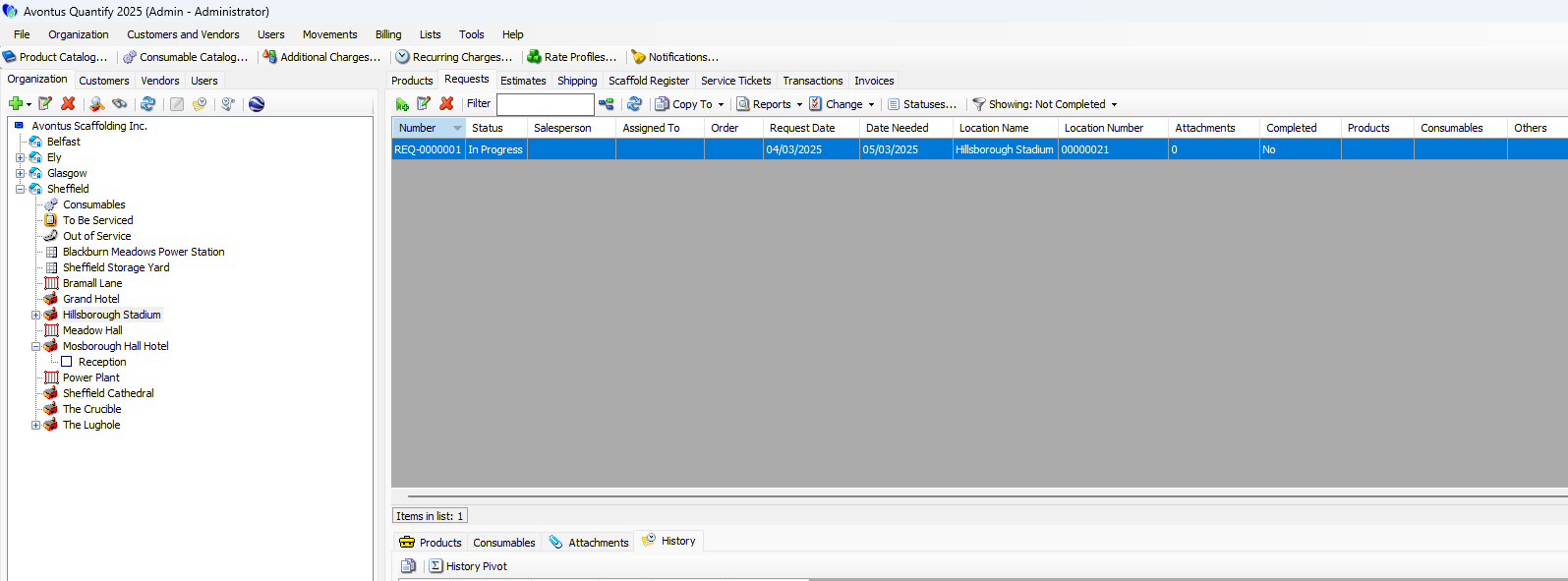
The new Request appears in the Requests tab. The Request will be included in the Requests tab when either the parent Branch Office or the Job Site is selected on the Organization Tree.
Note: You also have the option to add Consumables and Properties if these are enabled in Global Options Request Tab.