NOTE: The features mentioned in this article are only available in the Industrial Edition of Quantify.
When Activities are enabled on a Job Site, an Activity must be assigned to each delivery or return Shipment created for a Scaffold assigned to the Job Site. For this reason, you must create the Activity before creating the Shipment.
To create a Shipment from an Activity:
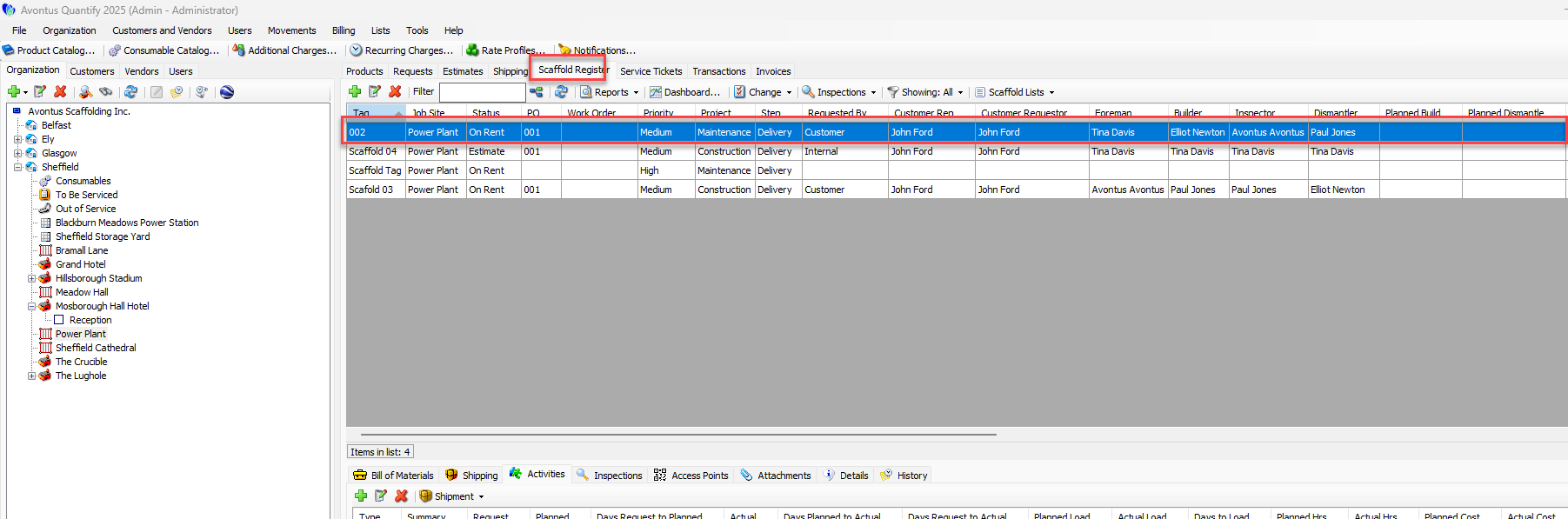
Click the Scaffold Register tab, then click the appropriate Scaffold.
Click the Activities tab, then click the Activity that will be associated with the new shipment.
Click the Shipment dropdown and select either Create Delivery for Selected Activity or Create Return for Selected Activity.
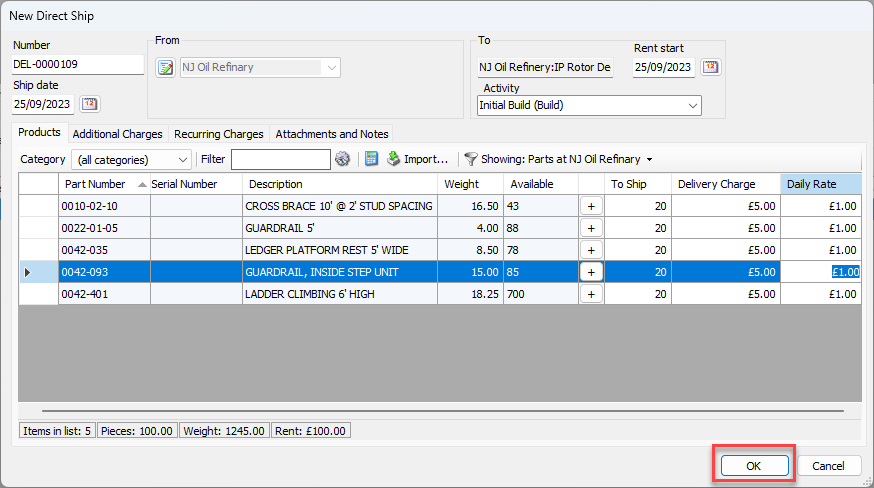
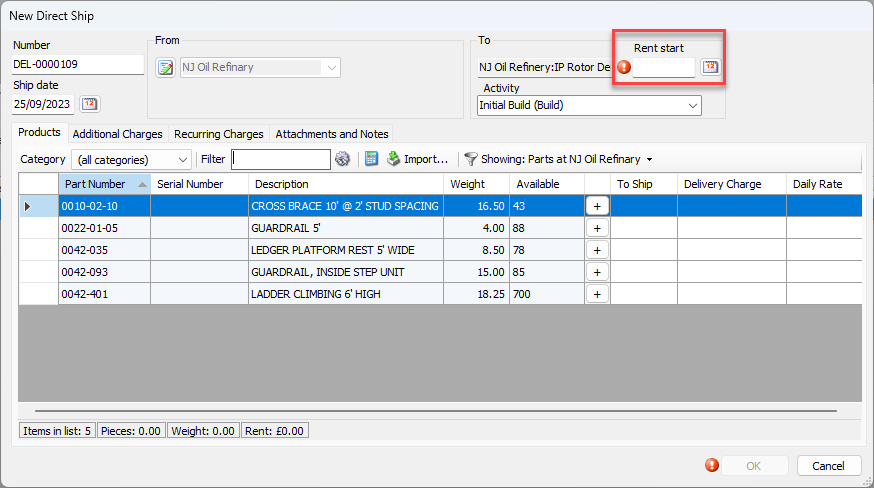
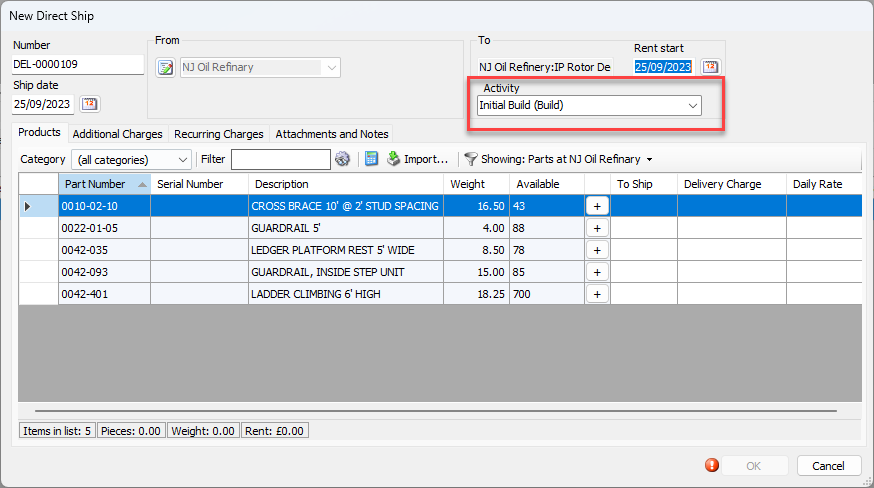
The New Direct Ship dialog appears, with the Activity pre-selected in the Activity field.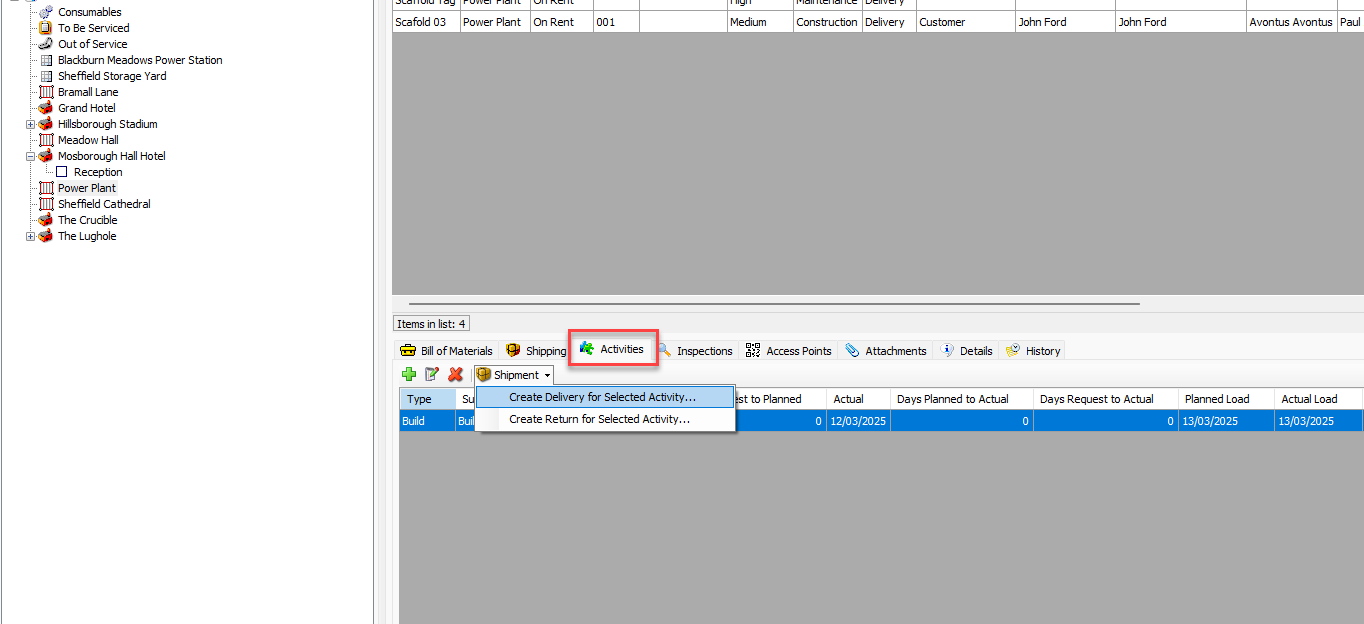
Set the Rent Start Date
Note: If you are creating the Shipment from the Details grid of the Shipping tab, click the dropdown list of existing Activities for the Scaffold and select the Activity.
Click OK.