To dismantle a Scaffold from the Map screen
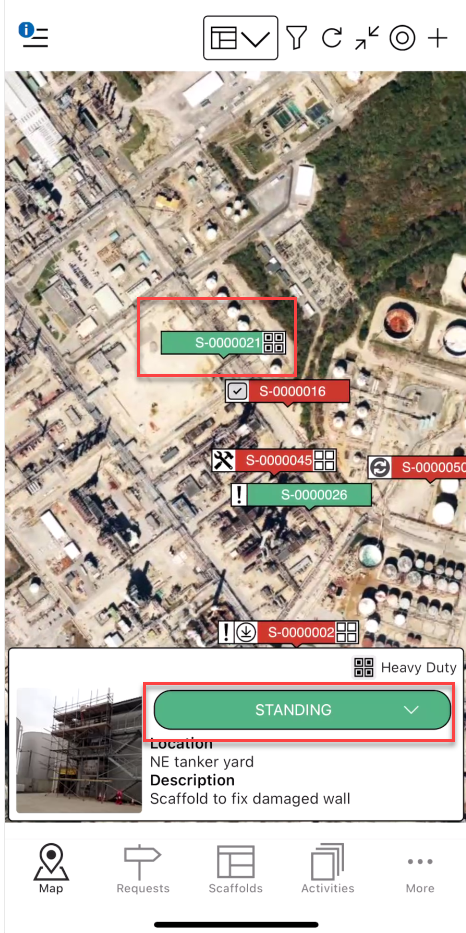
Tap the Scaffold to dismantle
Tap Standing
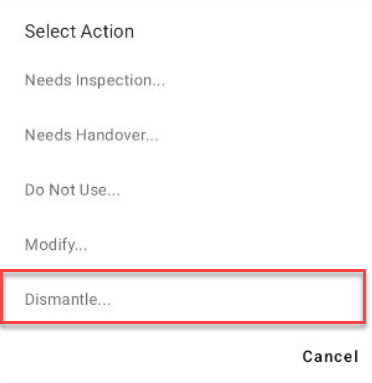
Tap Dismantle
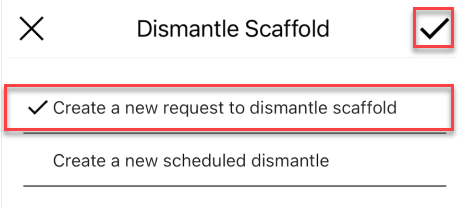
Tap Create a New Request to Dismantle Scaffold and select the tick icon
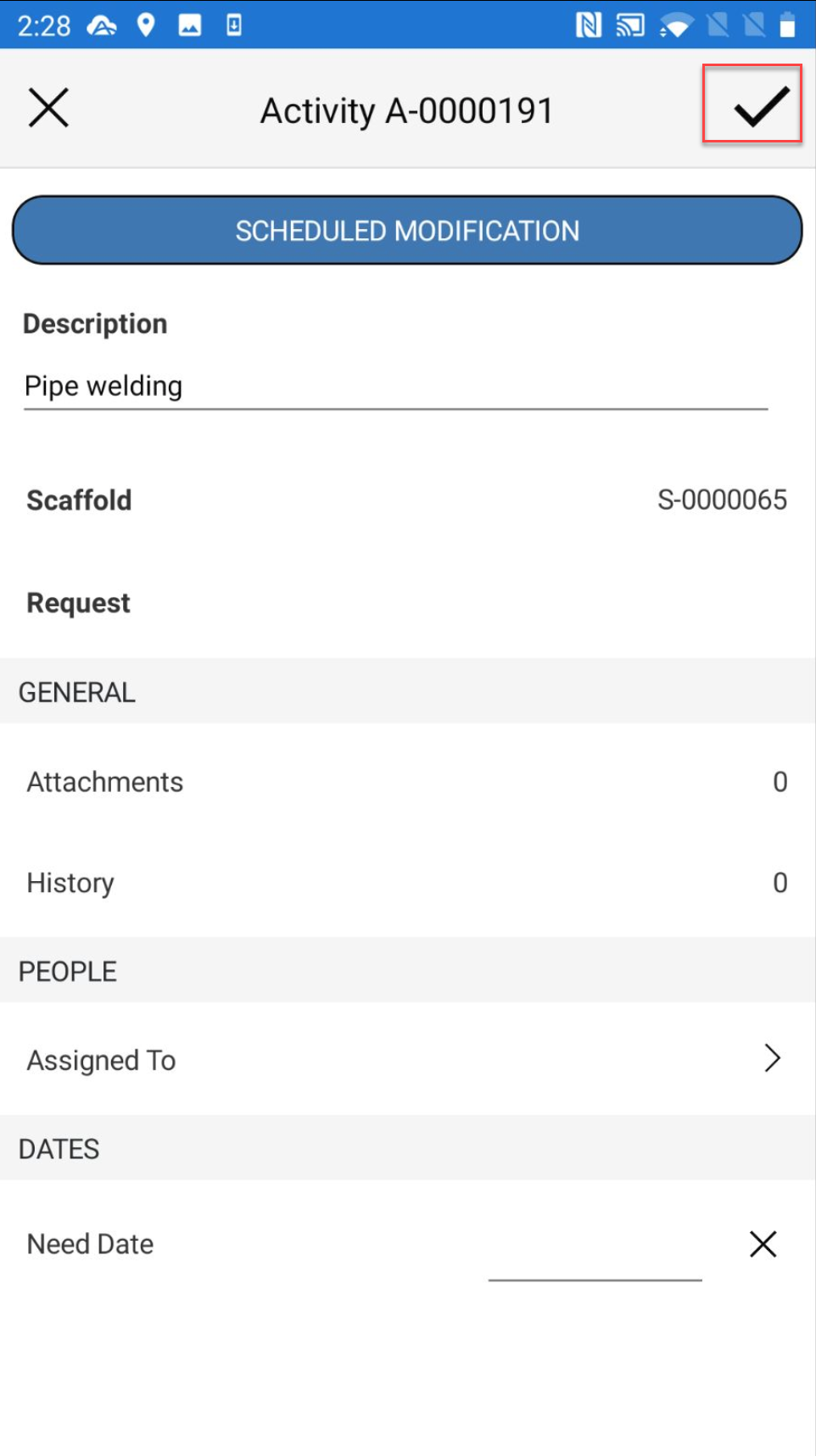
If you selected Create a New scheduled Modification, Complete the Activity form and tap the tick icon and skip to step 13
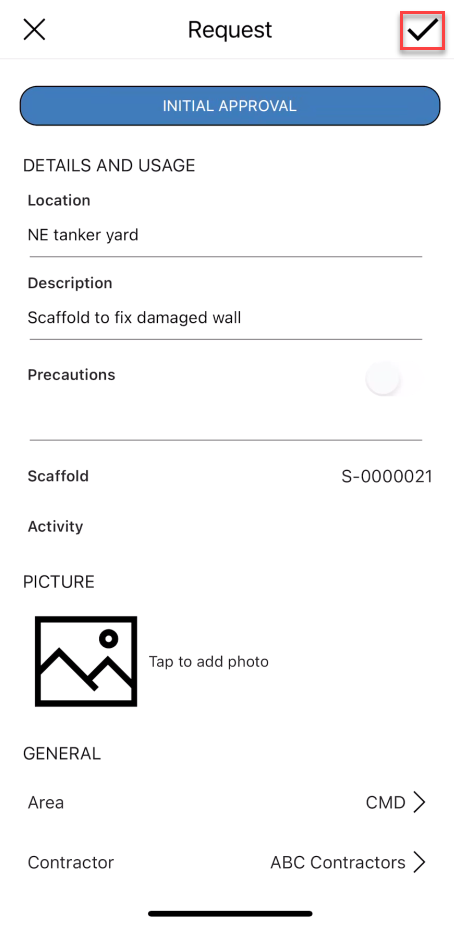
Add any information to the Request Details screen and tap the tick icon when done
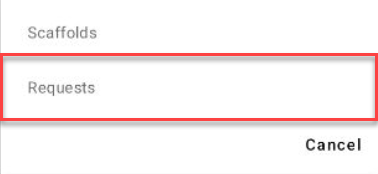
In the Map screen, tap the Scaffolds icons
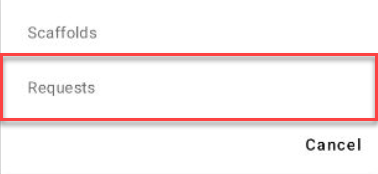
Tap Requests
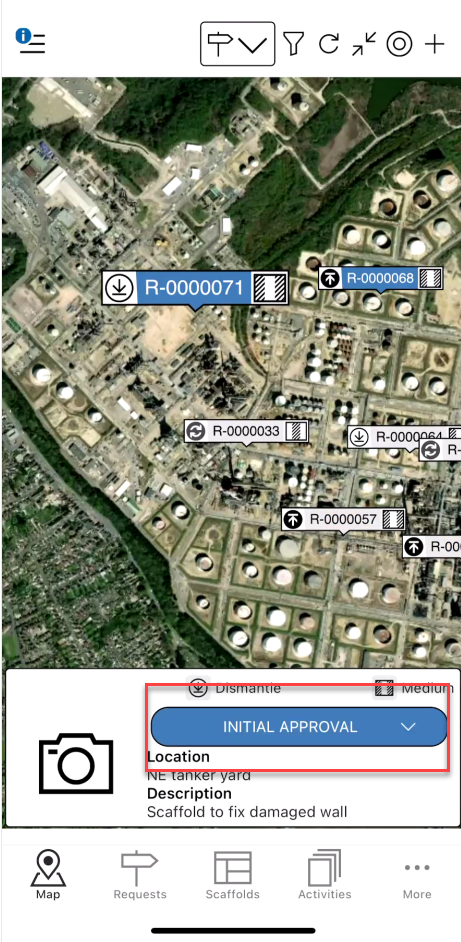
Tap the Request, then select Initial Approval
Tap Approve
Repeat the steps until the status of the Request is Awaiting Dismantle
Tap the Request icon
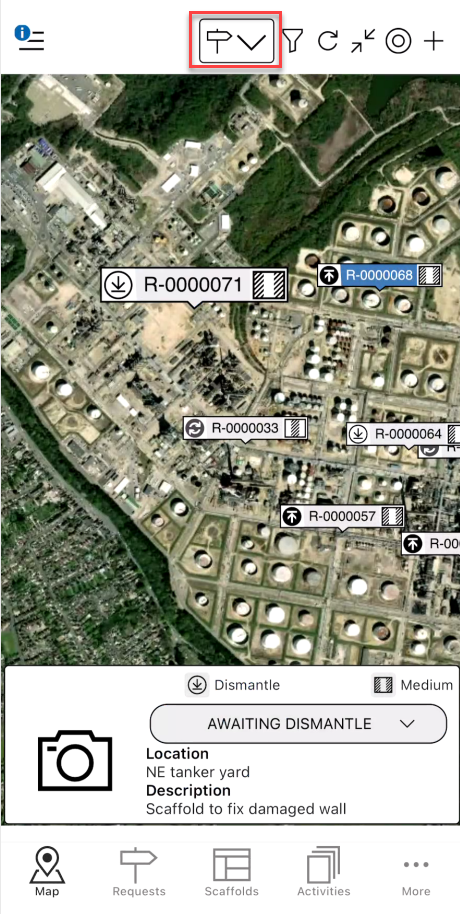
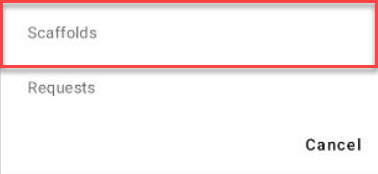
Tap Scaffold
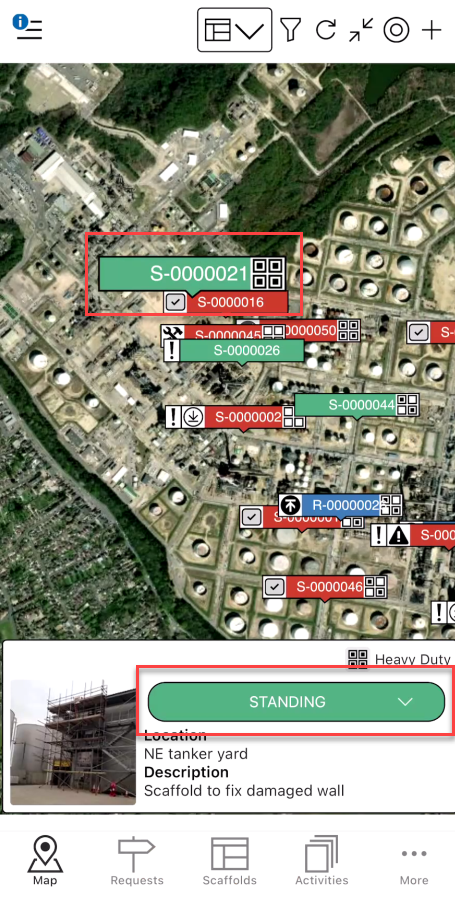
Tap the Scaffold pin and tap Standing
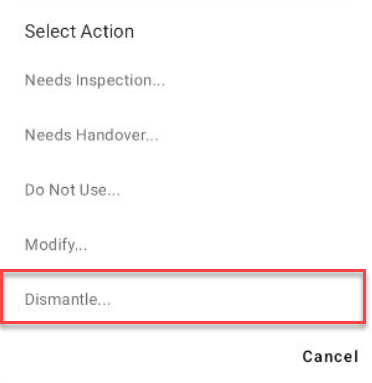
Tap Dismantle
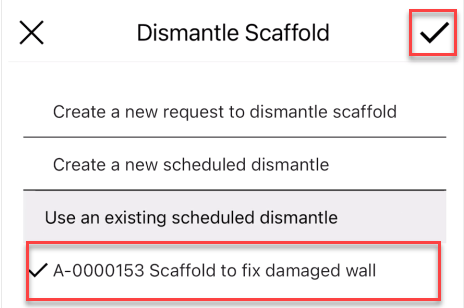
Select the existing Scheduled Dismantle and then tap the tick icon
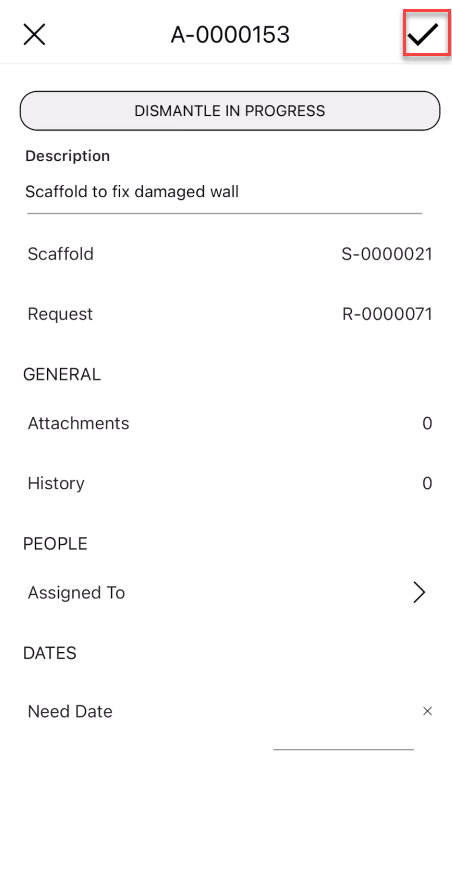
When the Activity screen is launched, tap the tick icon
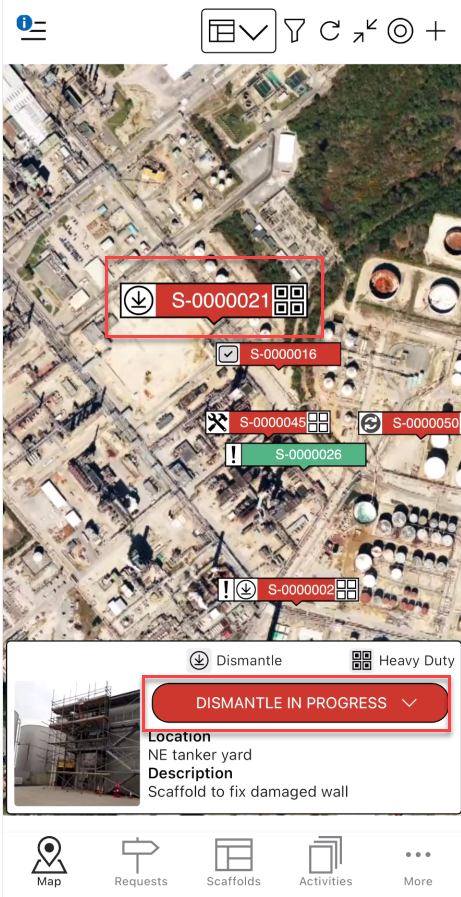
Tap the Saffold pin of the Scaffold being dismantled and select Dismantle in Progress
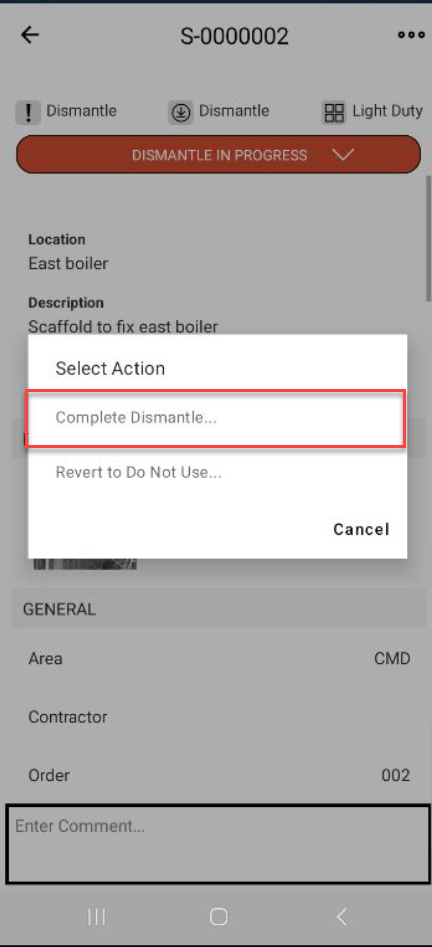
Tap Complete Dismantle
Tap the tick icon
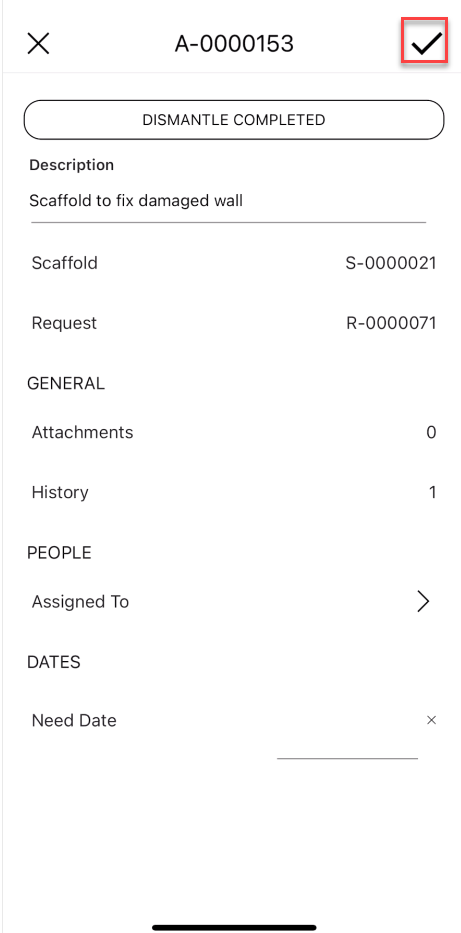
The status of the Scaffold will change to Dismantled and will be removed from the mobile app.