Pivot Report controls include a Filter button. To activate and use Filter buttons, hover your mouse over any header control, then click the Filter button that appears.
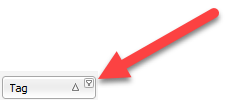
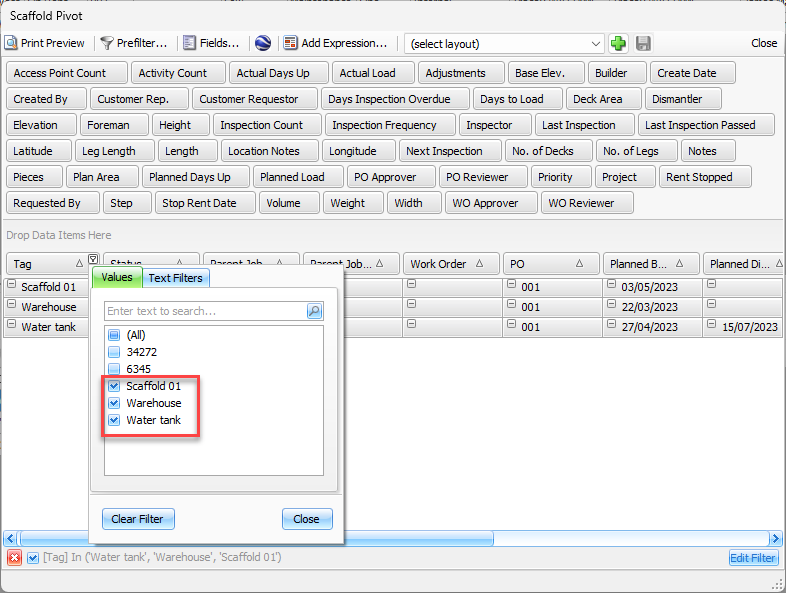
Clicking a filter button invokes a filter dropdown, which enables you to filter pivot grid data.
Note: Any control can have filter criteria applied, whether the pivot report is using that header control, or not.
You can click the checkboxes of the value to display only the selected values
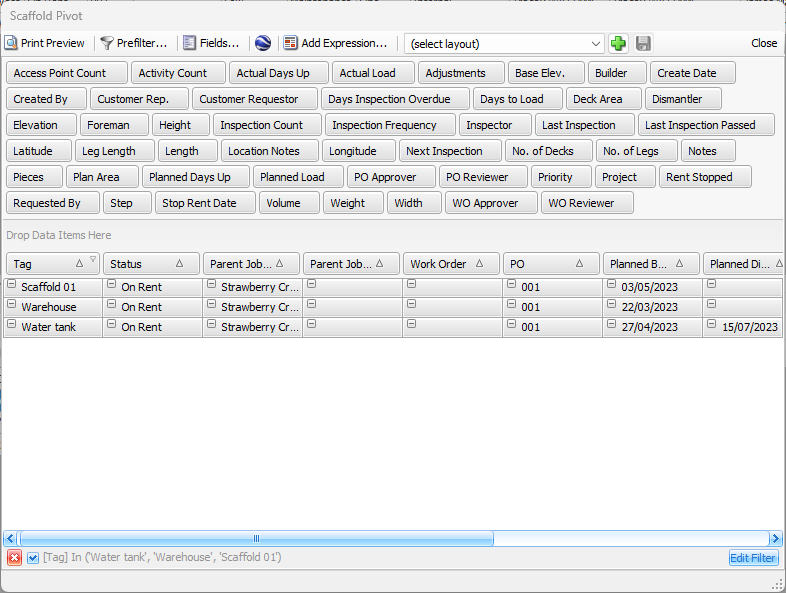
The Pivot report will look like this
The filter buttons are described below.
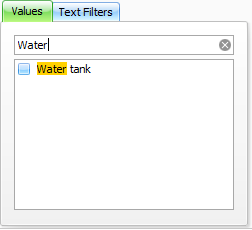
Enter text to quickly find an item in the list.
This feature enables you to quickly locate an item by entering text, the same way a quick search works. As you enter text, Quantify locates and highlights the first list item that starts with the text you have entered.
Text Filters
With Text filters you can use various formulas to display specific values
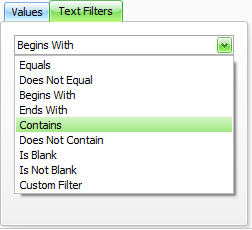
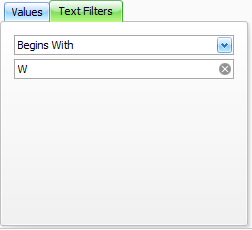
For example, you can display results that begin with W.
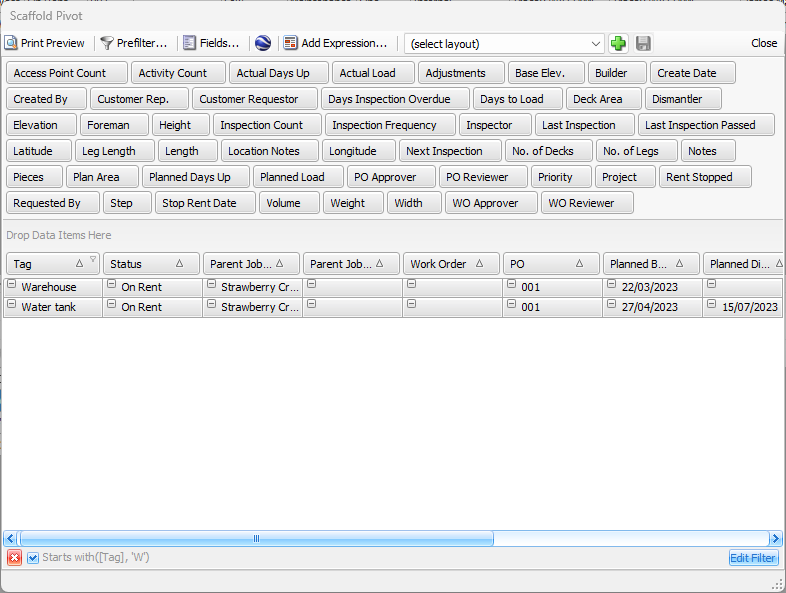
The Scaffold Pivot will look like this
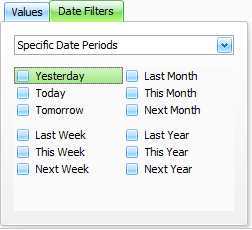
In Date values, you are able to display values that fall within specific date periods