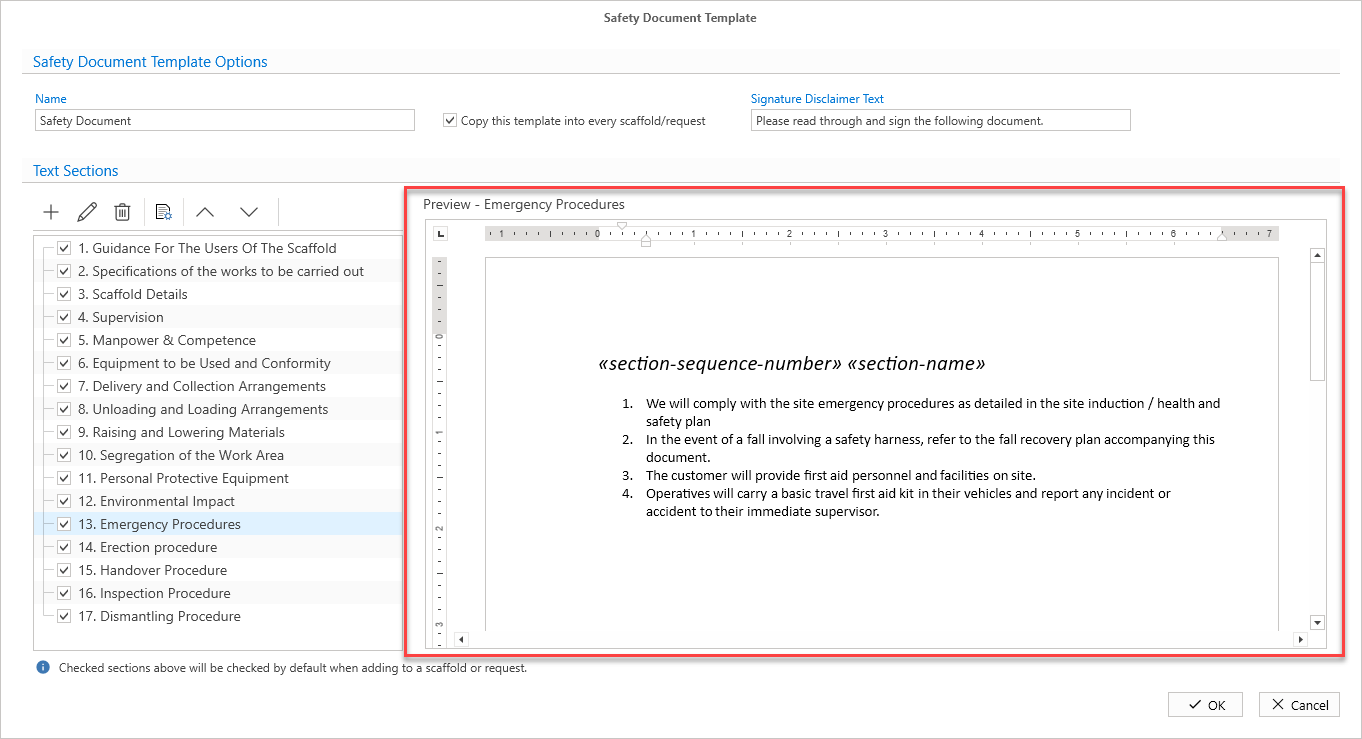
The Safety Document Template Options screen allows you to create hazards and text sections which will all add up to create a Safety Document template, which can then be assigned to Requests and Scaffolds.
In the Global Settings, you can manage what will appear in the template. You do this by adding or removing sections. As well as editing the content of these sections.
In the Request or Scaffold details dialog, a user would set up a Safety Document. This is where they select which sections will be included on the Safety Document. When a Safety document has been set up, it will need to be added to the Request or Scaffold, thereby creating a safety document unique to that Request or Scaffold. This can then be signed by any of the specified users.
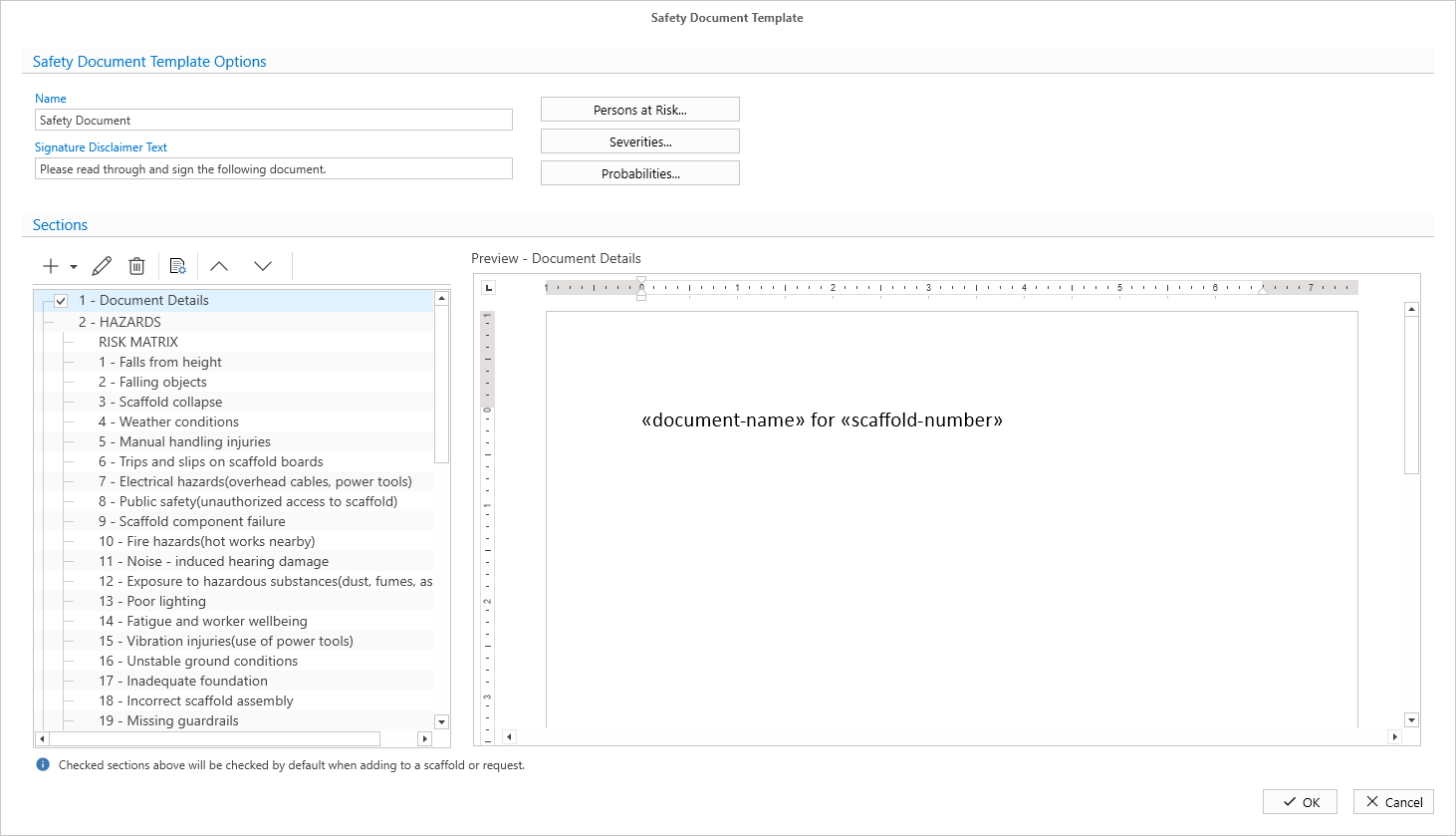
Name
Specify the Name that will appear on the Safety Document Template on the Request or Scaffold Details screen.
 This name will appear on the Safety Document Template on the Request or Scaffold Details screen when it has been added to the Scaffold.
Note that you will first need to add a set up to a Request or Scaffold, and then add the safety document.
Please see assigning safety document templates and adding safety document to a scaffold
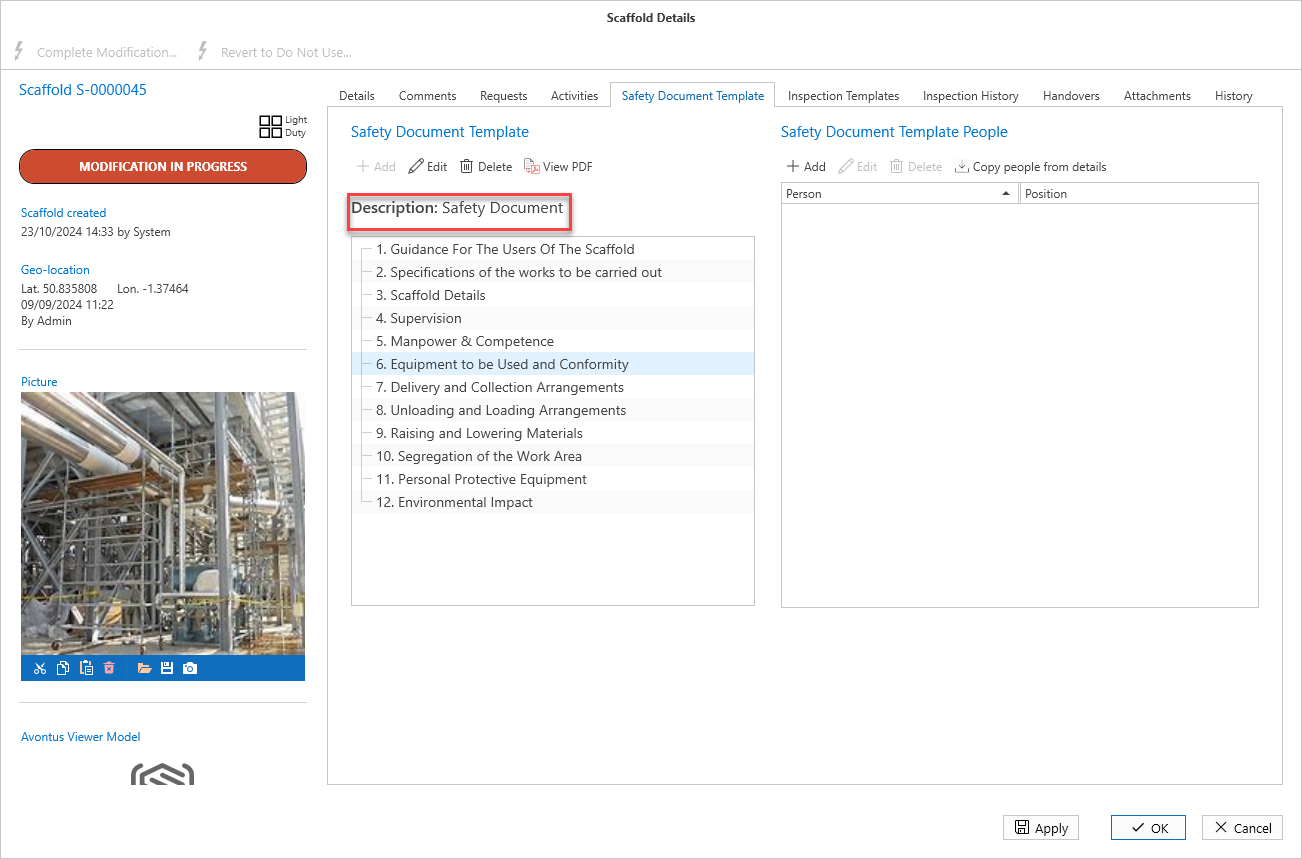
Signature Disclaimer text
Provide any signature disclaimer text.
 You will see this text when signing a document.
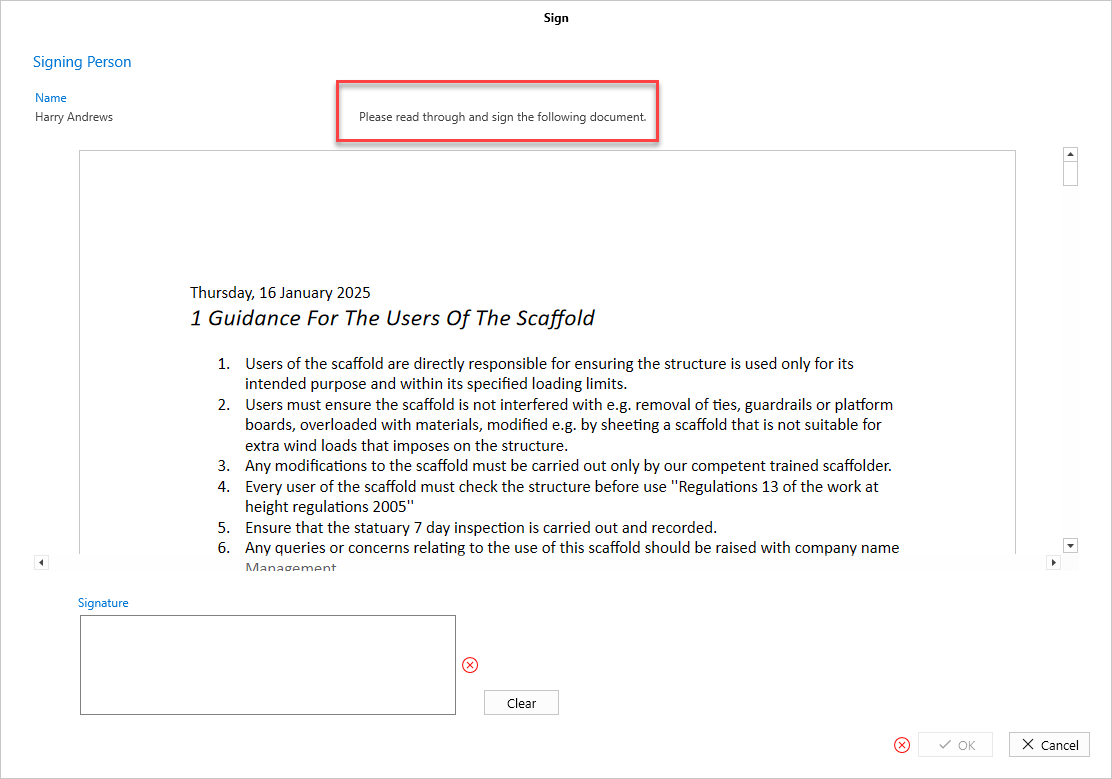
Text Sections
Use this section to add, remove, or edit documents that will be part of the Safety Document Template.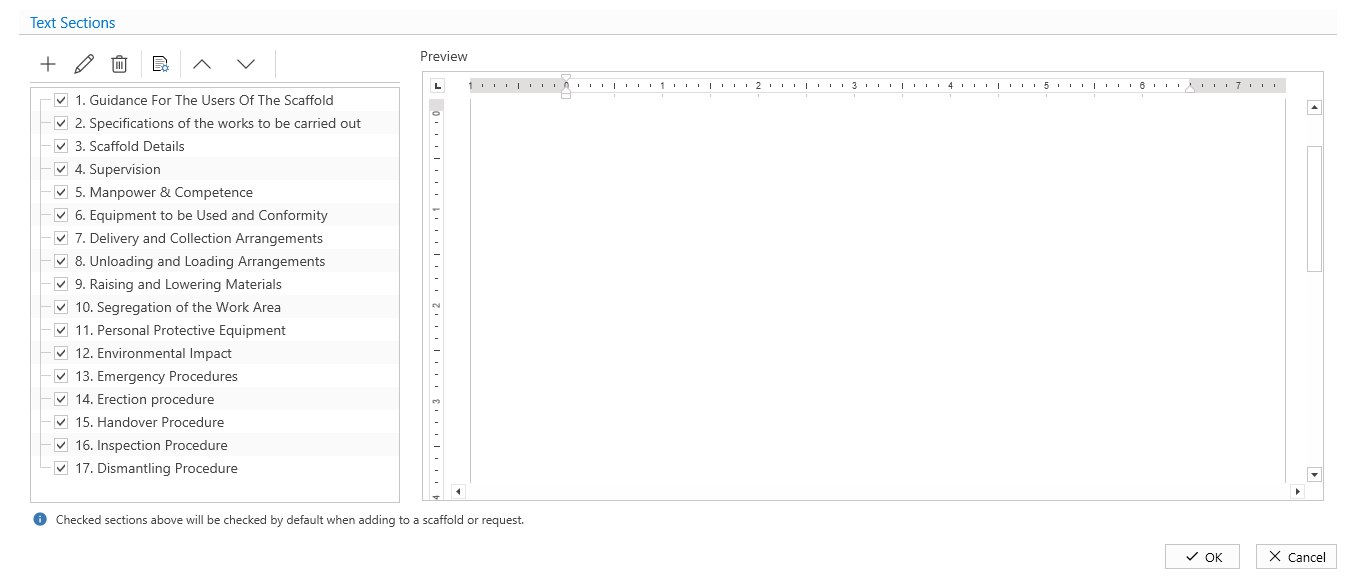
The Text Sections toolbar allows you to add, edit, and delete sections.
Add a new section.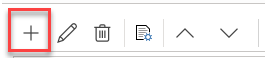
Edit the selected section.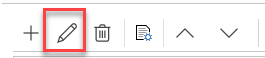
Delete the selected section. 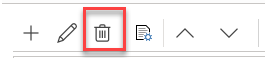
Modify the document style. This will include the document’s formatting such as text, font size, and page layout.
Note: The text provided is an example, and will NOT appear on the final version.
Move the selected text section up or down.
Selecting on a Text section will display a preview of the text section.