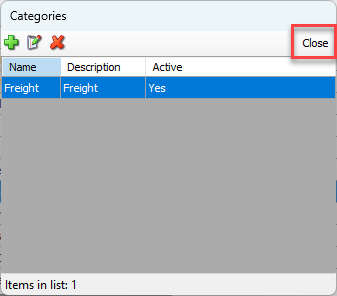
Quantify enables you to create categories to which you can assign Additional Charges. This enables you to more easily locate and select them for use.
Adding an Additional Charge Category
Quantify enables you to quickly create an Additional Charge Category, a process that requires minimal steps and information.
To add an Additional Charge Category:
Click Additional Charges.
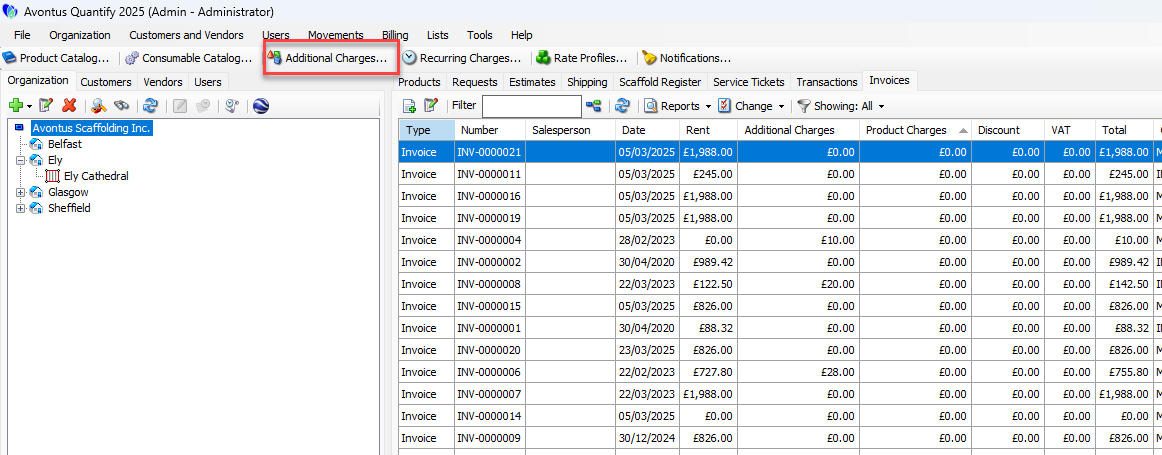
The Additional Charges dialog appears.Click Categories.
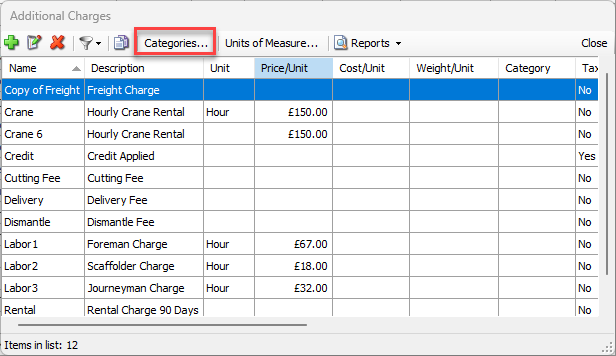
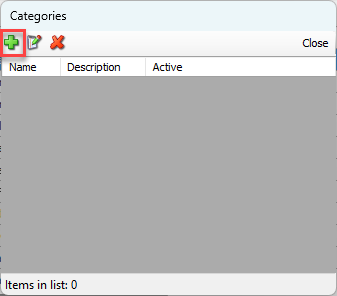
The Categories dialog appears.Click the Add Category button (
 ).
).
The Category dialog appears.Click in the Name text field, enter a name for the new Category.
Click in the Description text field and enter a description of the new Category.
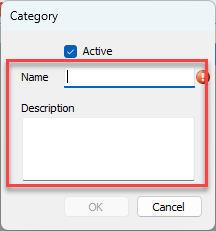
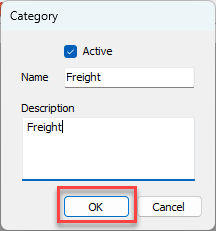
Click OK.
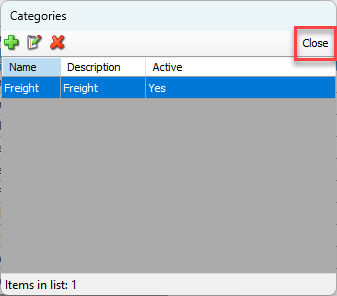
The Categories dialog returns, displaying the name of the new category..
Click Close.
Assigning an Additional Charge to a Category
Assigning an Additional Charge to a Category requires just a few mouse clicks.
To assign an Additional Charge to a Category:
Click Additional Charges.
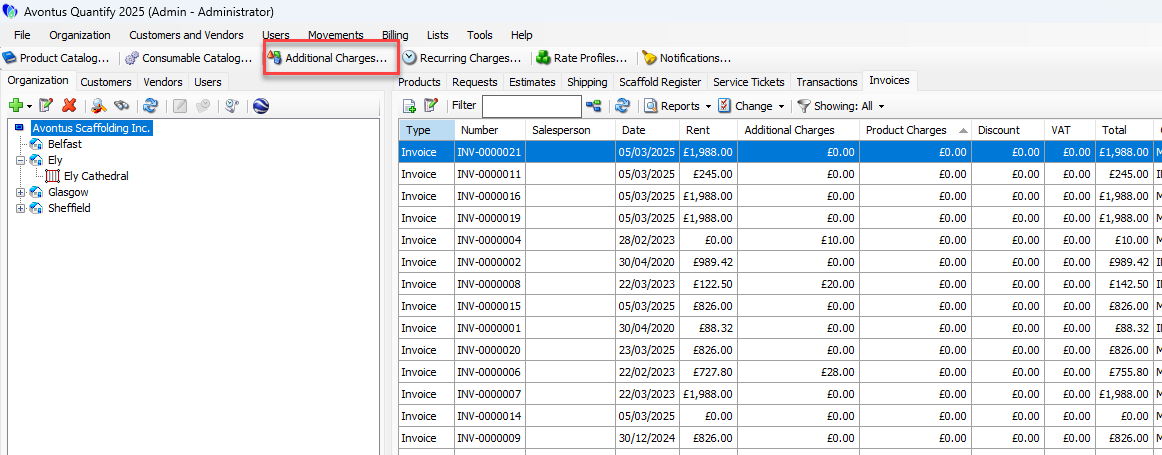
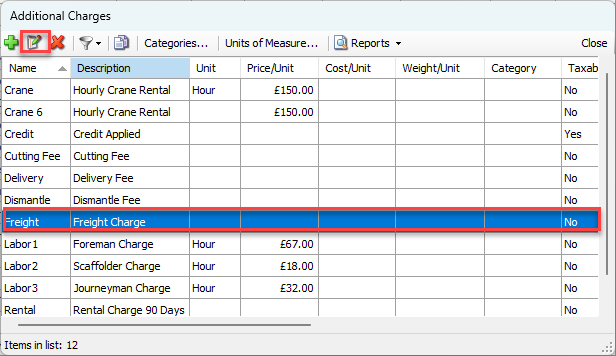
The Additional Charges dialog appears.Click the Additional Charge you want to assign to a Category and click the Edit Selected Item button (
 ).
).
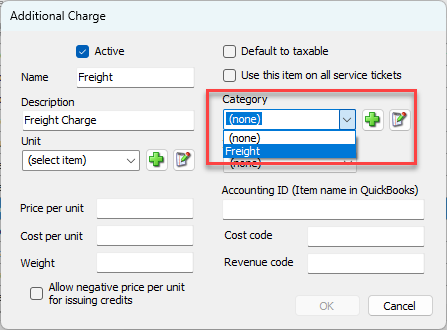
The Additional Charge dialog appears.Click the Category dropdown and select the appropriate Category.
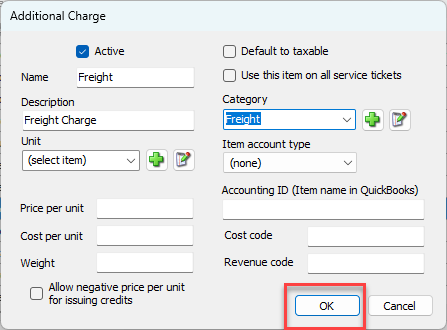
Click OK.
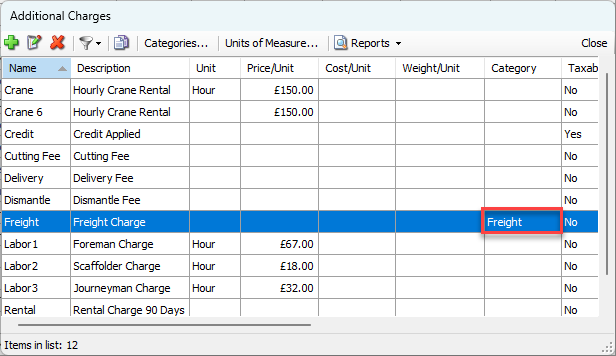
The Additional Charges dialog returns, displaying the name of the Category in the Category column.
Click Close.
Deleting an Additional Charge Category
Once an Additional Charge Category has been created, you can delete it at any time.
To delete an Additional Charge Category:
Click Additional Charges.
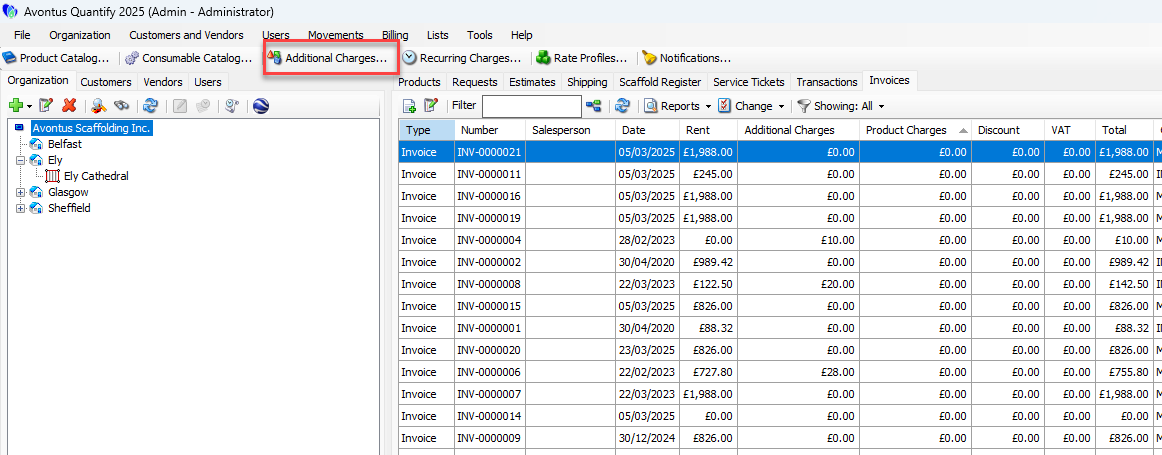
The Additional Charges dialog appears.Click Categories.
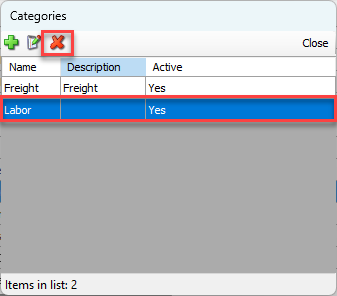
The Categories dialog appears.Click the Category you want to delete, then click Delete Category button (
 ).
).
A confirmation dialog appears.
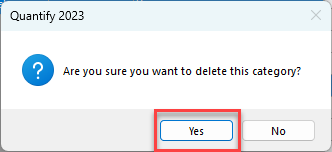
Click Yes.
The Categories dialog returns, minus the name of the deleted category..Click Close.