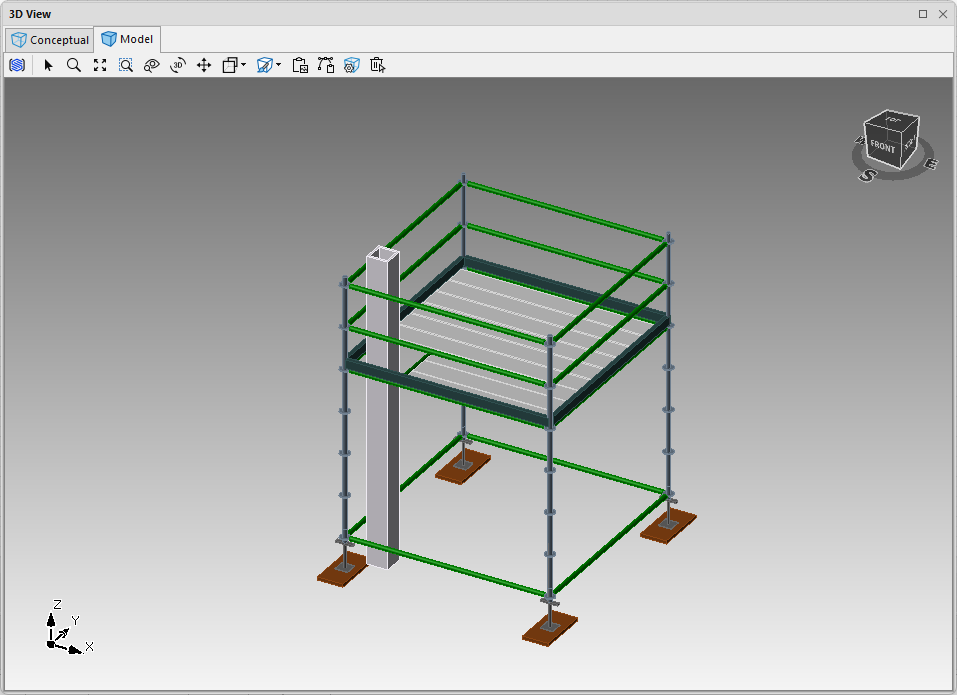
Sometimes things like pillars, posts or other construction objects get in the way of your scaffold design. These objects must pass through the scaffold deck. The procedures below use the ladder feature to create a hole in the deck, but not putting a ladder in it.
To adjust deck penetration:
Create and place the obstructing object.
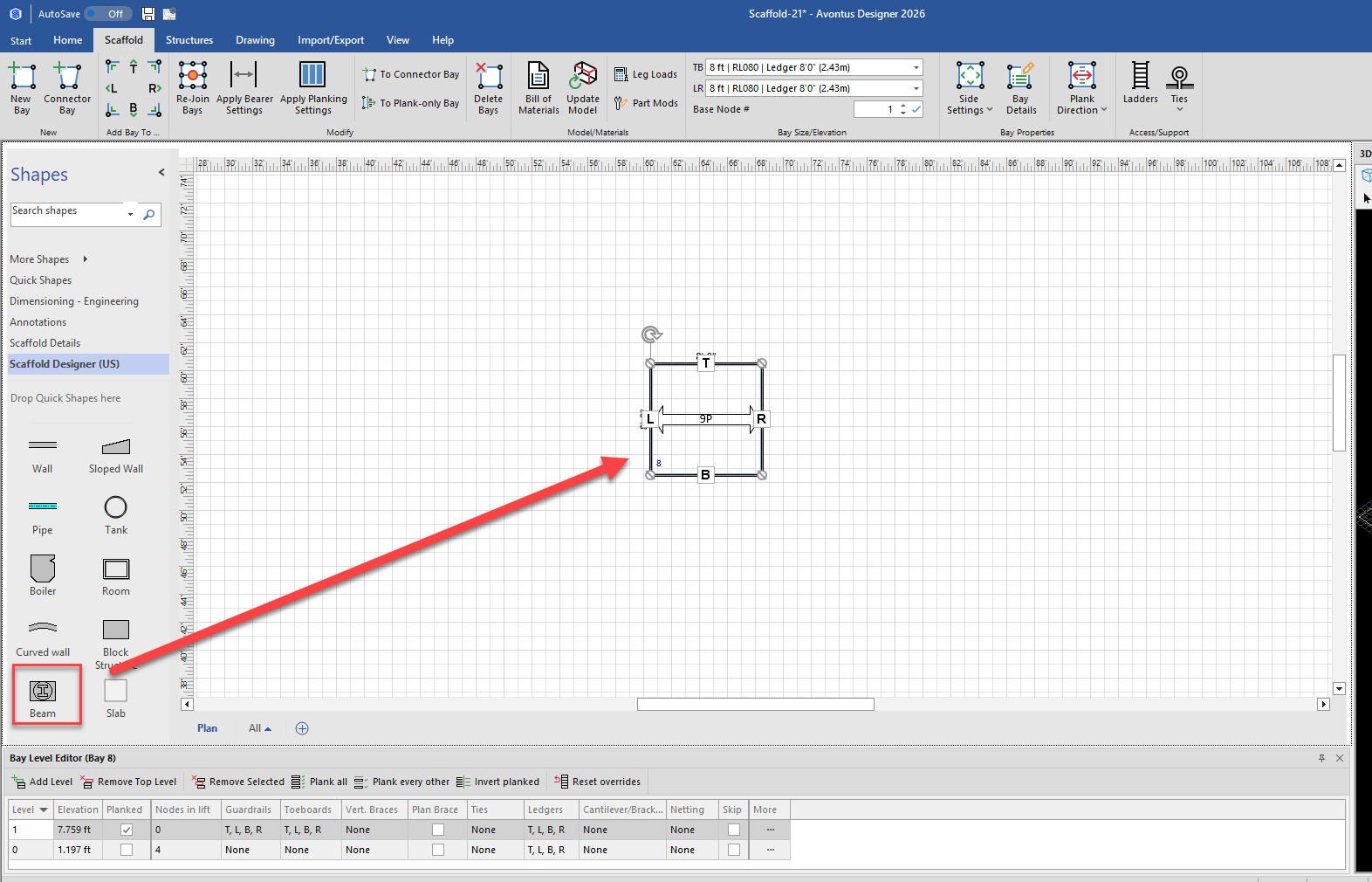
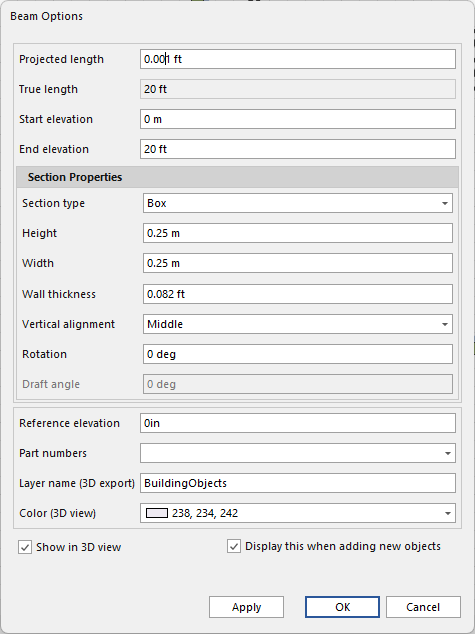
In this case, a vertical box beam has been placed in the lower left corner of the Bay with the following settings
Note: You can’t enter 0 as a Projected Length, but you can use a small number like the one in the image below as the value will get rounded down to 0
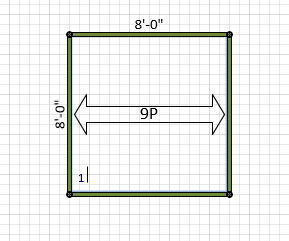
Zoomed in the design looks like this
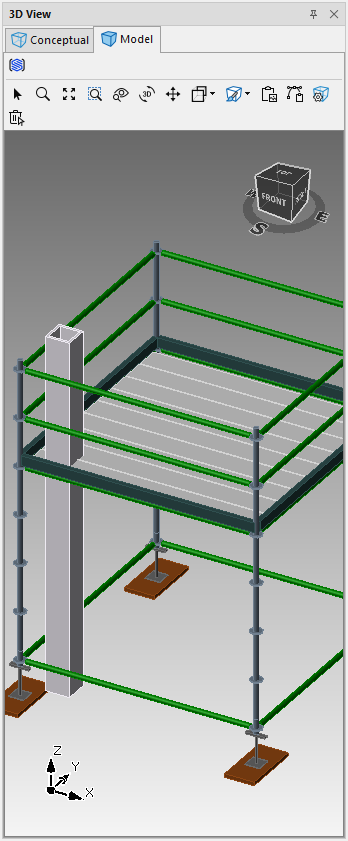
In 3D view the model looks like this.
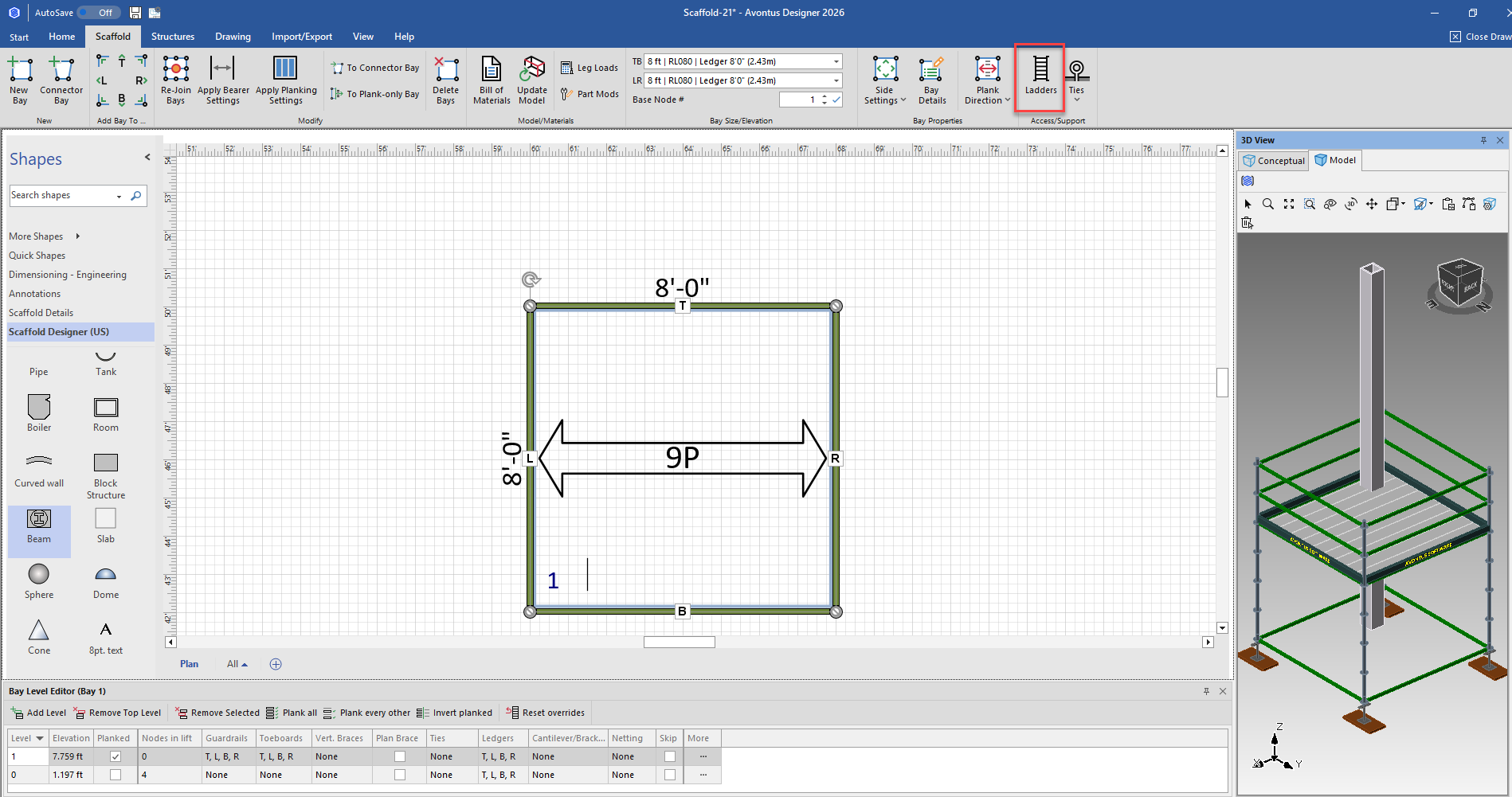
Click the Bay, to select it.
Click the Scaffold tab and click Ladders.
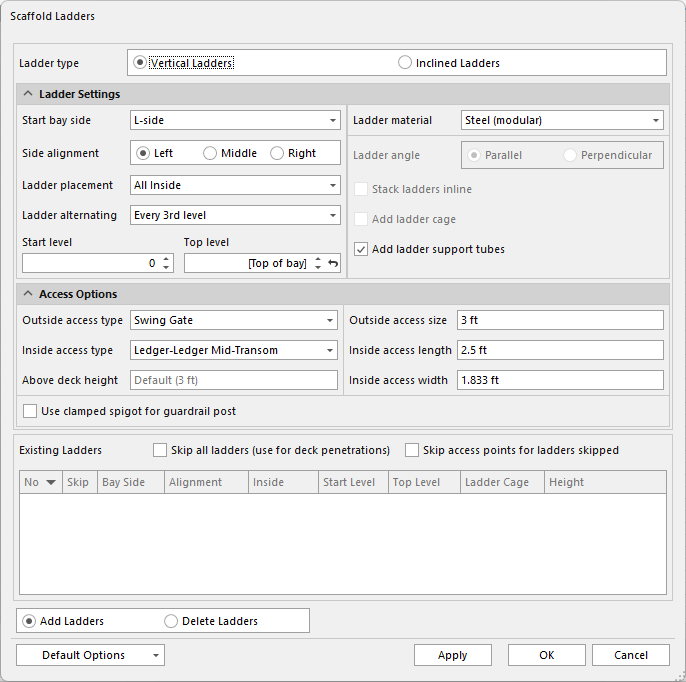
The Scaffold Ladders dialog appears.
Click the Start Bay Side dropdown and select the side of the Bay where the obstructing object is.
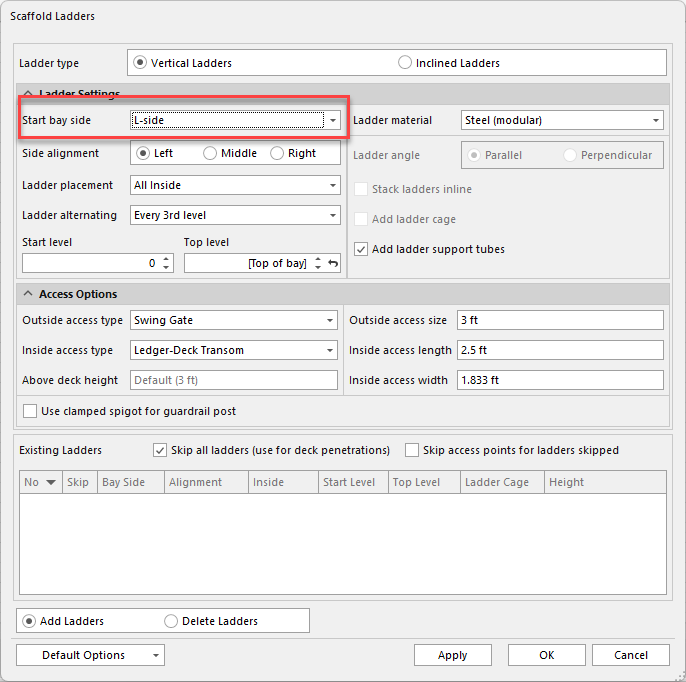
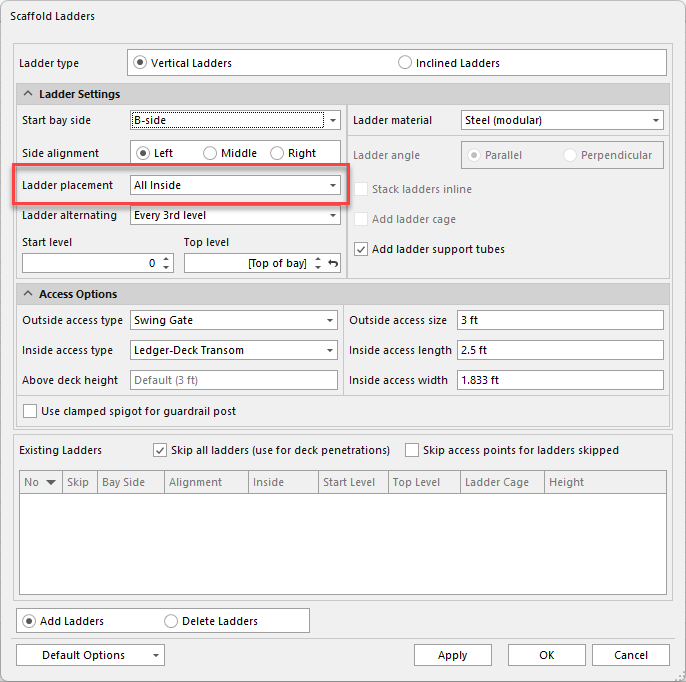
Ensure Ladder placement is set to inside
Use the Inside Access Length and Inside Access Width text field to adjust the new ladder's deck opening size,Length is the side of the opening that runs parallel to the Bay's planks.
Width is the side of the opening that runs perpendicular to the Bay's planks.
Click in the Inside Access Length text field and enter the appropriate length for the opening that will allow the object.
Click in the Inside Access Width text field and enter the appropriate width for the opening that will allow the object.
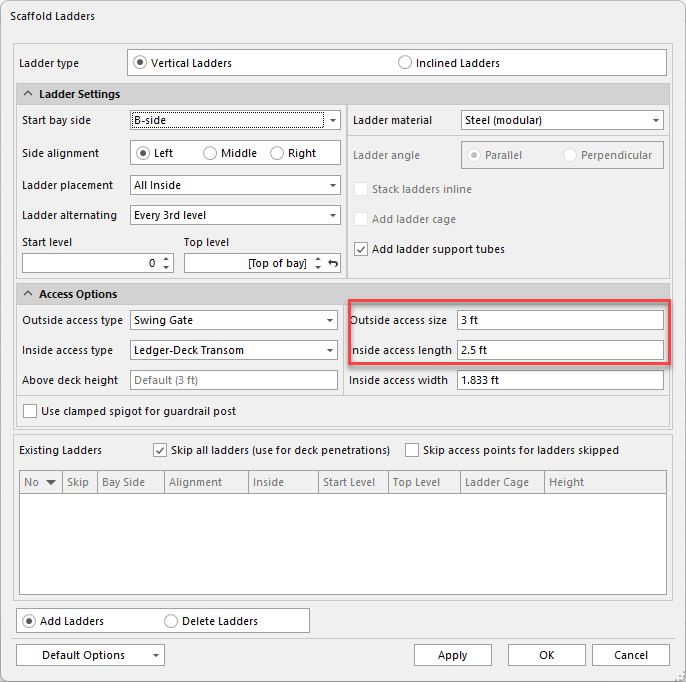
Note: The actual size of the hole will depend on available materials.
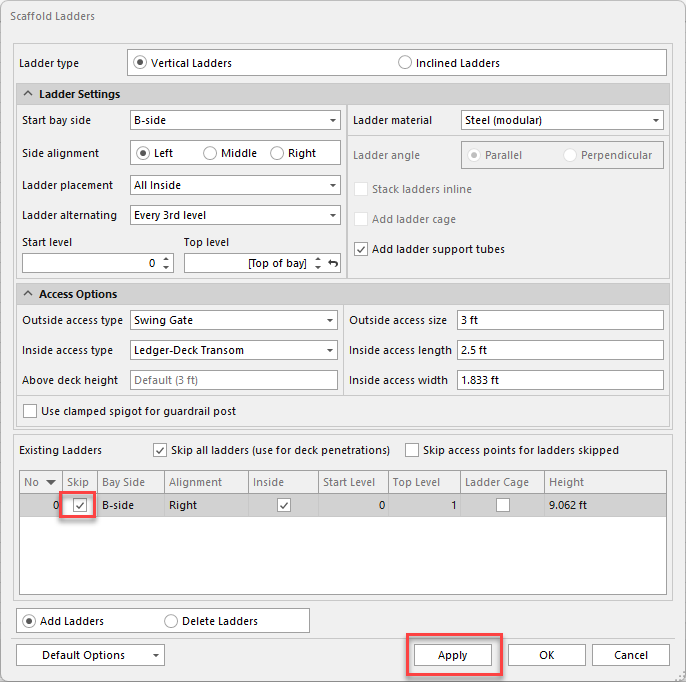
Click the Skip checkbox for the ladder to put a check in it
Click the Add Ladders radio button and click Apply.
Click OK .
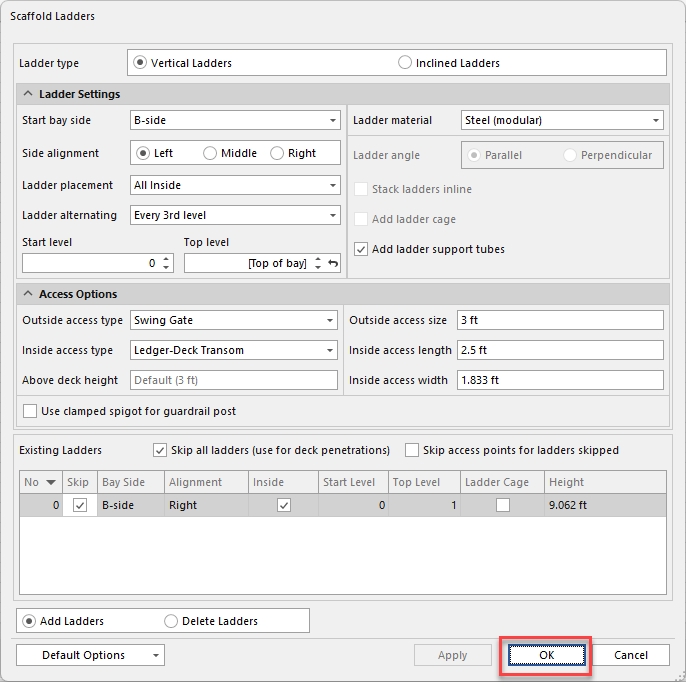
Avontus Designer places an opening through which the object passes.