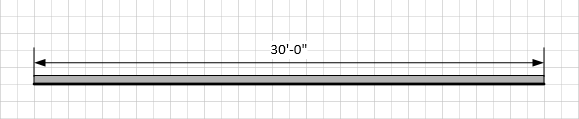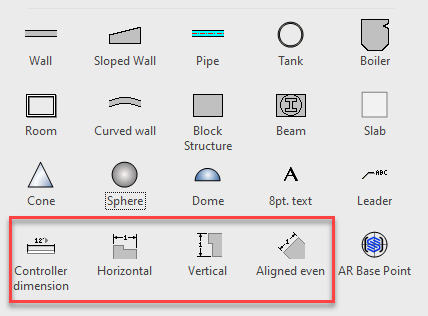
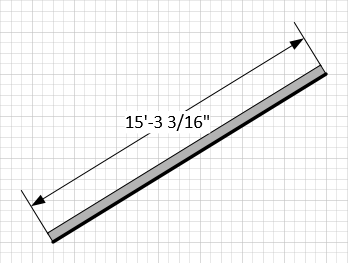
Dimensions are drawing shapes that you can use to show the length of placed objects. Once glued, the dimension moves with the object anywhere on a drawing. Also, when you change the length of the object to which it is attached, the dimension displays the new length.
About Horizontal Dimensions
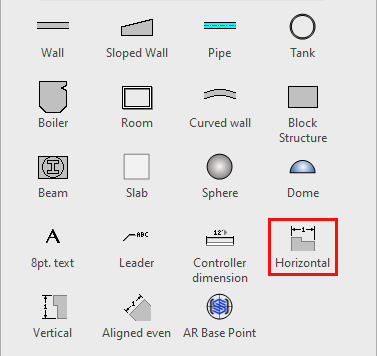
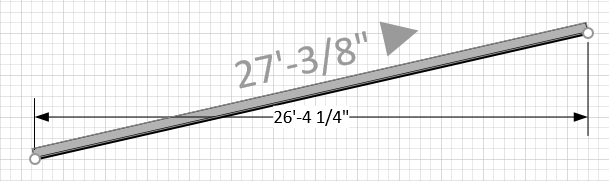
Use the Horizontal Dimension to show the horizontal length of horizontally placed walls, even walls that are placed diagonally. Once glued to a wall, the dimension moves with the wall anywhere on a drawing. Also, when you change the length of a wall to which it is attached, the Horizontal Dimension displays the new length. However, unlike the Controller Dimension, you cannot use the Horizontal Dimension to change the wall's length. Finally, if you change the angle of the wall, the Horizontal Dimension remains horizontal, giving you the horizontal length of the wall.
About Vertical Dimensions
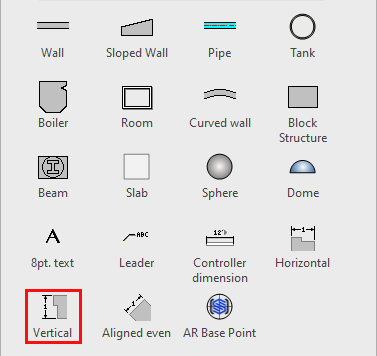
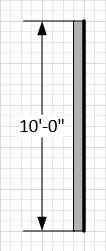
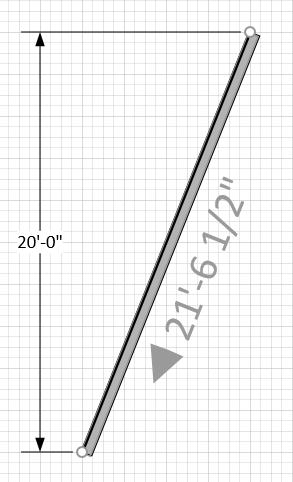
Use the Vertical Dimension to show the vertical length of vertically placed walls, even walls that are placed diagonally. Once glued to a wall, the dimension moves with the wall anywhere on a drawing. Also, when you change the length of a wall to which it is attached, the Vertical Dimension displays the new length. However, unlike the Controller Dimension, you cannot use the Vertical Dimension to change the wall's length. Finally, if you change the angle of the wall, the Vertical Dimension remains vertical, giving you the vertical length of the wall.
About Aligned Even Dimensions
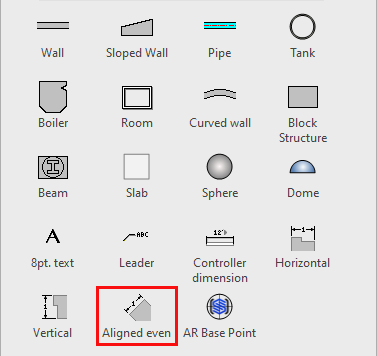
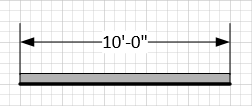
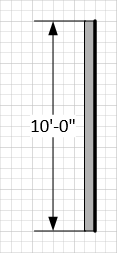
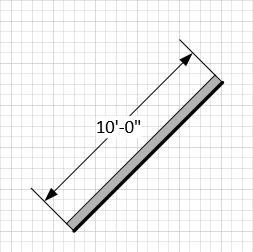
Use the Aligned Even Dimension to show the length of horizontally, vertically or diagonally placed walls. Once glued to a wall, the dimension moves with the wall anywhere on a drawing. Also, when you change the length of a wall to which this dimension is attached, the Aligned Even Dimension displays the new length. However, unlike the Controller Dimension, you cannot use the Aligned Even Dimension to change the wall's length. Finally, if you change the angle and/or the length of the wall, the Aligned Even Dimension moves with the wall, giving you the wall's dimension, regardless of its angle or length.
About Controller Dimensions
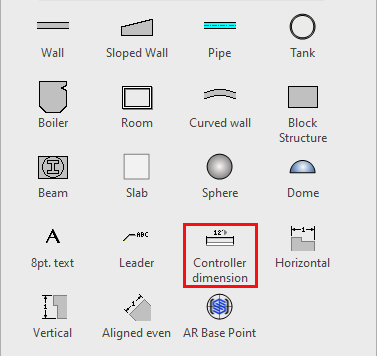
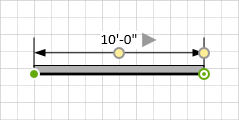
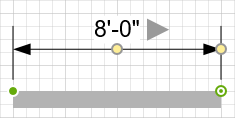
The Controller Dimension is a smartshape that takes advantage of being glued to another shape. When you glue a controller shape to the endpoints of a wall, you can change the dimension text (double-click on the dimension) to a new value. The wall will then changes length to match the dimension.
Add Dimension |
Edit Text |
Change Value |
Click on page, wall changes value |
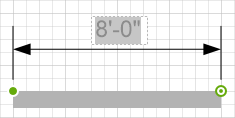
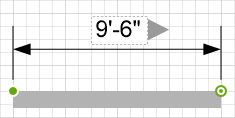
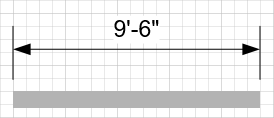
Adding a Dimension to a Shape
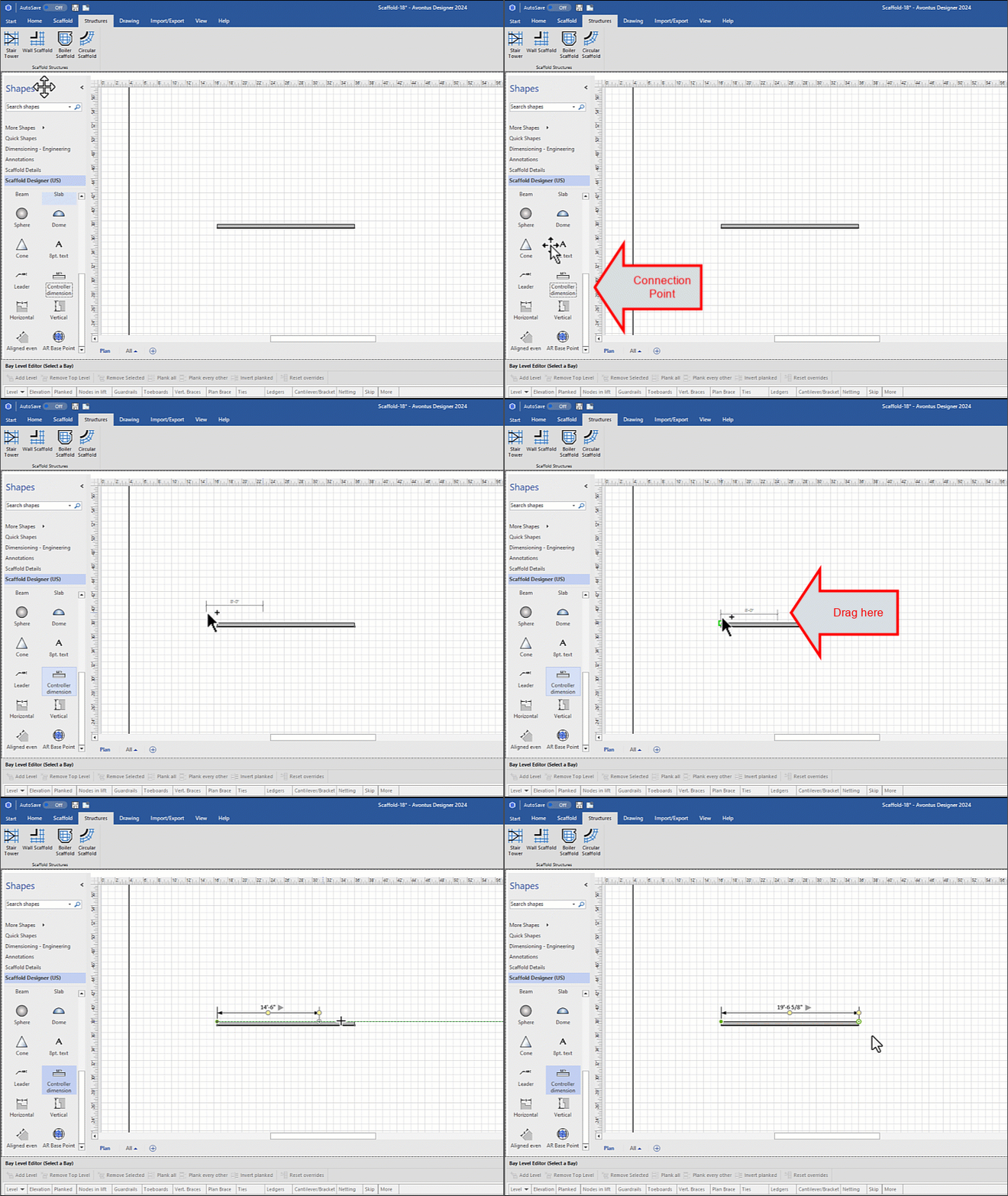
You can easily add any dimension to walls, beams, pipes, tanks, rooms, etc.
To add a dimension to a shape:
Locate the drawing shape to which you want to add a dimension.
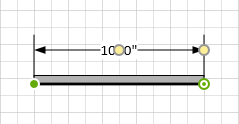
Click the dimension and drag it onto the shape, so that one end of the dimension glues to one end of the shape.
Click the other end of the Dimension and drag it to the other end of the object, so that it glues to that end.
Editing a Controller Dimension
The Controller Dimension is a smartshape that takes advantage of being glued to another shape. When you glue a controller shape to the endpoints of a wall, you can change the dimension text (double-click on the dimension) to a new value. The wall will then changes length to match the dimension.
To edit a Controller Dimension:
Locate the Controller Dimension you want to edit and double-click its linear measurement.
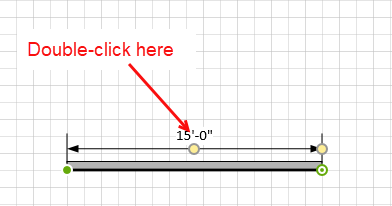
The measurement becomes editable.Enter a new measurement.|
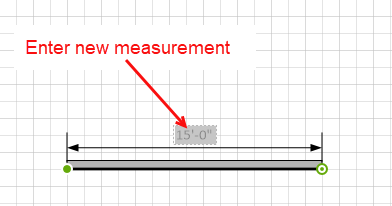
Click anywhere in the Drawing Page.
The drawing shape changes its length to match the measurement you entered.