Quantify makes managing purchase orders and work orders quick and simple.
Adding PO Numbers and Work Order Numbers to a Customer
Once associated with a customer, you can select Purchase Order numbers and Work Order numbers at the Job Site-level along with the Customer and display them on invoices and reports.
To add Purchase Order numbers and Work Order numbers to a customer:
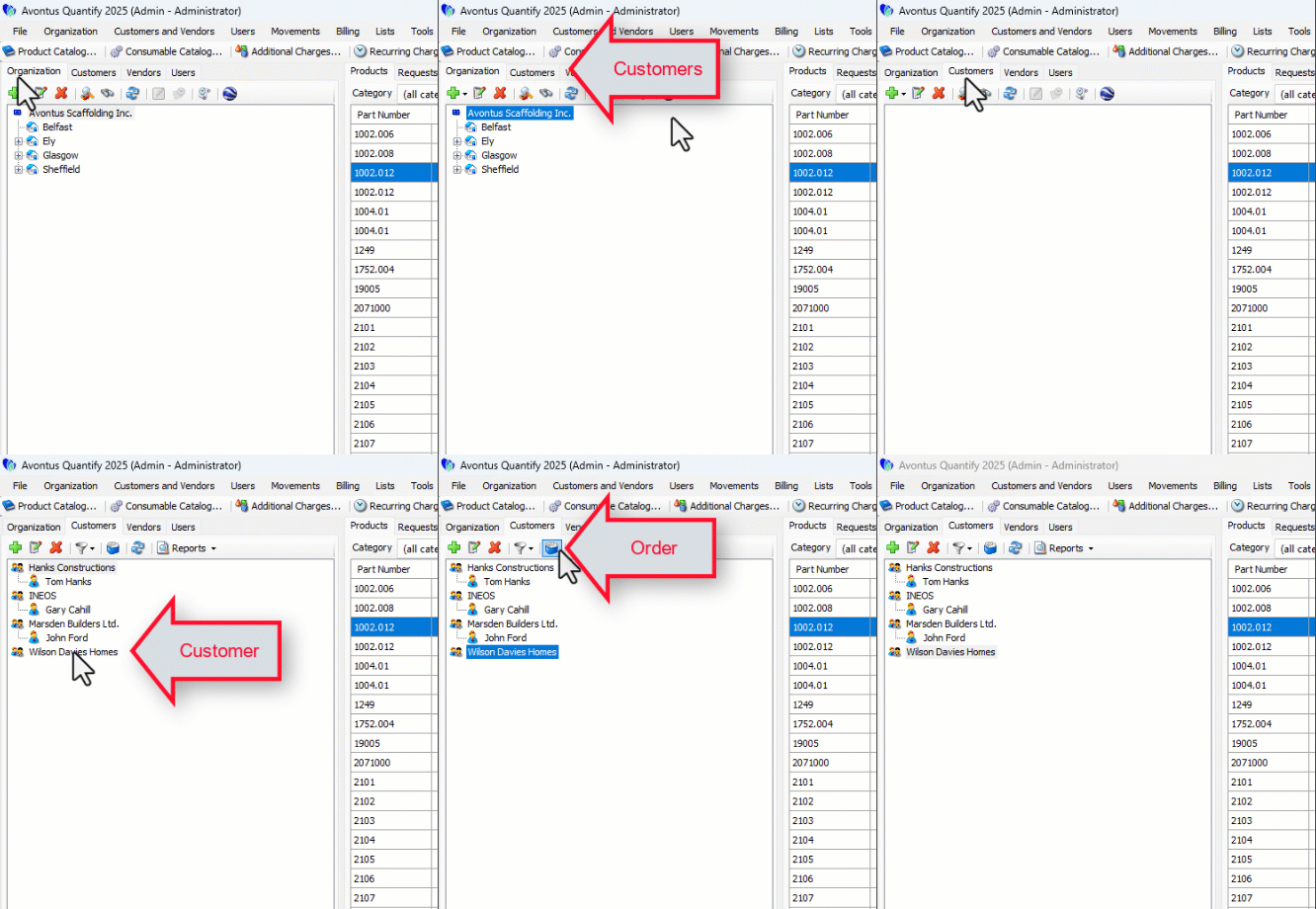
Click the Customers tab, then click the appropriate customer name.
Click the Orders button (
 ).
).
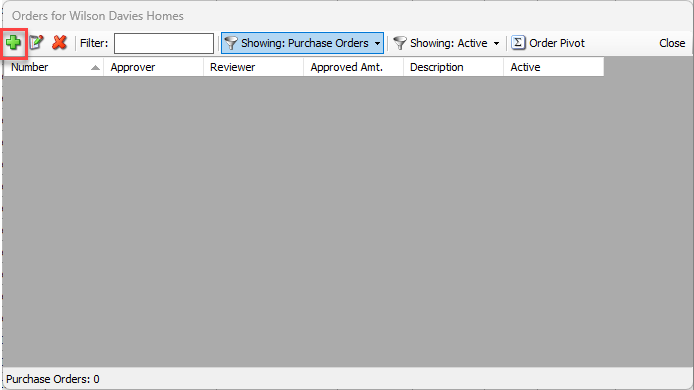
The Orders dialog appears.
Click the Add Purchase Order button.
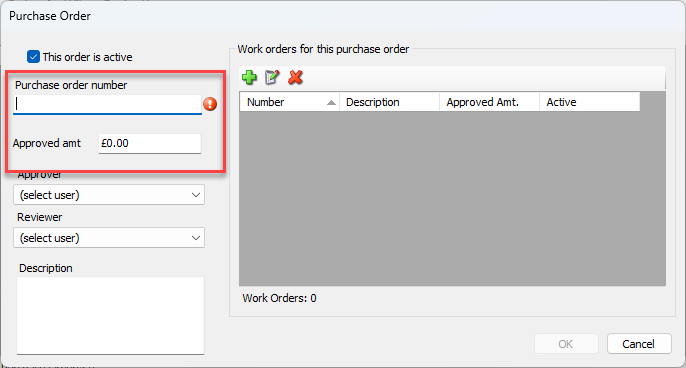
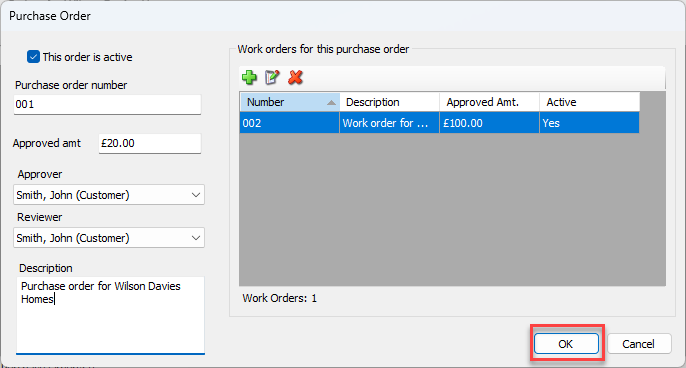
The Purchase Order dialog appears.
Click in the Purchase Order Number text field and enter the customer’s purchase order number.
Click in the Approved Amt text field and enter the appropriate amount.
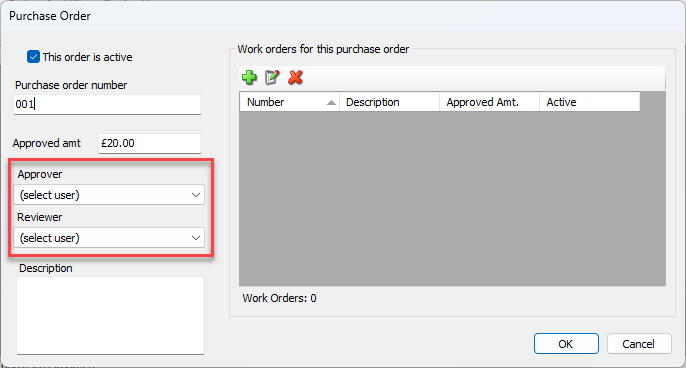
Click the Approver dropdown and select the appropriate approver.
Click the Reviewer dropdown and select the appropriate reviewer.
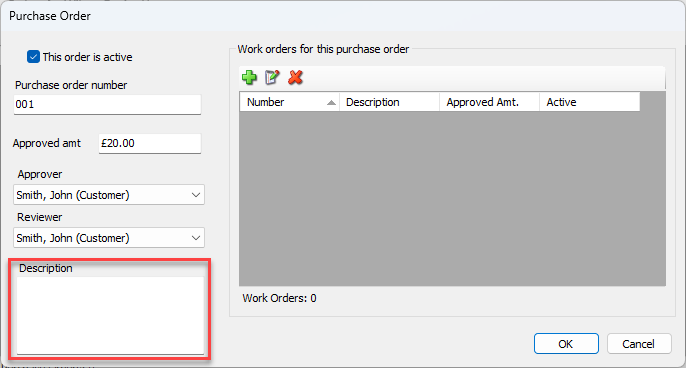
Click in the Description and enter a brief description of the Purchase Order.
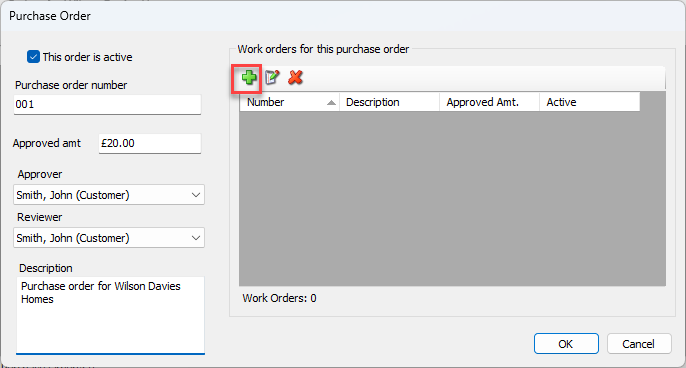
Click the Add button to add a Work Order for this purchase order.
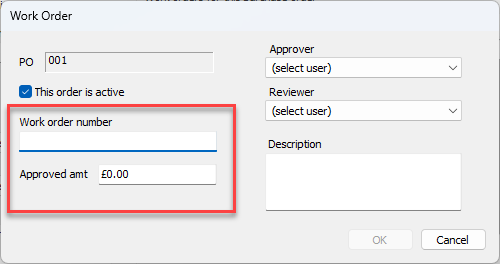
The Work Order dialog appears.
Click in the Work Order Number text field and enter the Work Order number,
Click in the Approved Amt text field and enter the amount to be paid.
Click the Approver dropdown and select the name of the person who will approve this Work Order.
Click the Reviewer dropdown and select the name of the person who will review this Work Order.
Click in the Description text field and enter a short description of the Work Order.
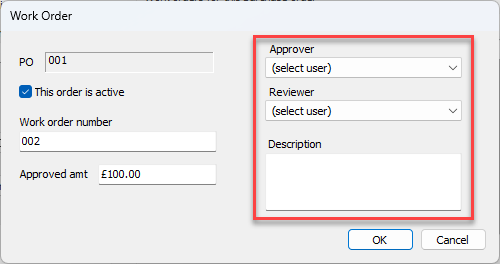
Click OK.
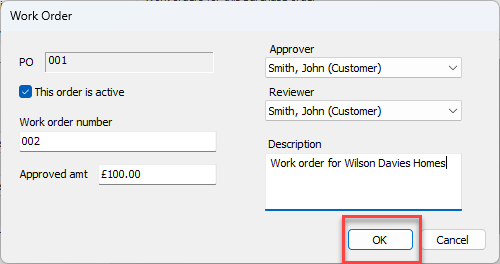
The Purchase Order dialog returns.
Click OK.
Viewing or Reporting a Customer's Purchase Orders and Work Orders
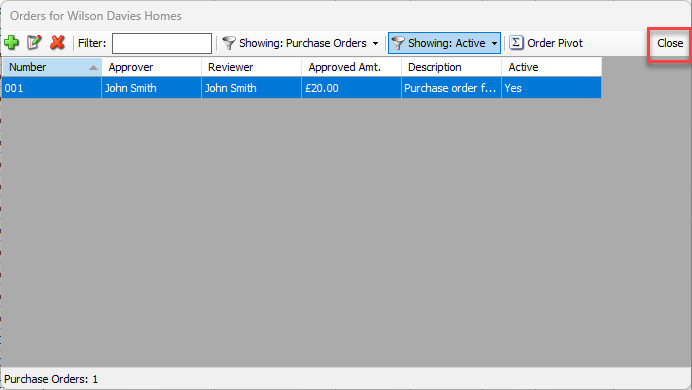
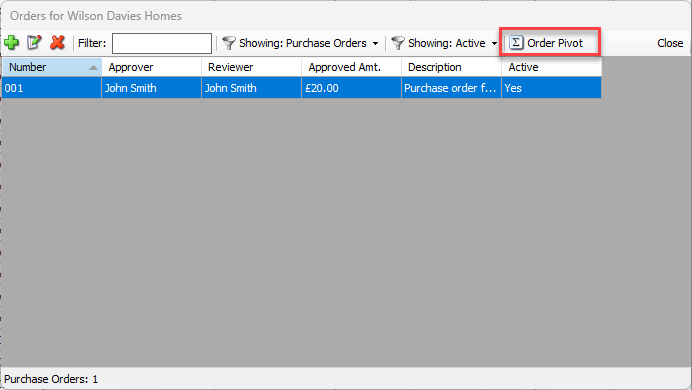
The Orders dialog enables you to quickly view a customer's Purchase Orders and Work Orders and generate pivot reports for them.
To view a customer's Purchase and Work Orders:
Click the Customer tab.
Click the appropriate customer, then click the Orders button (
 ).
). The Orders dialog appears.
Click the Showing filter dropdown and select the type of orders you would like to view: Purchase Orders or Work Orders.
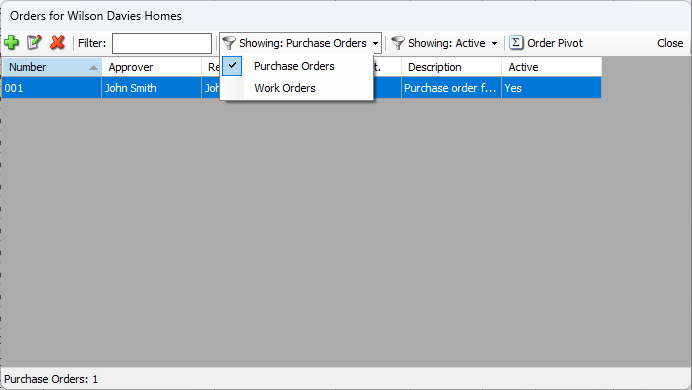
The Orders dialog refreshes.
To generate a pivot report of this Customer's orders, click Order Pivot. For more information, refer to Creating and Managing Pivot Reports.
Click Close when you are done.