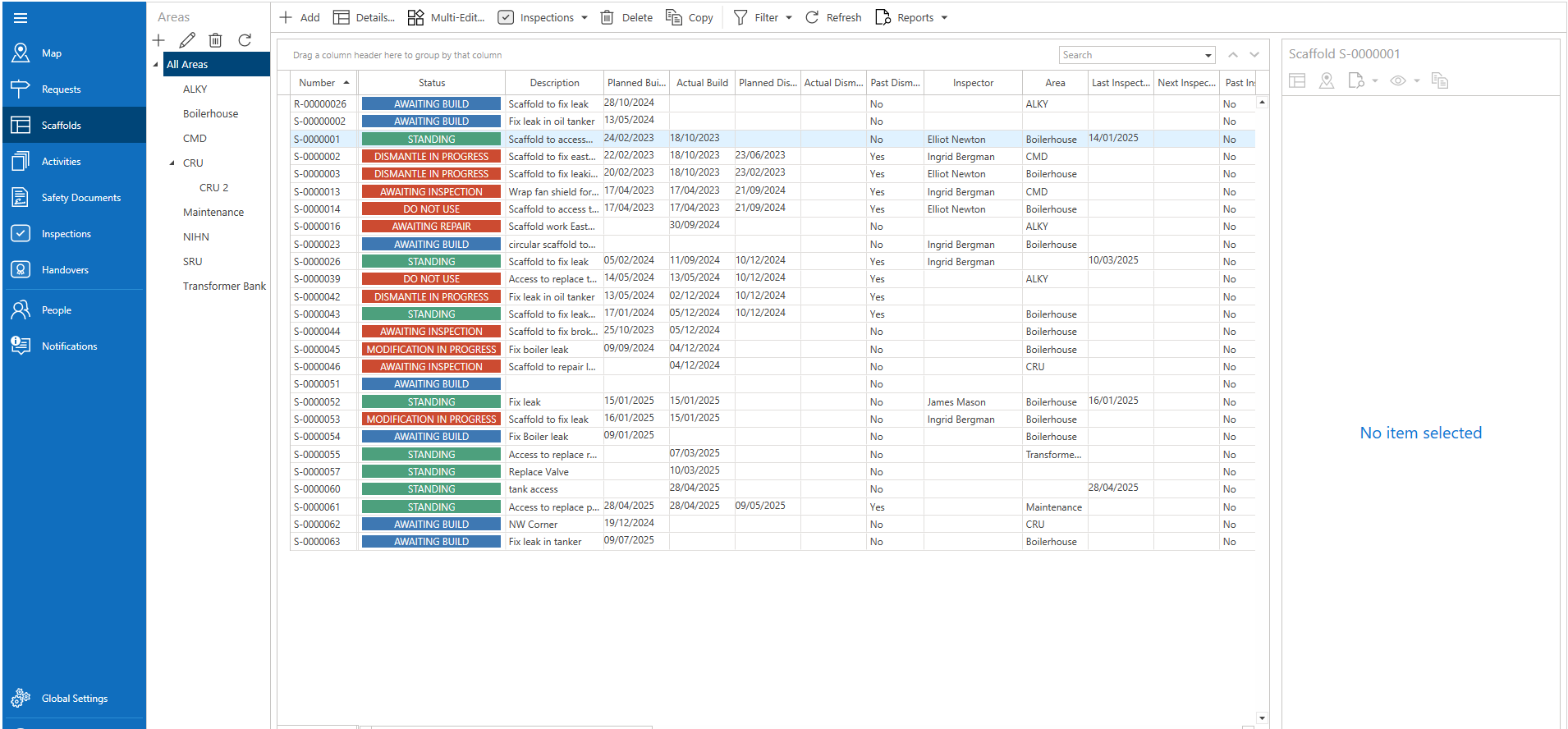
The Scaffold screen provides an overview of all scaffolds that have been approved following a request and/or are erected. The Scaffold screen allows for the monitoring of all scaffolds on your job site where you can view the details of that scaffold and move the scaffold along the erection process.
Note: A Scaffold's ID will be prefixed with an S.

The Scaffold screen provides an overview of all your scaffolds on your job sites including the current status of the scaffold (Standing, Awaiting Repair, etc) and displays further information on the scaffold such as the scaffold's dimensions and a description.
Double-clicking on a row will display the scaffold's details where you can see an overview of the scaffold and modify its details.
Add
Click this button to be taken to the Map screen to add a scaffold.

For more information on adding a scaffold, please visit Adding a Scaffold/Request guide.
Details
View the Scaffold Details
For more information on a scaffold's details, please visit the Scaffold Details section.

Multi-Edit
Edit multiple scaffolds at once. Hold Ctrl and select the scaffold(s) to select more than one scaffold
Inspections
Select to perform inspections on multiple scaffolds.
Delete
Delete the selected scaffold.

Note: Scaffolds cannot be deleted unless they are in the dismantled status.
Copy
Copy the selected dismantled scaffold

Filter
Filter the Scaffolds to select to display specific scaffolds.

Refresh
Reload the data within the table.

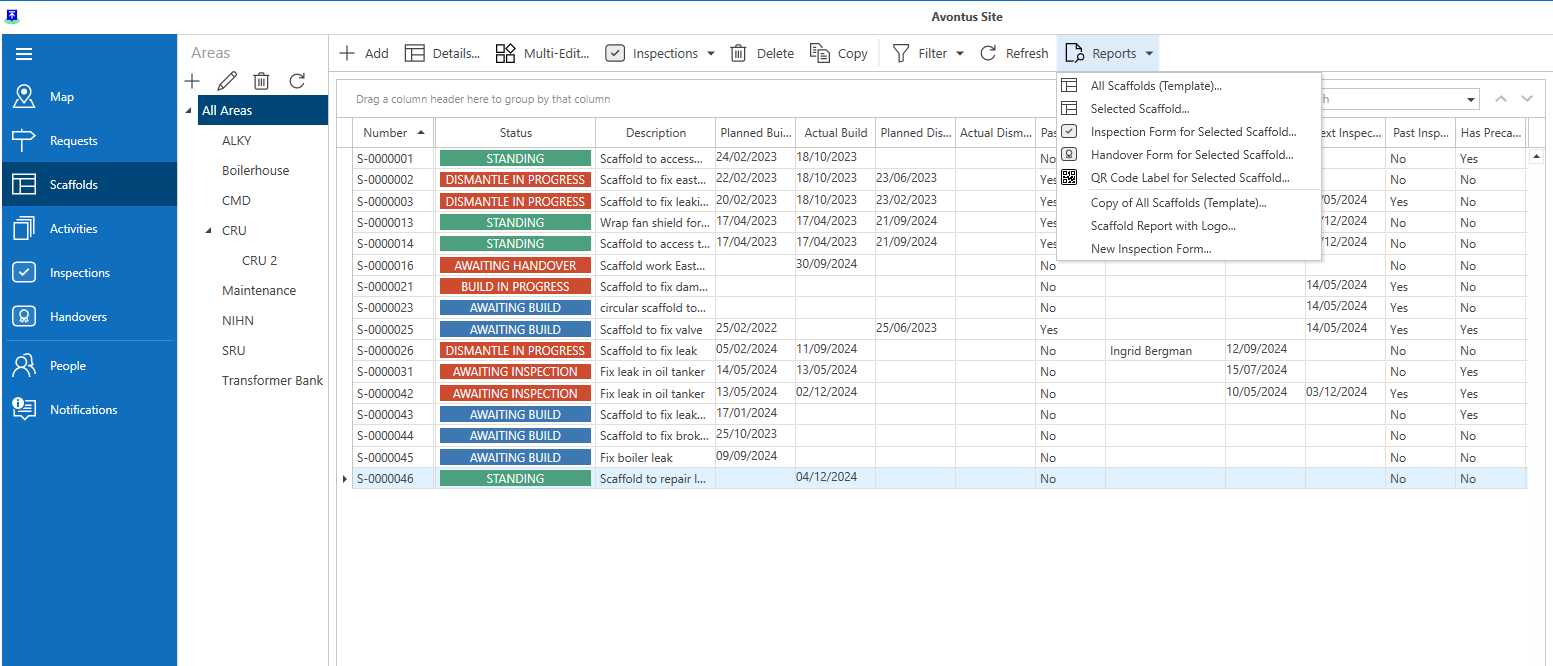
Reports
You can generate Reports relating to the scaffolds in your job sites.
You can use the default reports (such as the Scaffold Template form) or you can use your own. These can be created in the Custom Reports section of ScaffoldIQ. You can also launch a new Inspection form for the selected Scaffold and print off the QR code label for the selected Scaffold.
Column Filtering
On each column is a small key-like icon that allows you to filter data on that column.
For more information on using filters, please visit the Working With Filters guide.
Searching
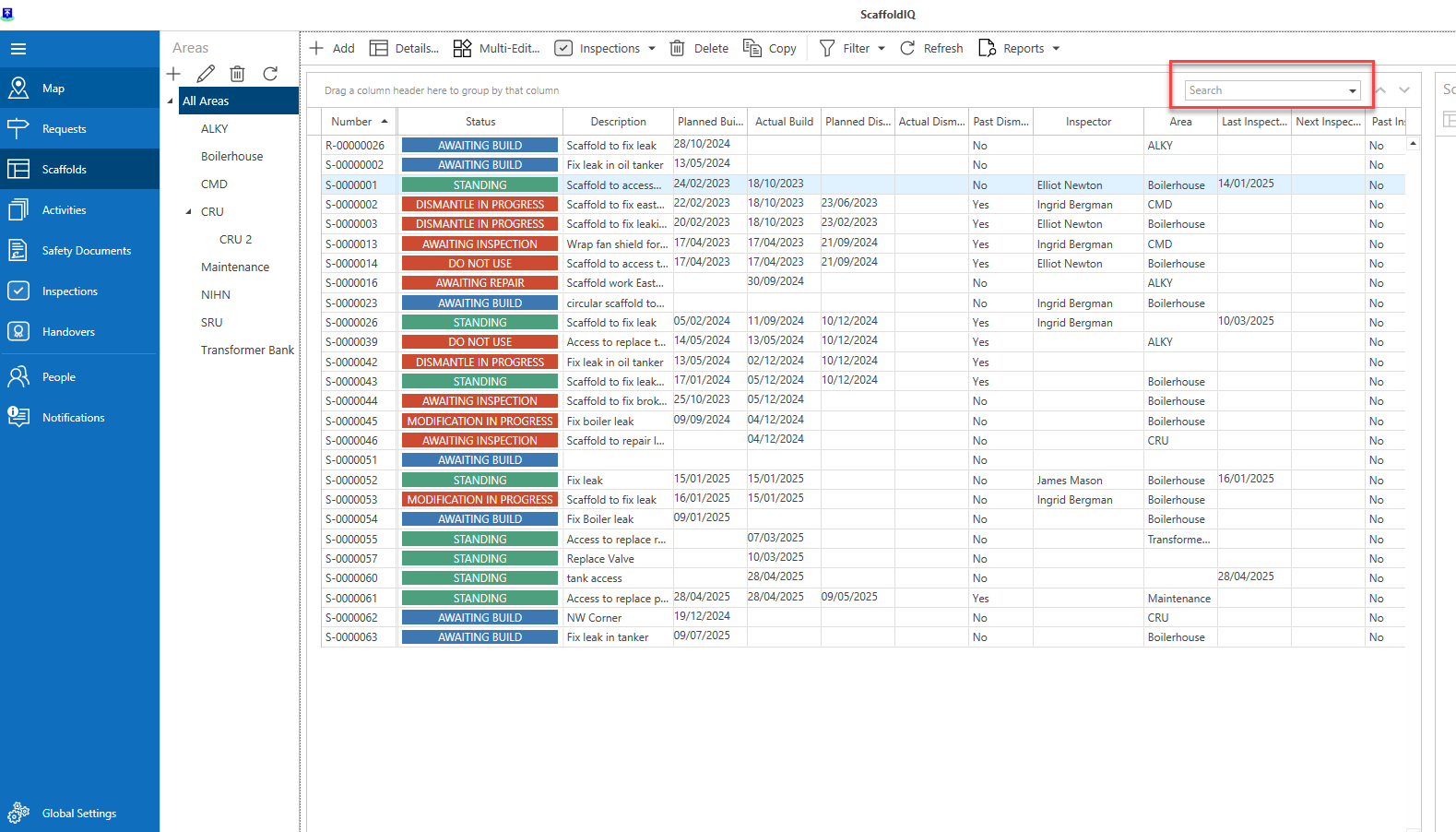
The search box can be used to filter content to a specific word, phrase or number.
Use the chevron buttons to cycle through the returned results.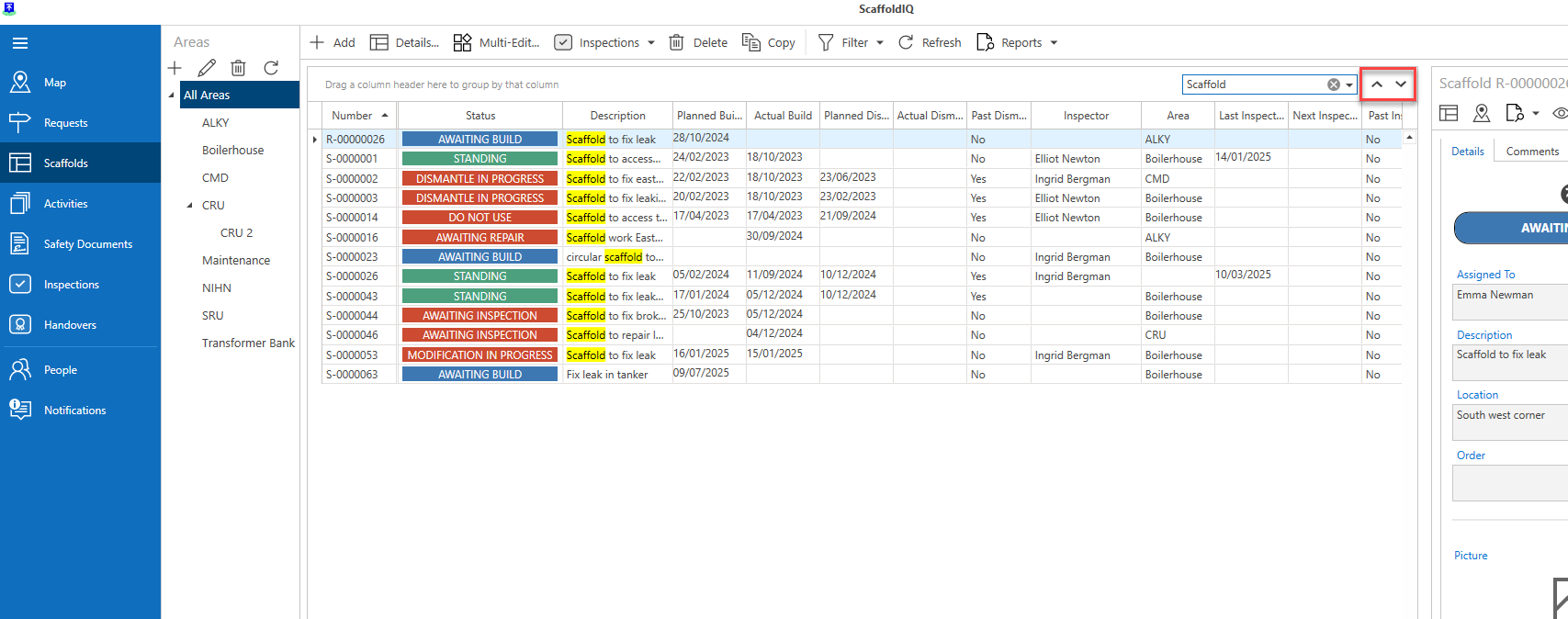
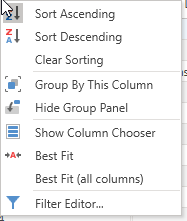
Left-click on the column to switch between ascending and descending order of that column. Right-click on the column to reveal more options, including:
Group by column
Hide/show group column
Show Column Chooser
Best Fit
Best Fit (all columns)
Filter Editor.
Note: More information on these options is explained in the Grouping section.
The scaffold table contains the following columns.
Column Heading | Purpose |
Number | The unique identifier for the scaffold. |
Status | The status of the scaffold (Awaiting Build, Do Not Use, Standing). |
Description | A description of the purpose of the scaffold. This column could be used to highlight what unit the on-site team will be working on. |
Planned Build | The date the scaffold was planned to be erected. |
Planned Dismantle | The date the scaffold was planned to be dismantled. |
Actual Build | The actual build date of the scaffold. |
Actual Dismantle | The actual dismantle date of the scaffold. |
Has Precautions | Indicates if there are any precautions to take when working on the scaffold. |
Precaution Notes | Explains that the precaution is. |
Location | The location the scaffold is to be erected. |
Priority | Indicates the importance of the scaffold. Higher priority scaffolds indicate more urgent work. |
Assigned To | The employee the management of the scaffold is assigned to. |
Requestor | The employee who made the request. |
Foreman | The foreman assigned to the scaffold. |
Representative | The scaffold representative. |
Inspector | The assigned inspector. |
Contractor | The contracting company erecting the scaffold. |
Area | The area assigned to the scaffold. |
Project | The project the scaffold falls under. |
Order | The order number. |
Load Rating | The load duty the scaffold will endure. |
Date Created | The date the scaffold was created. |
Past Dismantle Date | A yes or no field that indicates whether the Scaffold has passed the distant;e date |
Last Inspection | The date of the last inspection |
Next Inspection | The date of the next inspection |
Past inspection Date | The date of the last inspection |
Created | The date the Scaffold was created |
Created by | The user who created the Scaffold |
Scaffold User | The user the Scaffold is assigned to |