You can adjust quantity levels of Consumable items at the Branch Office. However, before you do, you must lock the database. This prevents other end-users from creating Shipments or Transactions that will affect inventory counts at the same time.
To adjust Consumables inventory:
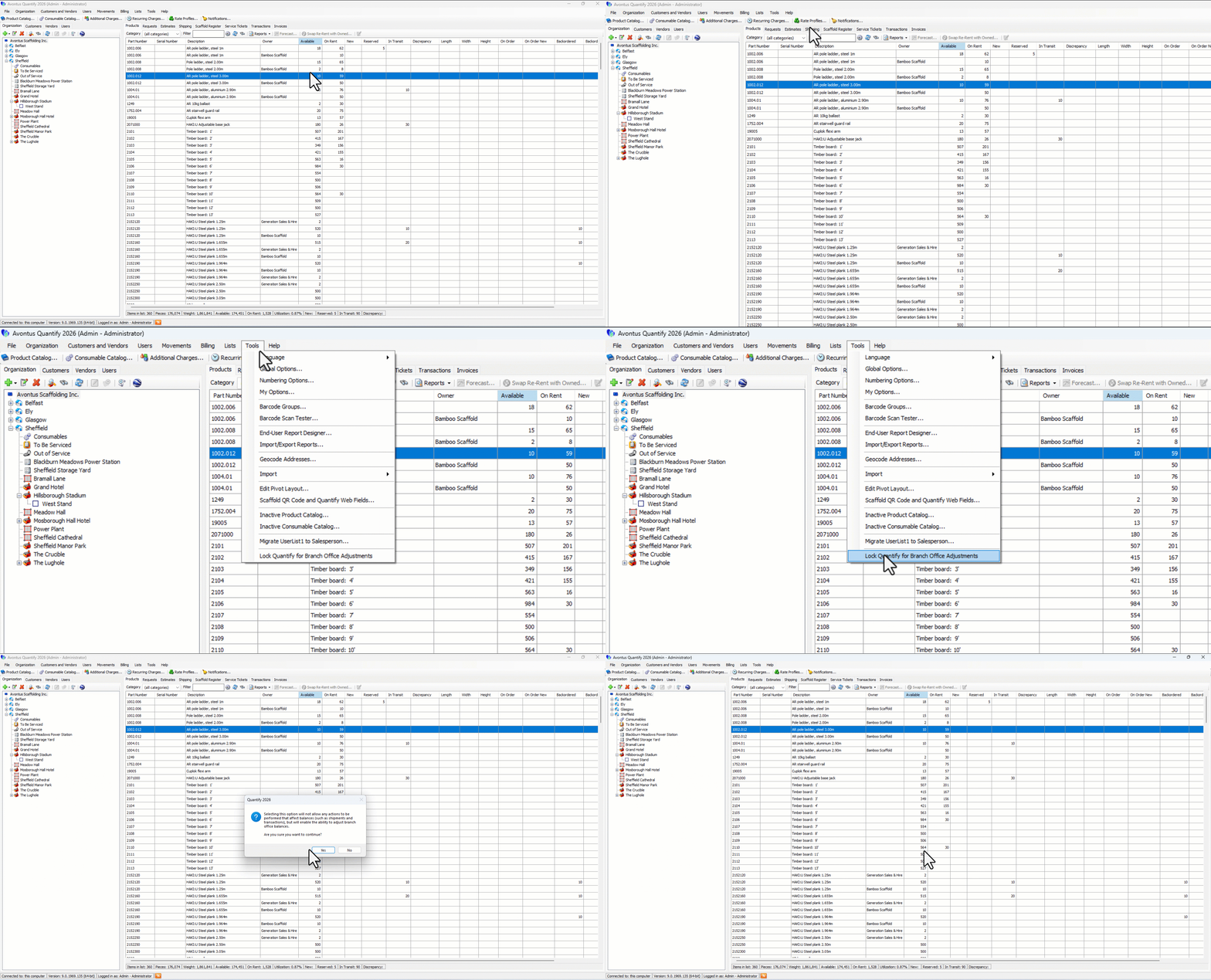
Click the Tools menu and select Lock Quantify for Branch Office Adjustments.
An Acknowledgement dialog appears.Click Yes.
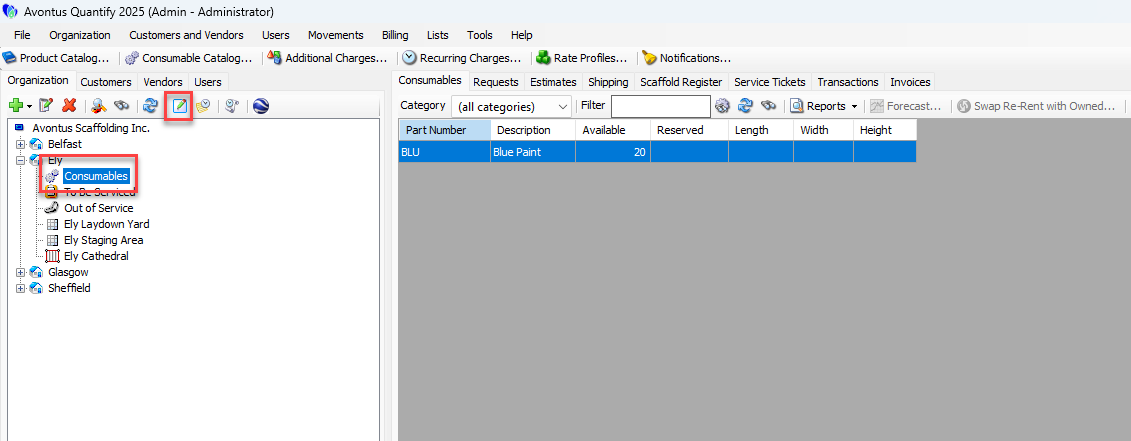
Click the appropriate Consumables node (under the appropriate Branch Office) in the Organization Tree and click the Adjust Quantities for Selected Location button (
 ).
).
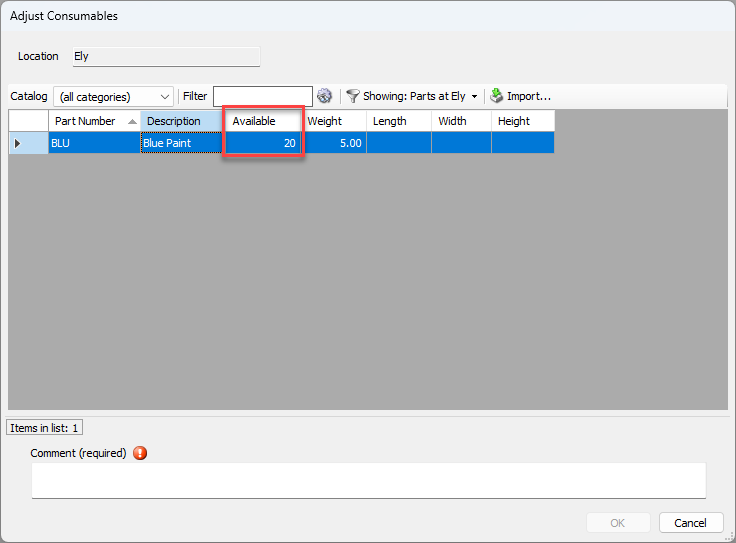
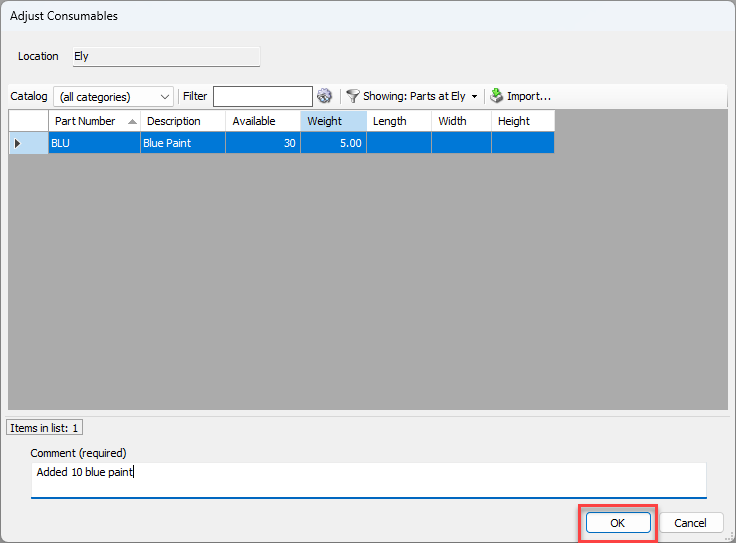
The Adjust Consumables dialog appears.Locate the part (or parts) to be adjusted.
To adjust the available Consumables for the branch, type the correct available quantity in the Available field.
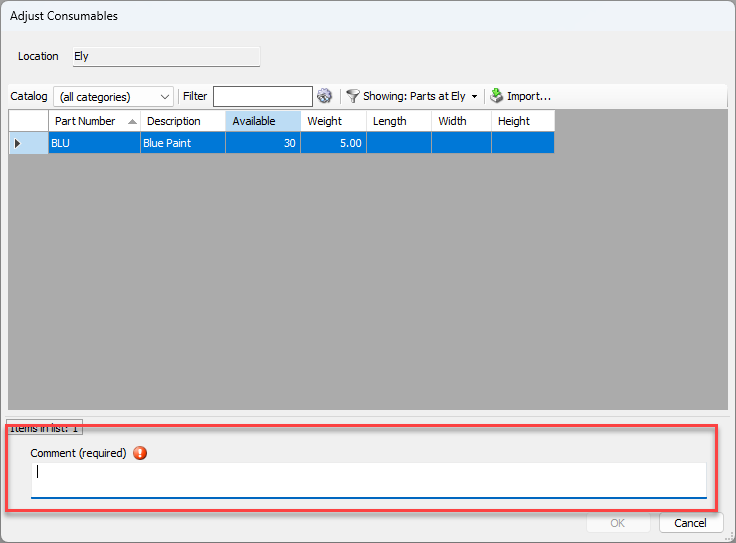
Enter a Comment to document the reason for the adjustment.
Click OK when you are ready.
Click the Tools menu and select Lock Quantify for Branch Office Adjustments.
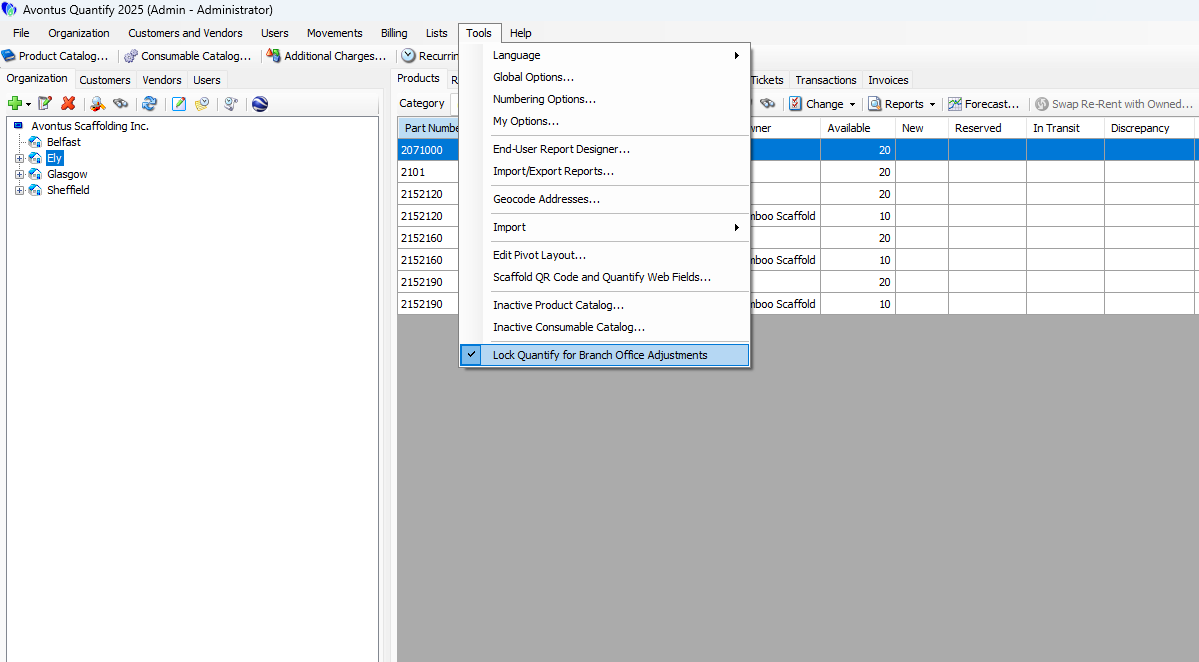
This unlocks the database so end-users may create shipments, returns, etc.
An Acknowledgement dialog appears.
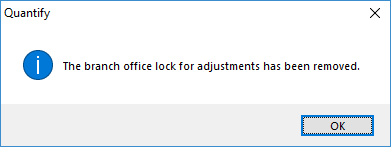
Click OK.