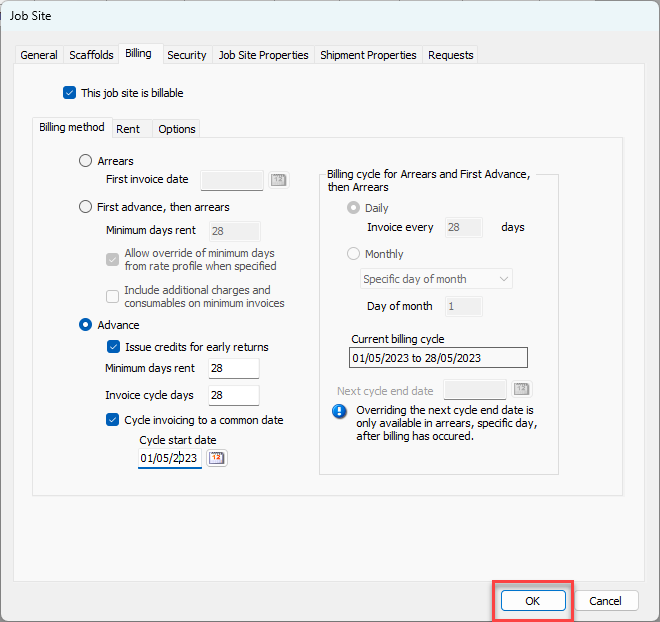
Applying the Advance billing method is a simple procedure that requires just a few steps. Before you begin, make sure you know the following:
Whether you want to issue credit for early returns
The minimum days rent to be charged
The number of rental days to include on a single invoice and how often invoicing should occur
Whether you want to sync invoices to a common date and what that date will be
To apply the Advance billing method:
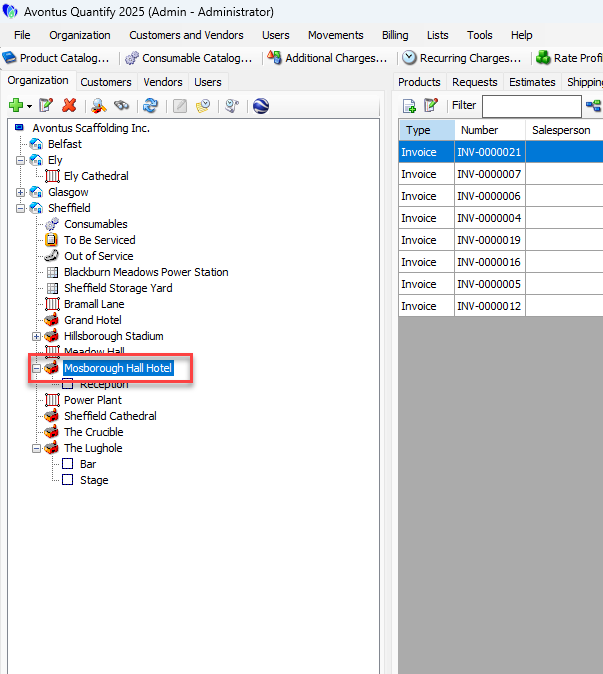
Locate and double-click the appropriate Job Site.
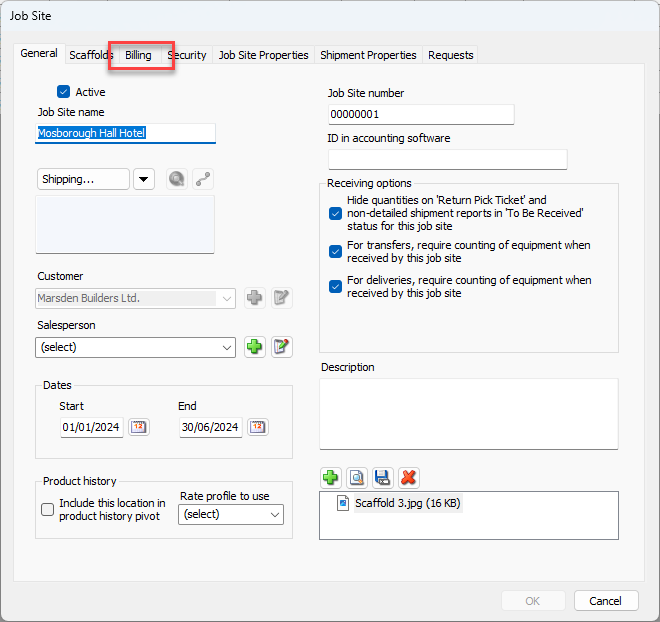
The Job Site dialog appears.Click the Billing tab.
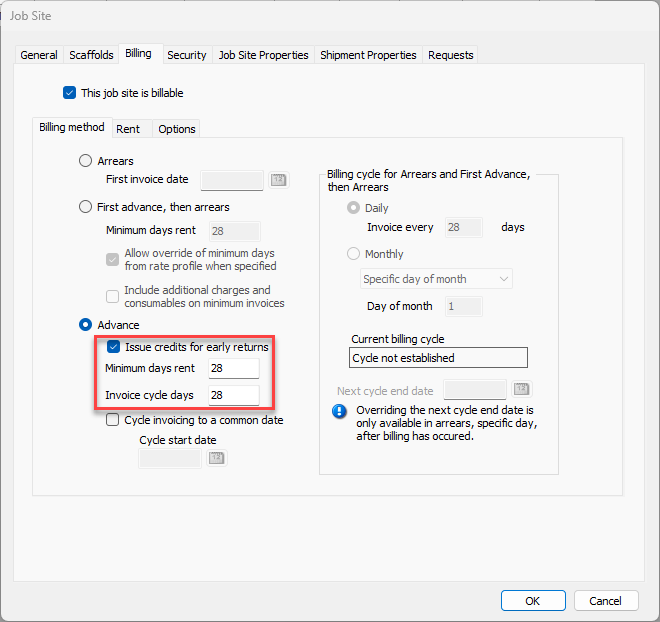
Click the Advance radio button.
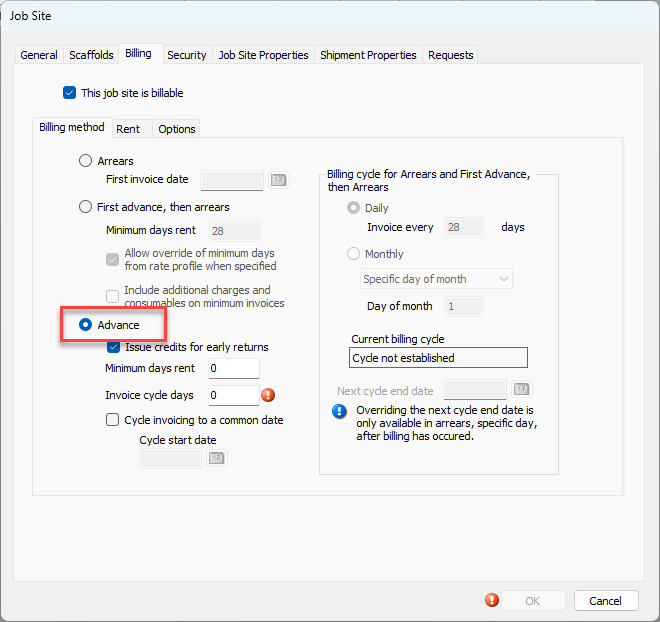
As necessary:If issuing credits for early returns, click the Issue Credits for Early Returns radio button, to select it.
Note: This option is selected by default. When this option is enabled, if parts are returned with a Rent Stop Date in a previously billed cycle, Quantify will calculate a credit for the difference. A credit is never issued for rental days during the defined minimum days rent.
Click in the Minimum Days Rent text field and enter the minimum days rent as appropriate.
Rent will be charged for the minimum number of days entered, despite any returns.Click in the Invoice Cycle Days text field (required) and enter the number of invoice cycle days.
This sets the number of rental days to include on a single invoice and how often invoicing should occur.
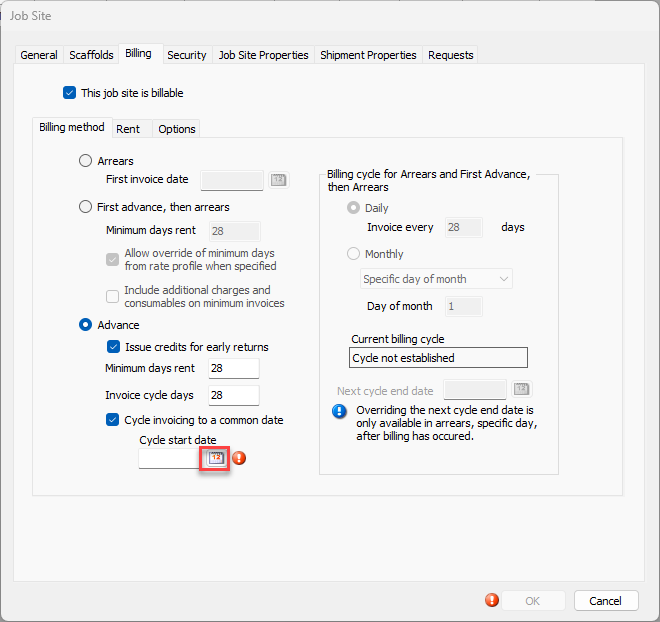
Click the Cycle invoicing to a Common Date checkbox, to put a check in it.
With this option selected, billing cycles for the Job Site will begin on the cycle start date. Invoicing will occur on a regular billing cycle based upon the invoice cycle days. For Shipments with a rent start date that occurs in the middle of a cycle, Quantify will prorate (except minimums) the rent to the end of the current billing cycle.Click the Cycle Start Date checkbox. (This becomes required if the Cycle invoicing to a Common Datecheckbox is checked.)
Click the Cycle Start Date calendar icon (
 ).
).
A calendar appears.
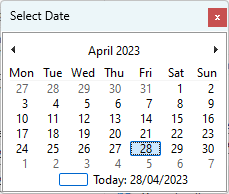
Locate and click the appropriate cycle start date.
This establishes the billing cycle for the Job Site.
Click OK.