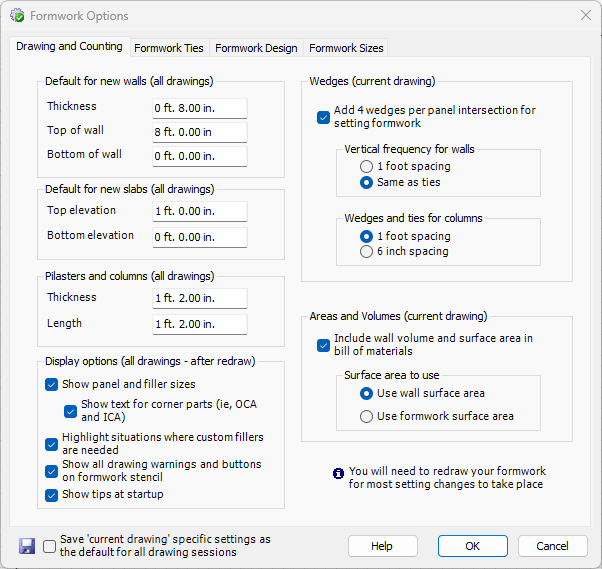
The Drawing and Counting tab is where you set the various options that affect Formwork and structural parts and pieces on your drawing.
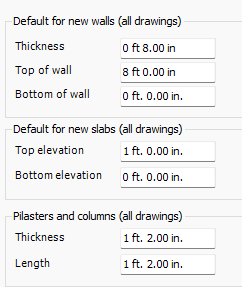
Default values
Each time you create a Wall, Slab or Pilaster, Handset Designer sets the thickness and elevations to the values that you specify here. This is useful for creating structures at a consistent elevation, then switching to another elevation, as needed, for individual Walls, Slab Edges, or Pilasters. When you overlay Walls onto AutoCAD entities, you will see the same options for the default values of the Walls. Changing these values affects the default values in both locations.
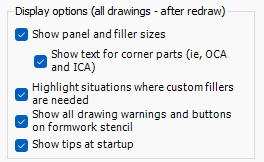
Display Options
The Show panel and filler sizes checkbox enables you to control whether the text for Panels and Fillers are drawn.
The Show text for corner parts checkbox determines if Handset Designer places text next to corner components. This helps create more space on the drawing for text and eliminates some clutter in drawings with smaller scales.
The Highlight situations where custom fillers are needed checkbox enables you to show the yellow warning shape for situations that need additional attention.
The Show drawing warnings and help on formwork stencil checkbox enables you to control the display of the buttons directly above the tabs in the Formwork stencil, as well as various warning messages that appear when you draw Formwork.
Wedges
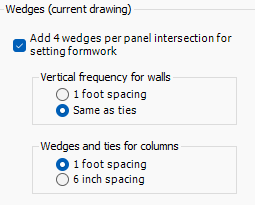
The options for wedges control the material list counts for these parts. The first option adds an additional four wedges to each vertical Panel intersection. These wedges are intended to be used for constructability in setting the Formwork. Vertical frequency can be controlled for both Columns and Walls in the two remaining frames.
Volumes and Areas
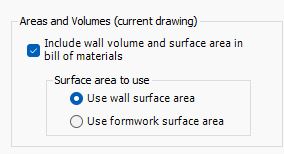
If you want to include volume and area calculations in your material list, then choose the checkbox here to display these values. For the surface area you can use the Wall area or the surface area of the Formwork. Note that these two values can be different. An example of this is where you have a stackup that you have defined that extends above the top of a Wall. This gives you a higher surface area than the Wall surface area.
 After making changes in the options dialog, you most likely will need to redraw your Formwork.