Global Settings is accessed by an admin user and controls settings for all users in the system. This includes modifying email settings and managing and modifying lists (projects, contractors, orders, load ratings).
You have a number areas within the Global Settings
Mail Settings - Set up your SMTP server.
Scaffold Settings - Modify scaffold settings, such as enabling the automatic changing scaffolds to Awaiting inspection at certain times, and bypassing certain stages, such as the handover stage when a scaffold is erected.
Request Settings - Modify request settings, such as enabling or disabling certain steps along the request approval process.
Offline Settings - Modify any settings that allow users to work offline.
Subscription - Access your Avontus account where you can change the details of your license, such as adding or removing users.
General Settings - Adjust the timezone, paper type, and time format of your ScaffoldIQ application.
Numbering Options - In Numbering Options you can manage how Activities, Inspections, Requests, Scaffolds, Timesheets, and Handovers are named and numbered.
API Keys - Use this to add API keys, such as the API key used to enable Satalite Maps.
Scaffold/Request/Activity Properties - The Scaffold/Request/Activity properties allows you to add additional fields that may not be covered by the details page of a Request or Scaffold in Scaffold IQ.
Custom Reports - Create your own Custom Reports which can be applied to Requests, Scaffolds, Inspections, and much more.
Report Settings - Upload your company logo to appear on reports.
Safety Document Templates - Add any safety documents which can then be assigned to a Request or Scaffold
Mapping - In Mapping, you can add a Mapbox token to enable satellite maps.
Add/Delete Map overlay - You can add an overlay on the existing map to see a more up-to-date view of your site.
Project - Add, edit, and delete any Projects which can then be assigned to a Request or Scaffold.
Contractors- Add, edit, and delete any Contractors which can then be assigned to a Request or Scaffold.
Shift- Add, edit, delete any shifts which will determine when Scaffolds will change to the Awaiting Inspection status.
Orders - Add, edit, and delete any Orders which can then be assigned to a Request or Scaffold
Load Ratings - Add, edit, and delete any Load Ratings which can then be assigned to a Request or Scaffold
Handover Settings - Use the Handover Settings screen to modify a handover’s settings, such as enabling the distance from Scaffold tag feature.
Questions - Use this option to create questions which can be assigned to a scaffold inspection of handover
Inspection Template - Use inspection templates to create inspection templates which can then be selected when performing an inspection.
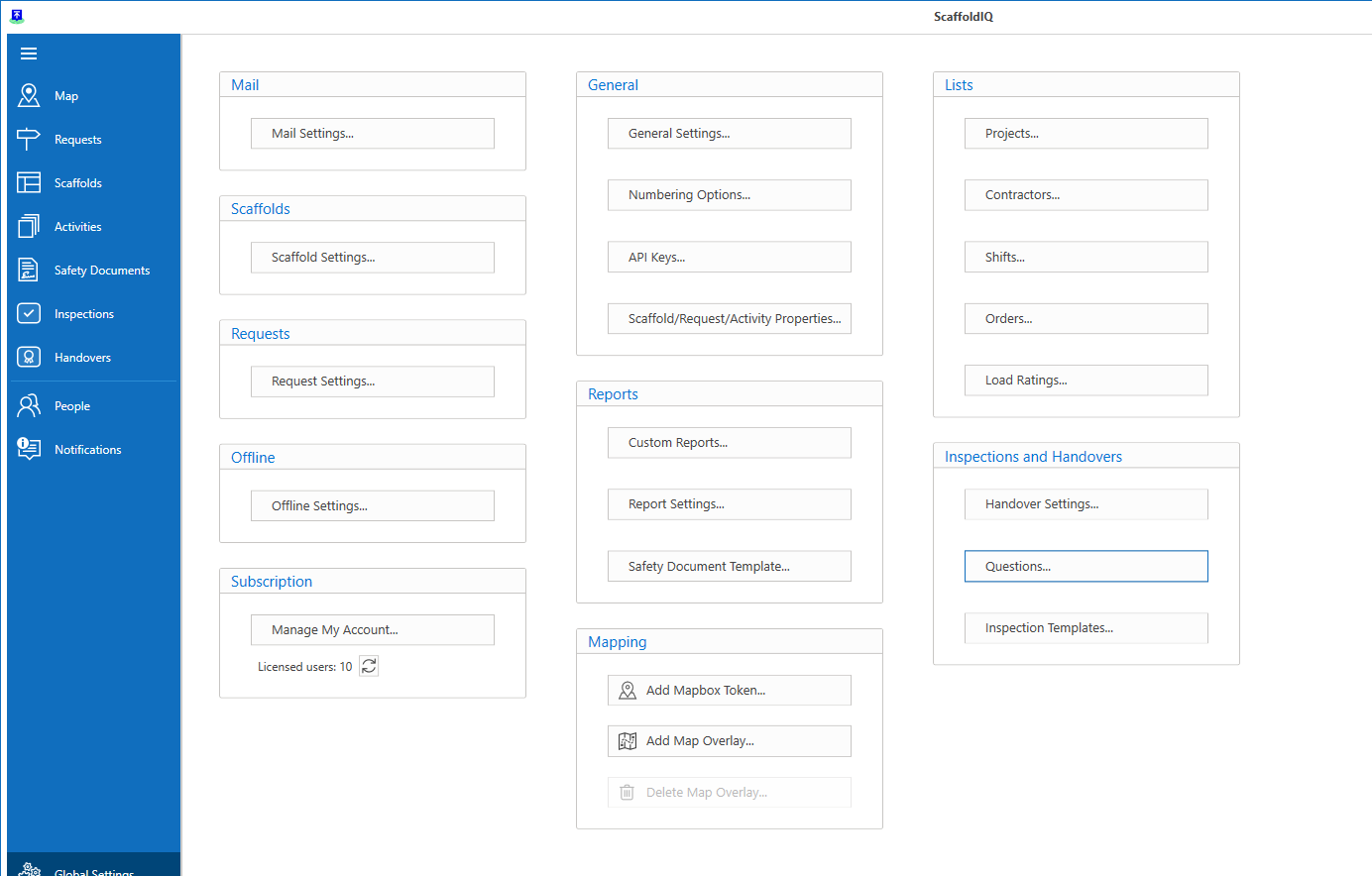
victoriapuliAdmin users can access Global Settings by selecting Global Settings from any main screen.
