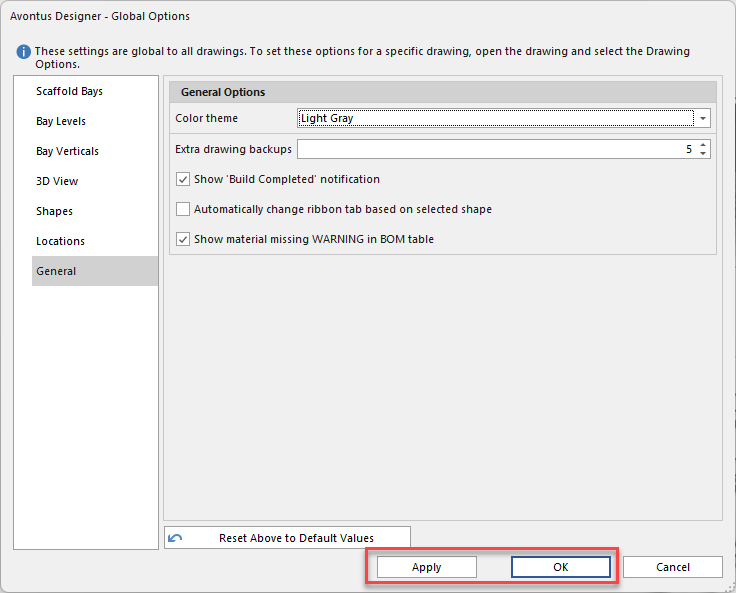
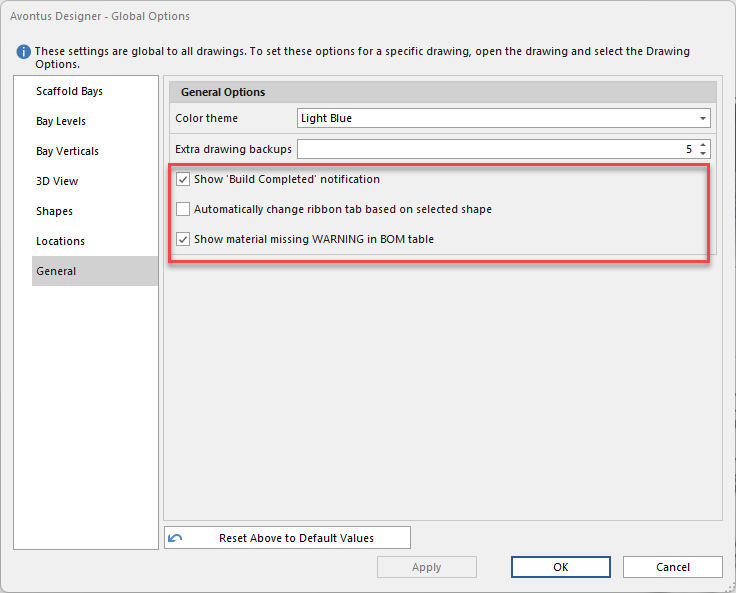
The General interface of the Global Options dialog enables you to determine how long Avontus Designer will wait before it automatically saves drawings, how many extra backups of each drawing it will create, and whether or not it displays a build notification once it finishes generating a 3D model in the 3D View pane.
To set default general options:
As necessary, click the General tab in the Avontus Designer Options dialog.
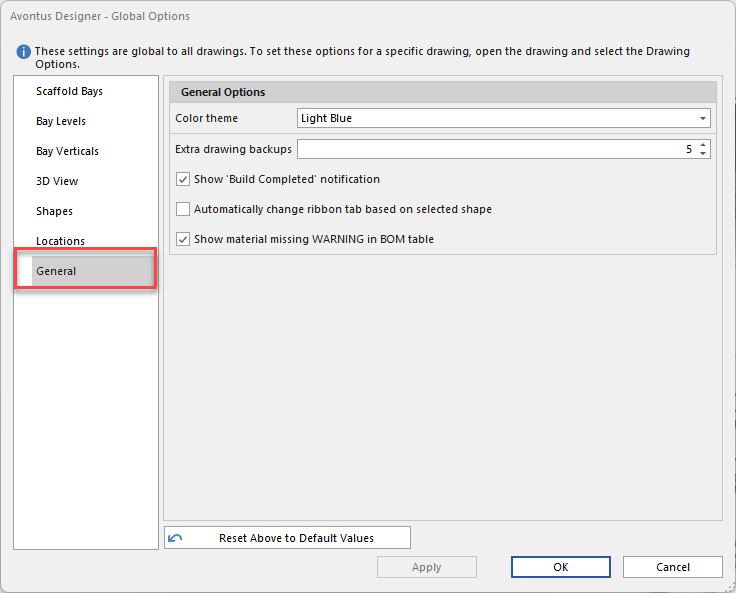
The Avontus Designer Options dialog refreshes, displaying the means for configuring general options.Specify the Color theme
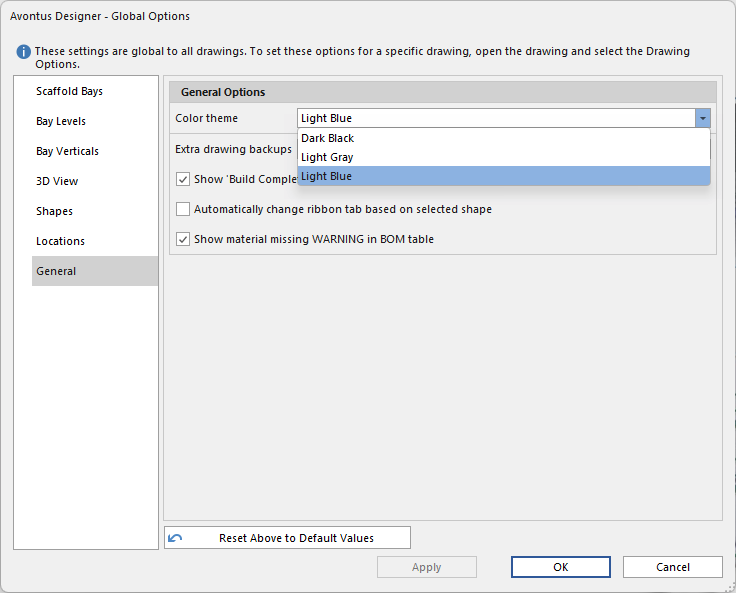
Note: For more information, please visit Color Themes.
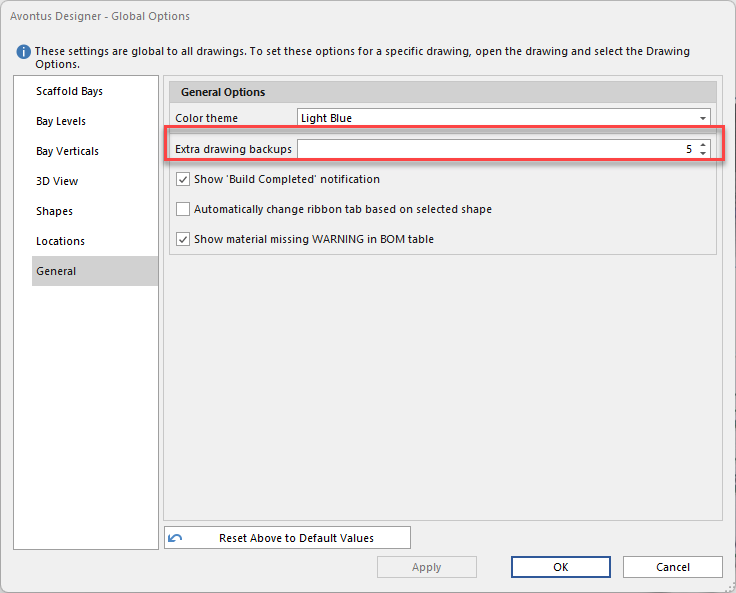
Click in the Extra Drawing Backups text field and enter the number of extra backups you want Avontus Designer to create.
If you want Avontus Designer to notify you when a 3D rendering is complete (and how long it took to complete), click the Show Build Completed Notification checkbox (to put a check in it).
Enable Automatically Change ribbon tab based on selected shape if you wish for the ribbon to change so the options presented are more appropriate for your selected shape. For example, with this checkbox enabled, if you click a Wall shape, Avontus will change the ribbon to the Structures tab. If you click a Bay, the ribbon will change to the Scaffold tab. For more information, please visit The Scaffold Ribbon page
If you want to see a warning whether there are missing materials on the BOM table, enable the Show material missing WARNING in BOM table checkbox
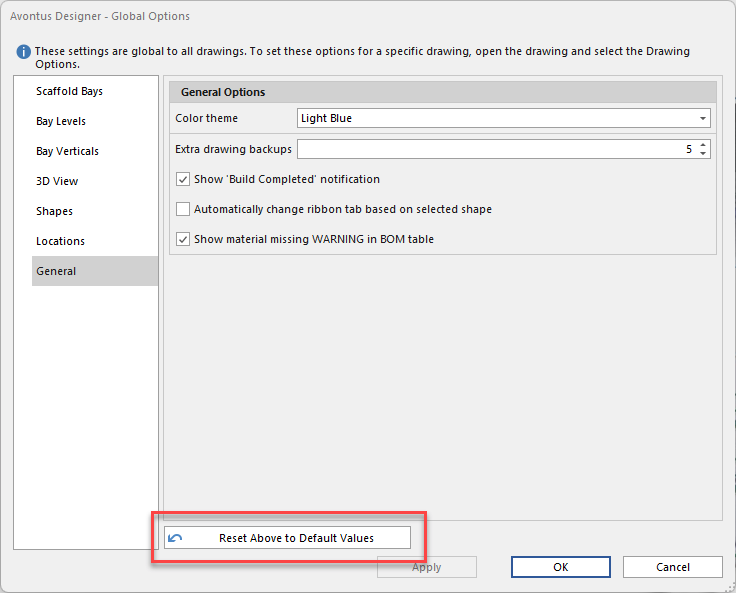
Note: Click Reset Options Above to Default Values to restore Avontus Designer default values.
If you are done, click OK.
If not, click Apply and then the next appropriate tab.