You can add parts to a group to save on site workers having to scan individual parts when they know they always send those parts together. For example, you can use Bar Code Groups to ship a number of planks together or create a barcode group for all parts that will be used to create a structure, such as a Swing Stage.
To add a Barcode Group
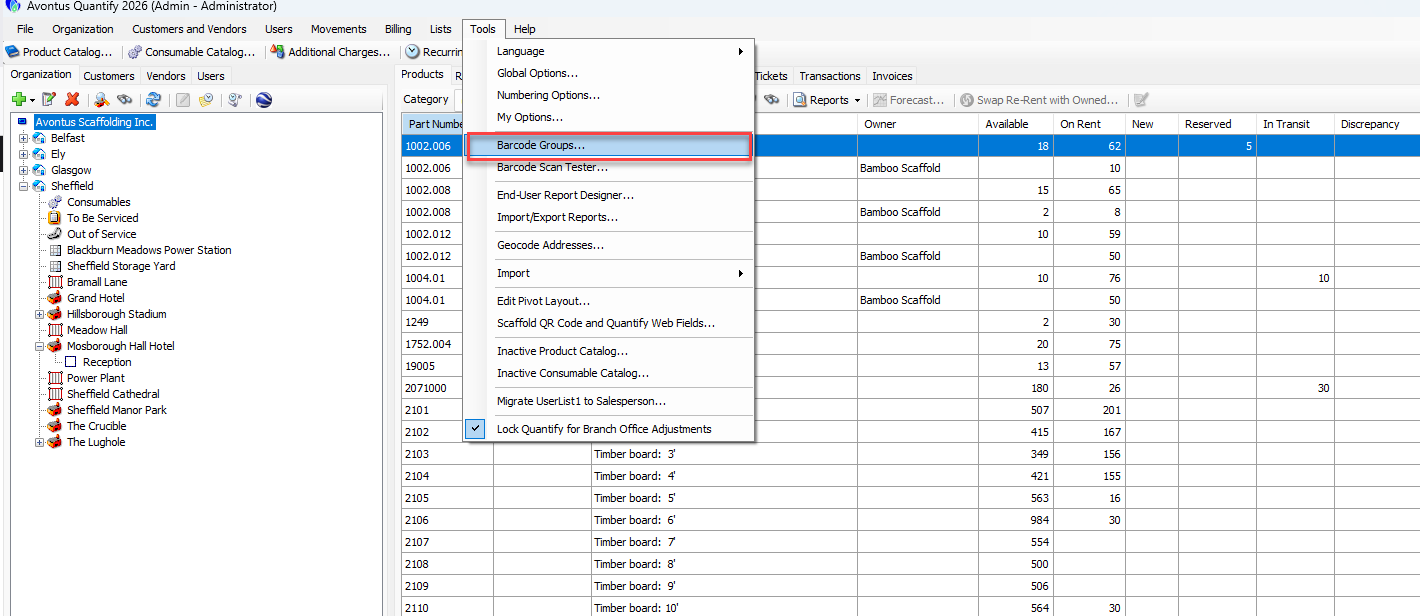
Select Tools
Select Barcode Groups
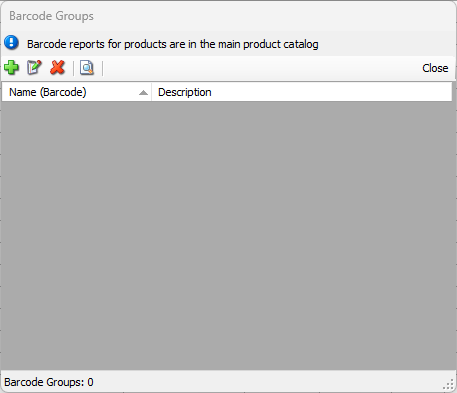
Click the + icon
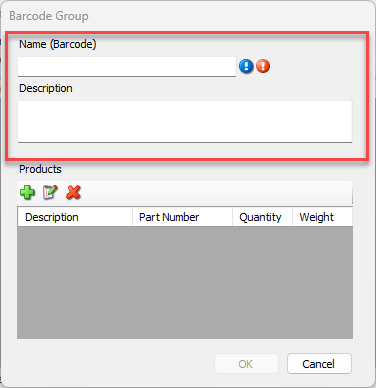
Enter the barcode name - this will be the name that will appear under the barcode for all products assigned to this group
Enter the Description
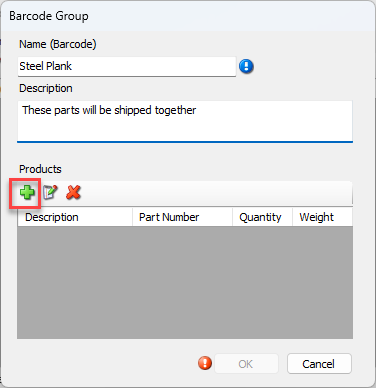
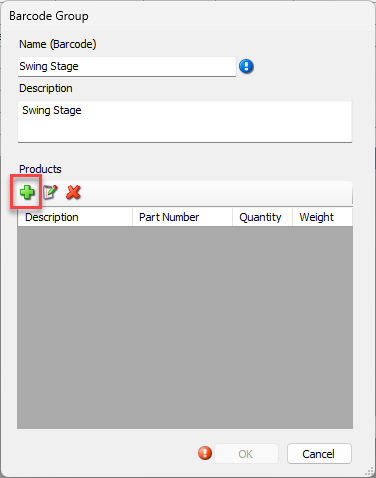
Click the green + icon to add products to the group.
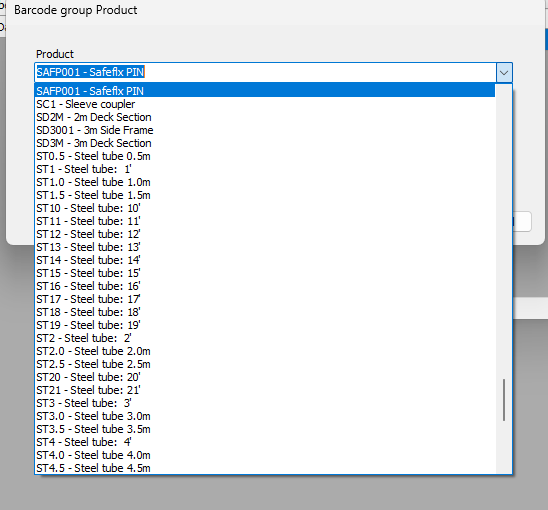
Select the part from the drop-down
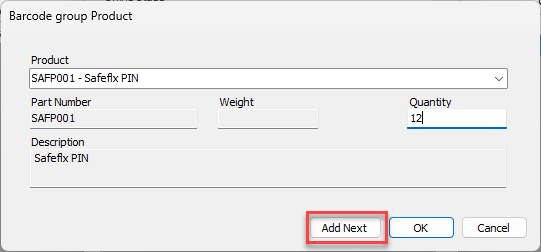
Enter the Quantity
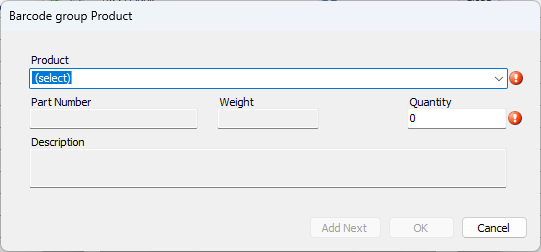
Click OK or select Add Next
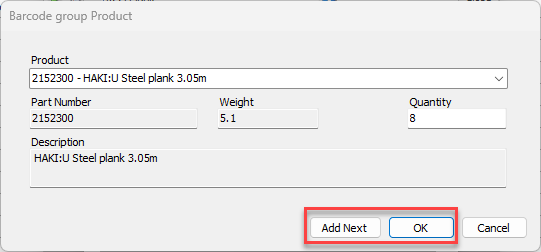
If you select Add Next repeat steps 7 to 9
Note: There are no limits to the number of parts you can add to a group.
Click OK
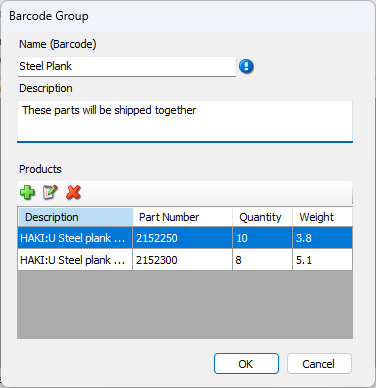
The group has been added.
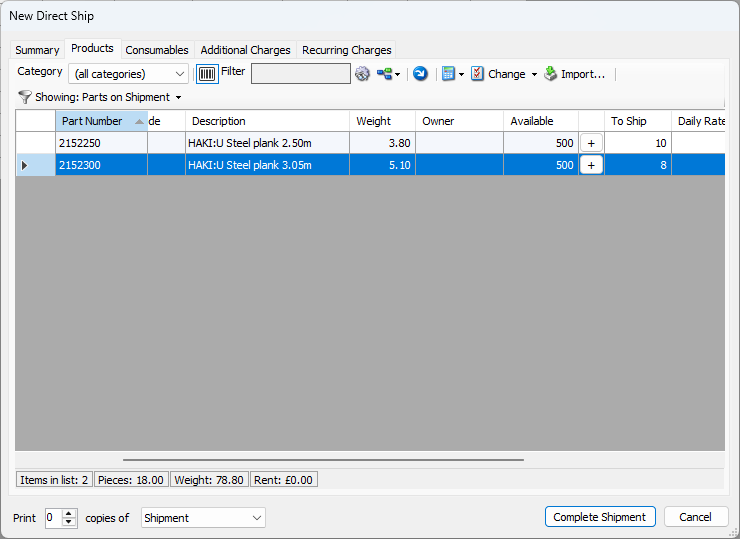
If you scan the barcode in the Barcode Group report when sending or receiving a Shipment, the To Ship column will be populated with the assigned parts.
Creating a Barcode Group for a structure
If you wanted to create a barcode group for a structure, you would create a single barcode group and then add parts to that group.
Select Tools
Select Barcode Groups
Click the + icon
Enter the barcode name - this will be the name that will appear under the barcode for all products assigned to this group
Enter the Description
Click the green + icon under Products
Click in Product, and search for the part
When the part is added, click Add Next.
Repeat until all parts are added, and click OK
In the Barcode Group dialog, and click OK.
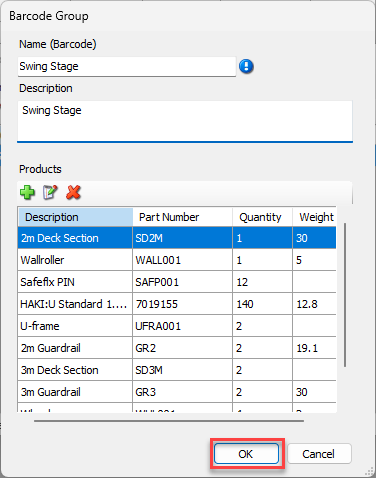
Now when you scan the group’s barcode on a shipment, all parts will be added to the To Ship column.