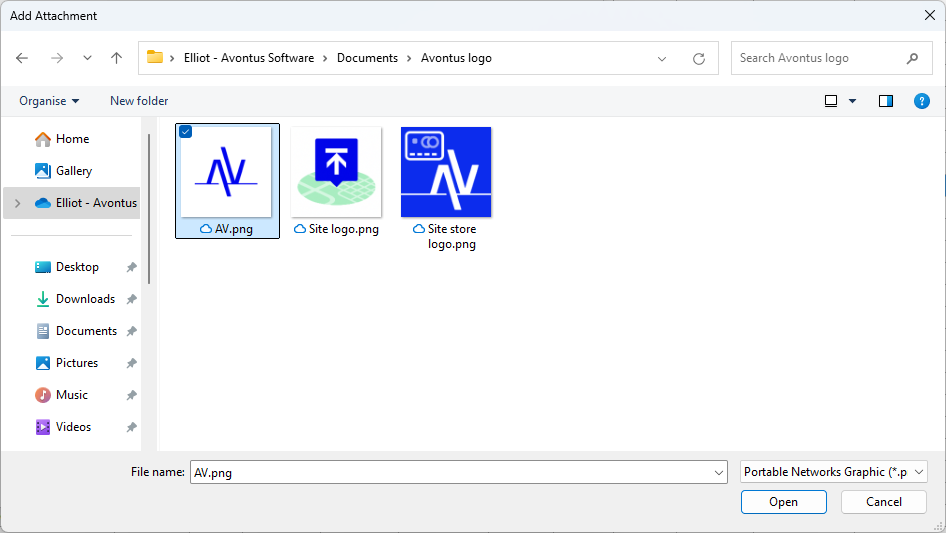
You can include your company logo on invoices, reports, etc. Quantify enables you to apply a logo globally or to apply a unique logo for each Branch Office and Sub-Branch. If a logo is not specified at the Branch Office or Sub-Branch, Quantify uses the logo assigned through the Global Options dialog.
Note: Logo image files must be in the .png file format.
Adding a Global Logo
Quantify makes it easy to globally apply your logo to reports, invoices, etc. While each Branch Office or Sub-Branch can have its own, unique logo, if a logo is not assigned to a Branch Office or Sub-Branch, Quantify will use the logo assigned using the procedures below.
To add a global logo:
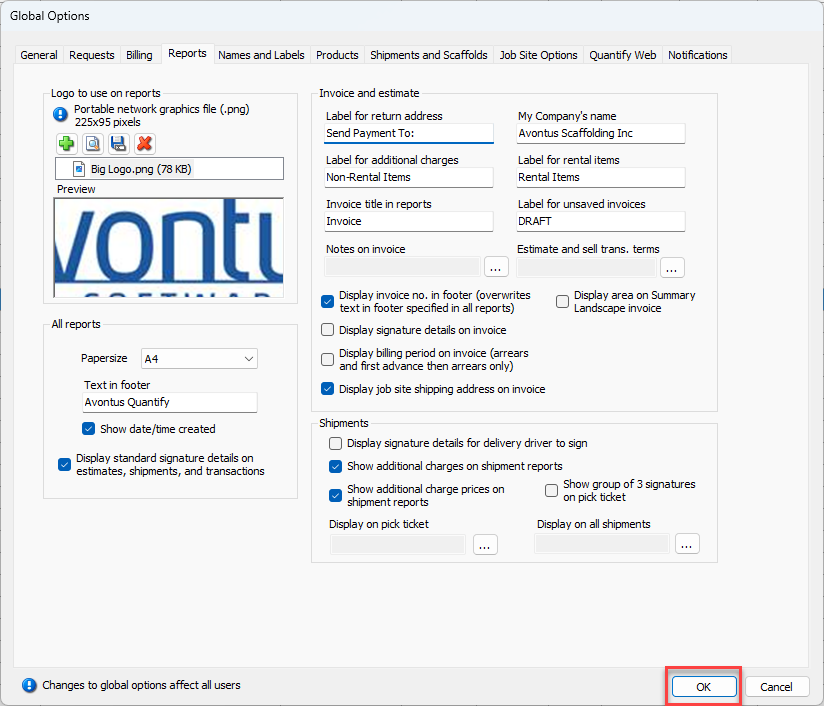
Click the Tools menu and select Global Options.
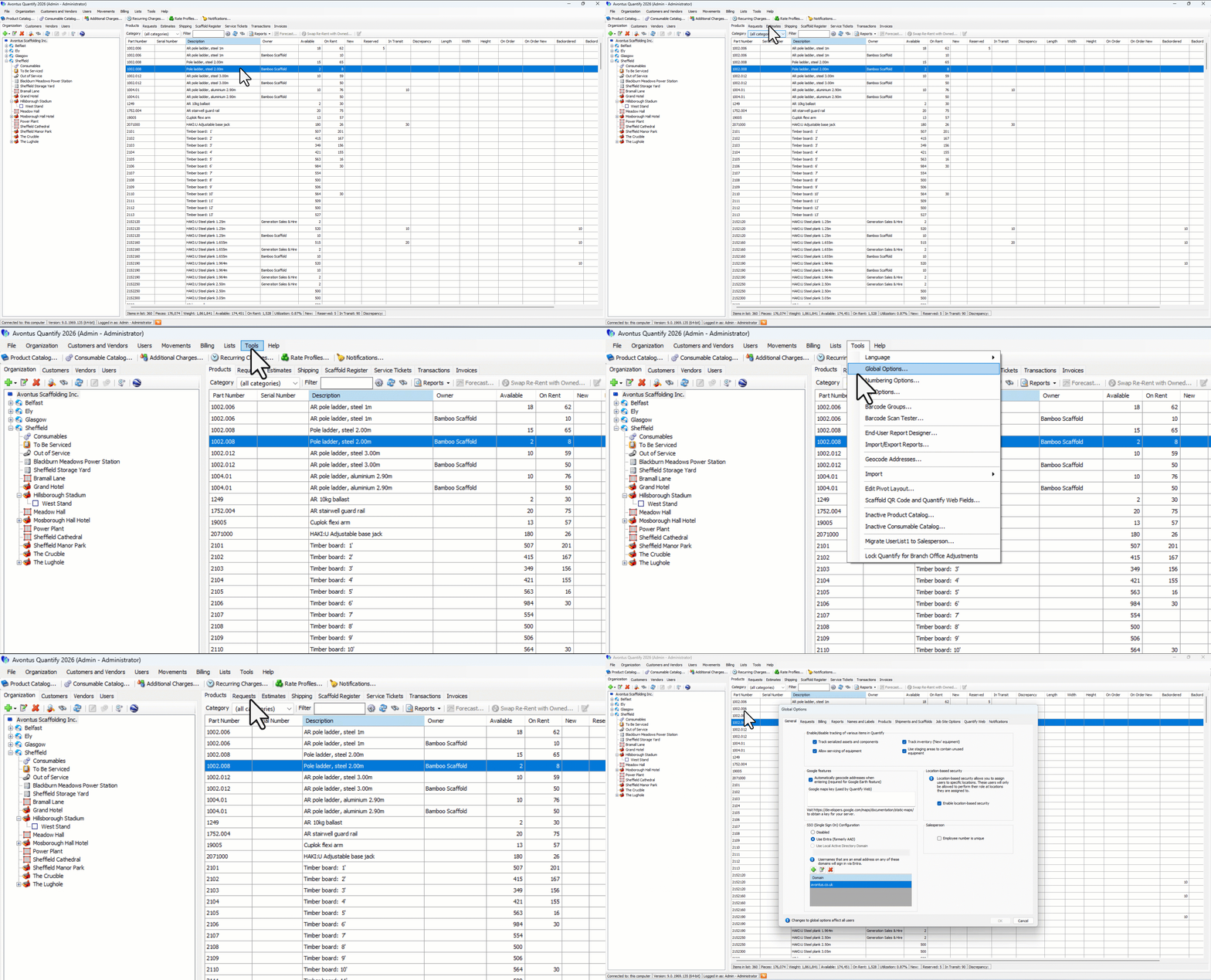
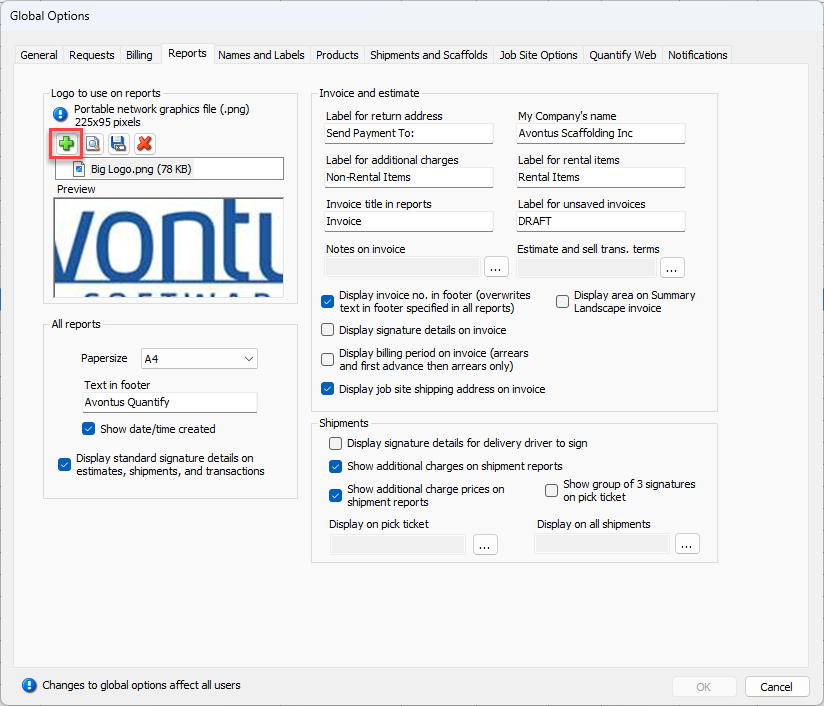
The Global Options dialog appears.Click the Reports tab.
Click the Add .png File for Logo button (
 ).
).
The Add Attachment dialog appears.
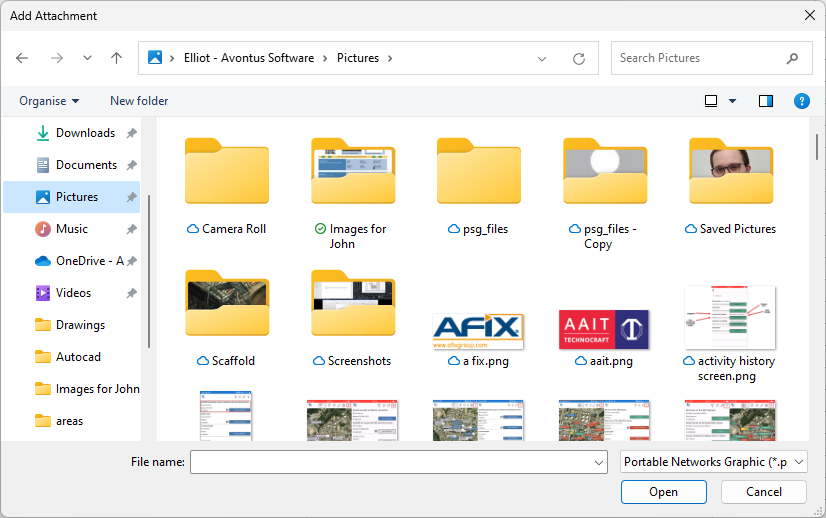
Navigate to the folder that contains the appropriate .png file, select that file and click Open.
The Global Options dialog displays the logo in the Preview box.Click OK.
Adding a Logo to a Branch Office or Sub-Branch
Quantify makes it easy to associate a specific logo with a Branch Office or Sub-Branch. Each Branch Office or Sub-Branch can have its own, unique logo. However, if a logo is not assigned to a Branch Office or Sub-Branch, Quantify will use the logo assigned through the Global Options dialog.
To add a logo to Branch Office or Sub-Branch:
Locate and click the appropriate Branch Office or Sub-Branch, then click the Edit Selected Item button (
 ).
).
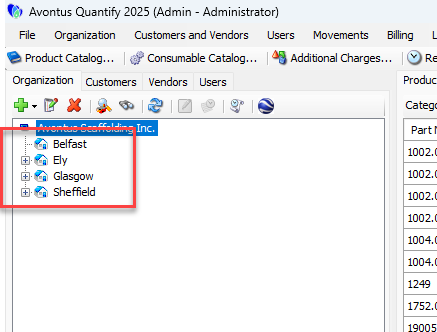
The Branch Office (or Sub-Branch) dialog appears.Click the Reports tab.
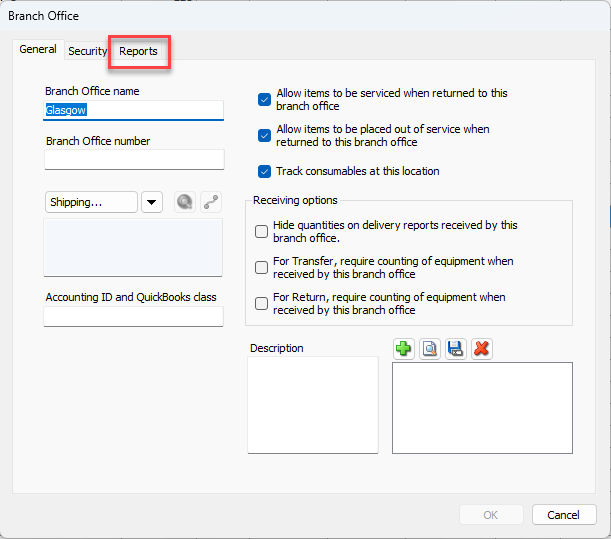
Click the Add .png File for Logo button (
 ).
).
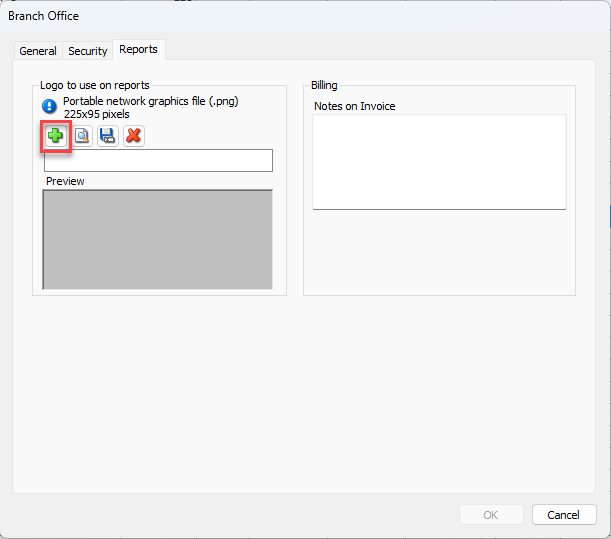
The Add Attachment dialog appears.
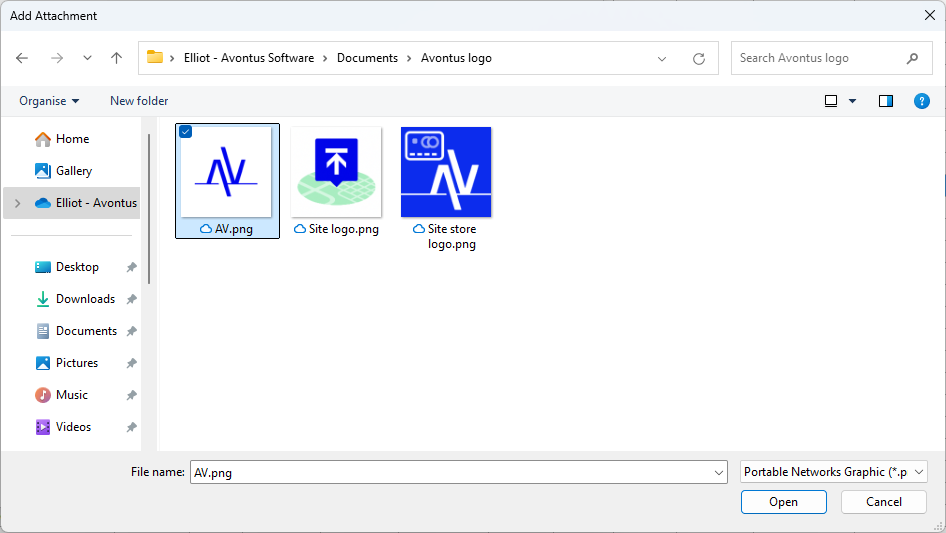
Navigate to the folder that contains the appropriate .png file, select that file and click Open.
The Branch Office (or Sub-Branch) dialog displays the logo in the Preview box.Click OK.