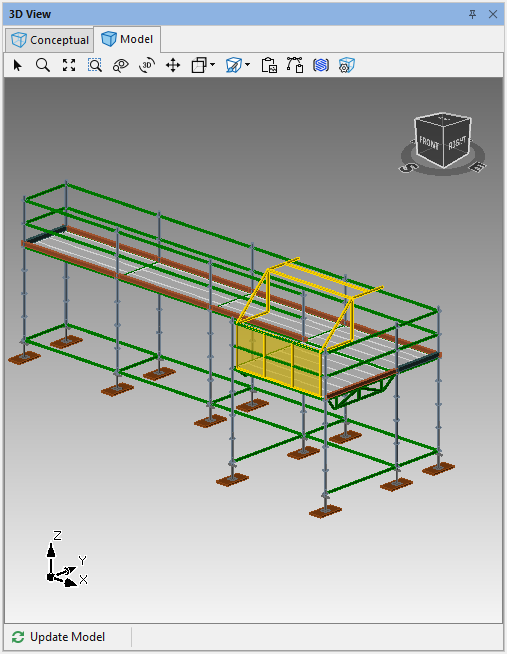
Avontus Designer makes it easy for you to add Loading Bays to your scaffold designs.
To add a Loading Bay:
Create your design, selecting the bay size from the TB drop-down in the Scaffold tab. In this example, we have selected a Bay size of 8.43 ft or 2.57m for TB
Click on a Bay and select B in the Add Bay To… section of the Scaffold tab
Select the newly added Bay
Click the LR dropdown and select the appropriate dimension, using the following guidelines:
RingType: 2.5m (8' 6")
CupType: 2.4m (8' 0")
Kwikstage: 2.4m (8' 0")Note: Loading Bay Transom is Kwikstage only. For other systems, use appropriate load bearing member.
Note: If you want to use a different size Loading Bay, you can add one in the Material Master.
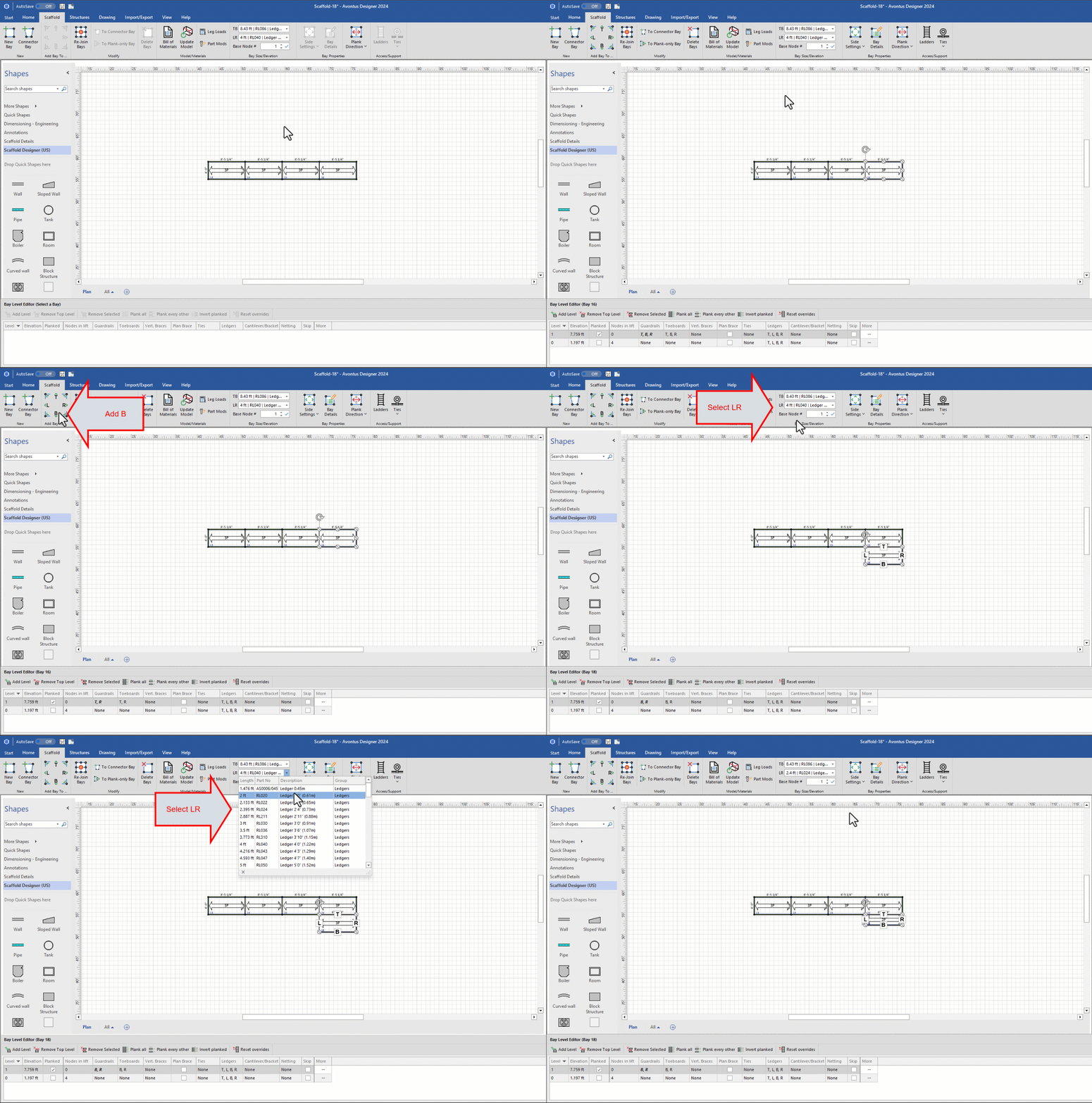
Select all the Bays and click Re-join Bays
.gif)
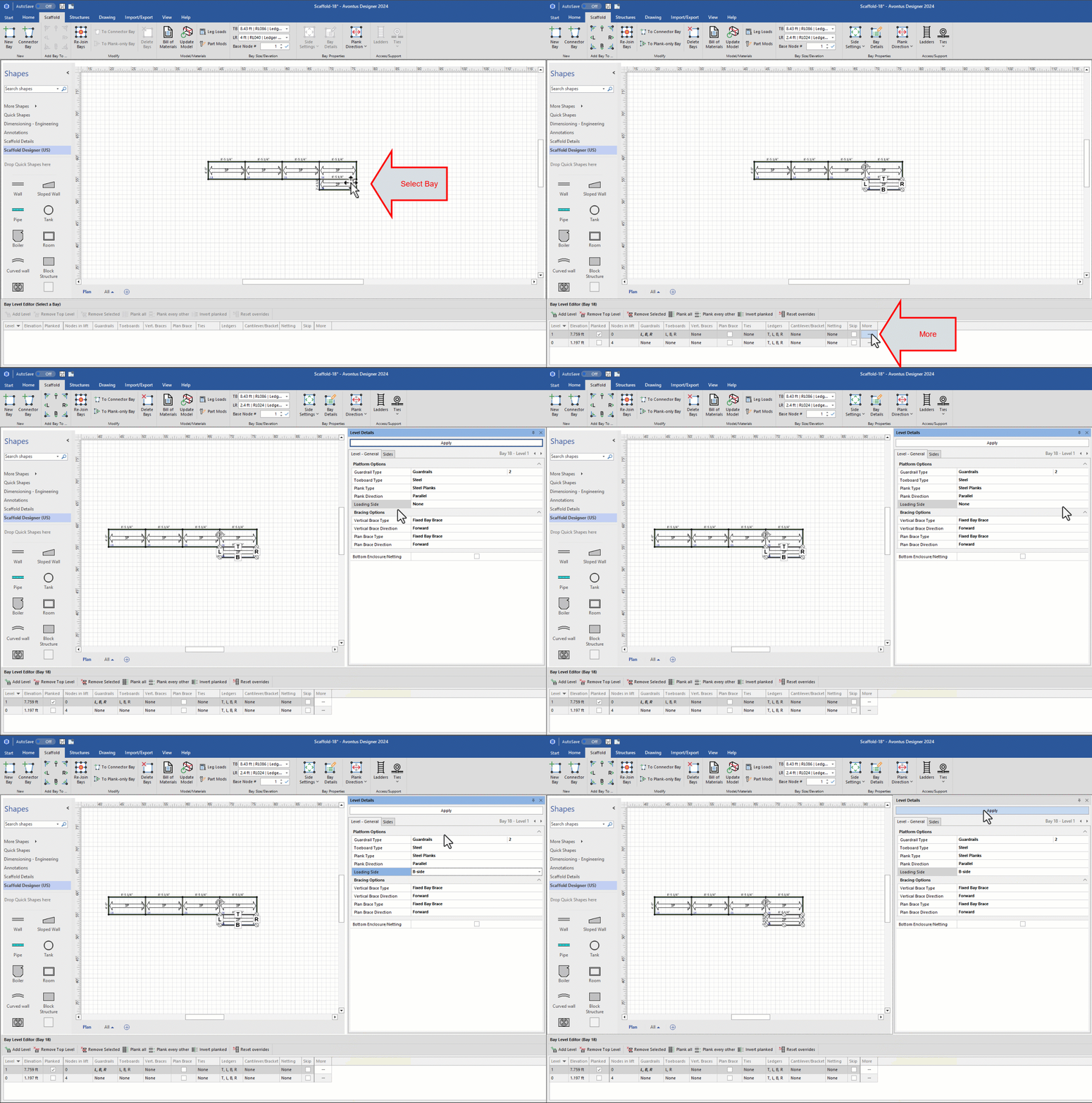
In the Bay Level Editor, click More for the level onto which you wish to add the Loading Bay. We will add a Loading Bay on the first level
Click Level - General and then click the Loading Side dropdown, select the appropriate side for the Loading Bay's gate
Click Apply
The result should look like this: