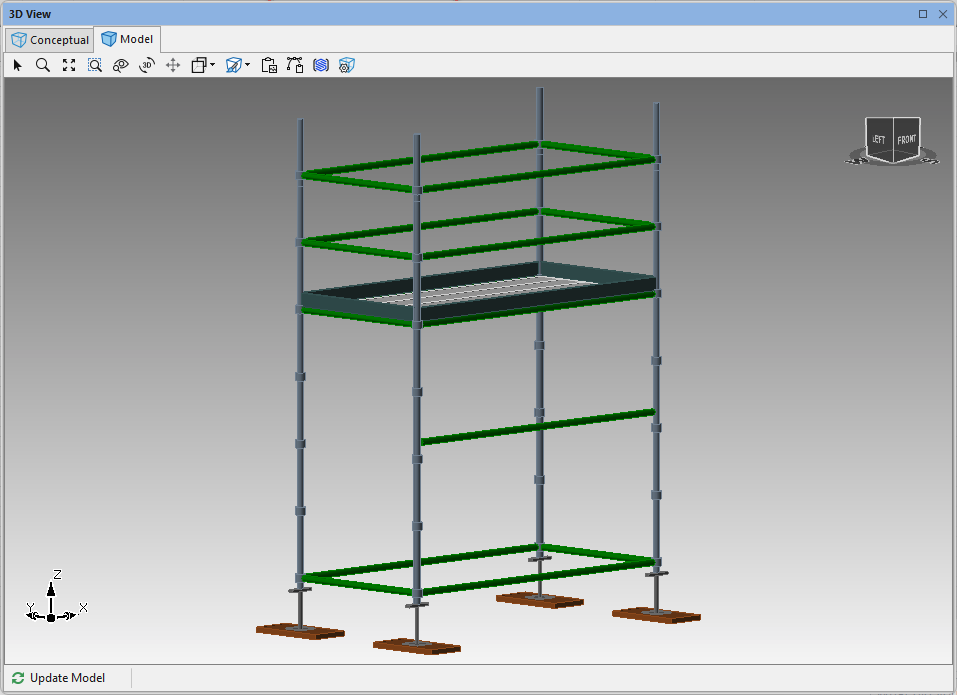
Avontus Designer enables you to add or remove just about any material from any Bay to design the scaffold you want.
Remove (skip) individual vertical standards (legs)
Remove (skip) any Bay side
Extend vertical standards (legs) above or below the Bay level
Add ledgers to any node level
Add bracing anywhere
Create a planks-only Bay
And more: the possibilities are virtually limitless

In this example, you will add a ledger to the middle of a Bay level.

However, you can apply the same concept to any material.
Starting the Process
The process of adding a ledger to the middle of a Bay starts with add the Bay to the Drawing Page.
To add the Bay to the Drawing Page:
Click the Scaffold tab.
Click the New Bay button and drag the new Bay onto the Drawing Page.
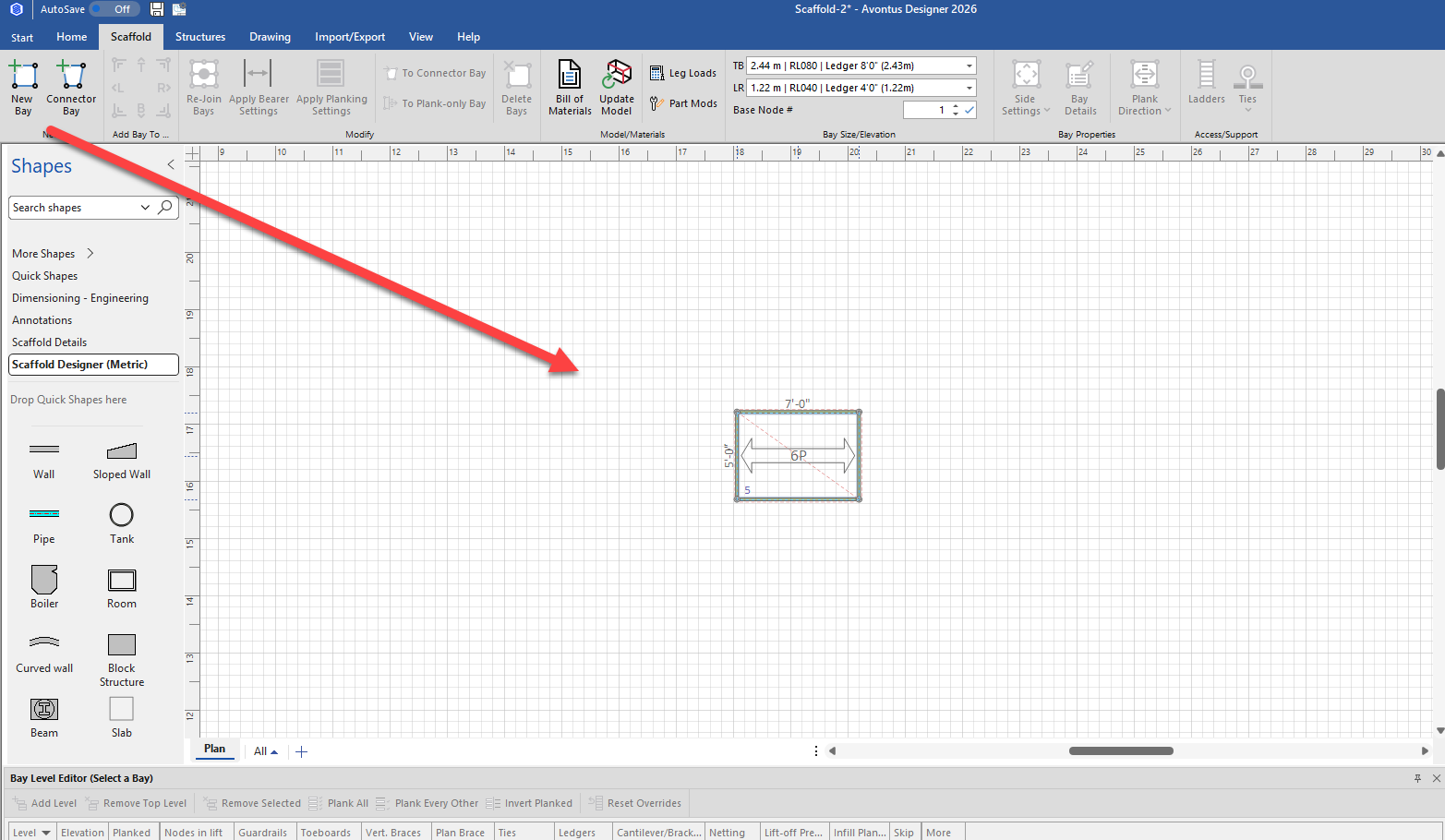
Skipping All But One of the New Bay's Sides
The next step is to use the Sides tab of the Bay Details dropdown to skip all but one of the new Bay's sides.
To skip all but one of the new Bay's sides:
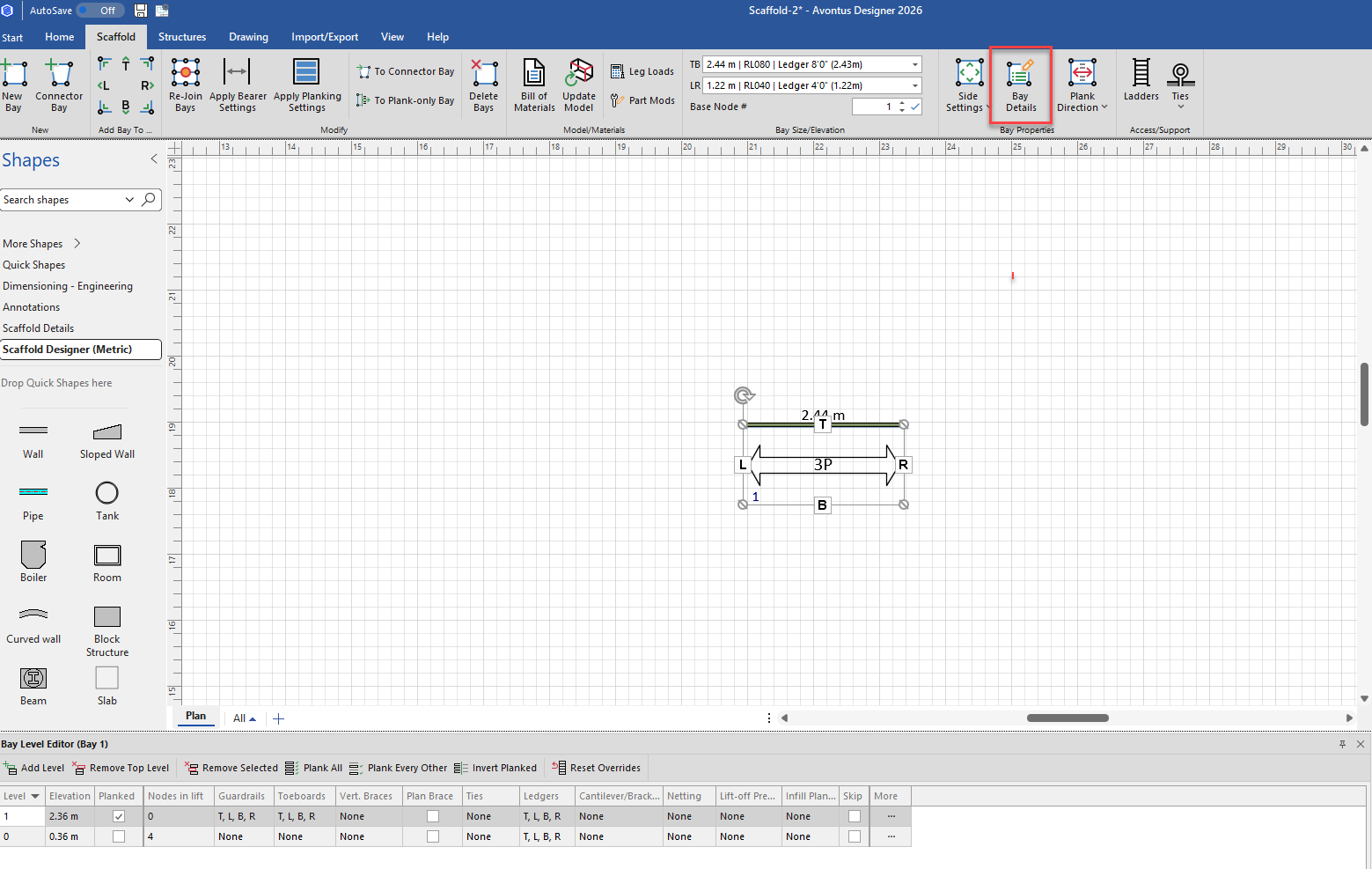
Click the new Bay (to select it), then click the Bay Details dropdown
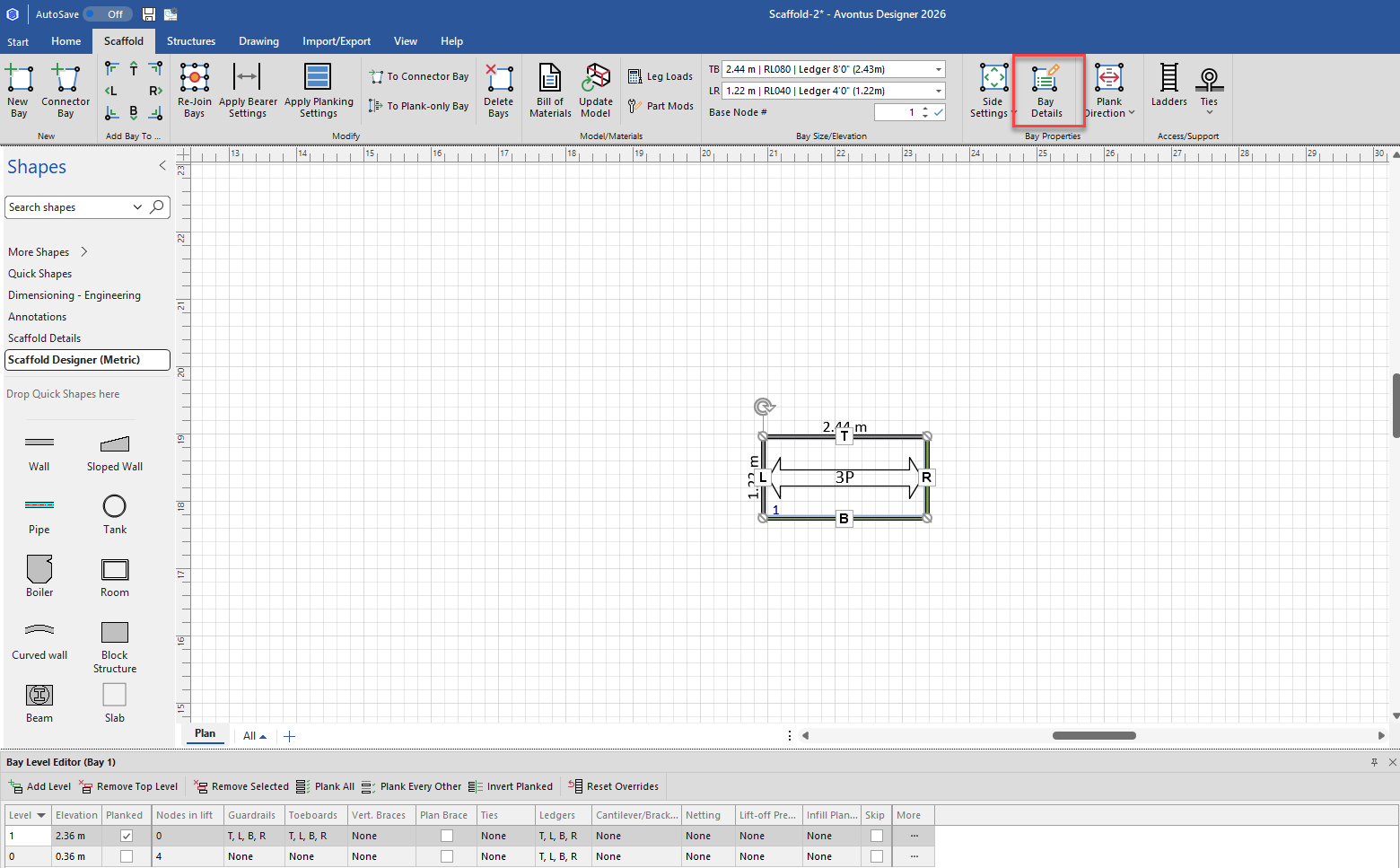
Click the Sides tab.
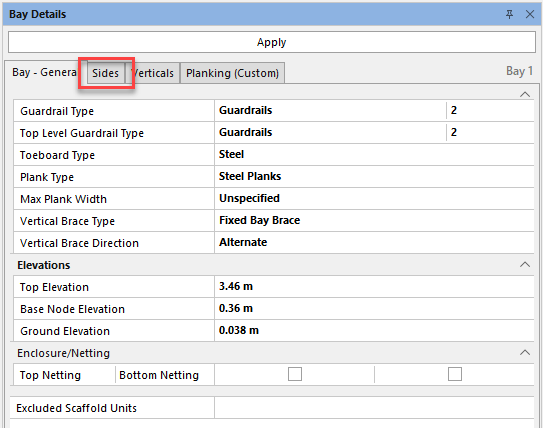
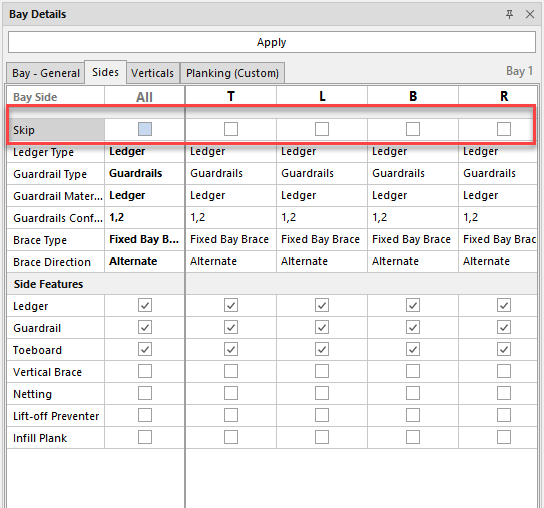
Click all but one Skip Side checkbox (to put a check in them).
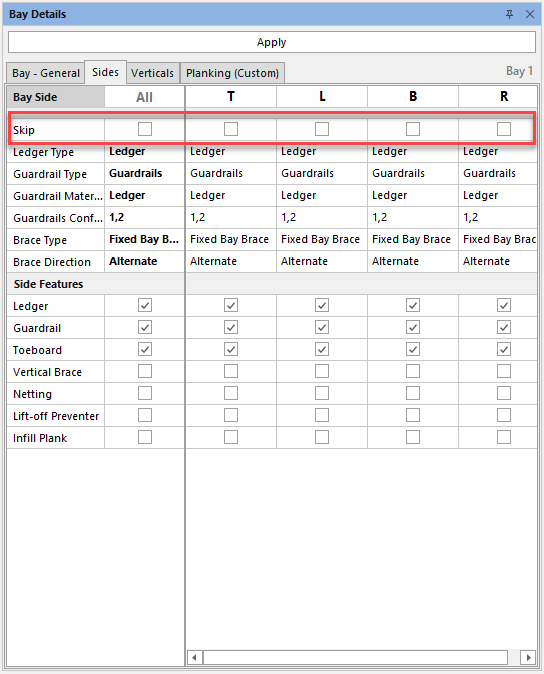
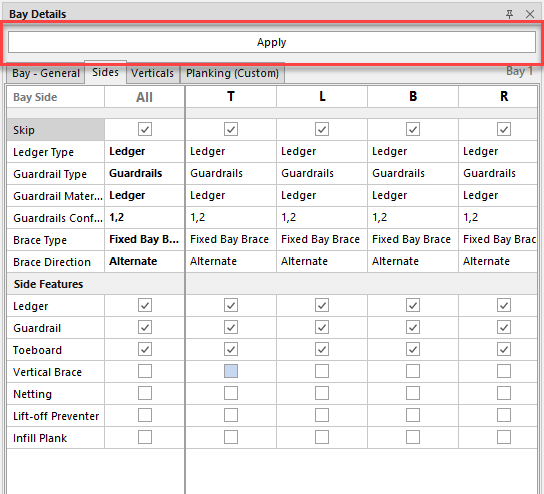
Click Apply.
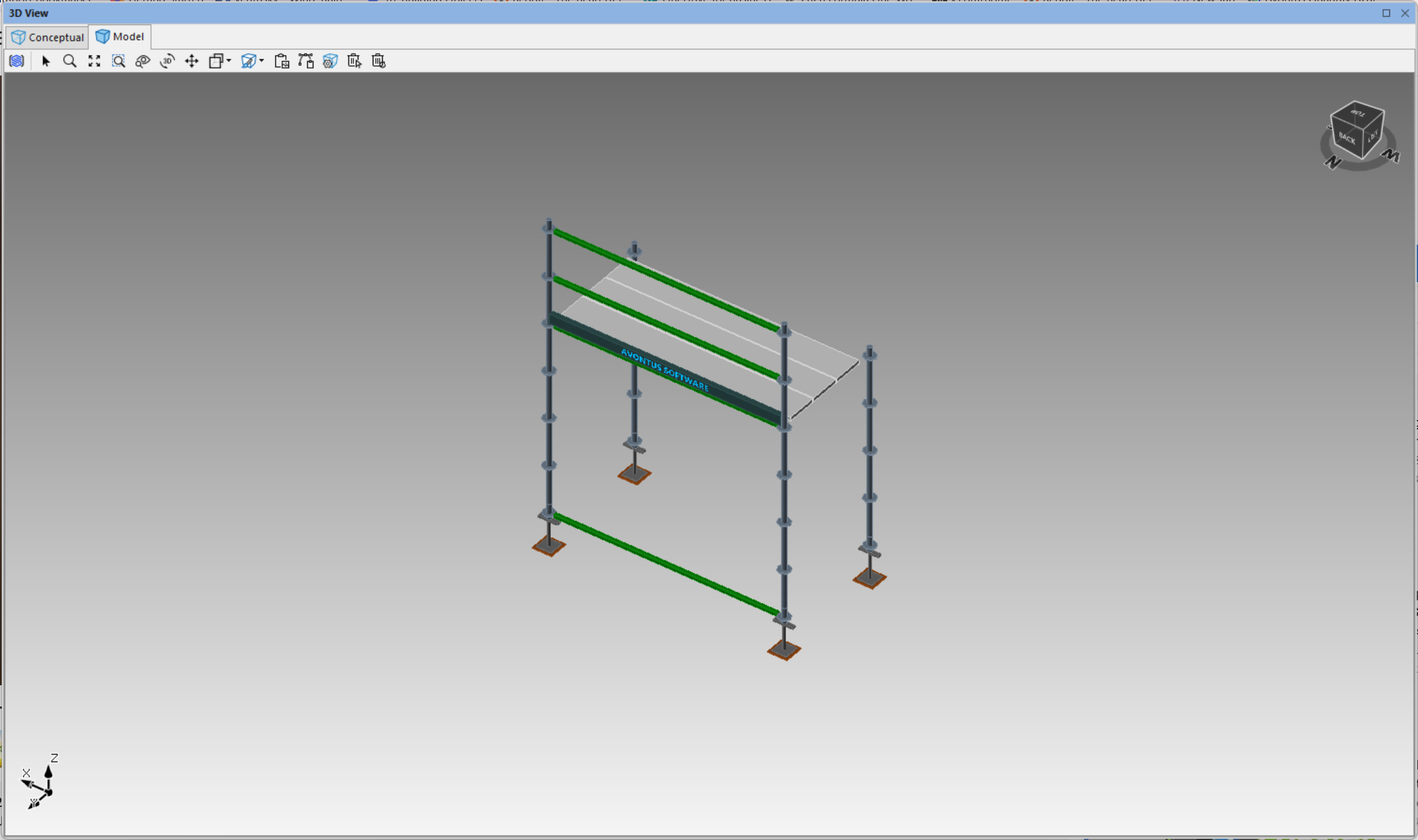
The result looks like this:
Skipping All Verticals
Now, use the Verticals tab of the Bay Details dropdown to skip all the Bay's verticals.
To skip all verticals:
Click the new (to select it), then click the Bay Details dropdown
Click the Verticals tab.
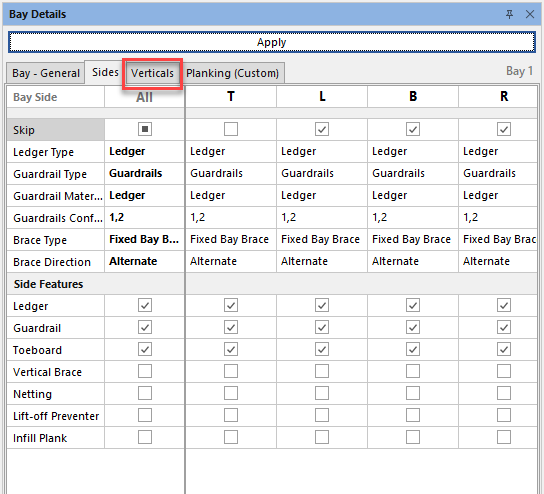
Click all the Skip Vertical checkboxes (to put a check in them).
Click Apply.
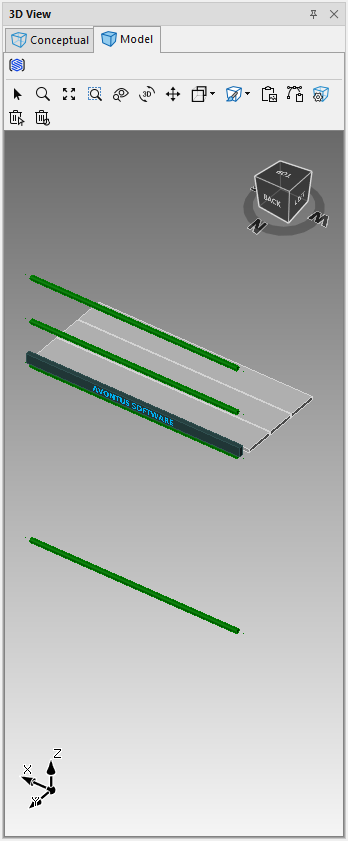
The result looks like this:
Removing the Top Level
Now, use the Bay Level Editor to remove the top level.
Click the new Bay (to select it), then click the Remove Top Level.

Unplank the level

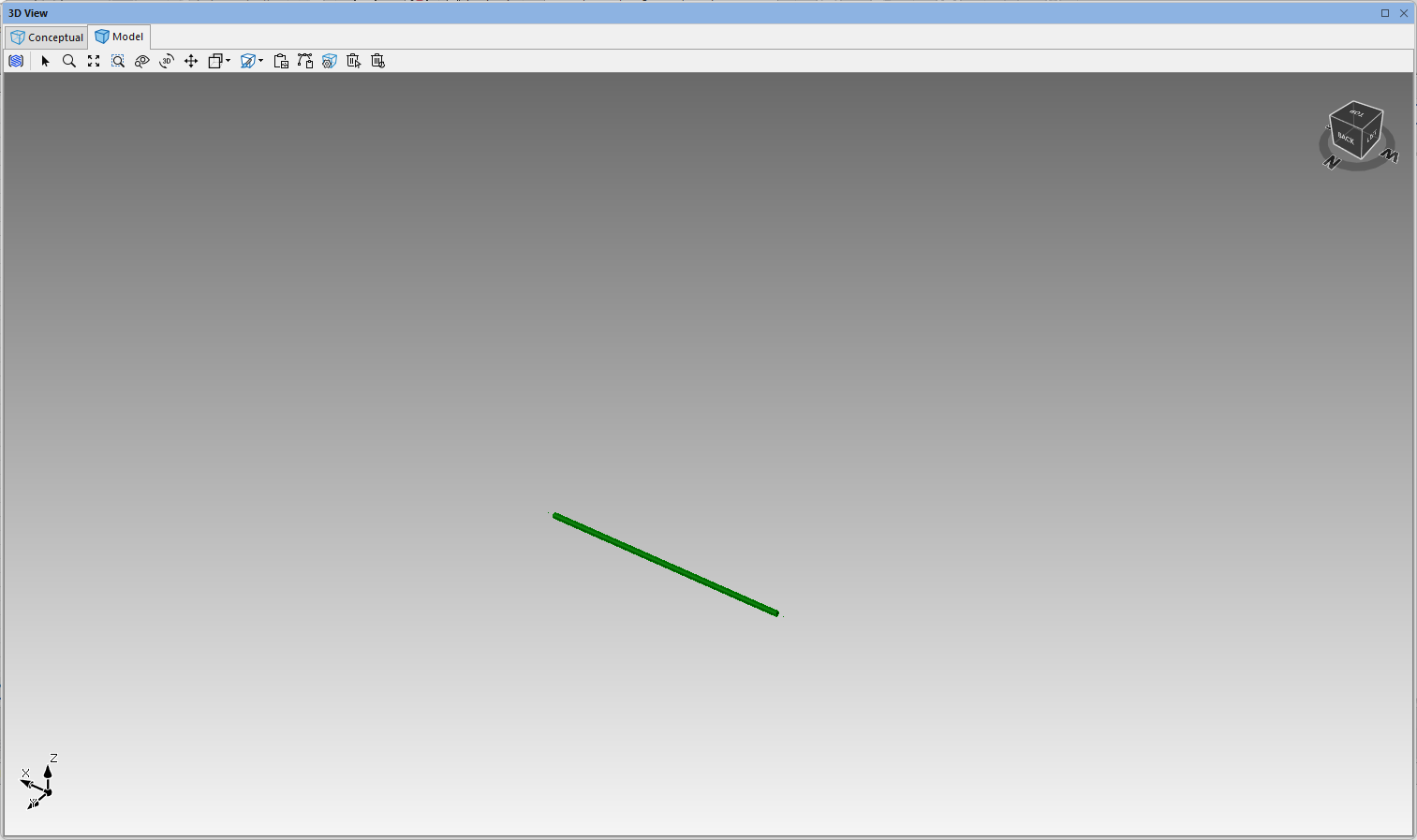
The result looks like this:
Adding a New Bay and Superimposing the Ledger-Only Bay onto It
Finally, add a new Bay and superimpose the ledger-only Bay onto it.
To add a new Bay and superimpose the ledger-only Bay to it.
Click the Scaffold tab.
Click the New Bay button and drag the new Bay onto the Drawing Page.
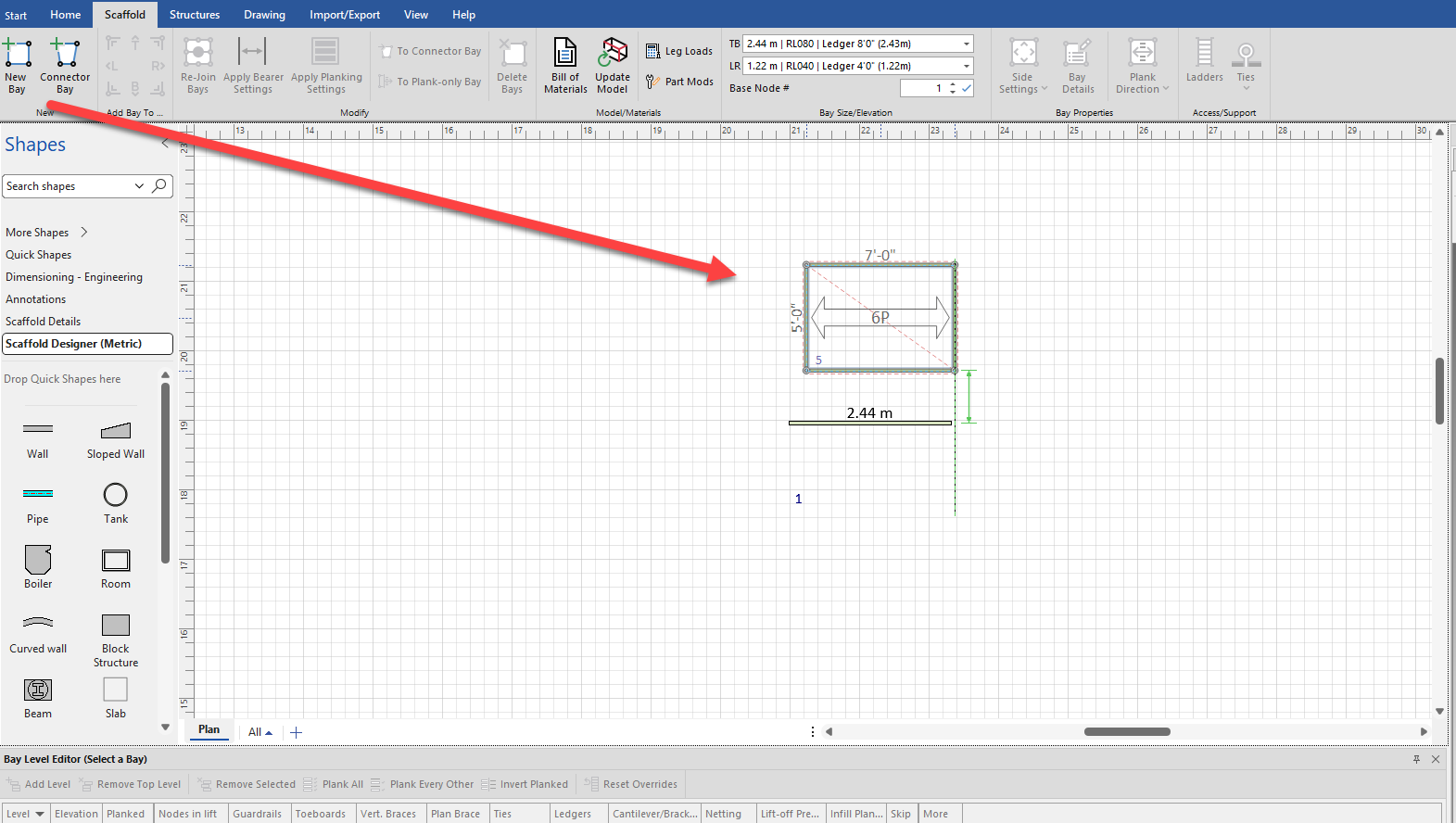
Click the ledger-only Bay (to select it), then click in the Base text field and enter the height at which you want to attach the ledger-only Bay to the new Bay.
Click the tick button
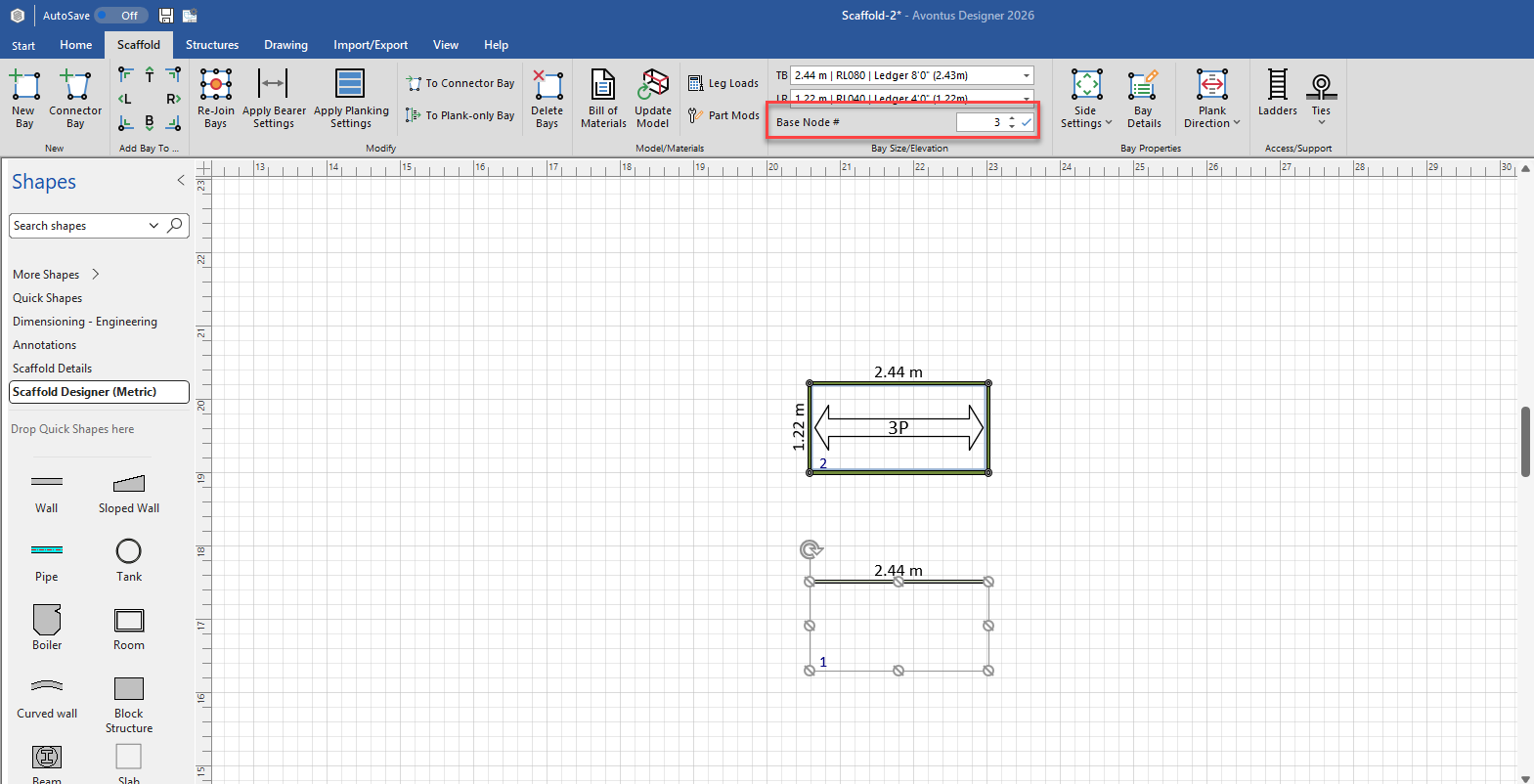
Click and drag the ledger-only Bay into place over the existing Bay.
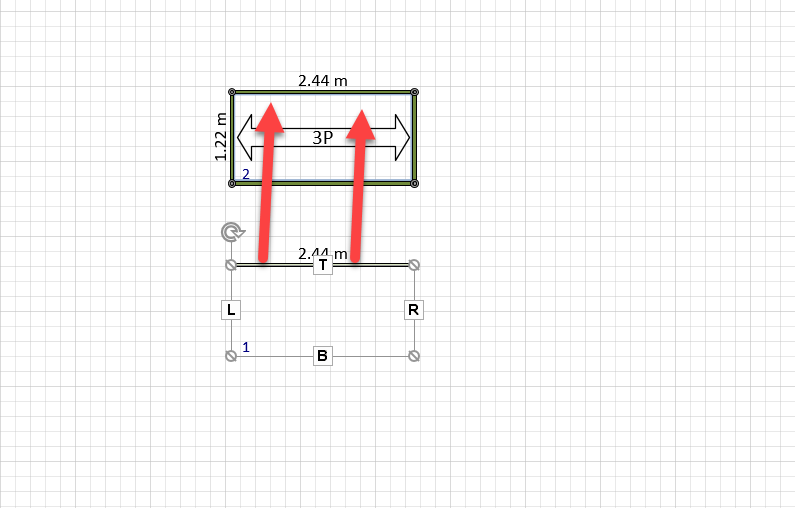
The result looks like this: