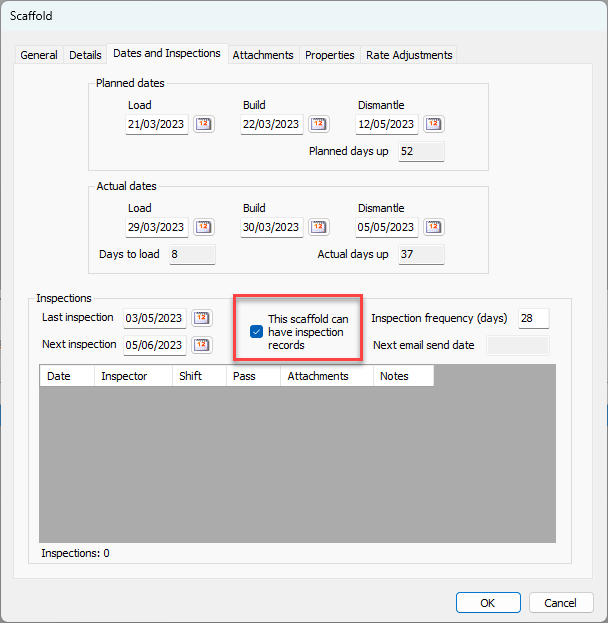
Quantify enables you to add Activities to individual Scaffolds.
NOTE: The features mentioned in this article are only available in the Industrial Edition of Quantify.
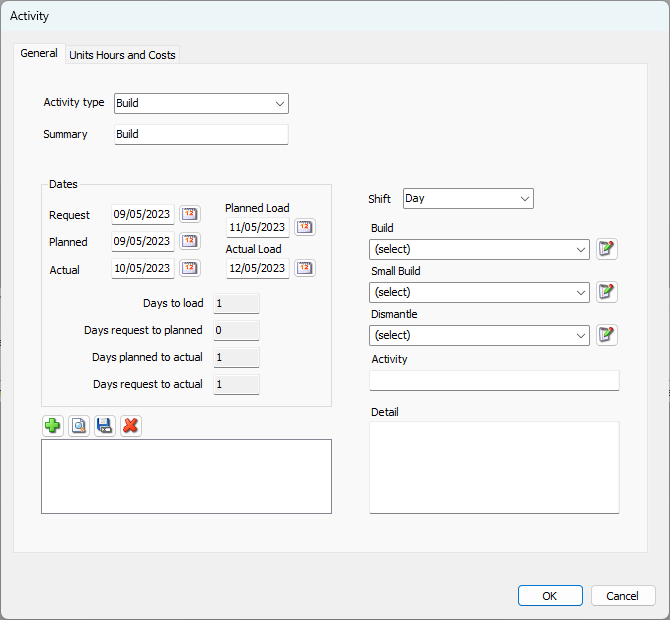
There are two tabs, the General tab and the Unit Hours and Costs.
The General tab enables you to configure the type and duration of an Activity, etc.
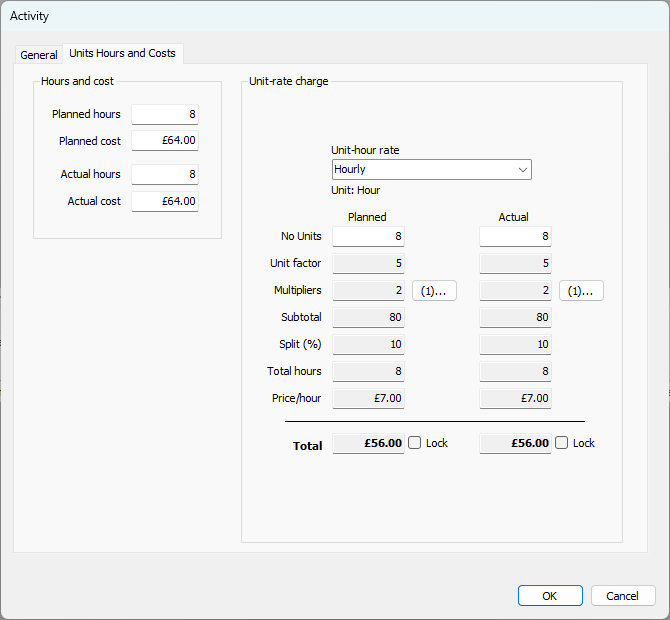
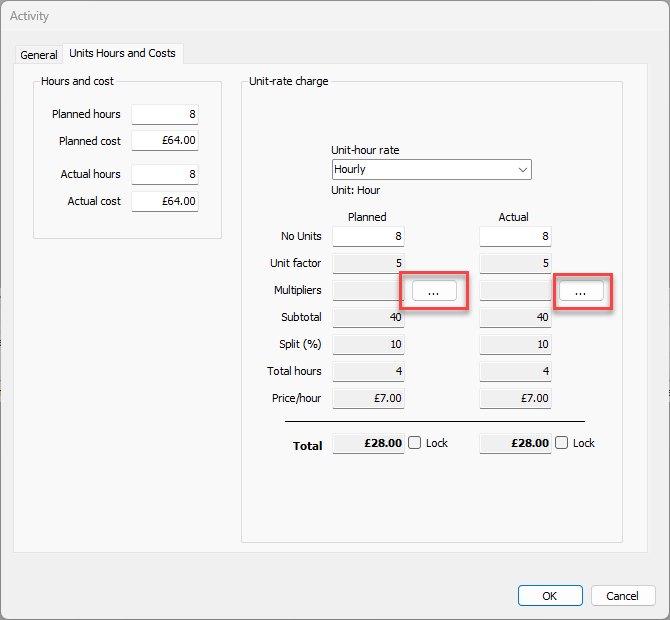
The Units Hours and Costs tab enables you to configure the time and material costs for an Activity. Entering this information is optional. Also, should you enter information into this tab, all individual text fields are optional. For example, you do not have to enter Multipliers simply because you are entering information into the Units Hours and Costs tab. You can enter planned and actual time and costs. If you do not have all the information for each column, simply enter the information you do have.
To add an Activity to a Scaffold:
Note: Before you can do the procedures below, you must configure one or more types of activities and Unit Hour profiles.
Click the Scaffold Register tab, then click the appropriate Site.
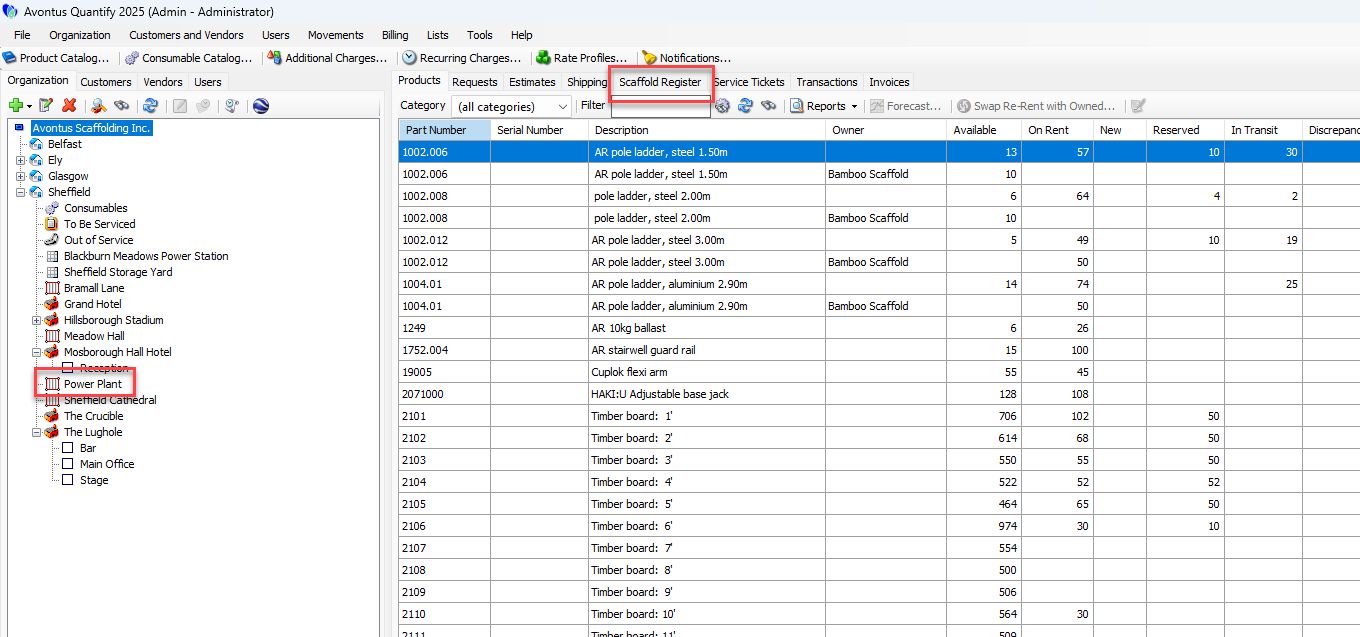
Select a Scaffold
Click the Activities tab, then click Add.
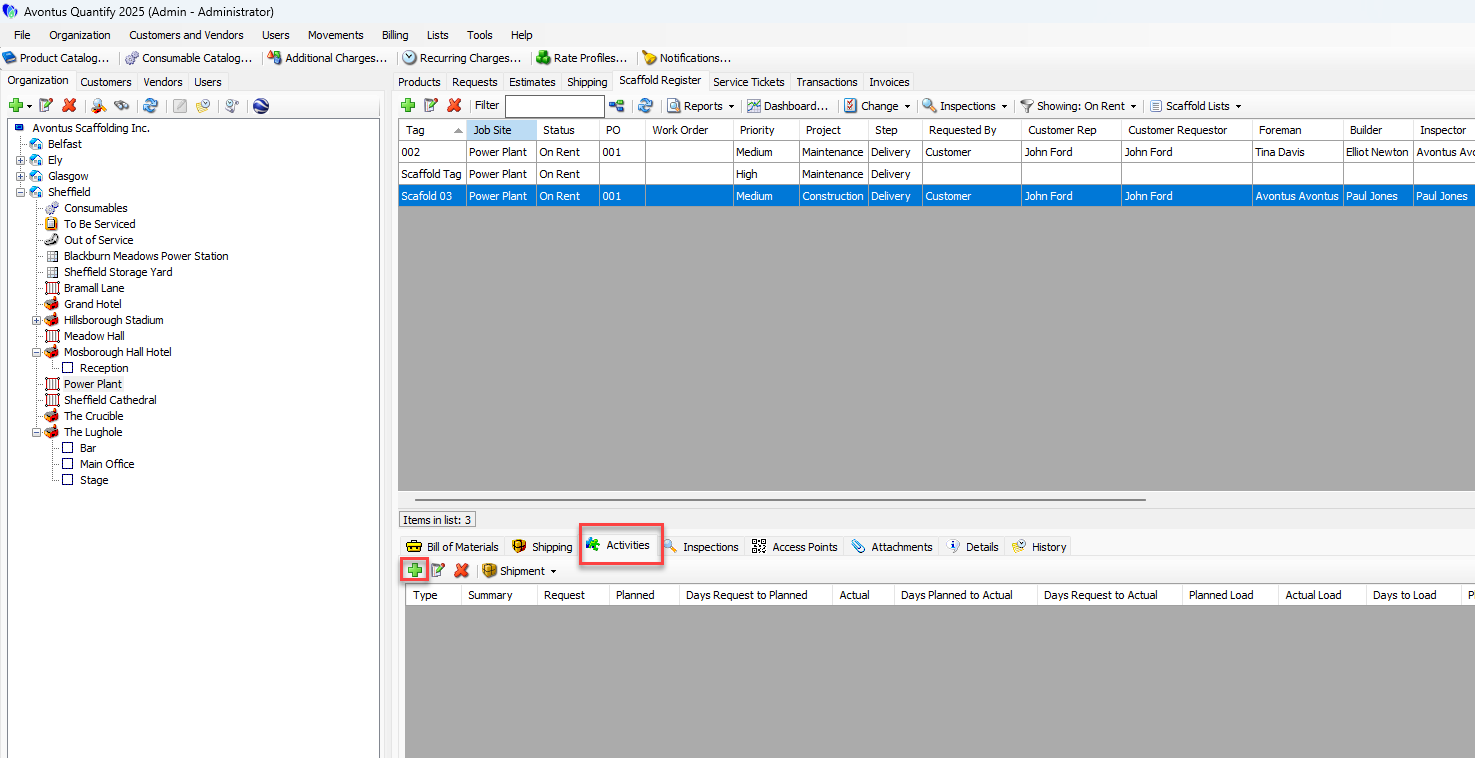
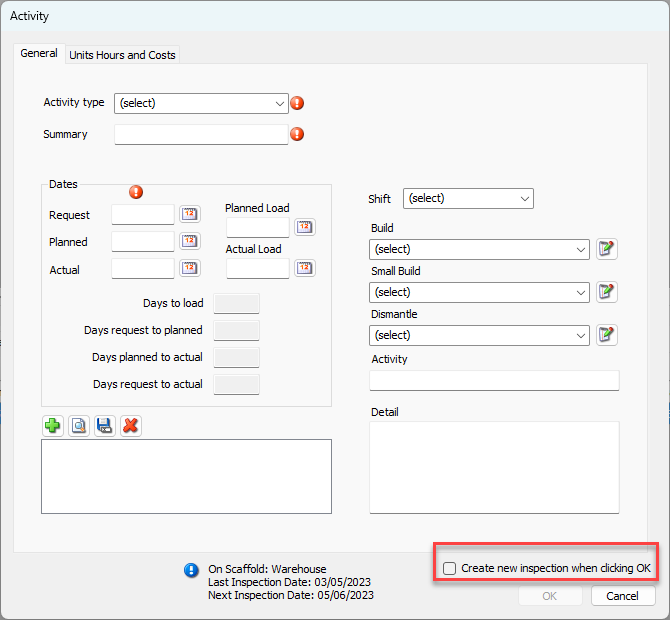
The Activity dialog appears.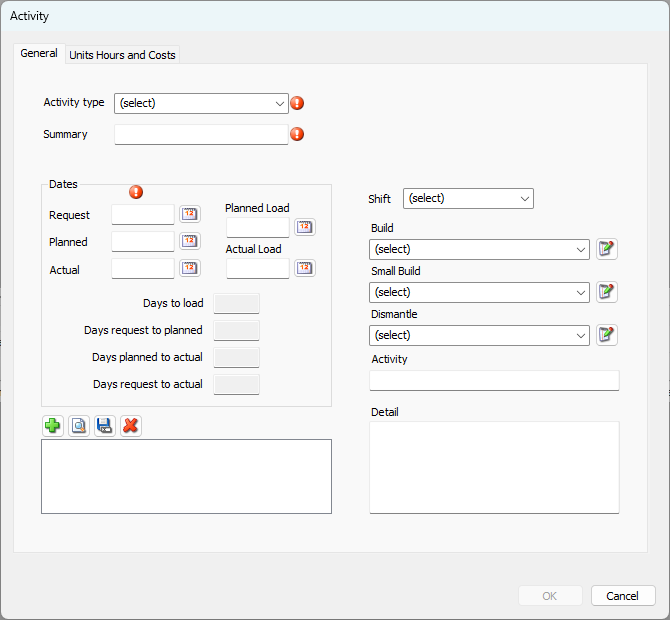
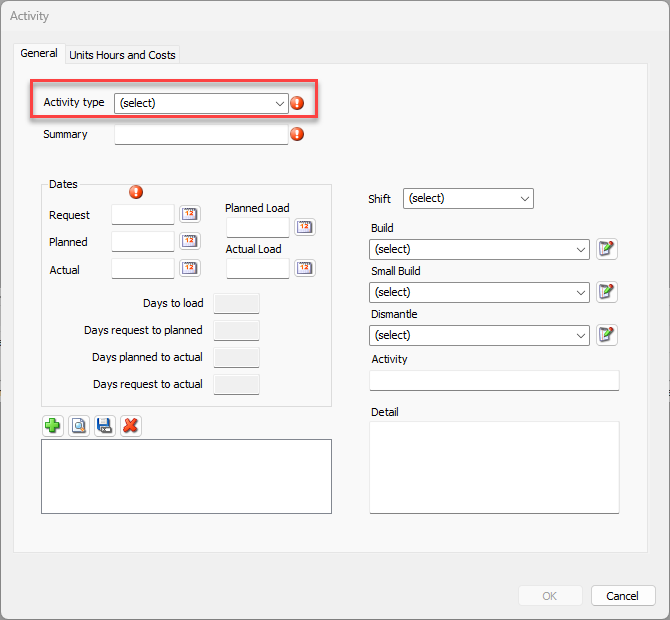
Click the Activity Type dropdown and select the appropriate Activity Type.
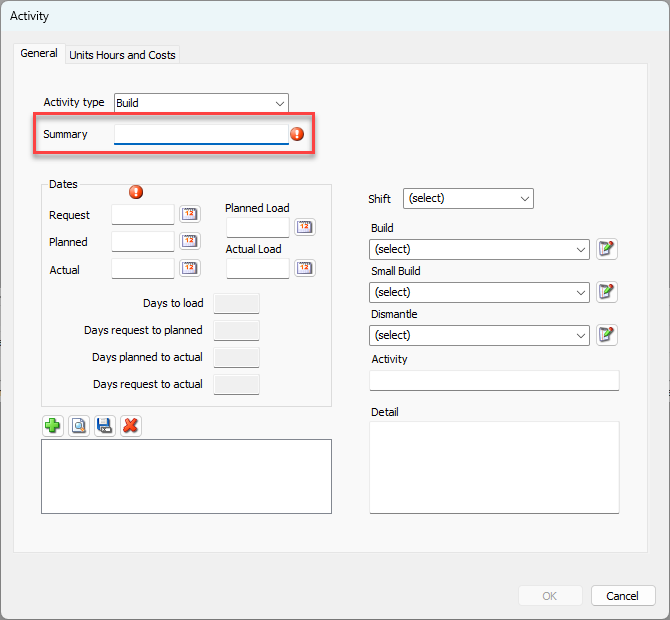
Click in the Summary text field and enter a short summary of the Activity.
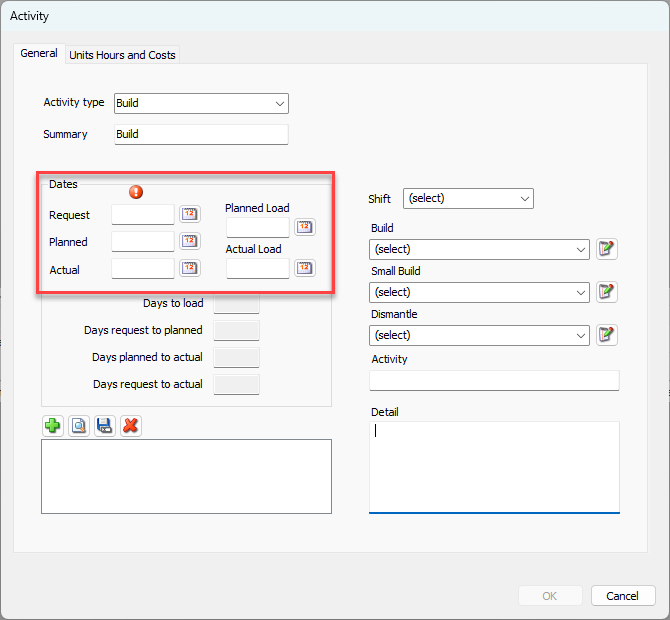
5. Specify the dates for the Activity by selecting the calendar icon
Note: Only one of the Request, Planned or Actual date fields are required.
6. Select the date from the calendar that appears
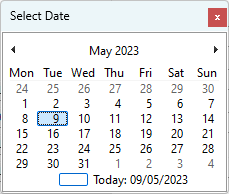
7. Repeat for each of the required date fields
8. Select a Shift from the drop-down
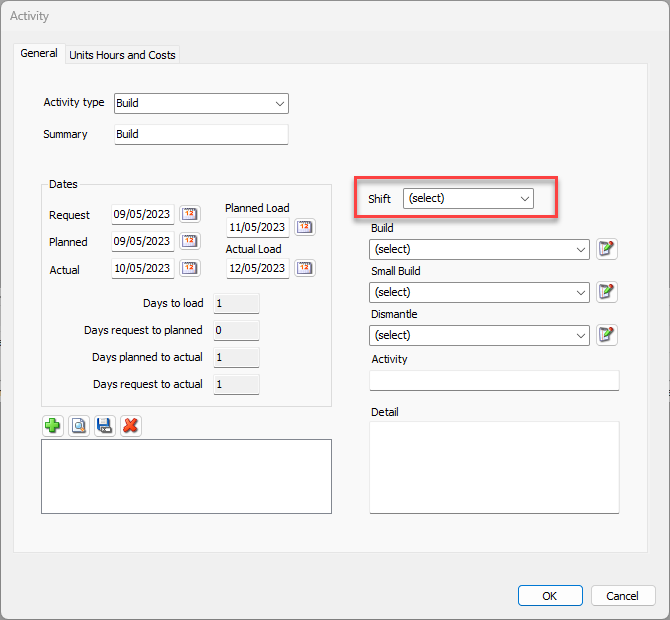
The four fields below the Shift dropdown are reserved for custom Activity Lists. These are enabled and customized on the Job Site and are unique to the specific Job Site. If enabled, enter information in these fields. Some fields may be required depending on the options selected for the item.
.png "image(25).png")
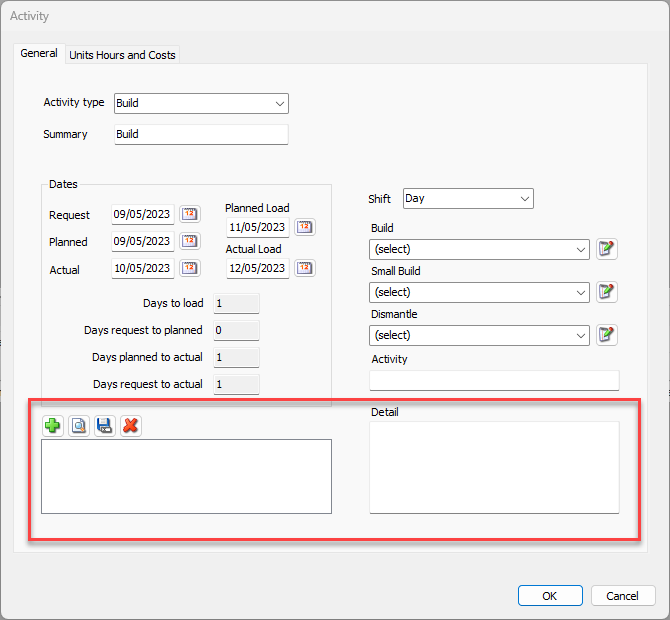
9. As necessary, click in the Detail text box and enter more information about the activity.
10. As necessary, click and drag any attachments onto the drag-and-drop Attachments field.
11. Select Unit Hours and Costs tab
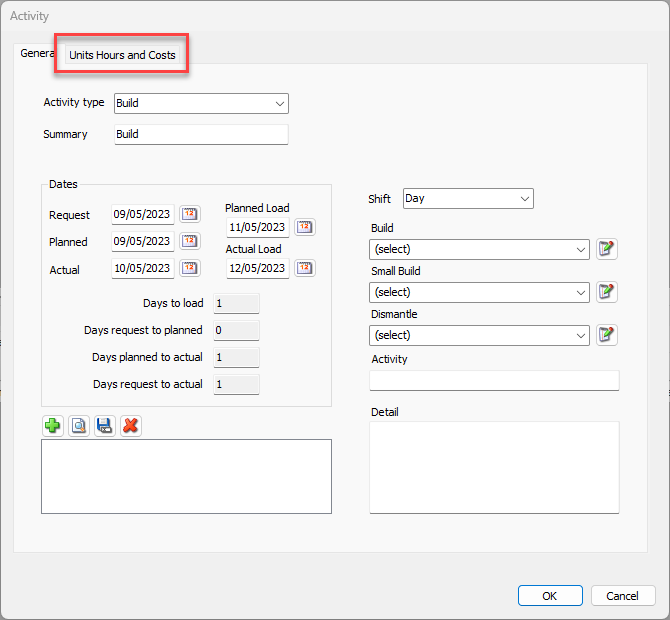
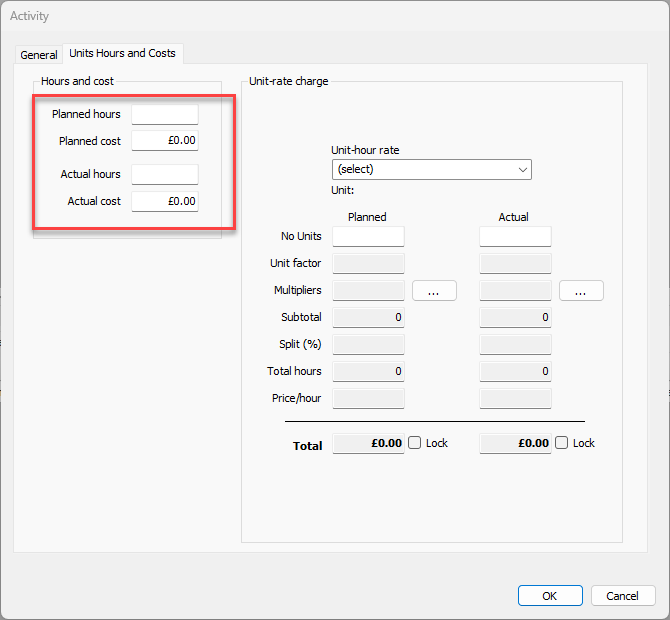
12. If known, enter the Planned Hours and Cost and the Actual Hours and Cost. This is useful for when you know you will charge more than what Quantify has calculated, you can enter that information into the Hours and Cost area of the dialog.
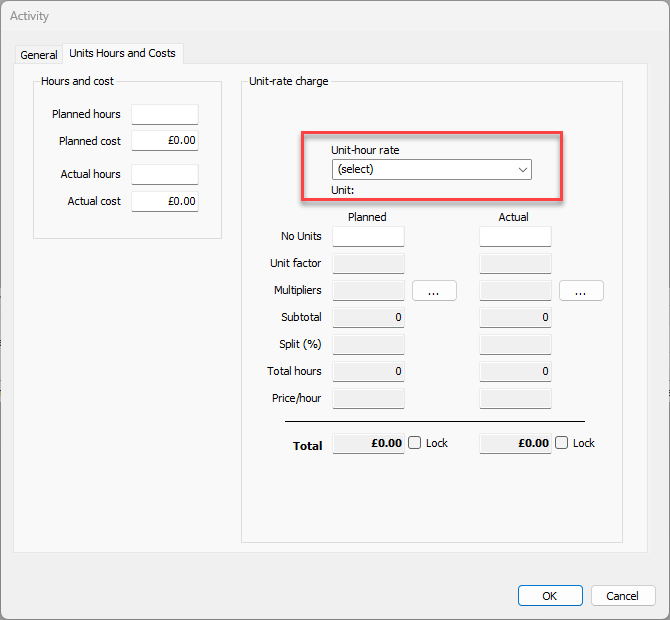
13. Select the Unit-hour rate from the drop-down
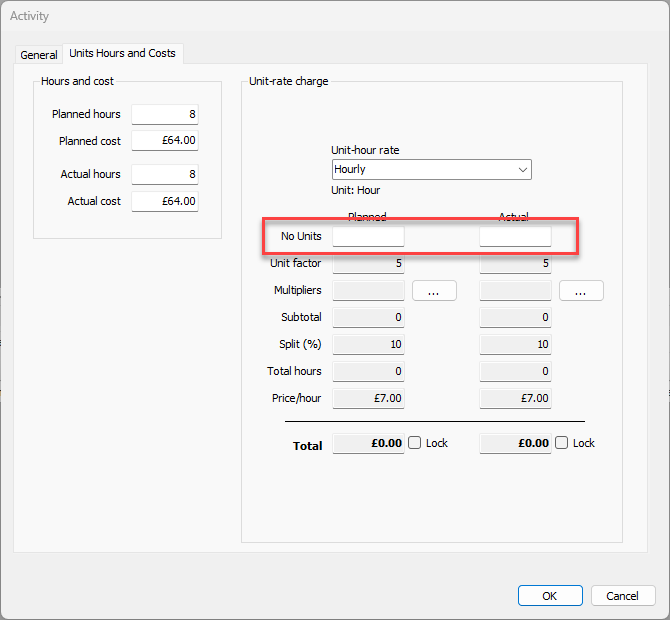
14. Enter the number of units
15. Select ... to add a multiplier
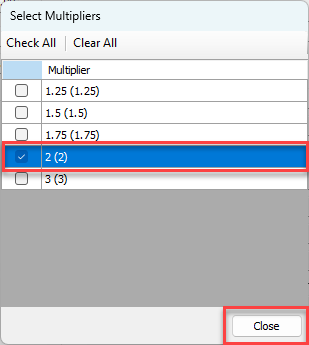
16. Check the desired Multiplier and click Close
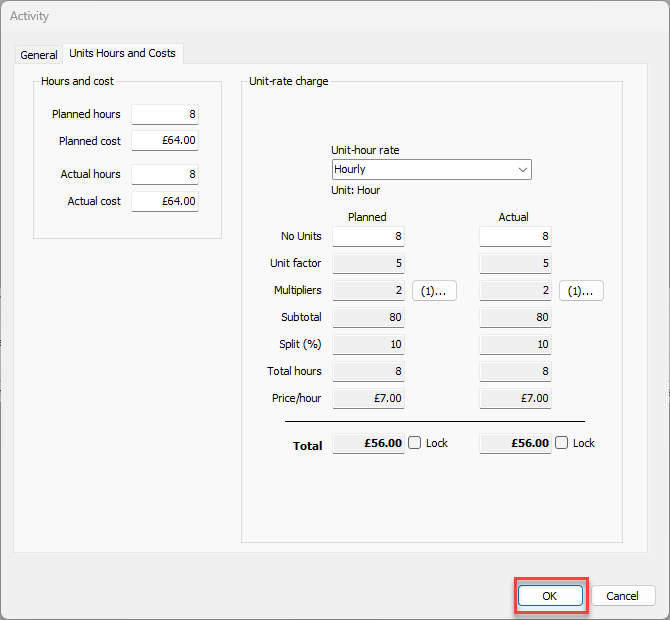
17. Click OK
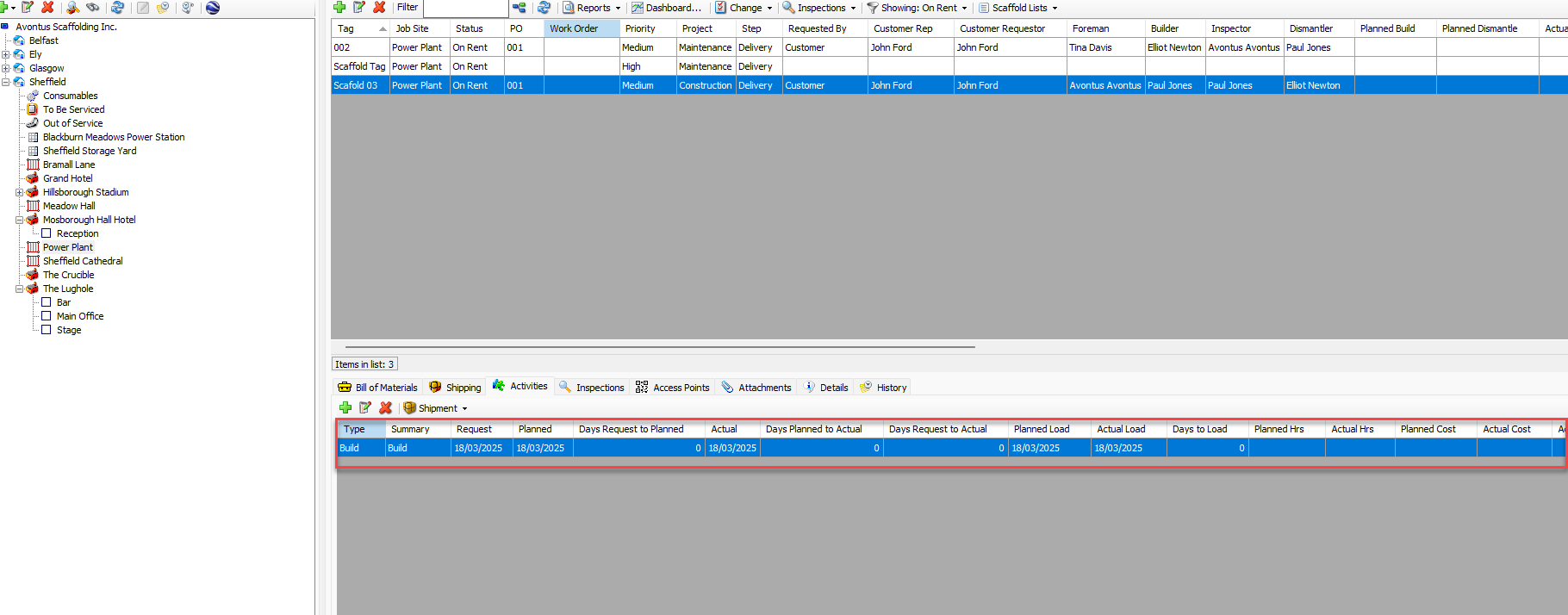
The Activity will be added to the Scaffold
Note: For the Create new inspection when clicking OK check box to be enabled to will need to go into the Scaffold's inspections tab
Go into the Scaffold's Dates and Inspections tab, and enable This scaffold can have inspection records