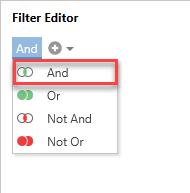
The And formula is a true or false formula that will display results if all of the set conditions are met. This will display data that matches the specified formula. For instance, you can use the Filter Editor to display results where the status is equal to Initial Approval AND the assignee is a specific user (e.g. Christian North).
To do this click And to select the And group and click the + icon.
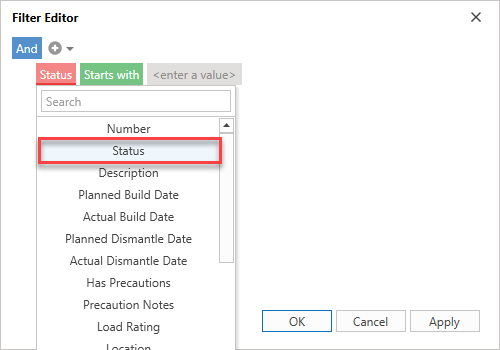
This will reveal three boxes, one red, one green, and one grey where you can specify the conditional formula.
The red button is where the column to be filtered is selected. This means the Status column will be filtered.
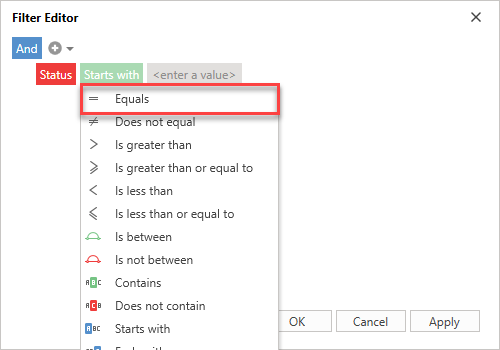
The green button specifies the criteria to meet (e.g. Equals). This means that the content in the Status column must be exactly equal to the specified value (set in the next step).
The grey button is for the value that the selected criteria must meet. Use the drop-down to select a value. In this example, we will select Awaiting Build
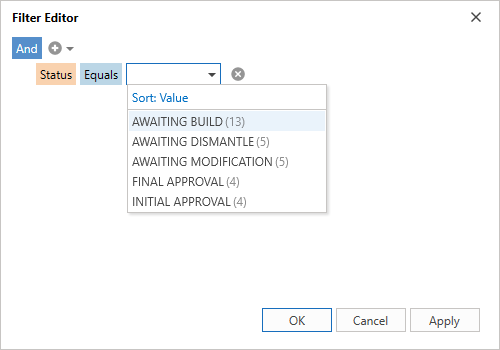
Next, click the + button to add another formula.
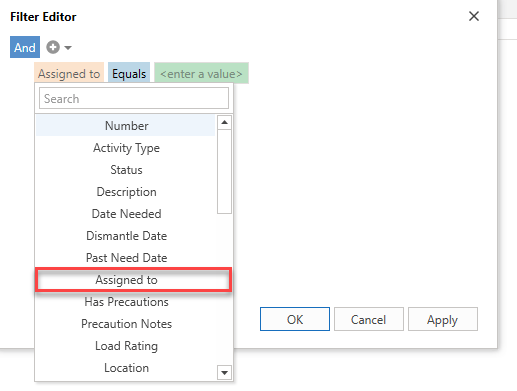
Select the red Status button and select Assigned to. This means that the filtered column will be the Assigned to column.
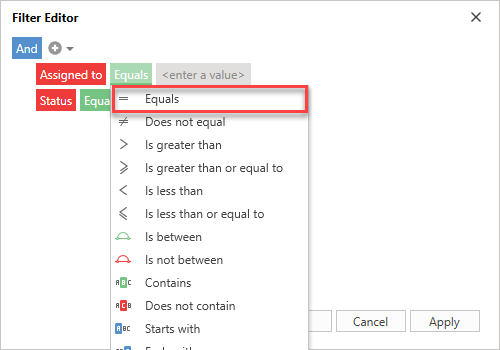
Select the green button and select Equals. This means that the content in the Assigned To column must be exactly equal to the specified value (set in the next step).
In the Value field, select the name of the user. Selecting the name will mean only requests that are assigned to the selected user will be displayed.
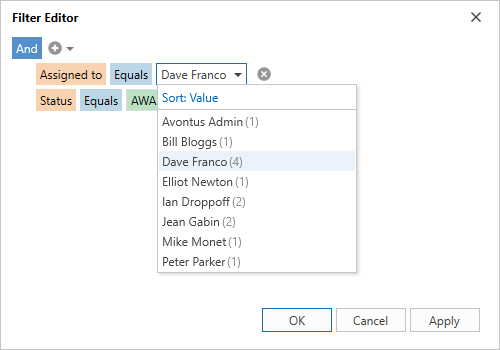
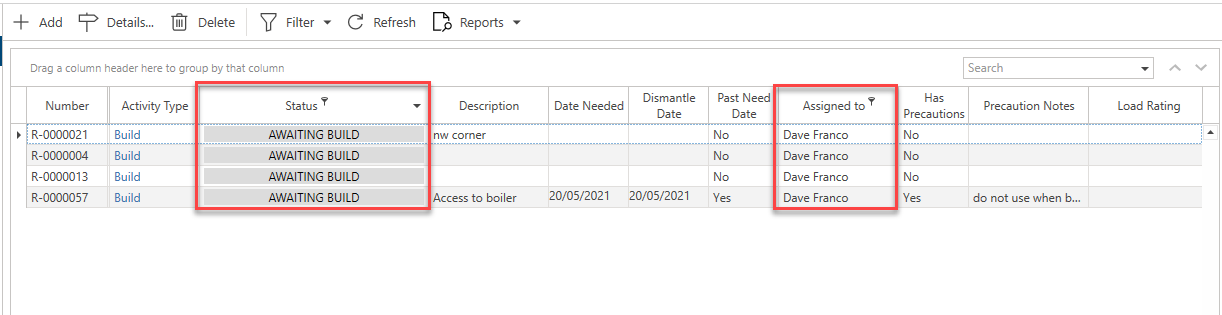
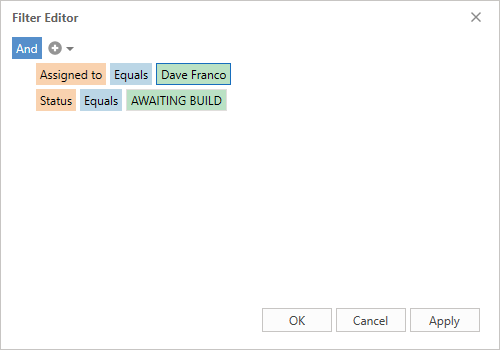
Click Apply and OK to display all results that match the specified conditions. These conditions are:
- Status equal to Awaiting Build
- Assigned to equal to Dave Franco
This will display the following content in the table.