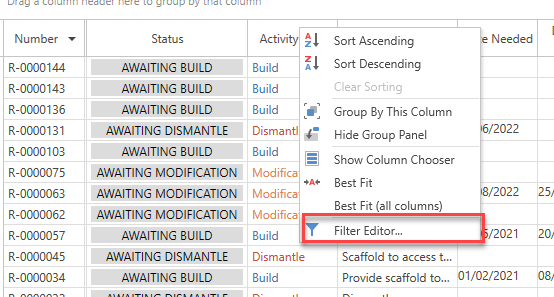
You can access the Filter Editor by right-clicking on a column heading and selecting Filter Editor.
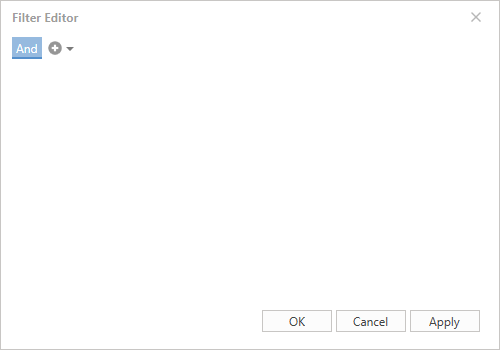
In the Requests, Scaffolds, Activities, Users, and Notifications screens you can find the Filter Editor which allows the user to specify what data is displayed in the table. This is done by using the following formulas
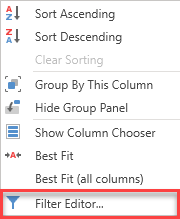
The Filter Editor is accessed in the Requests, Scaffolds, Activities. Users, Notifications screens by right-clicking a column heading and selecting Filter Editor.
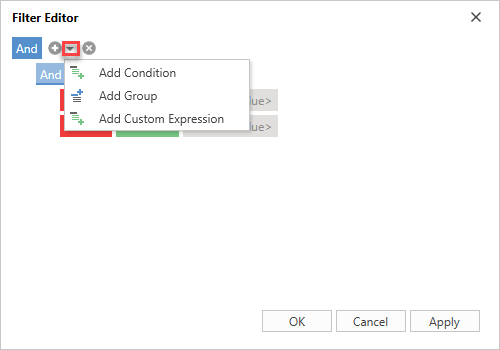
Selecting the downward arrow icon will reveal three ways to filter your data
- Add Condition - Create a single condition.
- Add Group - Create a group where you can combine two different formulas such as the And formula and the Not And formula.
- Add Custom Expression - Modify and create your own expression.
Add Condition
Using either And, Or, Not And, Not Or, users can create a single condition which determines what data is displayed in the table.
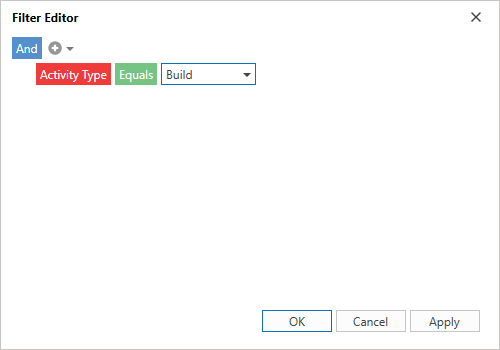
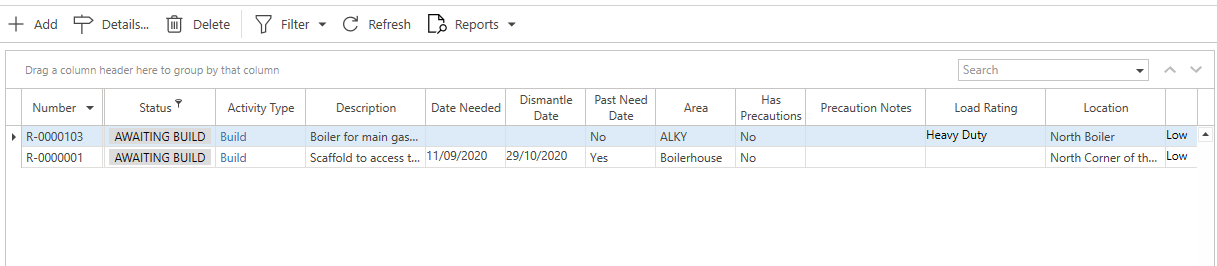
This will display content where the Activity Type is equal to build.
Grouped Formulas
Grouped expressions allow a user to create an expression that combines two different formulas. For example, you can combine the And formula and the Not And formula.
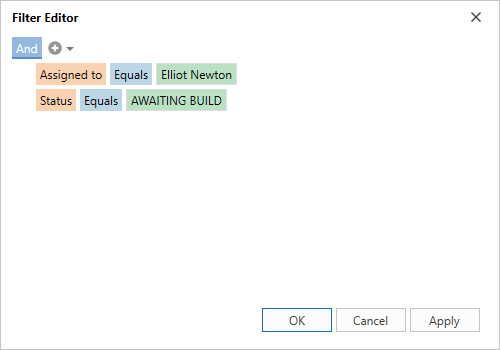
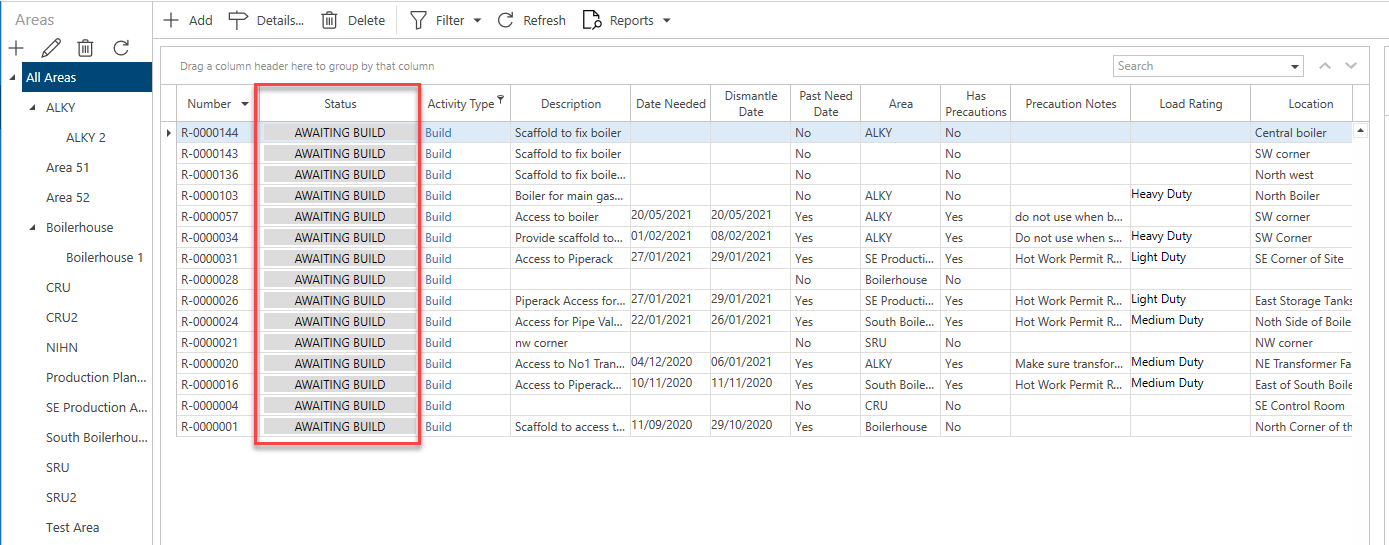
In the example above, you are filtering results where the status is equal to Awaiting Build but not assigned to Jean Gabin
This will only display content where the status is equal to Awaiting Build but not assigned to Jean Gabin.