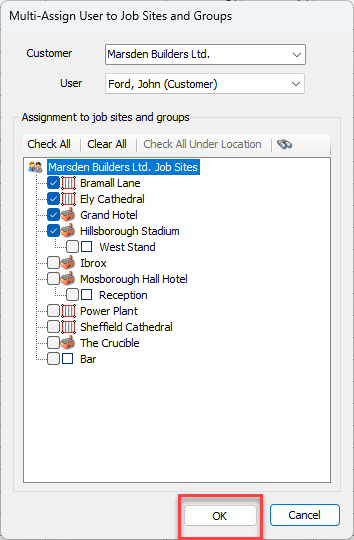
If your Quantify installation has Location-Based Security enabled, you can use Quantify's Multi-Assign feature to assign a Customer Contact/User to multiple job sites at once.
To assign a Customer Contact/User to multiple Job Sites at once:
Click the Users tab.
Click the Security dropdown and select Assign Customer Users to Job Sites and Groups.
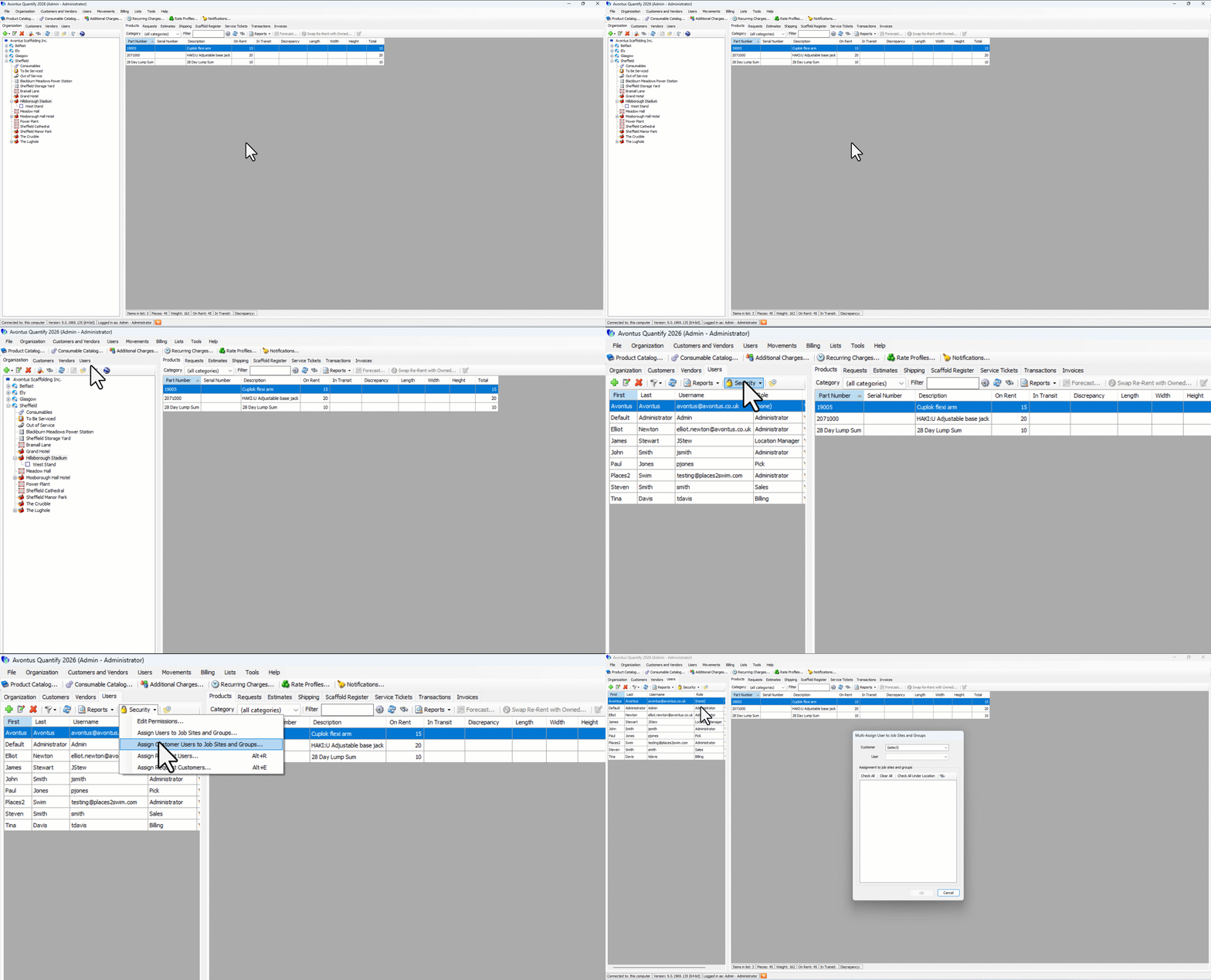
The Multi-Assign User to Job Sites and Groups dialog appears.
Click the Customer dropdown and select the appropriate customer.
The User field dropdown becomes active.Click the User dropdown and select the appropriate user.
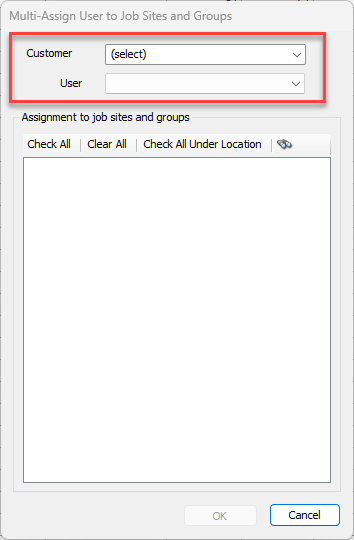
Note: This is a customer contact that you can create. Please see Working with Customers for more information
Quantify populates the Assignment to job sites and groups area with the Job Sites associated with the Customer.Click the checkbox to the left of each Job Site or Group to which you want to assign the user.
Note: Click Check All to put a check in every checkbox or Clear All to clear all checkboxes.
You can only see the jobsite the customer is assigned to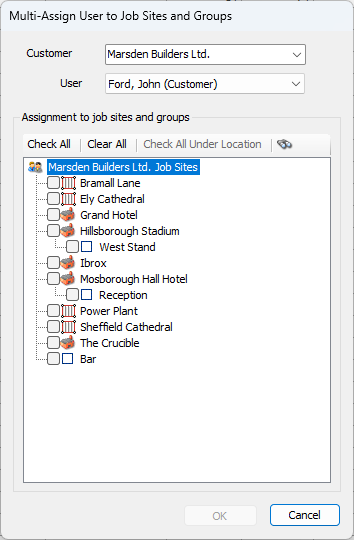
Click OK.