The Backorder feature tracks Products that have been ordered but may not all be received at the same time. Order Transactions can be created for available and new Products and re-rent Products.
Receiving Ordered Material
To receive ordered material:
- Click the Transactions tab.
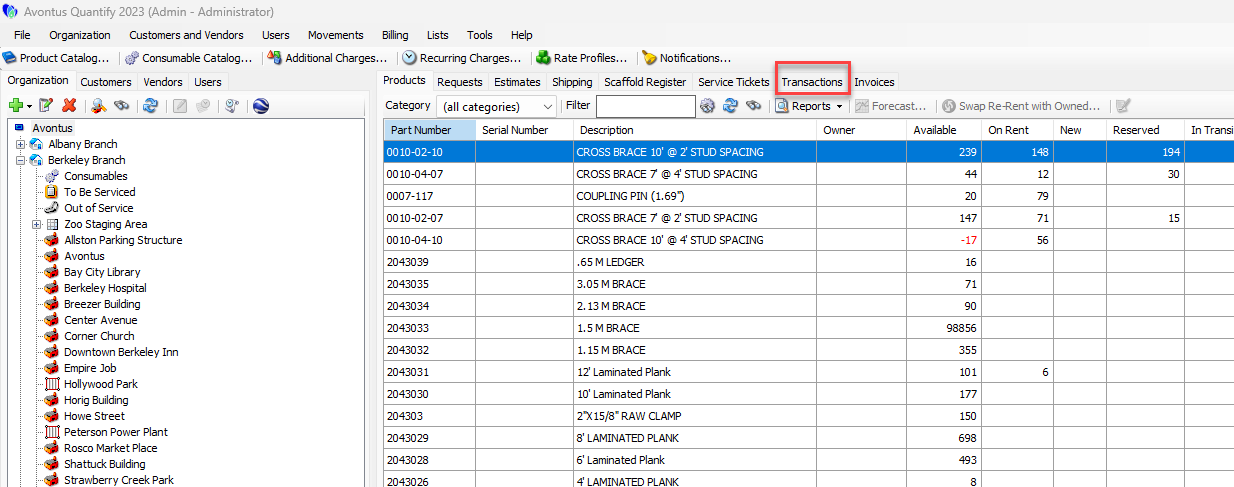
- Locate and click the Transaction, to select it.
- To receive the order, click the Receive Selected Order (
 ) above the grid.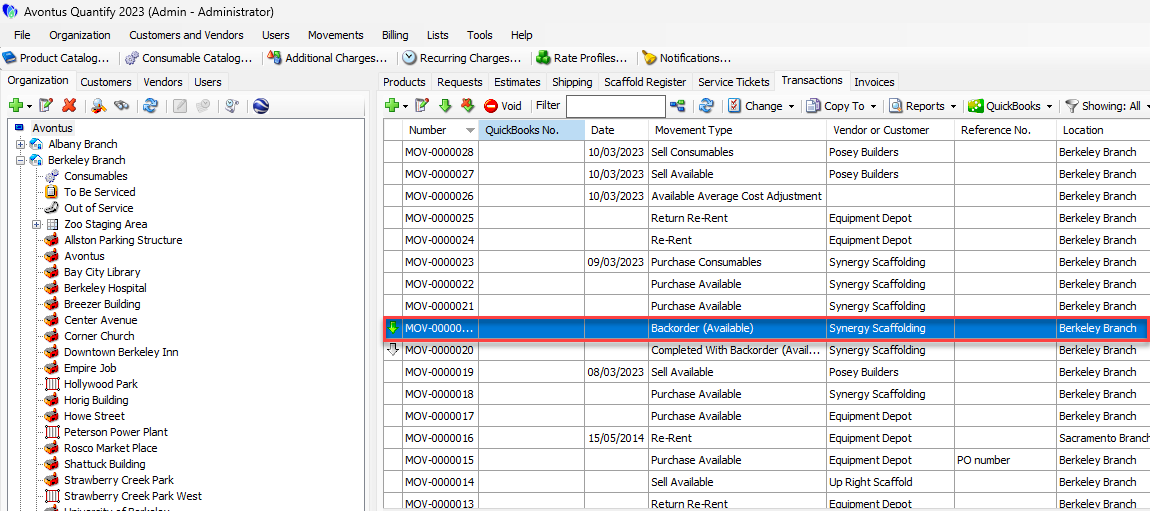
The Order (Available), or Backorder (Available) dialog appears. - Click in the appropriate cells in the Received column and enter the number of items received at this time.
- Repeat the above step as many times as necessary.
- Click OK.
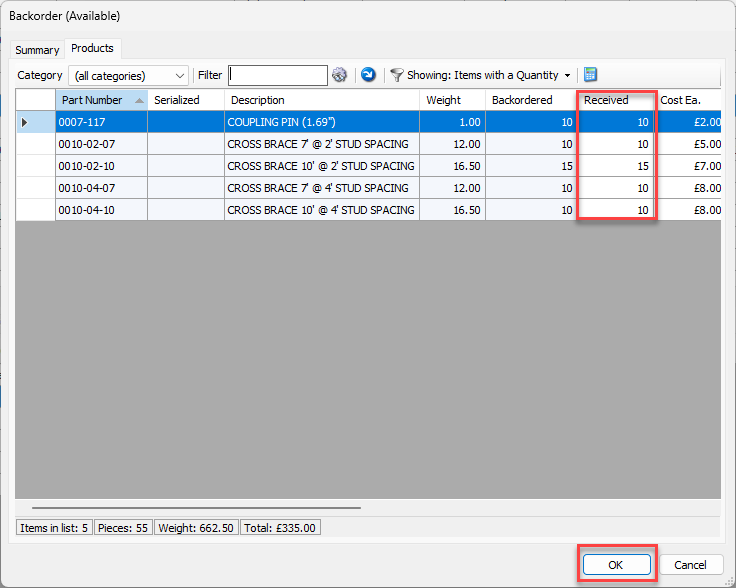
When not all parts are received, a new backorder will be created. Quantify will update the status on the original order to show Completed with Backorder (Available).
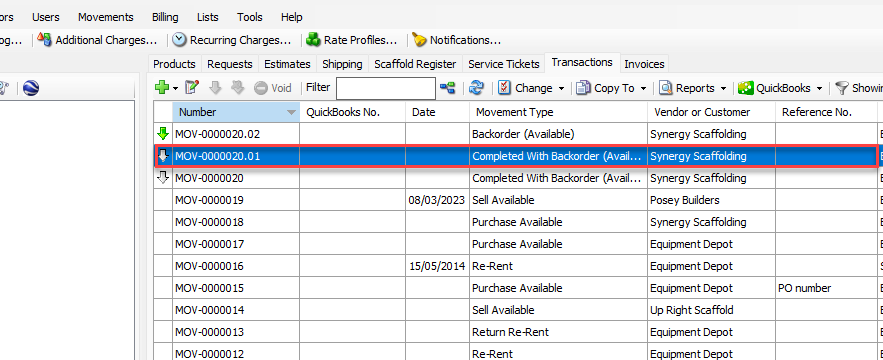
Note that Quantify has sequenced the Transaction number with .01 to indicate that this is the first backorder Transaction created from the original Order. As material continues to be received, Quantify will use the sequenced backorder Transaction, as the original has been completed.
Quantify displays the material that has been received on an Order as available material.
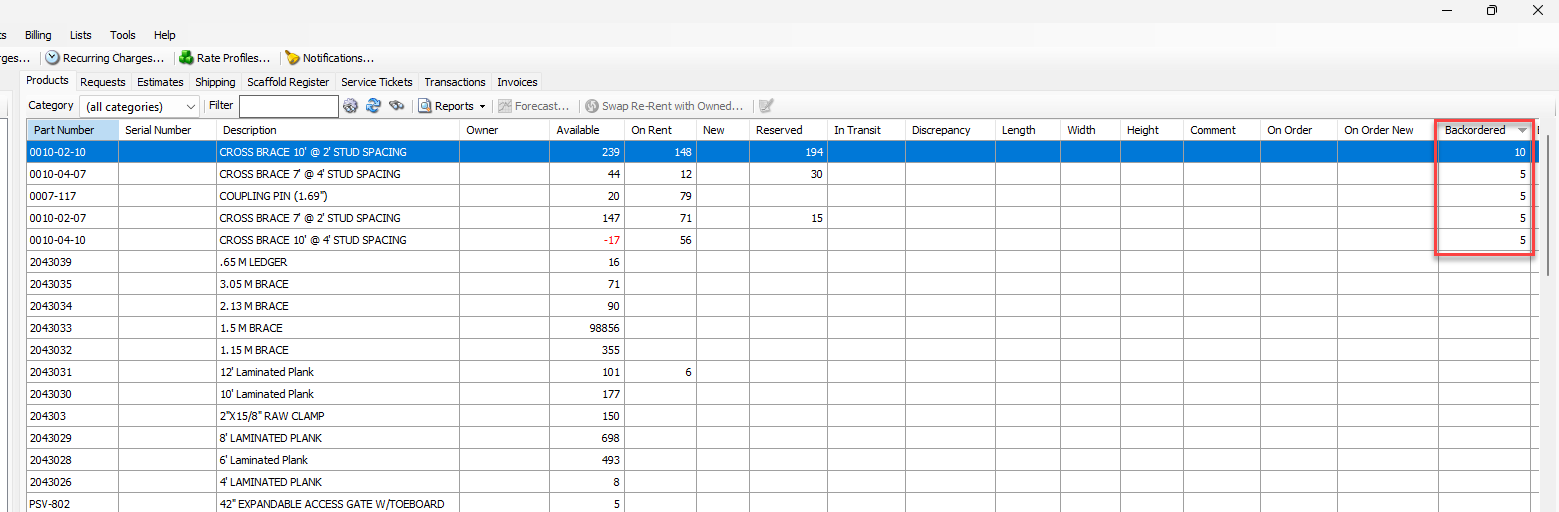
Quantify has moved the remaining material on the Order to backorder. You can view it in the Backordered column in the Products tab. As the original order is now complete, no counts appear in the On Order column. The non-received material is now backordered.
Cancelling a Backorder
Cancelling a backorder will terminate the Order, removing the quantities from an order state. Order quantities that have already been received will remain unchanged.
To cancel a backorder:
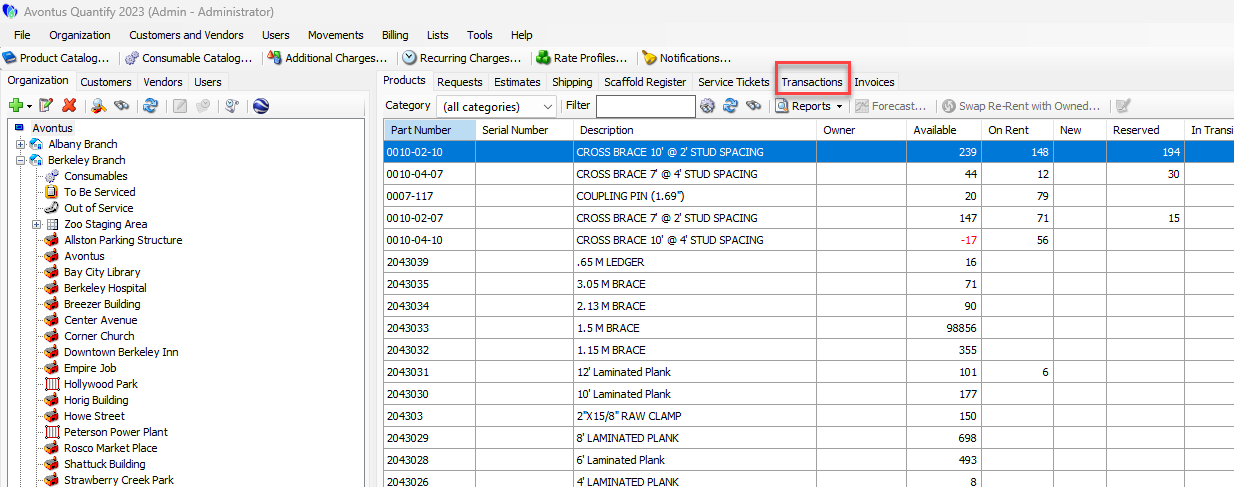
- Click the Transactions tab.
- Locate and click the Transaction, to select it.
- To cancel the Order, click the Cancels the Selected Order (
 ) above the grid.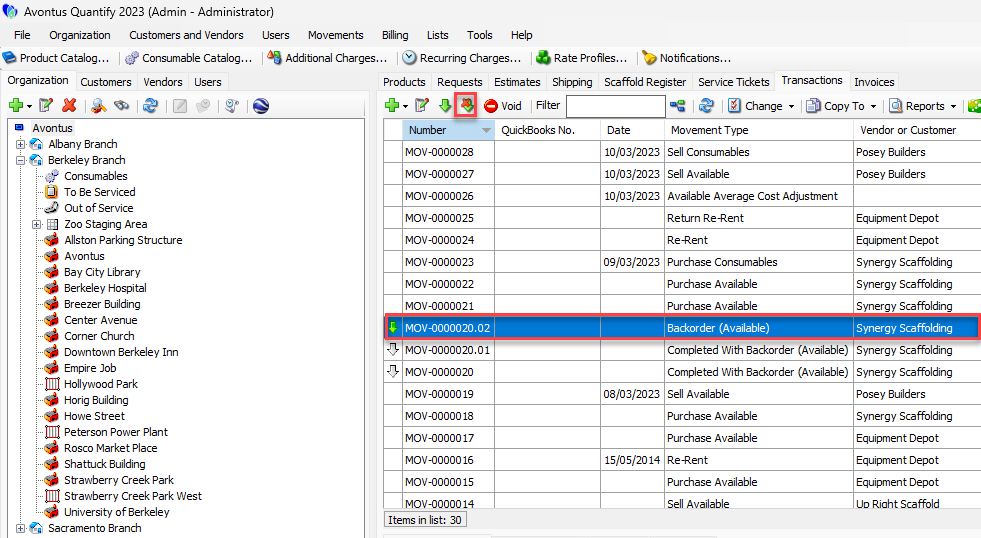
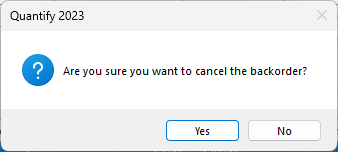
A confirmation dialog appears. - Click Yes.
Quantify cancels the backorder.