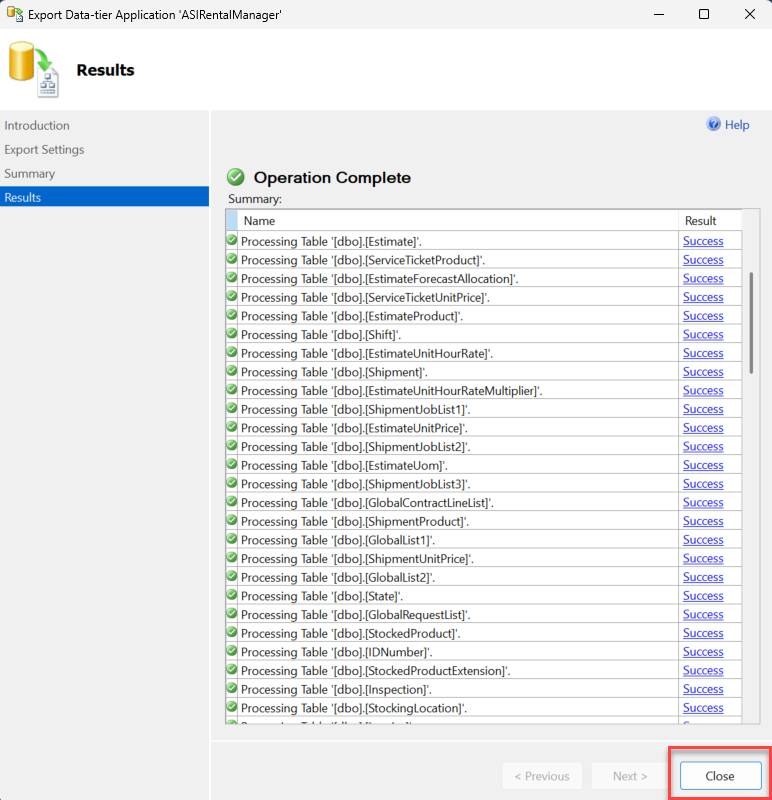
There are two ways to backup a database, you can backup using the Quantify DBTools or you use the SQL Management Studio.
Using Quantify's Database (DB) Tools to Back Up a Database
Quantify's Database Tools makes creating database backups simple and easy. You can use this utility on any machine that hosts SQL Server and the Quantify database. These steps require users to log out of Quantify to ensure data is not entered in the database after a backup is created for the migration.
For assistance with these steps, refer to the Microsoft help files for your version of SQL Server, such as http://technet.microsoft.com/en-us/library/586561fc-dfbb-4842-84f8-204a9100a534
To back up a database:
Click the Start menu, then locate and select Database Tools for SQL from the Quantify sub-menu.
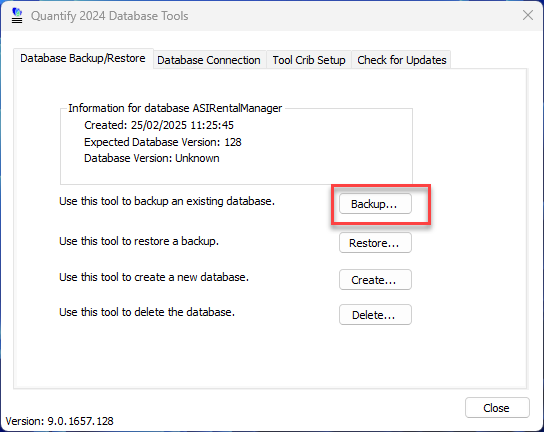
The Quantify Database Tools dialog appears.Click Backup.
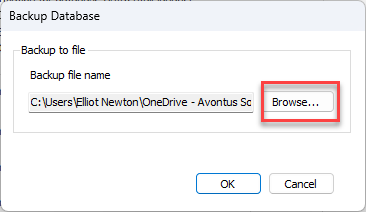
The Backup Database dialog appears.Click Browse.
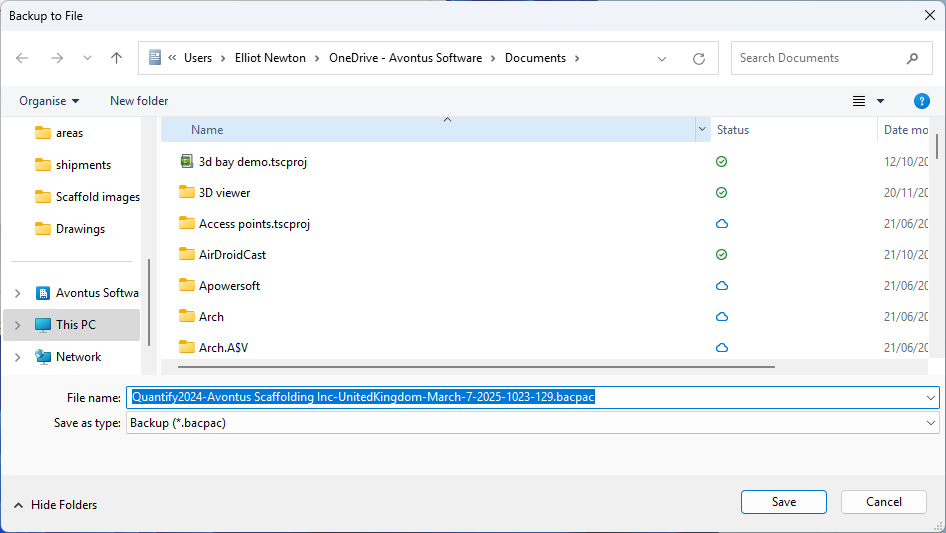
The Backup to File dialog appears.Navigate to the directory into which you want to save the backup file and click Save.
The Backup Database dialog returns.Click OK.
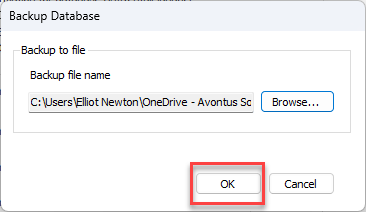
When the backup is complete, a confirmation dialog appears.
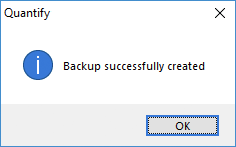
Click OK.
The Quantify Database Tools dialog returns.Click Close.
To send a database to Avontus support see Sending a Database to Avontus Support.
SQL Server Management Studio
You can also backup the database using the SQL Server Management Studio.
Log into SQL Server Management Studio
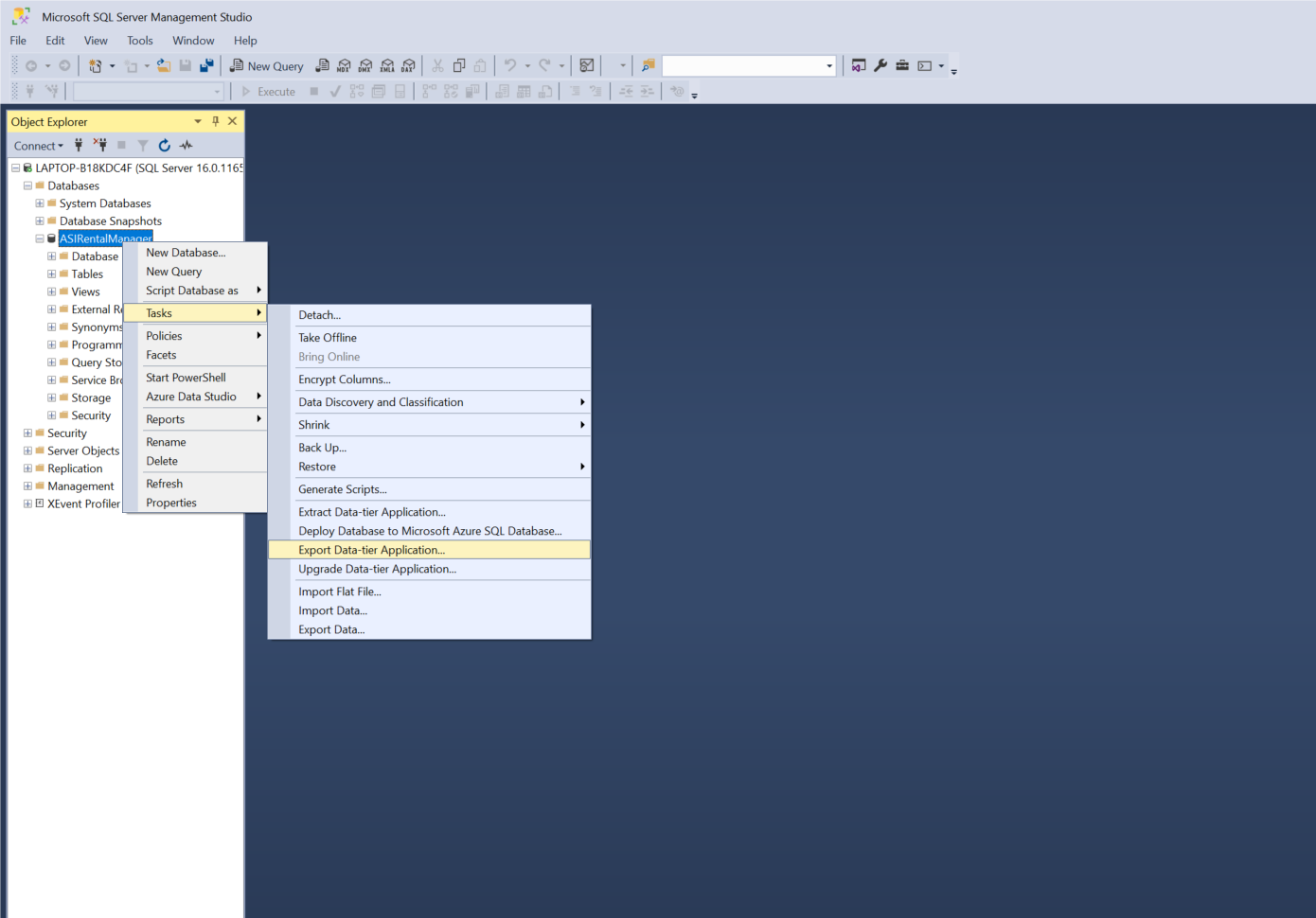
Right-click on ASIRentalManager
Click Tasks
Click Export Data-tier Application
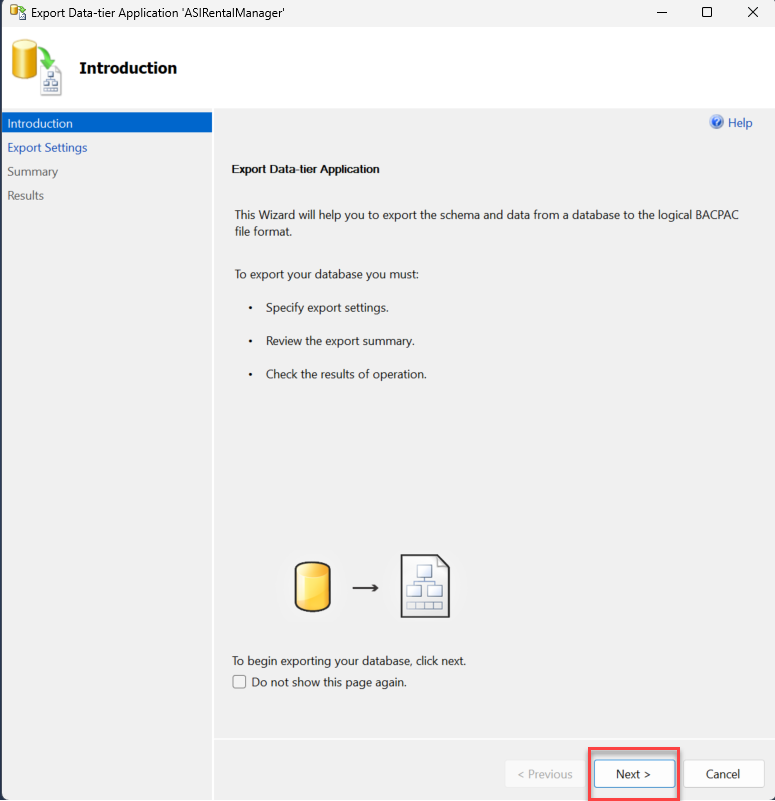
Click Next
Click Browse to specify where to save your database
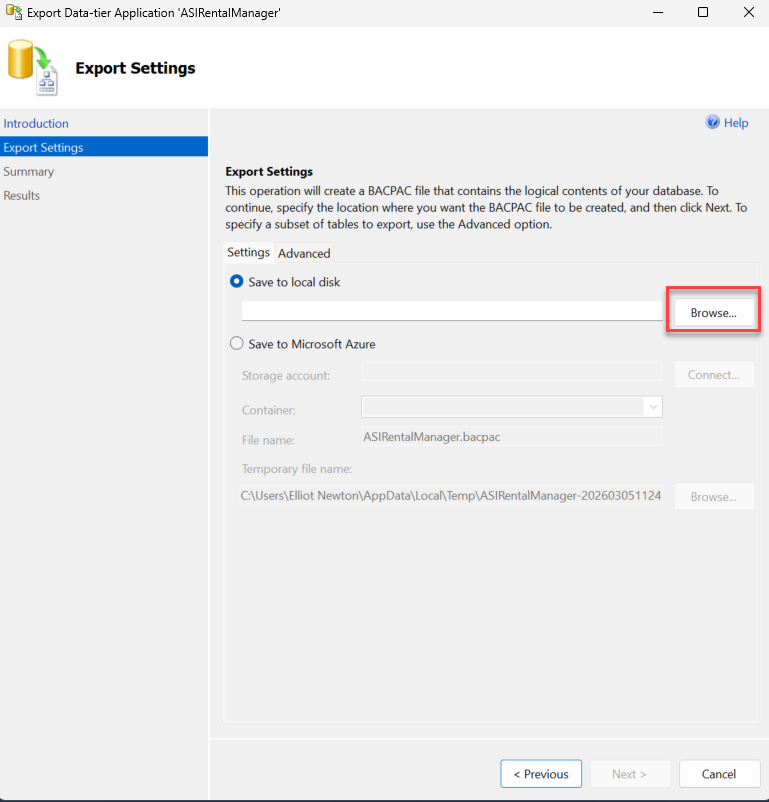
Navigate to your chosen directory file
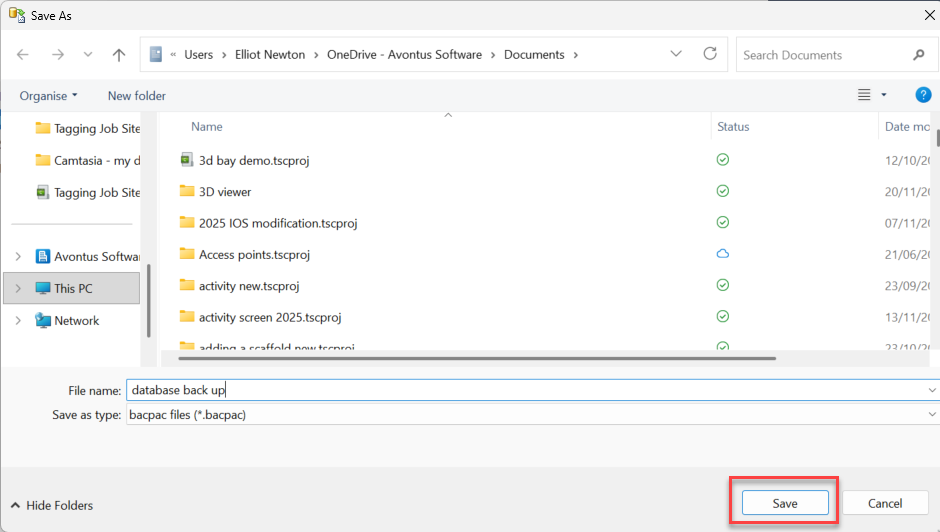
Specify the file name, and click Save
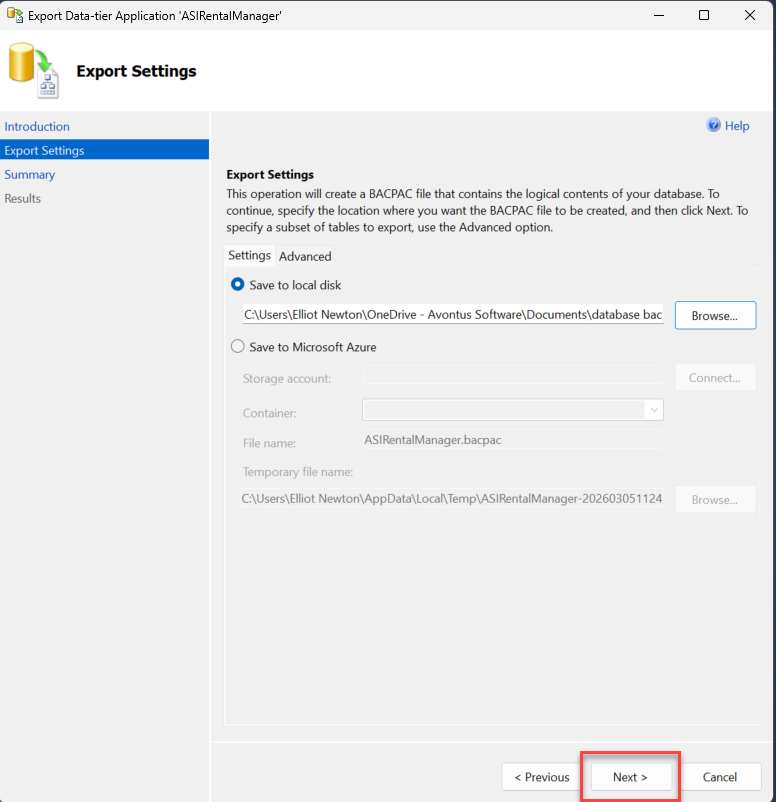
Click Next
Click Finish
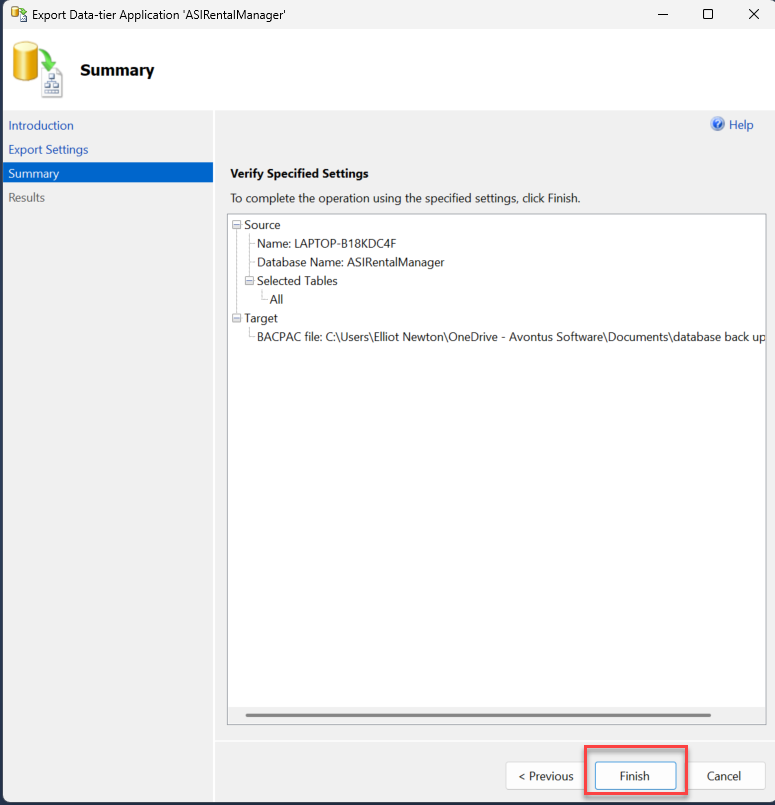
The update will begin
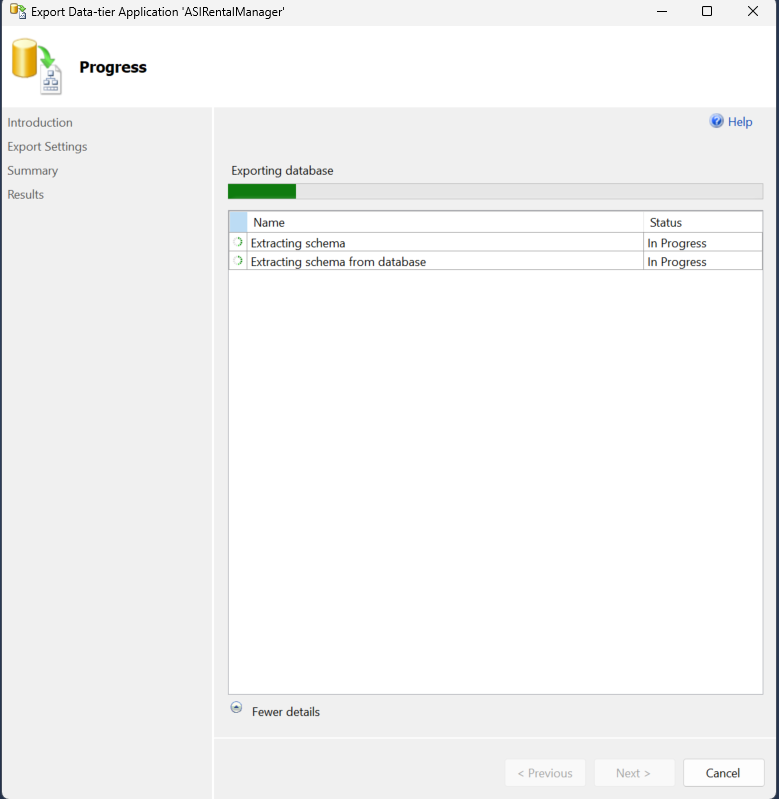
When complete, click Close