In DB tools you can no longer restore or backup database files in .bak format. However, you can use SQL Management Studio to restore the .bak version of the database and point Quantify towards it. You can then backup that database in .bacpac format using DB tools. This means you can easily switch between databases without needing to use SQL Management studio, and just by using DB Tools. This article will explain how to do this.
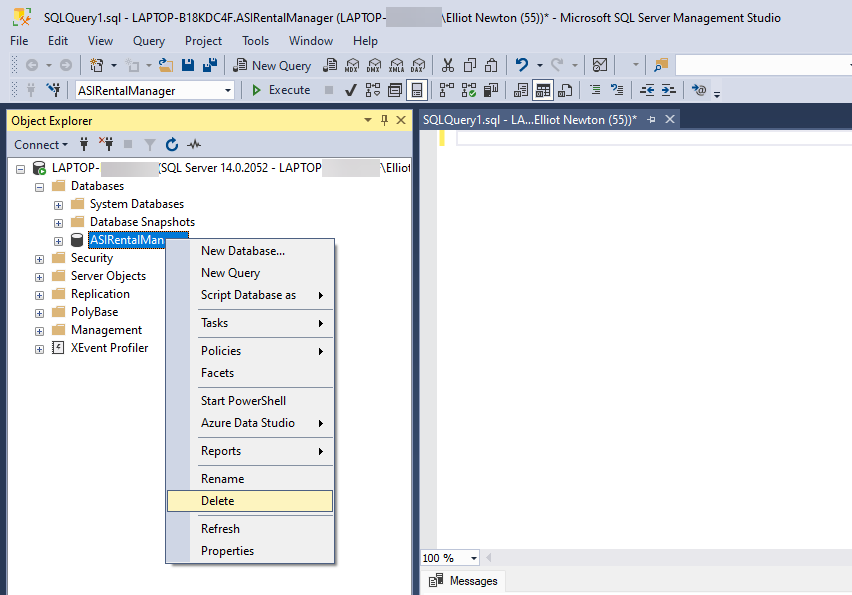
Before completing this process, ensure you have deleted the database that Quantify is currently pointing at. This can be done using Quantify’s Database tools app or by manually expanding the Databases section in Microsoft SQL Server Management Studio, right-clicking on ASIRentalManager and selecting Delete.
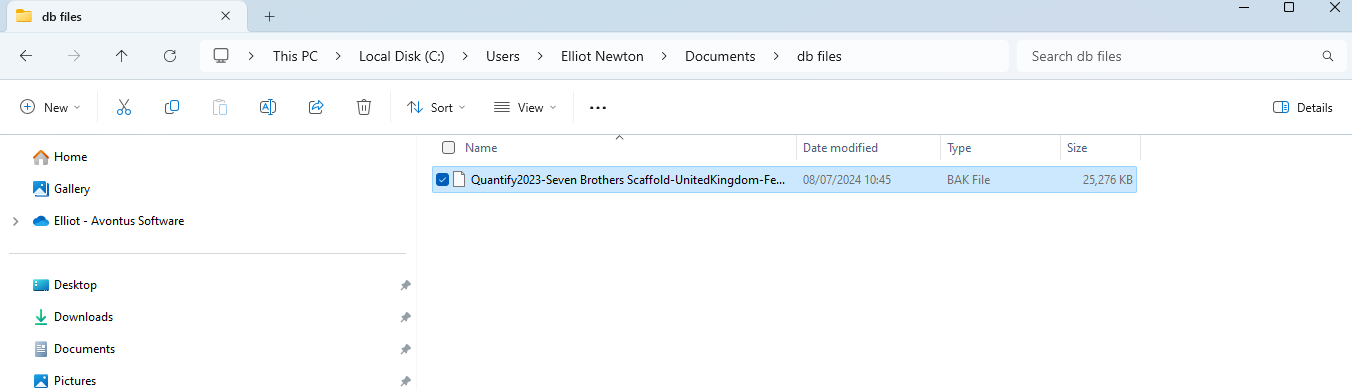
Place the bak file in a folder in the C drive that is easy to access.
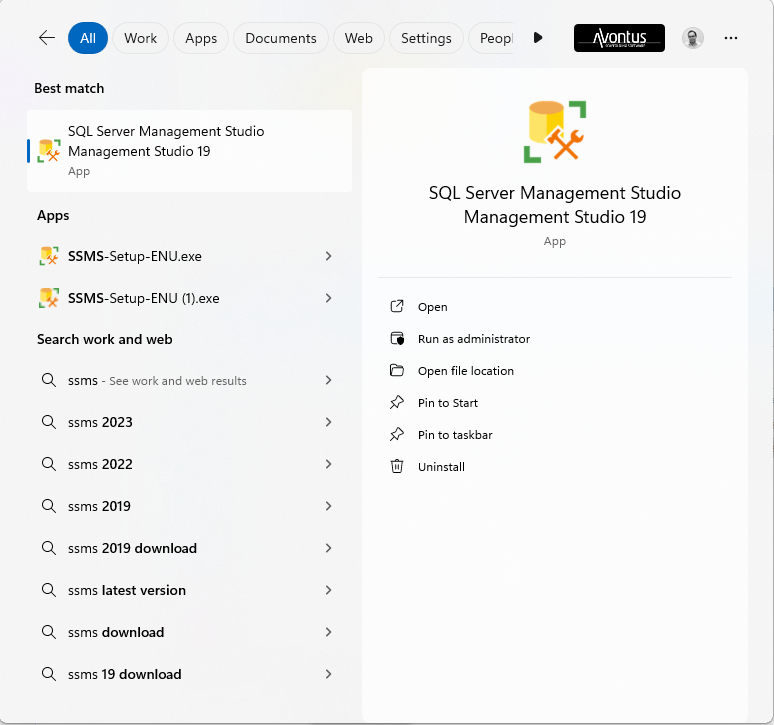
Open up SQL Server Management Studio
Enter your SQL Server credentials.

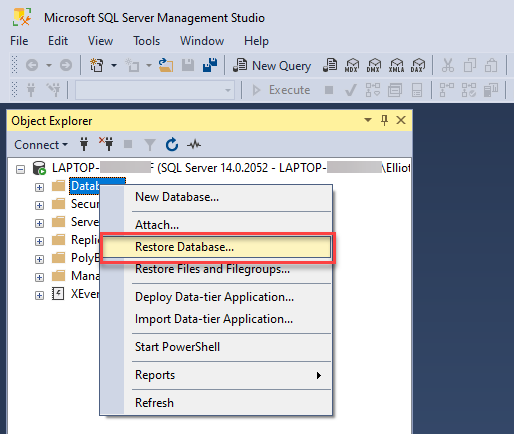
Once connected, right-click on Databases
Select Restore Database
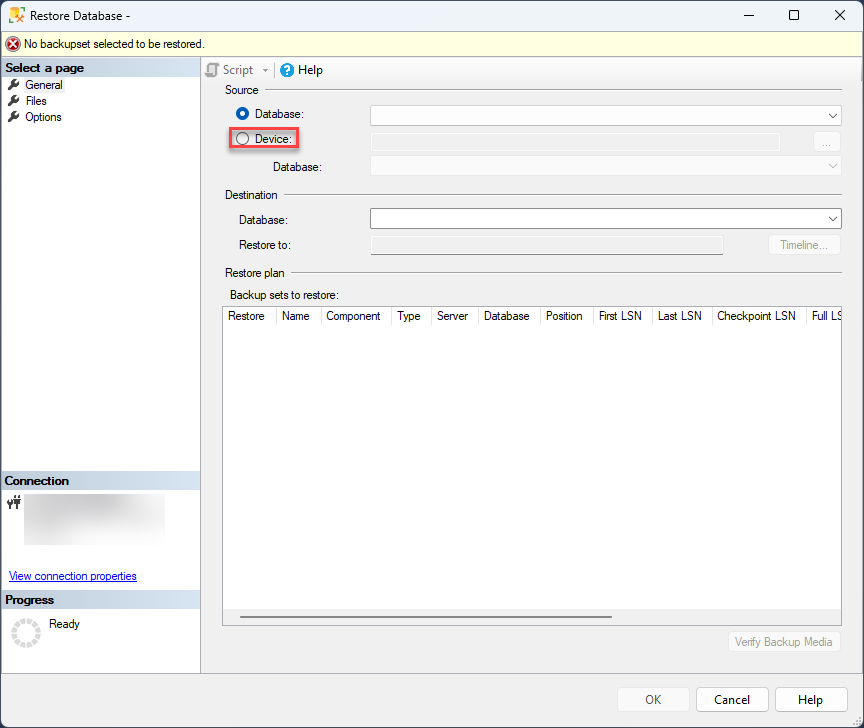
This will open the Restore database dialog box
Select the Device radio button
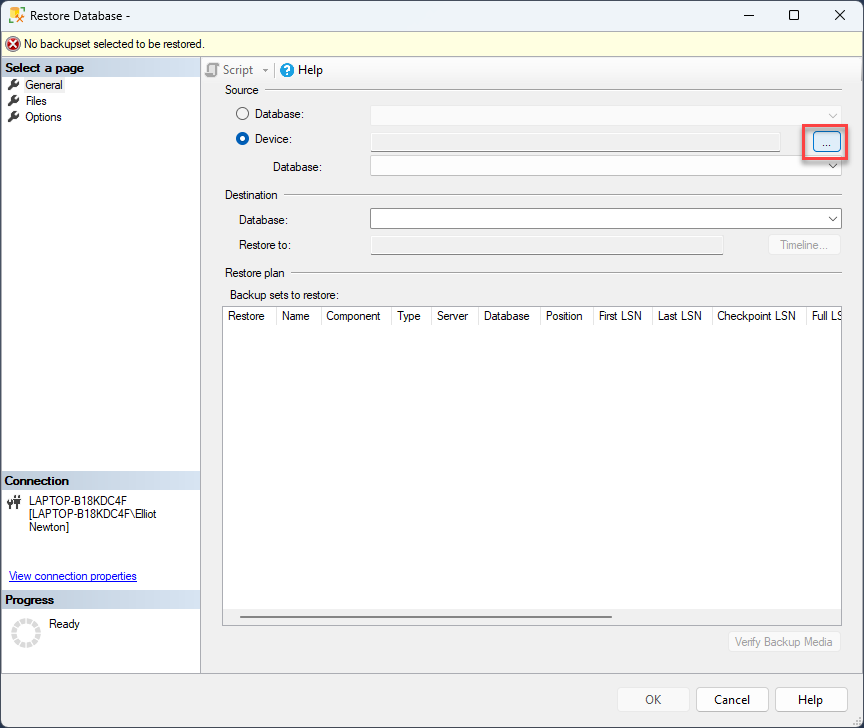
Select the browse button
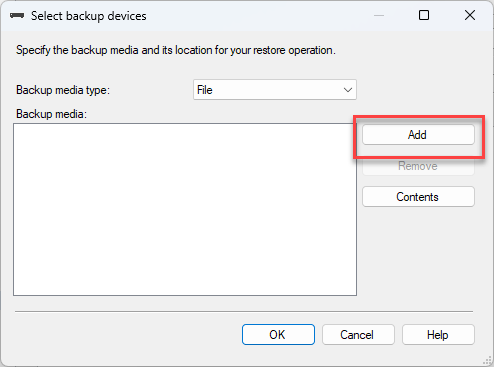
In the Select backup devices dialog box, select Add
Find the required bac file.
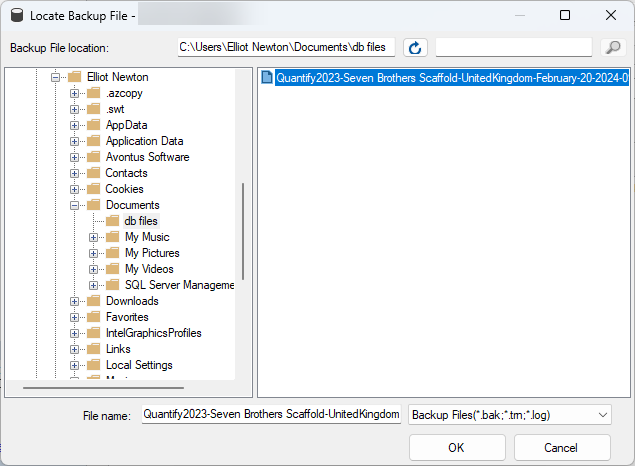
When the file is added, click OK.
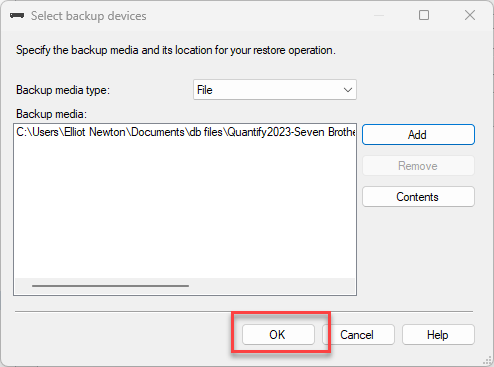
Click OK again
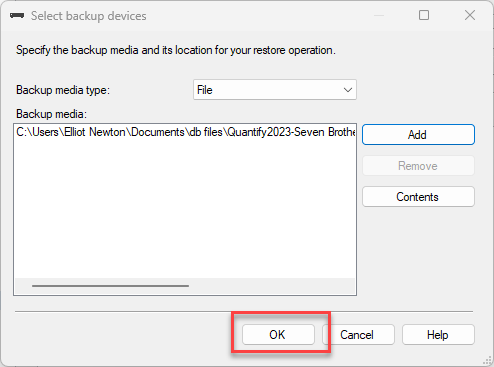
The restoration will be complete. Click OK to finish.
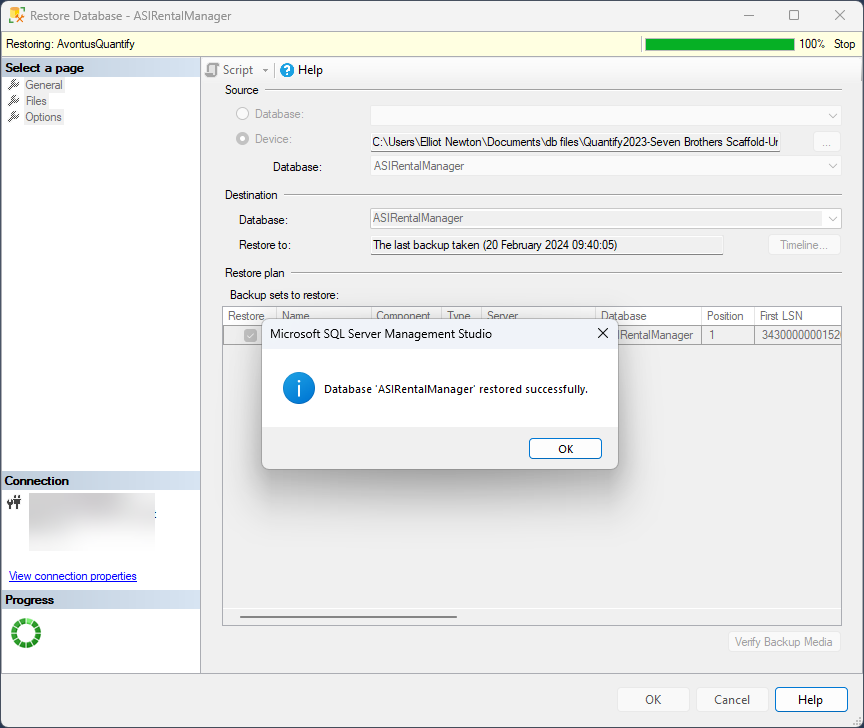
Your database will still be using the .bak file, and you should be able to log into Quantify with the correct credentials for the database you have just restored. You can then use the DB Tools to create a backup for that database in .bacpac format. Please see Using Quantify's Database (DB) Tools for more information on backing up your database.