Once equipment has been added to the Out of Service queue, you can change the item's billing status to To Be Invoiced, so the Job Site will be charged for the equipment. Quantify will add the assigned charge for the items to the Job Site's invoice.
Note: You can configure Out of Service returned items to be billable by default. Refer to Configuring Out of Service Names, Labels, and Billing.
To mark Out of Service equipment as billable:
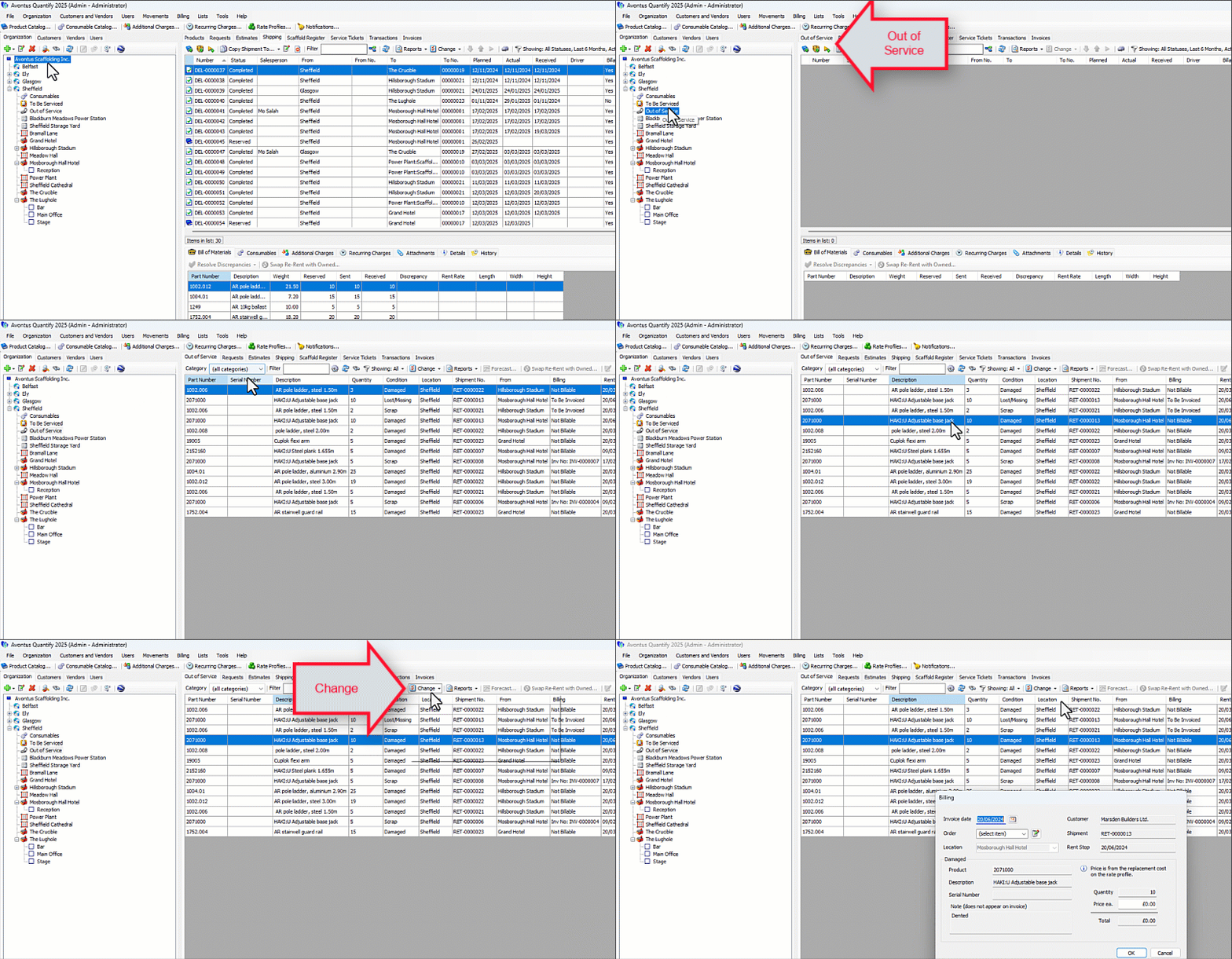
Locate and click the Out of Service node for the appropriate Branch Office, then click the Out of Service tab.
Select the parts(s) then click the Change dropdown and select Mark Selected Products for Billable for Sale.
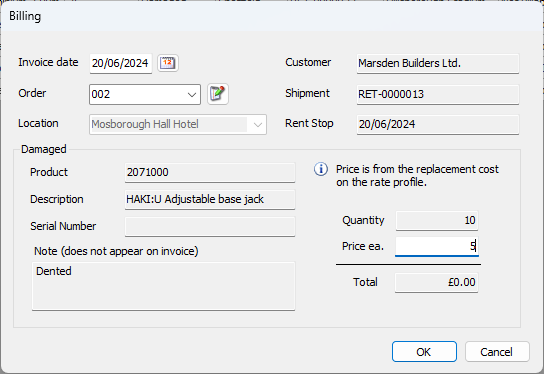
The Billing dialog appears, displaying information associated with the Out of Service item(s) at the time they were added to the queue.Invoice date defaults to the Rent Stop date on the Return, but may be changed.
Order: Billing may be associated with an Order number. Select an Order number from the drop down or use the Edit button to add and Order Number on the fly. Entering an Order is optional unless the Job Site billing settings are to invoice per individual order.
Condition section (will be labeled Damaged, Lost/Missing, Scrap, etc, depending on the items' condition): displays Product, Description, and Serial Number. Note field: if a note was added to the Out of Service dialog, the note would be displayed here.
Location, Customer and Shipment fields display information associated with the Return that placed the item Out of Service. This information may not be edited.
Quantity: this is the count of items on this out of service line item.
The Price ea. amount comes from the replacement cost used in the Rate Profile for the associated Job, but may be overwritten as needed. In this example $2.00 will be charged for each damaged item.
Click the Invoice Date calendar icon (
 ).
).Note: By default, the invoice date is the Rent Stop date on the return.
Locate and click the appropriate invoice date.
Click the Order dropdown and select the appropriate order number.
Click in the Price Ea. text field and enter the appropriate price for one item.
Click OK.
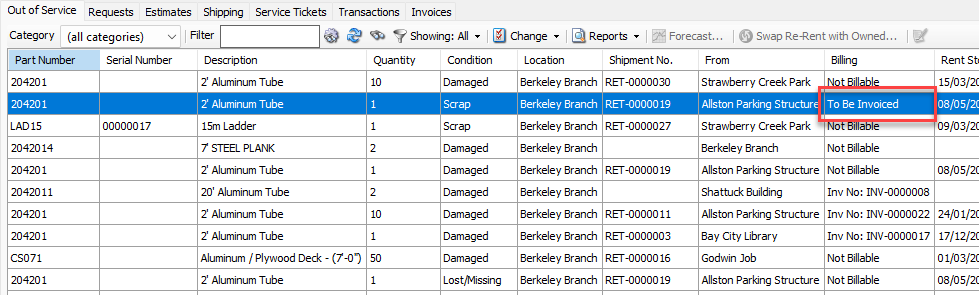
Quantify changes the billing status to To Be Invoiced. In this status, the Out of Service item will be included in the job’s invoicing, based on the Out of Service invoice date.
When the Out of Service item has been invoiced, the billing status will be changed to Inv No:INV-xxxxx, reflecting the invoice number that included the Out of Service item.