To complete a Shipment in To Be Received status, you must move the equipment from In Transit status to On Rent status. This makes the equipment billable and includes it in Invoices.
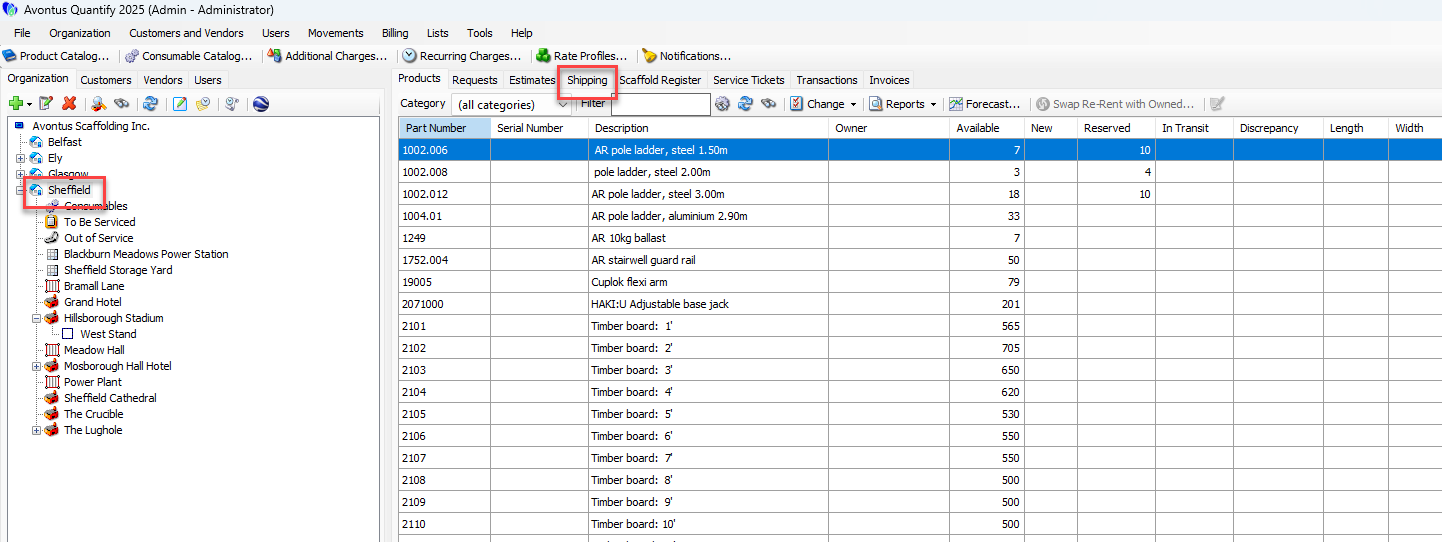
Locate and click the appropriate Branch Office or Job Site and click the Shipping tab.
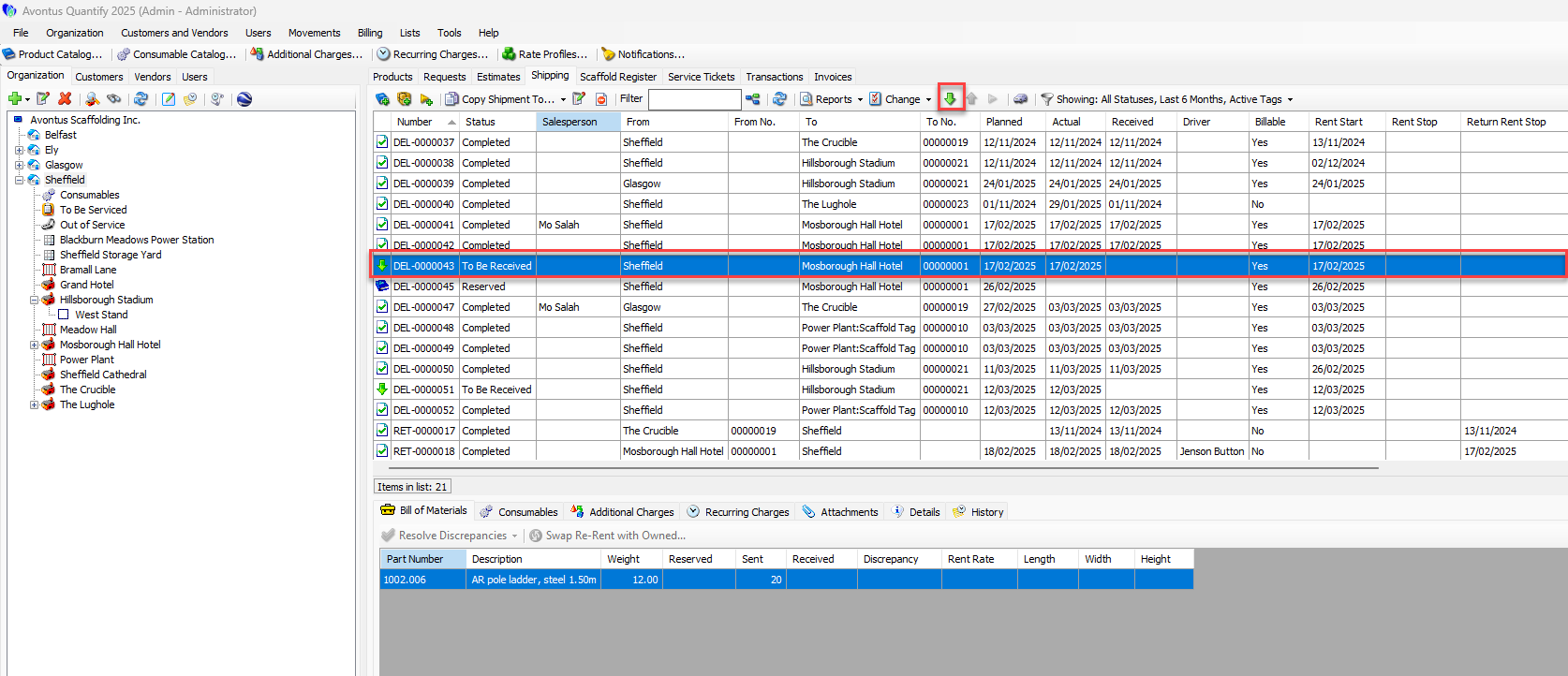
Select the appropriate Shipment and click the Received Selected Shipment button. The status will read To be Received.
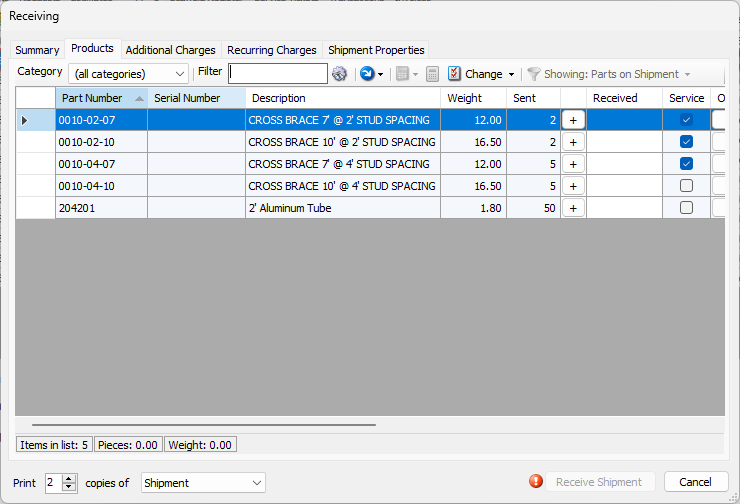
The Receiving dialog appears, displaying the equipment included in this Shipment that is waiting to be received.
Locate and double-click the appropriate cell in the Received column and enter the number of units actually received in the Shipment.
Alternatively, you can click the Plus ( ) button once for each unit you want to ship.
You can also click to copy all parts into the Received column.
Repeat the above step for each item listed.
Click Receive Shipment.
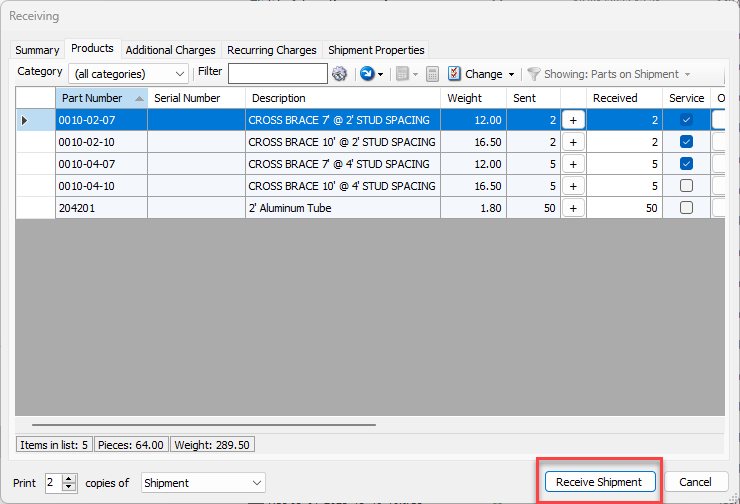
Quantify adds the received items to inventory and make them available for invoicing.