Use the Products tab to select the Products to be shipped with the delivery. You can even add delivery charges, and specify a 28-day rate. By default, the Products tab displays Products currently stocked at the From location chosen in the Summary tab.
Configuring Products for the New Shipment
To configure Products for the new Shipment:
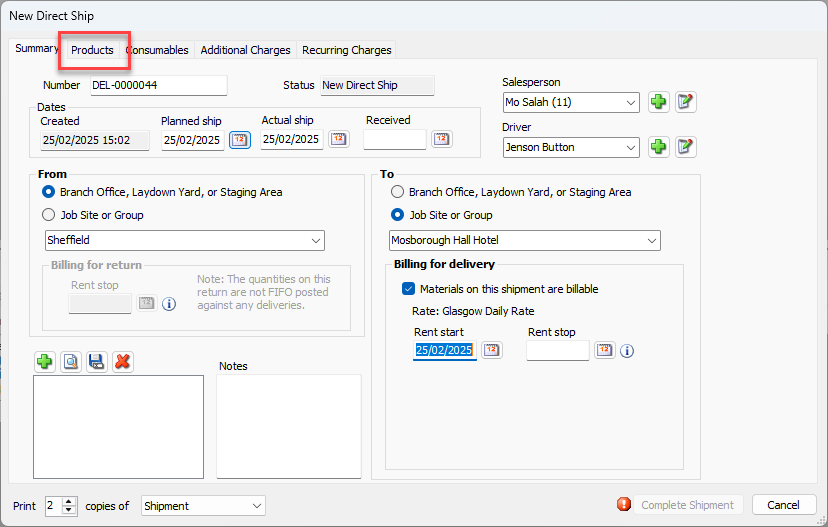
Click the Products tab.
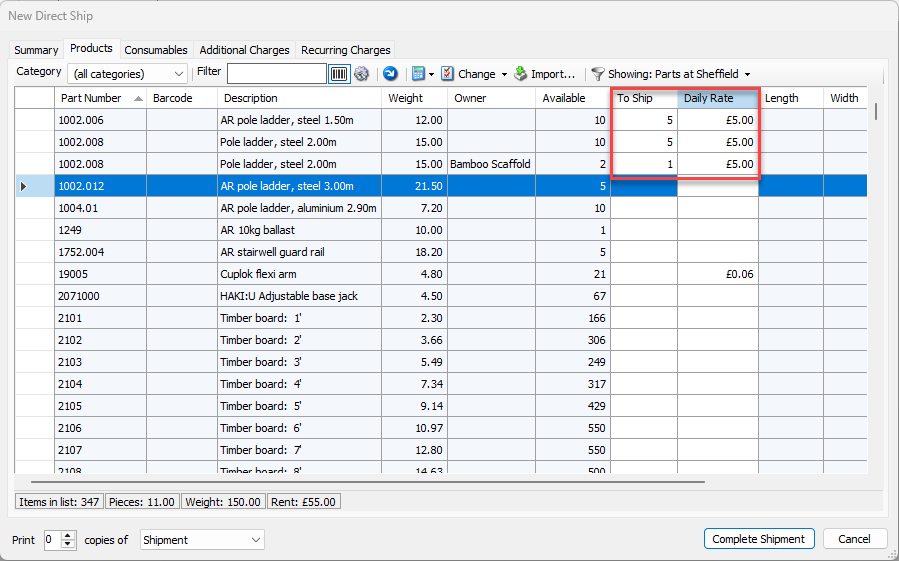
The New Direct Ship dialog refreshes.Locate and double-click the appropriate cell in the To Ship column and enter the number of unit to include in the Shipment.
Note: The Available column shows the current stock of each part.
Alternatively, you can click the Plus (
 ) button once for each unit you want to ship.
If required, Enter the 28 Daily rate ````for each of the shipped items
Repeat the above two steps as many times as necessary.
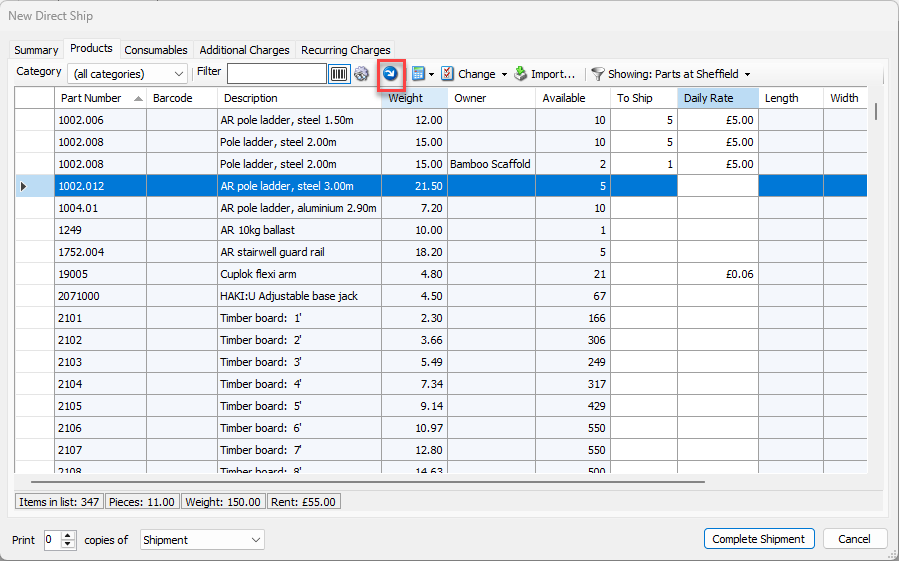
Note: Click the Copy Available to To Ship button to enter all available parts in the To Ship column.
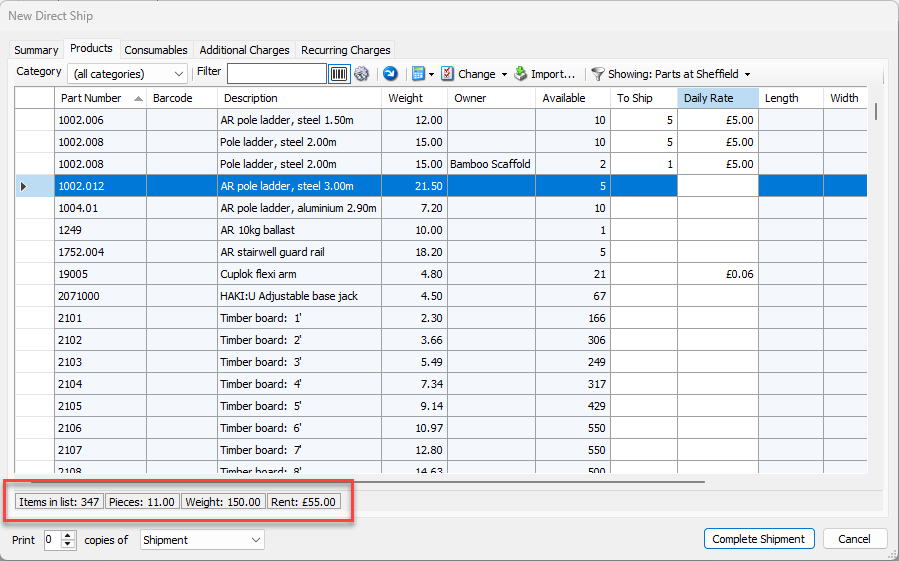
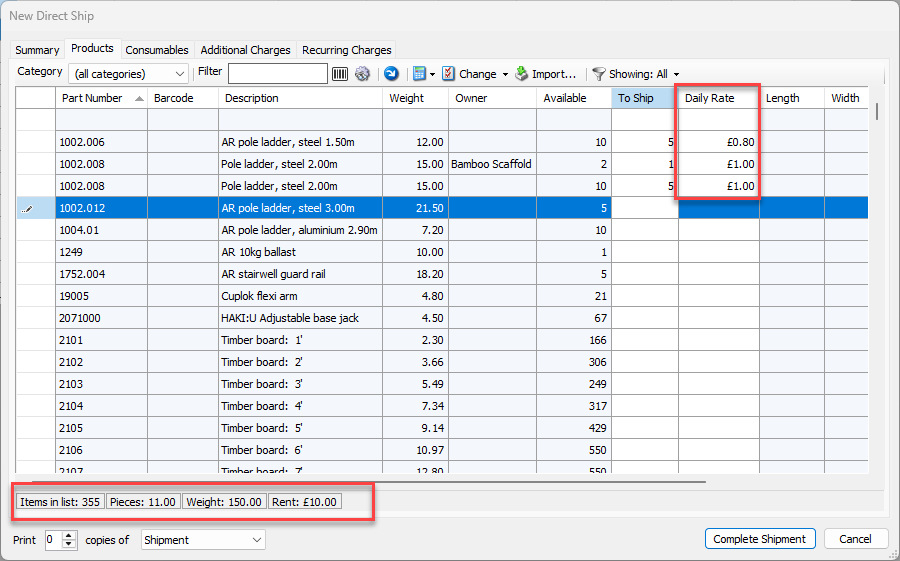
Once you have entered part counts, you can view the Total Pieces, Total Combined Weight, and Rent Totals for this Shipment in the bottom of the dialog
Next, prorate product rent or configure consumables.
Prorating Product Rent
Prorate is an optional feature that enables you to edit or prorate rental rate amounts on Shipments to equal a specific amount for a rental cycle.
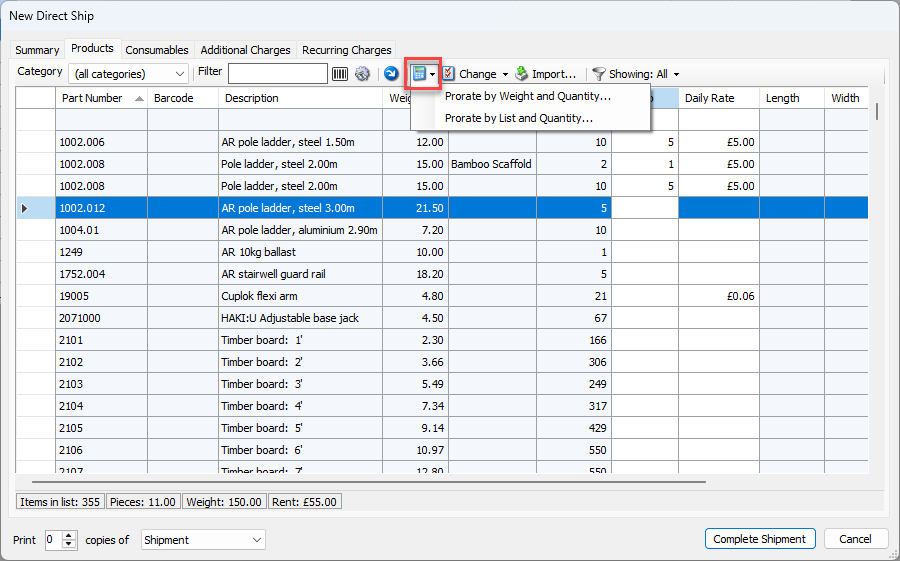
Note: The Prorate feature is turned on in the Shipments and Scaffolds tab in the Global Options dialog. If enabled, the Products tab of the New Direct Ship dialog displays the Prorate Rent button.
To prorate Product rent:
Locate and click the appropriate Product, then click the Prorate button and select how you want to prorate, by weight and quantity or by list and quantity.
The Prorate dialog appears.Enter the appropriate information.
If you selected Prorate by Weight and Quantity, click in the Desired Amount text field and enter the total amount of rent required for this Shipment.
If you selected Prorate by List and Quantity, click in the Amount Per Period text field and enter the total amount of rent required for this period.
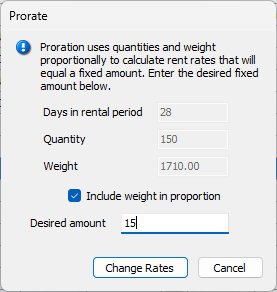
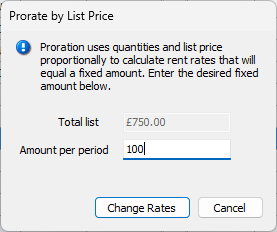
Click Change Rates.
The rent amount in the bottom of the dialog reflects the new prorated amount.
Next, configure consumables.