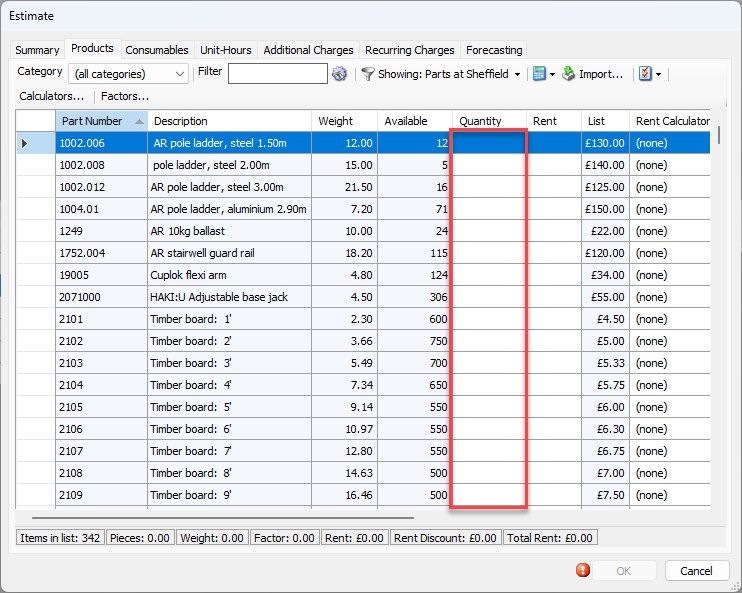
Use the Products tab to add Products to the Estimate and configure them. Enter counts of Products to be included in the Quantify column. Manually enter Rent rates, or copy rent rates from a Rate Profile using the Change menu option. The bottom of the Products tab displays total rent amount in the Status Bar.
Note: For an explanation of the fields in this tab, refer to About the Estimate Dialog Products Tab.
Entering Quantities into the New Estimate
The first step in configuring the Products tab is to enter the number of Products that will be used in the Estimate. Quantify requires you to do this and will not allow you to complete the Estimate without applicable quantities.
To configure the new Estimate's Product tab:
Click the Products tab.
The Estimate dialog refreshes.Locate the appropriate Product and click in its cell in the Quantity column and enter the counts of Products to be included on the Estimate.
Repeat the above step as many times as necessary.
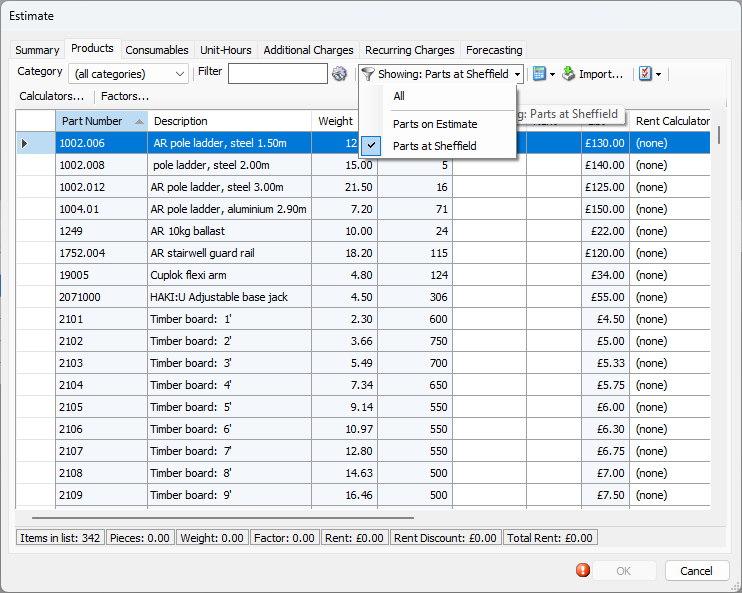
The View filter defaults to display parts at the Branch Office. To change views, click the Showing dropdown and select Parts on Estimate or All.
Applying One or More Rate Profiles to the New Estimate
Now that you have entered the number of Products that apply to the Estimate, apply the relevant Rate Profile, as necessary, to each of the Products.
To apply one or more rate profiles to an Estimate;
As necessary, click the Products tab.
Hold shift and select which products to apply a rate profile to
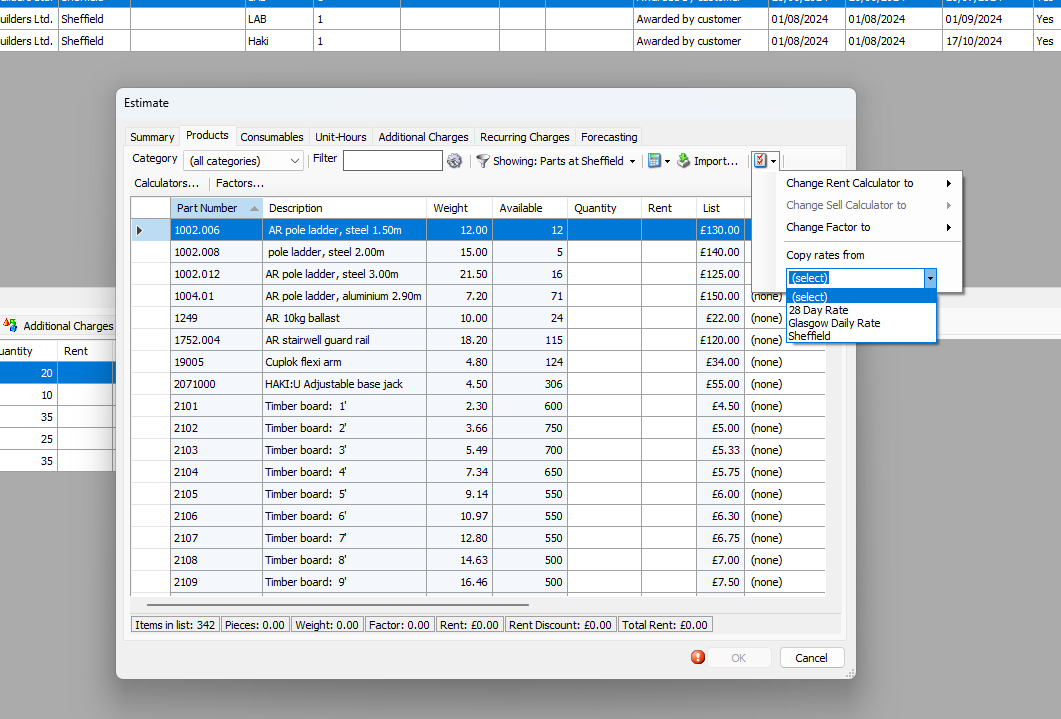
Click the Change dropdown and select the appropriate Rate Profile from the Copy Rates From sub-menu.
Note: You can also select applicable rows and then select a Rate Profile from the Copy Rates From sub-menu. Quantify will apply the Rate Profile to the selected rows. In this way, you can use multiple Rate Profiles on the same Estimate.
Quantify applies the Rate Profile rental rates to the selected Estimate Products.
Applying a Prorated Amount to the New Estimate
You can use the Prorate button in the Product tab to make the rental amount shown on an Estimate equal a specific fixed amount. Rent may be prorated using either weight and Estimate quantities, or list price and Estimate quantities.
To apply a prorated amount to an Estimate:
Note: These steps detail Prorate by Weight. The steps are the same for Prorate by List Price.
As necessary, click the Products tab.
Click the Prorate button.
Select Prorate by Weight and Quantity.
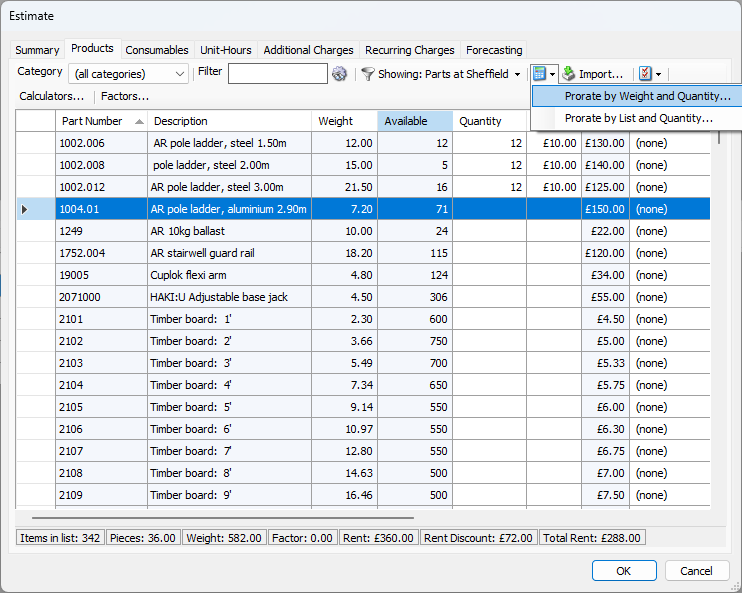
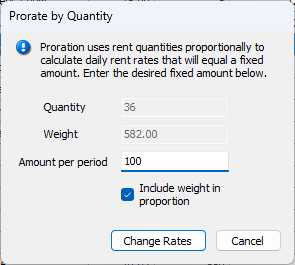
The Prorate dialog appears.
Click in the Amount Per Period text field and enter the amount the Estimate should total.
Note: To remove a prorated amount from an Estimate, enter a 0 (zero) in the Amount Per Period text field.Click Change Rates.
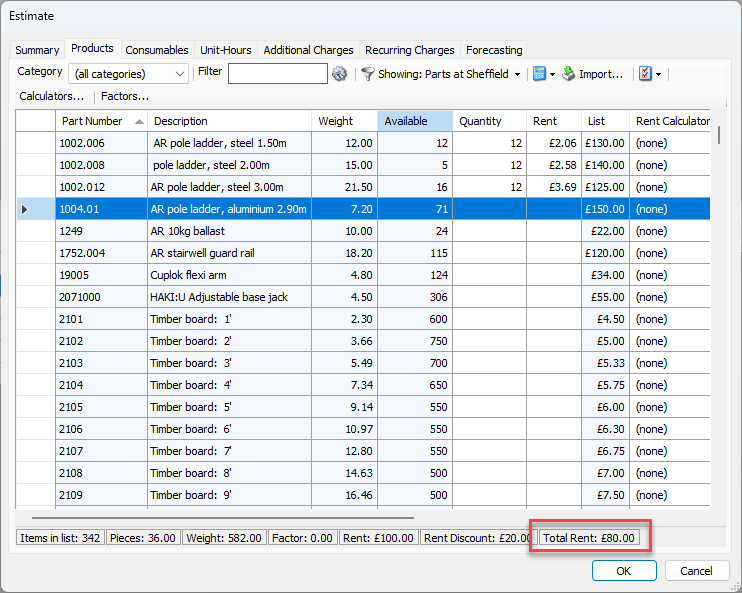
The Total Rent on the Estimate now equals the Prorated rate.
Applying Factor Multipliers to an Estimate
You can apply Factor Multipliers in the Product tab of an Estimate to calculate a Factor value.
Note: When a product has a Factor Multiplier Value assigned in the Product Catalog, the part will carry the default Factor Multiplier Value into a new Estimates automatically. For more information, refer to Working with Quantity Factor Multipliers.
To apply Factor Multipliers to an Estimate:
As necessary, click the Products tab.
Locate the part that requires a Factor Multiplier Value and click its dropdown in the Factor Multiplier column (in the far right side of the grid) and the select the appropriate Factor Multiplier from the list of available Factor Multipliers.
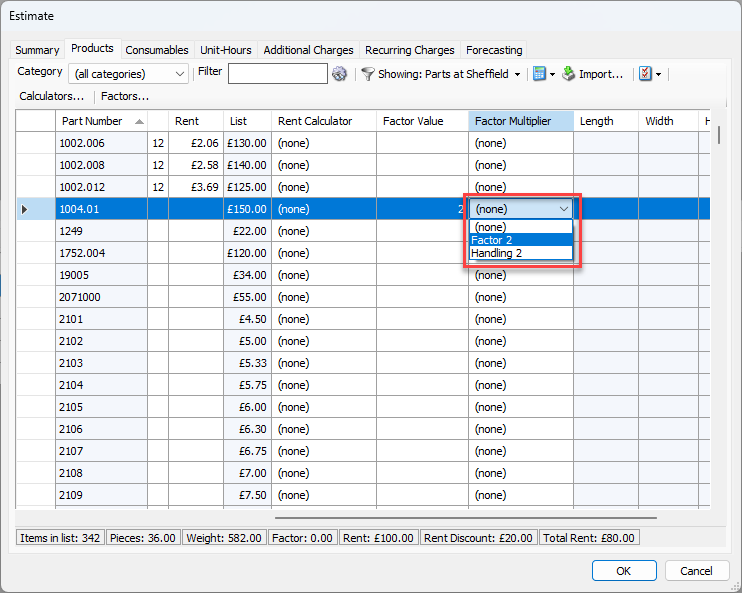
Note: If the Factor Multiplier you need is not in the list, you can add a new one. For these procedures, refer to Adding a Factor Multiplier Through the Estimate Dialog below.
Quantify applies the Factor Multiplier Value to the selected part and updates the Estimate Factor calculation. This calculation is performed by multiplying the Part Quantify times the Factor Multiplier Value.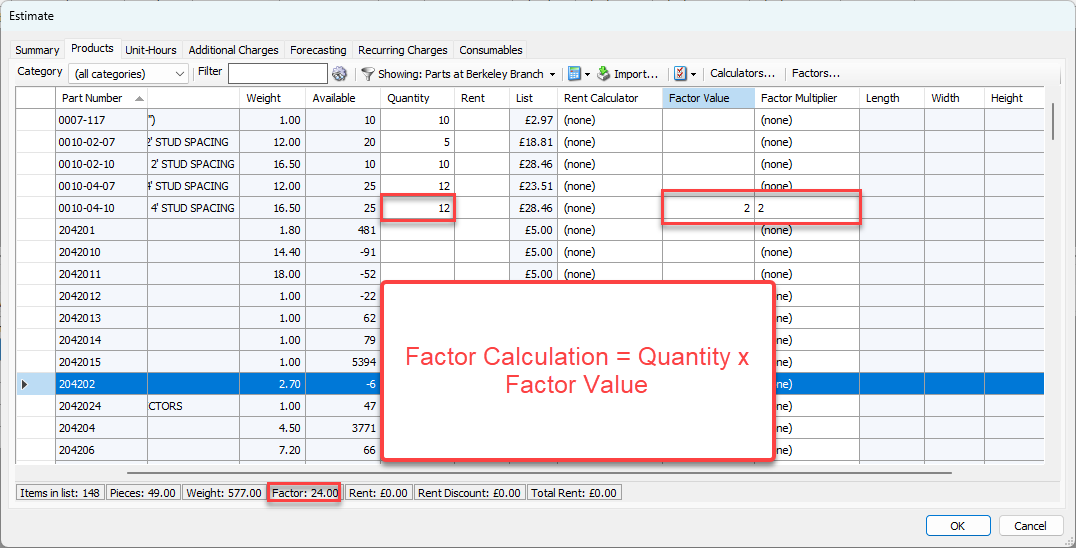
Repeat as necessary for each part that needs a Factor Multiplier Value calculation.
Adding a Factor Multiplier Through the Estimate Dialog
If you are adding a Factor Multiplier to one or more Products and the Factor Multiplier you need is not available, Quantify enables you to easily add the Factor Multiplier you need.
To add a Factor Multiplier:
Click Factors.
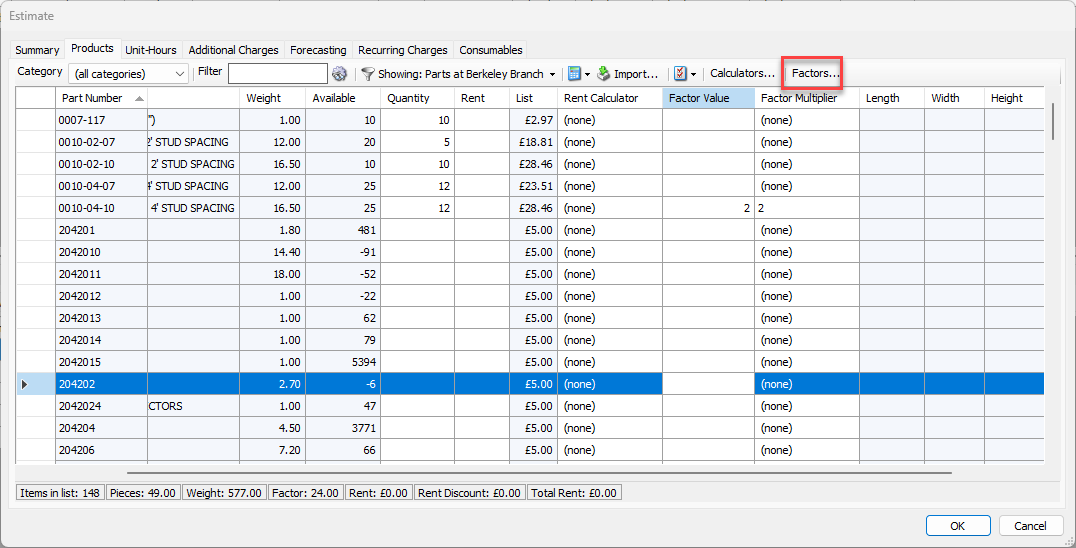
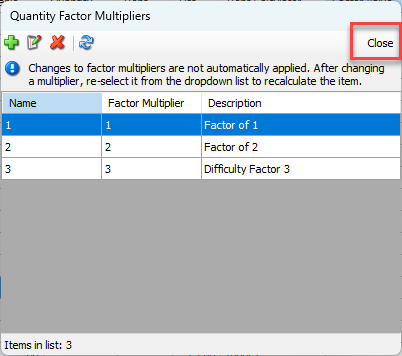
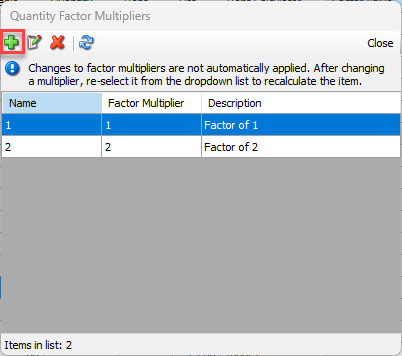
The Quantity Factor Multipliers dialog appears.Click the Add button (
 ).
).
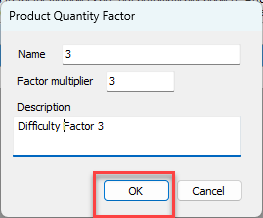
The Product Quantity Factor dialog appears.Click in the Name text field and enter the factor's name.
Click in the Factor multiplier text field and enter the appropriate multiplier.
Click in the Description text field and enter a short description of the Factor Multiplier.
Click OK.
The Quantity Factor Multipliers dialog returns.. When you are done, click Close in the Quantity Factor Multipliers dialog.