Factors, when applied in Estimates, calculate a factor value for the Estimate. Refer to Configuring the New Estimate's Products Tab.
This article contains the following:
Adding a Quantity Factor Multiplier
You add Factor Multipliers in the Product Catalog. Before you begin, you need the name of the factor (usually the product or service), the multiplier number and a short description of the Factor Multiplier.
To add a quantity Factor Multiplier:
Click Product Catalog.
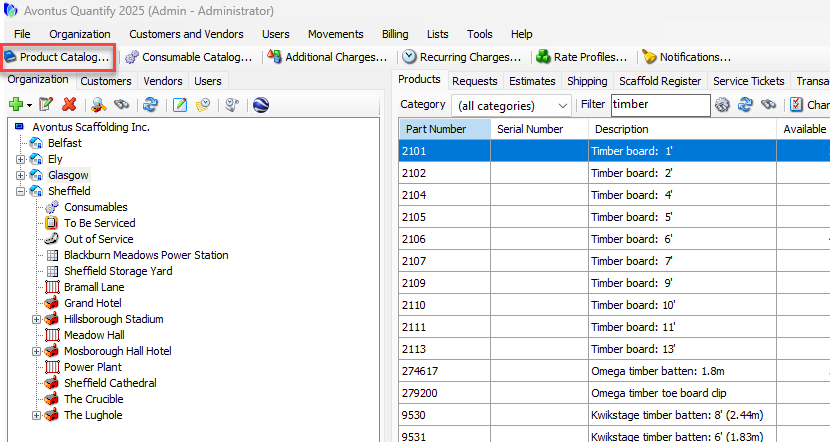
The Product Catalog appears.
Click the Items dropdown and select Factors.
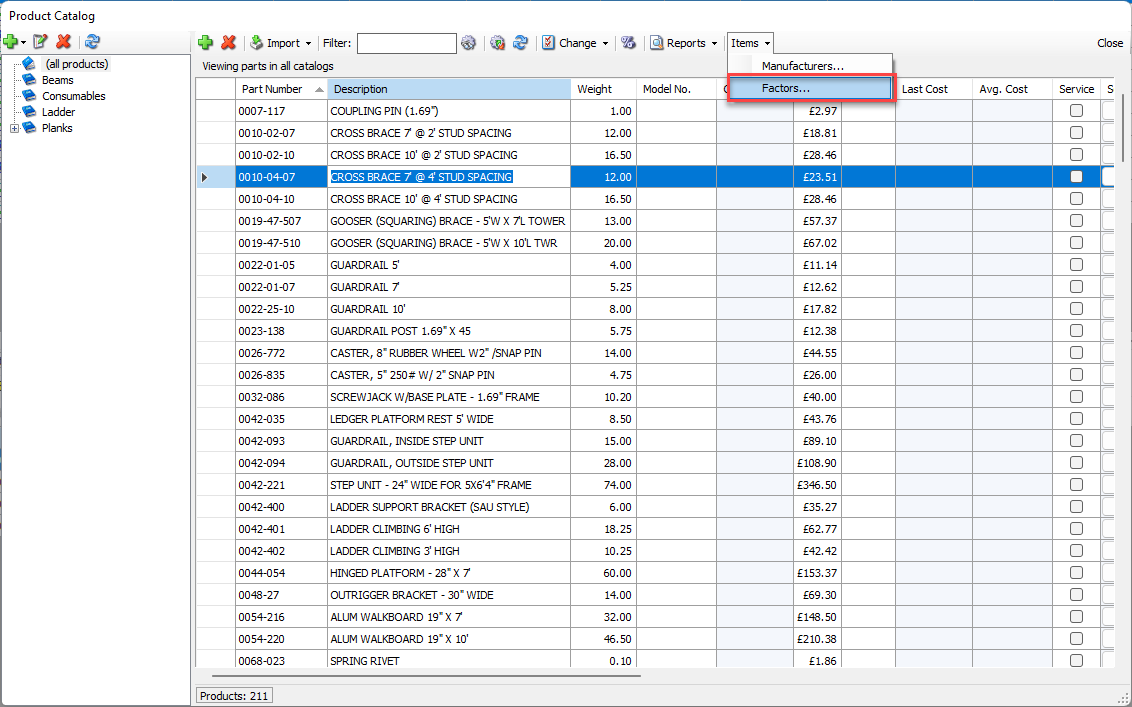
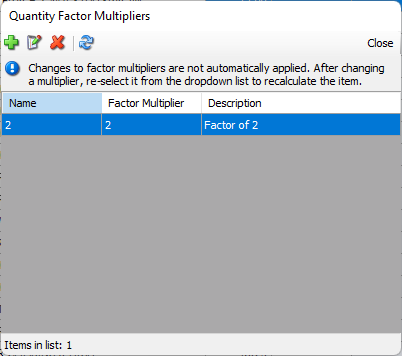
The Quantity Factor Multipliers dialog appears.Click the Add button (
 ).
).
The Product Quantity Factor dialog appears.Click in the Name text field and enter the factor's name.
Click in the Factor multiplier text field and enter the appropriate multiplier.
Click in the Description text field and enter a short description of the factor.
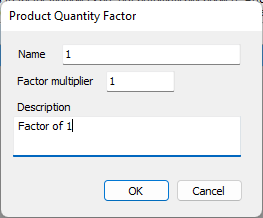
Click OK.
The Quantity Factor Multipliers dialog returns.
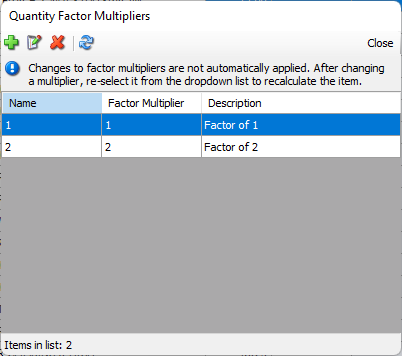
Repeat the above four steps as necessary.
When you are done, click Close in the Quantity Factor Multipliers dialog.
As necessary, assign a Factor value to parts in the Product Catalog. After you do this, when new Estimates are created, Quantify will copy these Factor values into them.Scroll the Product Catalog horizontally to view the Factor column.
Locate the part that requires a default Factor value, click its dropdown in the Factor column and select the appropriate value.
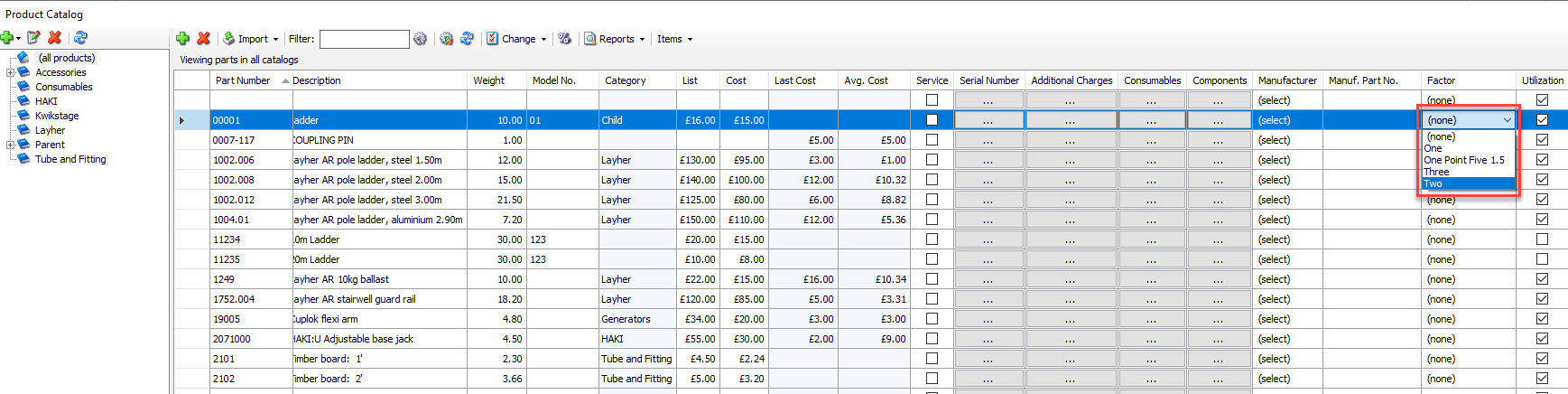
Repeat above step for each part, as required.
Assigning One or More Products to a Quantity Factor Multiplier
You assign Factors Multipliers to Products in the Product Catalog, using a simple point and click process.
To assign a Factors Multiplier to one or more products:
Click Product Catalog.
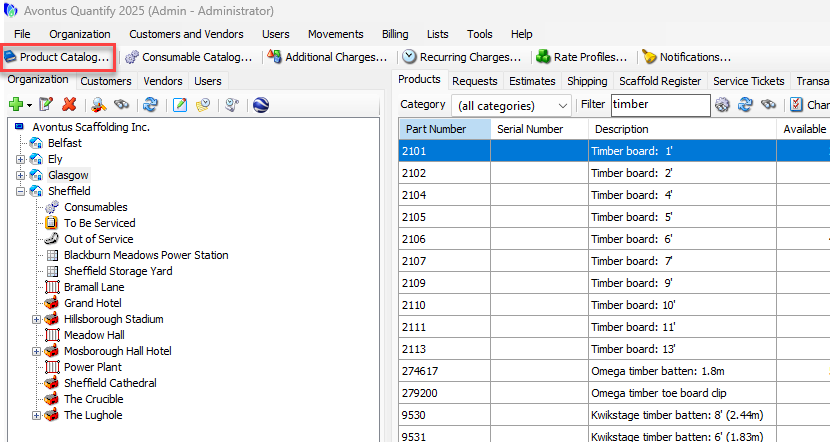
The Product Catalog appears.Click the Product(s) you want to assign
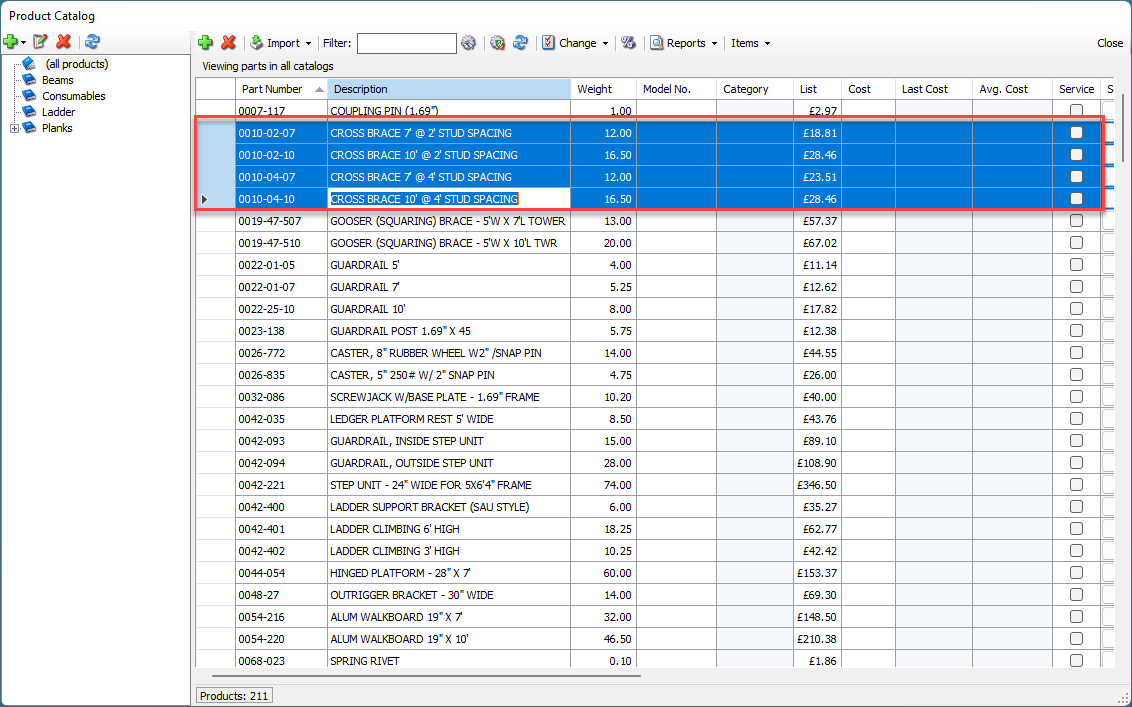
Click the Change dropdown and select the appropriate factor from the Change Factor to sub-menu.
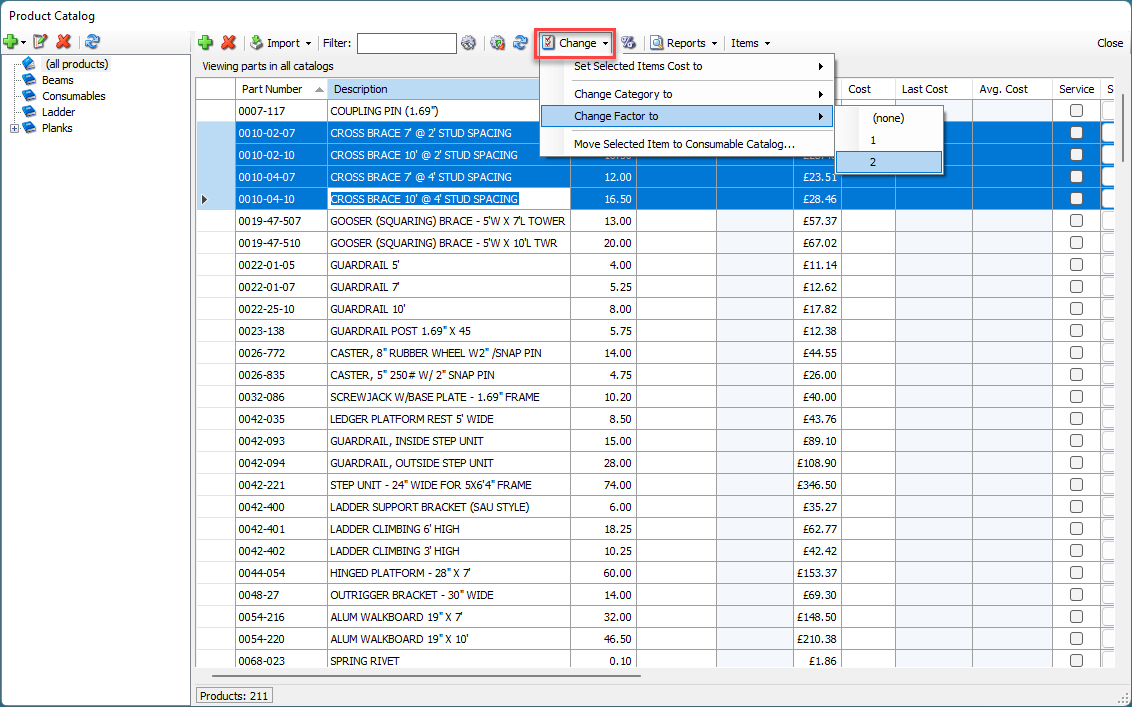
Quantify assigns the factor to the Product(s).
Deleting a Quantity Factor Multiplier
You delete Factor Multipliers in the Product Catalog, using a simple point and click process.
To delete a quantity Factor Multiplier:
Click Product Catalog.
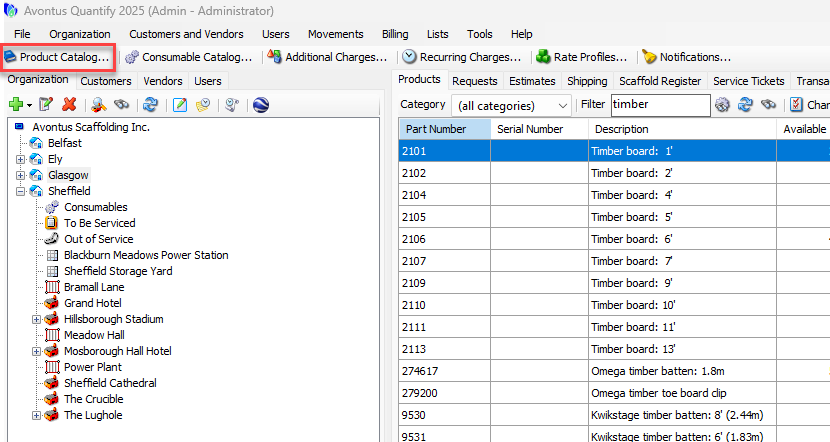
The Product Catalog appears.Click the Items dropdown and select Factors.
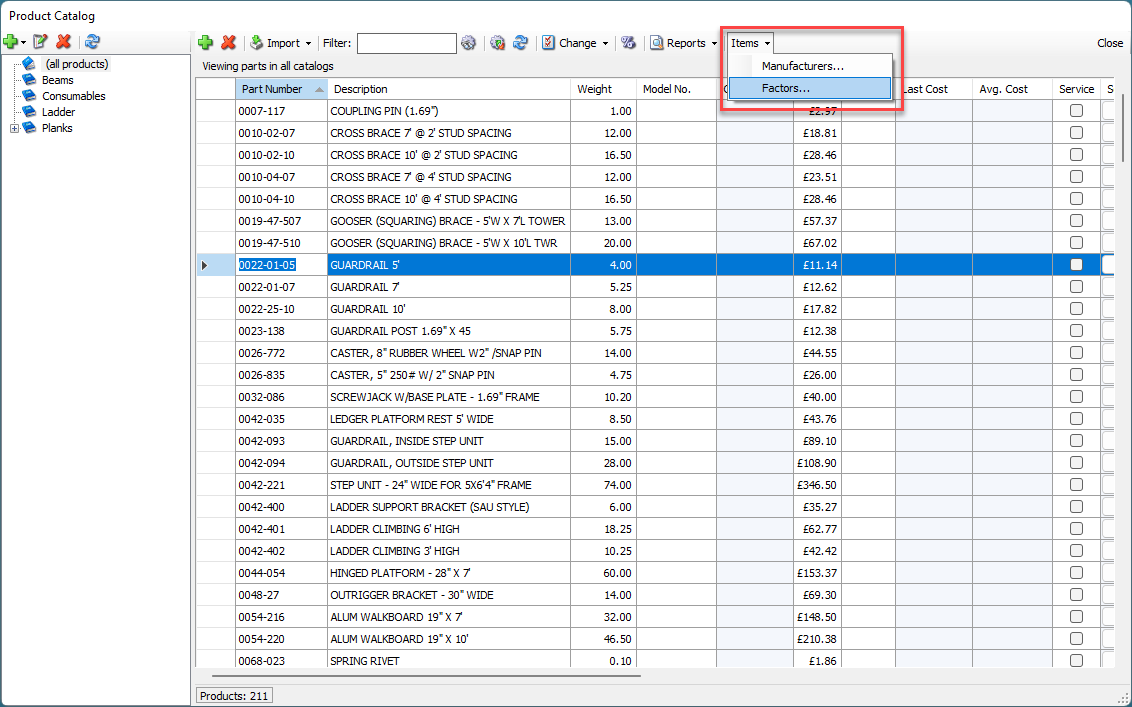
The Quantity Factor Multipliers dialog appears.Click the Factor Multiplier you want to delete, then click the Delete button (
 ).
).
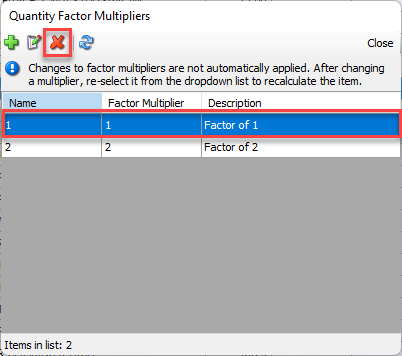
A confirmation dialog appears.
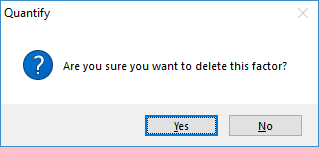
Click Yes.
Quantify deletes the factor.