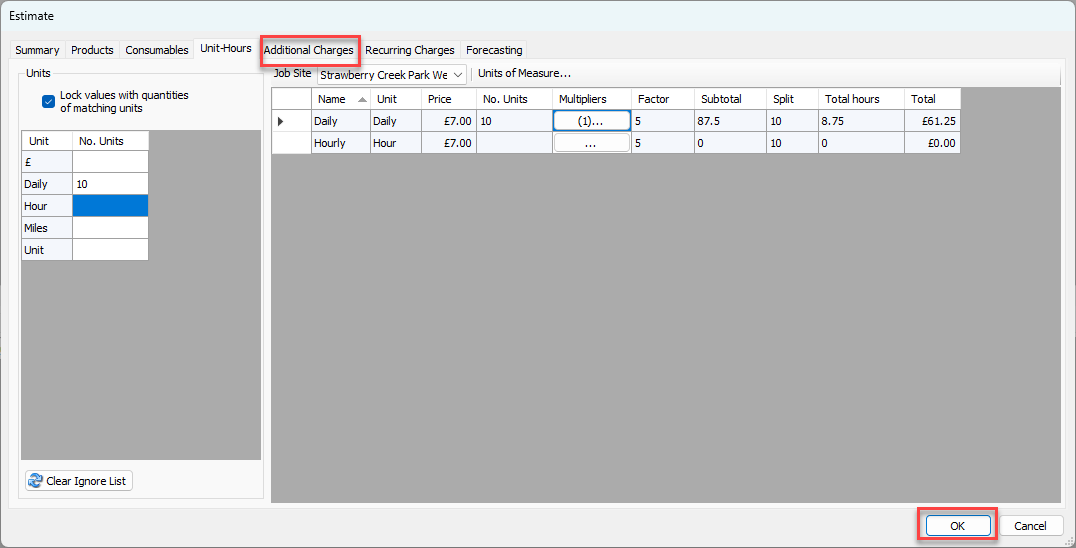
The charges for some activities can be standardized. For example, if you know that it takes a consistent amount of time to install 100 feet of decking, you can create a standard measurement for that and call it 100' Decking. if you know a job will require 1000 feet of decking, you can use the standard and a multiply it by ten (100' Deck x 10), thus short-cutting the estimation process. In Quantify, this combination (standard plus multiplier) is called a Unit-Hour, and they are applied as Unit-Hour Profiles. Quantify enables you to create as many Unit-Hour Profiles as necessary and apply them to your Estimates. To learn how to create a Unit-Hour Profile, refer to Adding a Unit-Hour Profile.
Note: For an explanation of all the fields in this tab, refer to About the Estimate Dialog Unit-Hours Tab.
To configure the new Estimate's Unit-Hours tab:
Click the Unit-Hours tab.
The Estimate dialog refreshes.Click the Job Site dropdown and select the Job Site to which you want to apply one or more Unit-Hours.
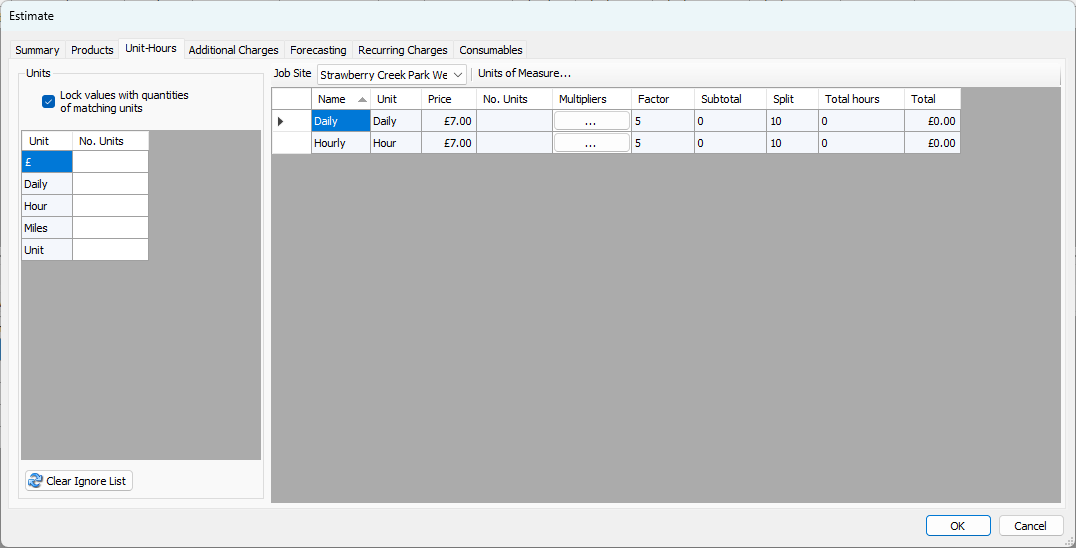
The Estimate dialog refreshes, displaying the list of available Unit-Hours assigned to the selected Job Site.Click in the appropriate cell(s) in the No. Units Column and enter the number of units required for the Estimate.
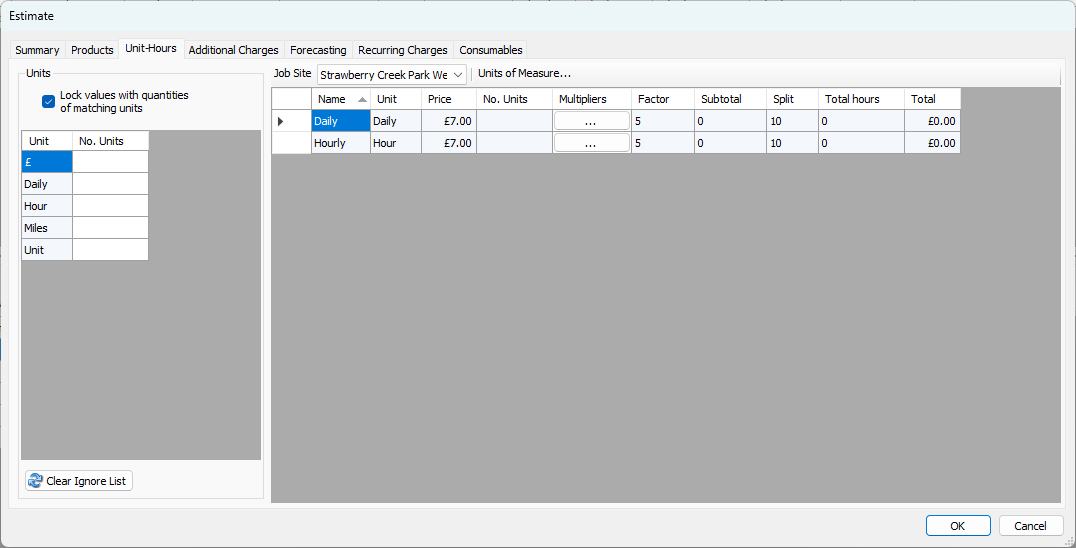
The appropriate Unit-Hour row(s) update to reflect your entry. (In this case, updates affect Unit-Hours using days).Click the appropriate Multipliers button.
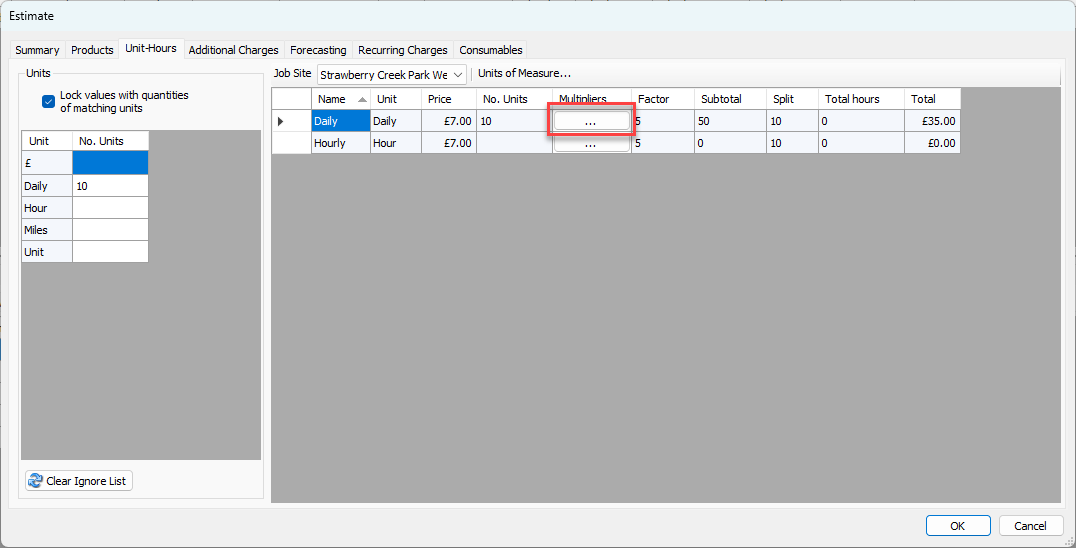
The Select Multipliers dialog appears.Click the appropriate Multiplier checkbox(es), then click Close.
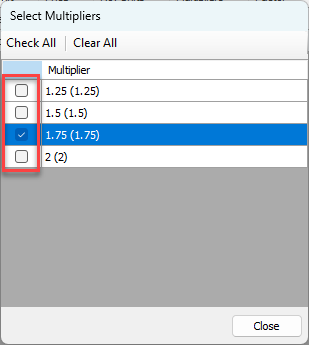
The table in the Estimate dialog refreshes, displaying the effect of applying the Multiplier.
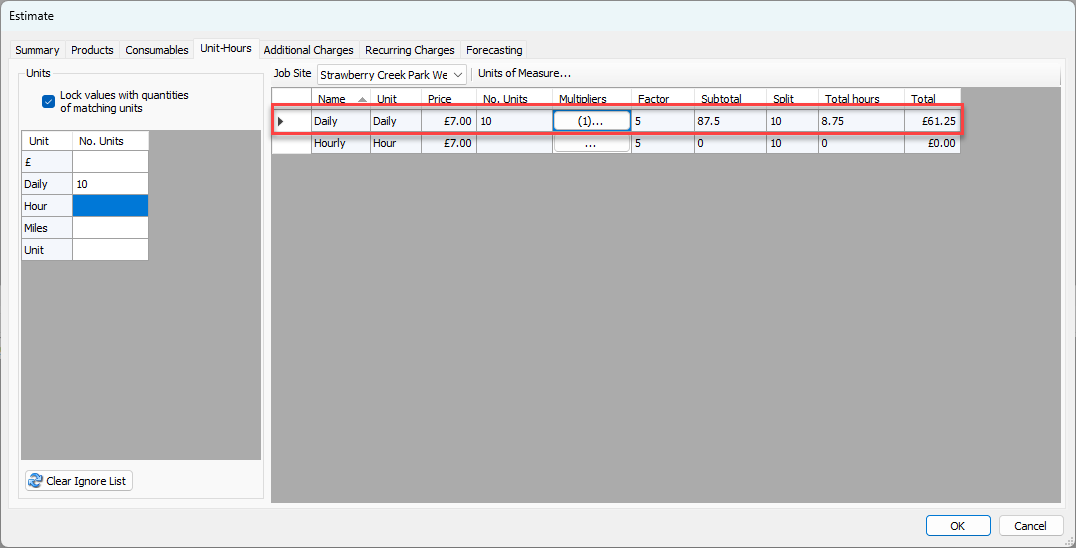
Repeat the above step for other Unit-Hours, as necessary.
Click OK or select the next tab