NOTE: The features mentioned in this article are only available in the Industrial Edition of Quantify.
The charges for some Scaffold Activities can be standardized. For example, if you know that it takes a consistent amount of time (at a consistent dollar rate) to install 100 feet of decking, you can create a standard measurement for that and call it 100' Decking. In Quantify, this is called the Unit-Hour Rate. If you know a job will require 1000 feet of decking, you can apply the 100' Decking rate and a multiply it by ten (100' Decking x 10), thus short-cutting the estimation process.
Also, there may be unusual instances where you would want to multiply a standard Unit-Hour Rate. For example, when a scaffold tag will be more difficult to work on than normal. In such cases, it would be helpful to have multipliers you can choose from that will increase the Unit-Hour Rate by the appropriate amount.
In Quantify, one or more of these combinations (rate plus multiplier) is called a Unit-Hour Profile. Each Unit-Hour Profile consists of one or more Unit Hour Rates and one or more Multipliers. Before you can add those components to a Scaffold Activity, you must first configure one or more Unit-Hour Profiles for the appropriate Scaffold Tracking Job Site.
Adding a Unit-Hour Rate
NOTE: The features mentioned in this article are only available in the Industrial Edition of Quantify.
Unit-Hour Rates enable you to apply standardized rates to specified units. Units can be amount of time (hour, day, etc.), units of measure (feet, miles, etc.) and so on. You apply a Unit-Hour Rate to a Scaffold Activity to help determine the cost of the Activity.
To add a Unit-Hour Rate:
Click the appropriate Scaffold Tracking Job Site
Click the Scaffold Register tab
Click the Scaffold Lists menu and select Unit-Hour Profile.
.gif)
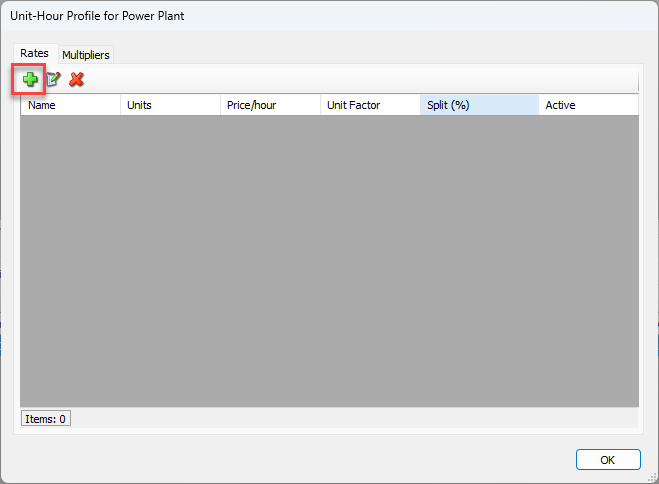
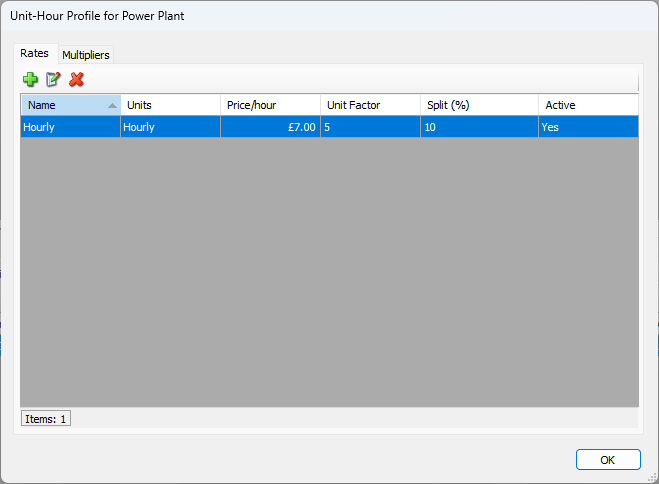
The Unit-Hour Profile dialog appears, with the Rates tab selected.Click the Add Profile button (
 ).
).
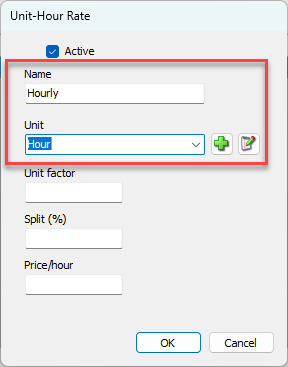
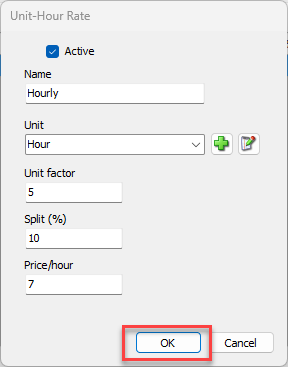
The Unit-Hour Rate dialog appears.\Click in the Name text field and enter the name of the Unit-Hour Rate.
Click the Unit dropdown and select the appropriate unit.
Note: You can also click the Add button () and add a new one.
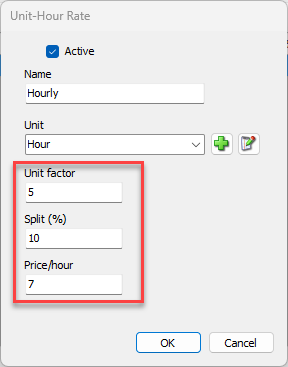
Click in the Unit Factor text field and enter the factor of the unit you want to bill for.
Click in the Split text field and enter the percentage of the total work to apply to an individual Activity.
Click in the Price/Hour text field and enter the appropriate price.
Click OK.
If you are done, click OK. If you want to add a Multiplier, go to the next section of these procedures.
Adding a Multiplier
When you work with Scaffold Activities, you can use multipliers to charge more when a Scaffold Tag will be more difficult to work on than the average contract.
To add a Multiplier:
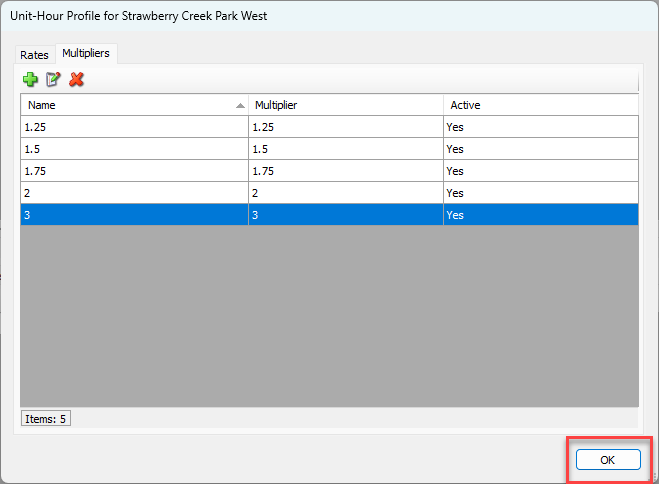
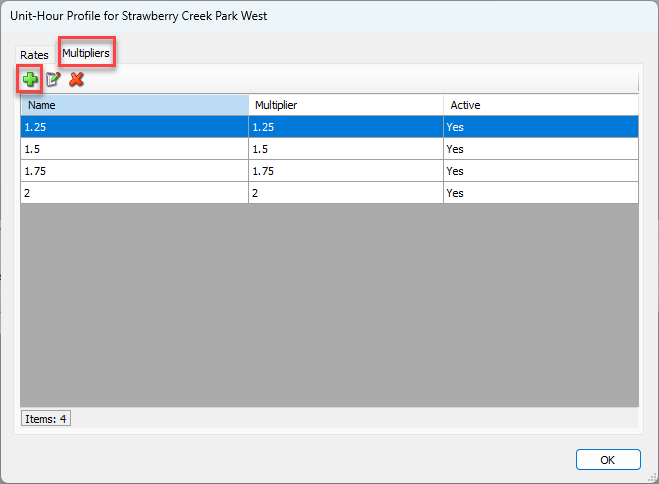
Click the Multipliers tab.
Click the Add Profile button (
).
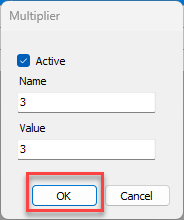
The Multiplier dialog appears.
3. Click in the Name text field and enter a name for the new multiplier.
4. Click in the Value text field and enter the value (multiplier) for the new multiplier.
Note: To be usable, multipliers should be greater than one.
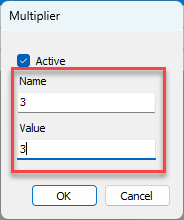
5. Click OK.
6. Click OK in the Unit-Hour Profile dialog.