The General tab enables you to configure basic information about the current Scaffold: tag and order number, customer, assigned employees, dimensions, etc. Use the information below to help you configure the General tab, then continue with the rest of the tabs, as necessary.
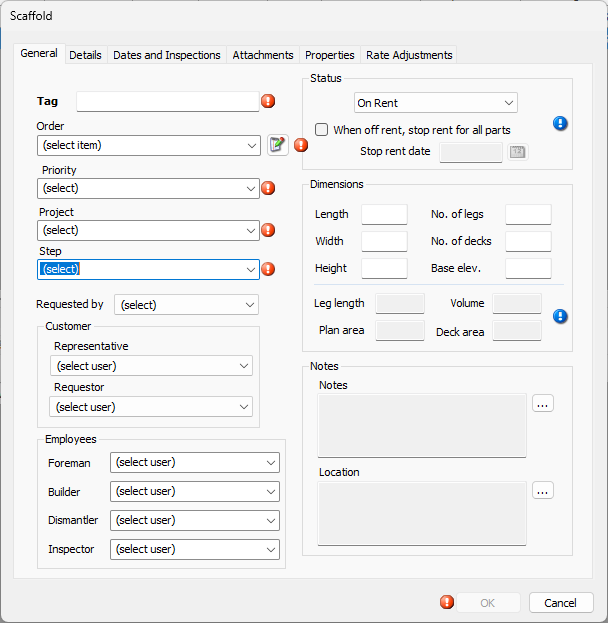
You can modify the following options:
Tag | Enter the tag name of number into this text field. |
Order | Select the appropriate order from this dropdown. |
Priority | Select the appropriate priority from this dropdown: High, Low or Medium. |
Project | Select the appropriate project type from this dropdown: Maintenance or Turnaround. |
Step | Select the appropriate step from this dropdown, one, two, three, etc. |
Requested by | Select the appropriate selector from this dropdown: Customer or Internal. |
Representative | Select the person who represents the client for this project from this dropdown. |
Requestor | Select the person who requested this project from this dropdown. |
Foreman | Select the foreman for this project from this dropdown. |
Builder | Select the person who will build the scaffold for this project from this dropdown. |
Dismantler | Select the person who will dismantle the scaffold for this project from this dropdown. |
Inspector | Select the person who will inspect the scaffold for this project from this dropdown. |
Status | Select the status of the scaffold in the Quantify system: Estimate, On Rent, Off Rent and Completed. |
When off rent, stop rent for all parts | Click this checkbox to permanently stop charging rent when the Off Rent status (above) is selected.
|
Stop rent date | When Off Rent is selected from Status down (above), enter the date at which rent will stop into this text field. |
Length | Enter the length of the scaffold into this text field. |
Width | Enter the width of the scaffold into this text field. |
Height | Enter the height of the scaffold into this text field. |
No. of legs | Enter the number of legs the scaffold has into this text field. |
No. of decks | Enter the number of decks the scaffold has into this text field. |
Base elev. | Enter the elevation of the scaffold's base into this text field. |
Leg length | This text field shows the scaffold's leg length, based on the information entered above. This information is based on the following formula: number of legs x height.
|
Plan area | This text field shows the scaffold's plan area, based on the information entered above. This information is based on the following formula: length x width. Note: You cannot edit this text field. |
Volume | This text field shows the scaffold's volume, based on the information entered above. This information is based on the following formula: length x width x height.
|
Deck area | This text field shows the scaffold's deck area, based on the information entered above. This information is based on the following formula: length x width x number of decks.
|
Notes | Enter any notes pertaining to the scaffold into this text field. |
Location | Enter the scaffold's location into this text field. |