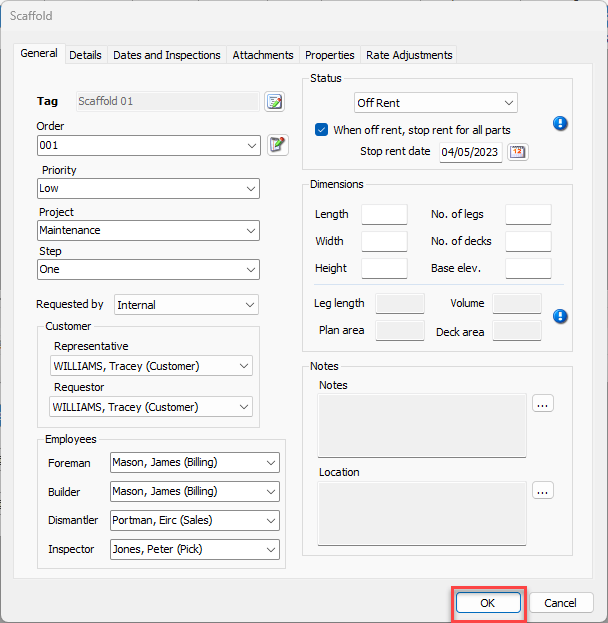
All rent and recurring charges on a Scaffold can be stopped as of a specific date, the stop rent date. Products will remain at the scaffold until a return Shipment is completed.
NOTE: The features mentioned in this article are only available in the Industrial Edition of Quantify.
Warning: For Job Sites or Rate Profiles with a minimum rental day, the stop rent date overrides the minimum and will discontinue charges on the specified date. Rent for items within the minimum rental days will be prorated up to the stop rent date.
To apply a stop rent to a Scaffold:
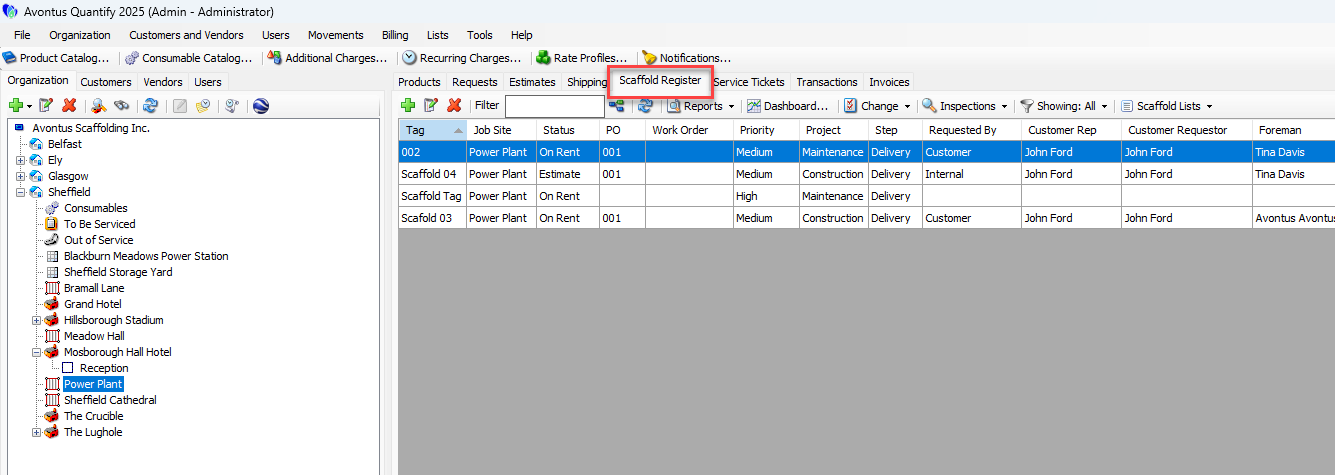
Locate and click the appropriate location, then click the Scaffold Register tab.
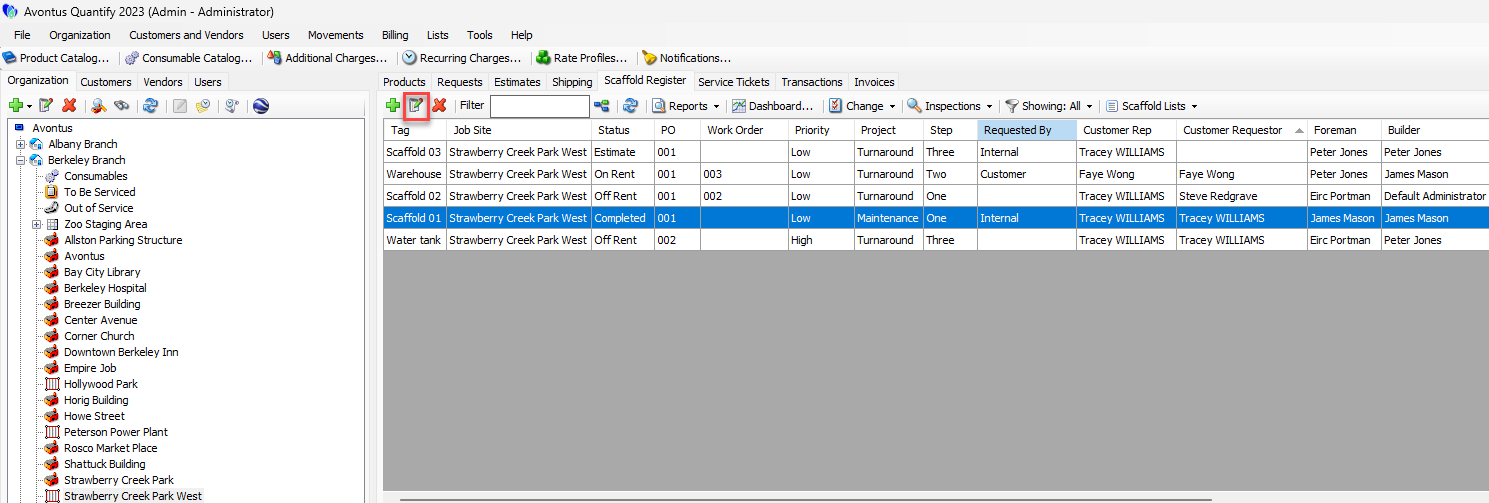
Click the appropriate Scaffold and click the Edit Scaffold button. You can also double-click the scaffold
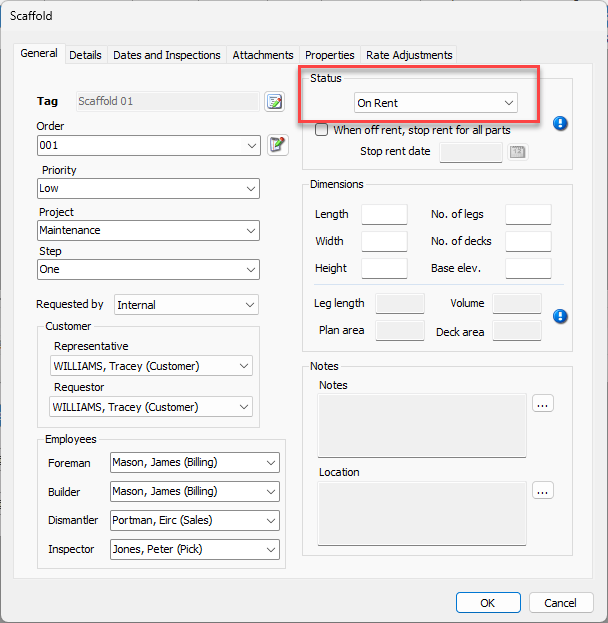
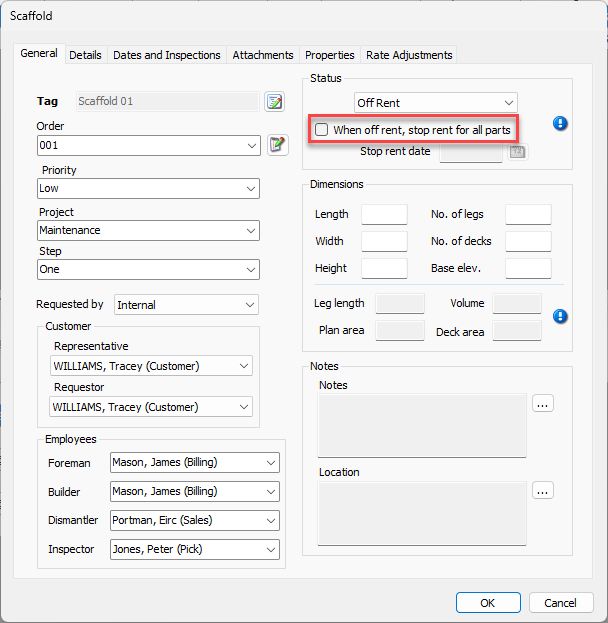
The Scaffold dialog appears.Click the Status dropdown and select Off Rent.
Click the When off rent, stop rent for all parts checkbox.
Click the Stop Rent Date calendar icon (
 ).
).
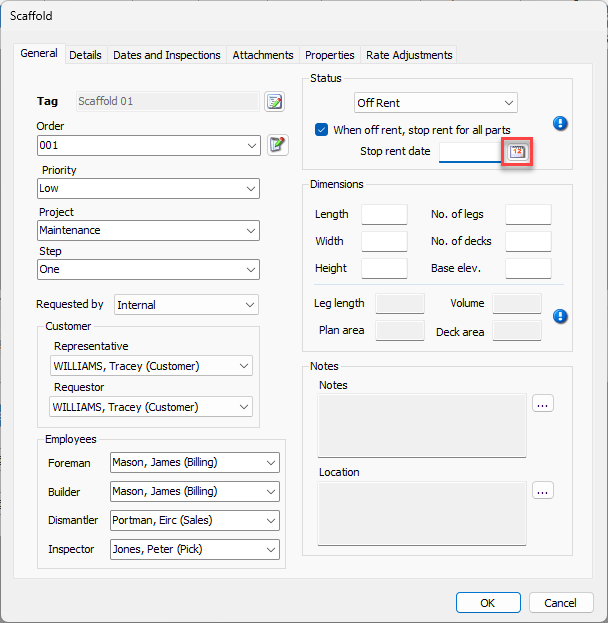
All current rent and recurring charges on the Scaffold will discontinue as of the date you select here. Quantify will not allow any additional deliveries on a Scaffold with a specified stop rent date. Existing deliveries or transfers cannot be edited or voided when a stop rent date is applied.Note: The stop rent date cannot be edited or removed after invoices have been generated for the billing cycle that includes this date.
The calendar appears.
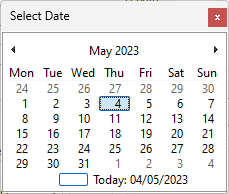
Locate and click the appropriate date.
The Scaffold dialog returns.Click OK.