Quantify enables you to easily create a delivery from an Estimate. The procedures below show you how to do that.
To create a delivery from an Estimate:
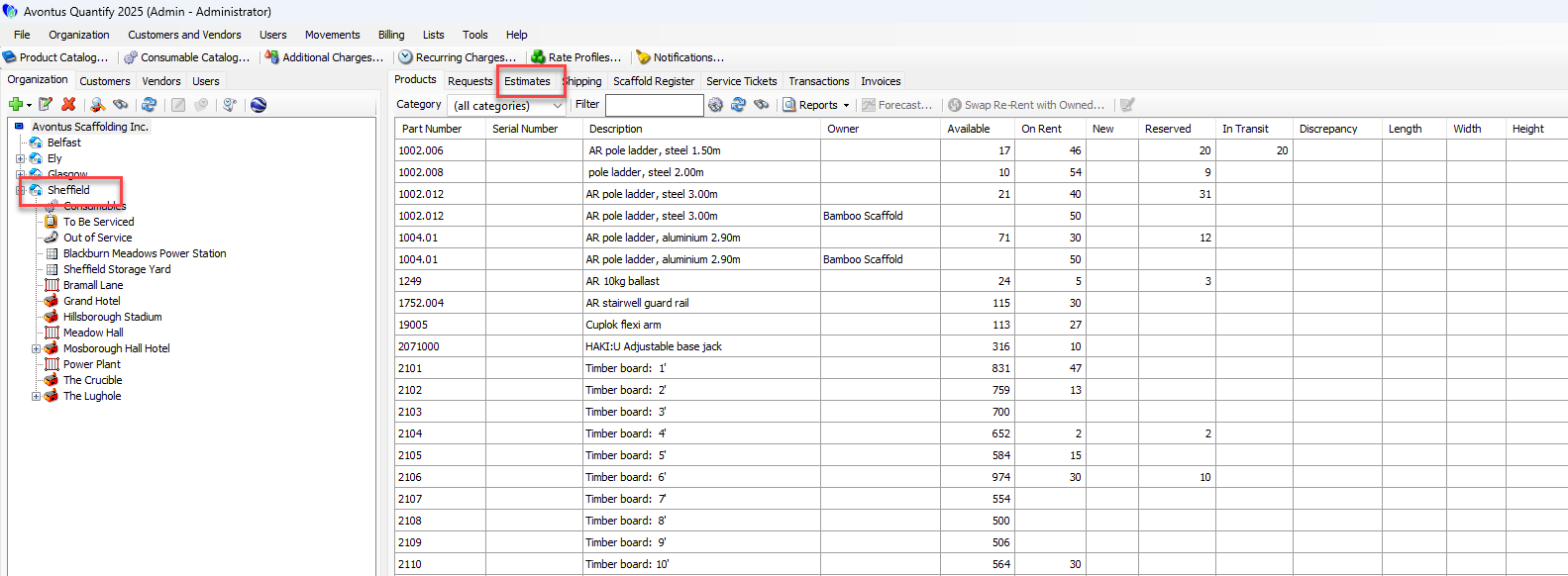
Click the appropriate location in the Organization Tree, then click the Estimates tab.
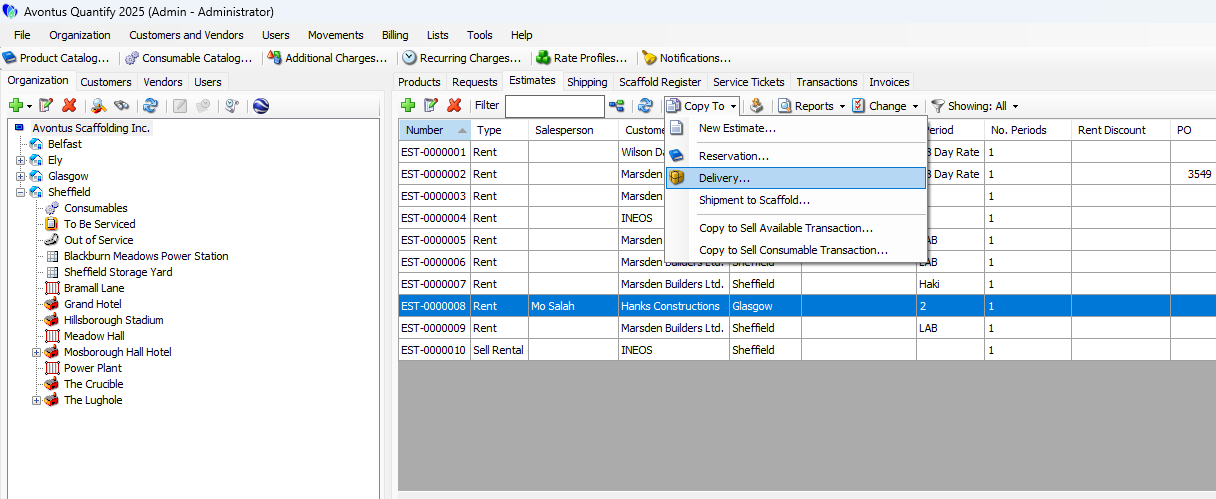
Select an Estimate, click the Copy To dropdown and select Reservation.
Then select Delivery
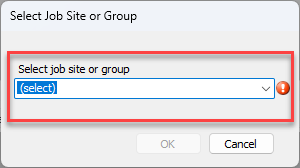
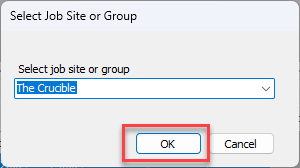
The Select Job Site or Group dialog appears.
Click the Select Job Site or Group dropdown and make the appropriate selection for the delivery.
Click OK.
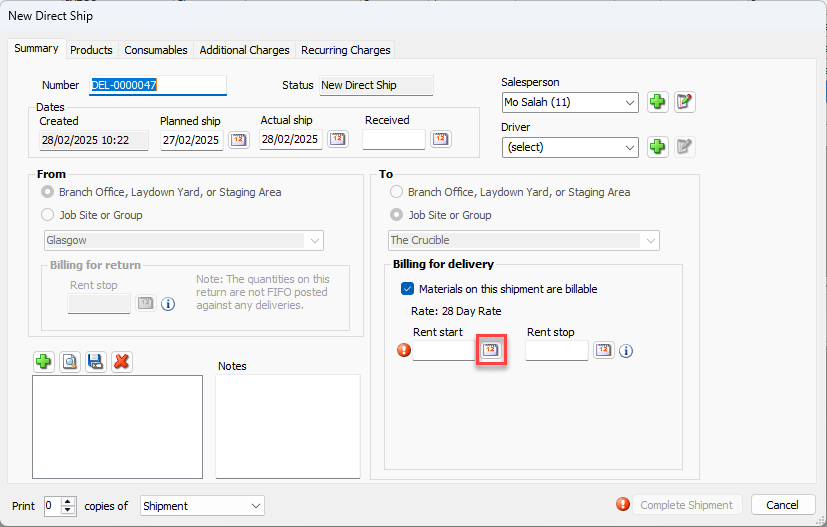
The New Direct Ship dialog appears.
Note: The number field populates with a DEL number.
The From setting defaults to the selected Branch Office and the To setting is set to the Job Site selected above.Click the Rent Start calendar icon.
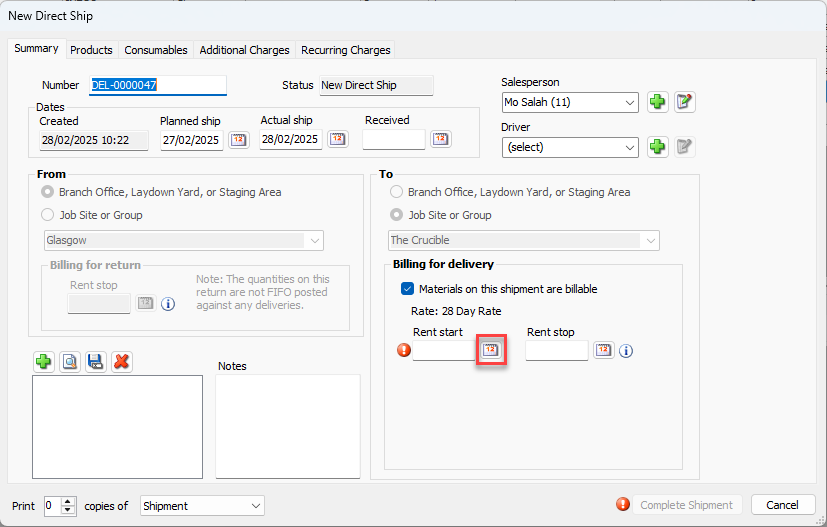
A calendar appears.
Locate and click the appropriate start date.
As necessary, ether information under the other tabs. For these procedures, refer to Creating a New Shipment, Editing a Shipment, Voiding a Shipment to a Regular Job Site.
Click Complete Shipment.
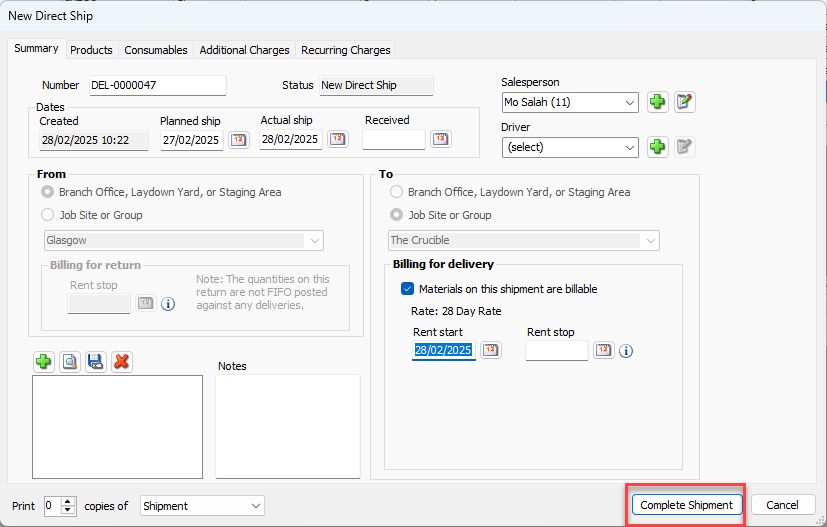
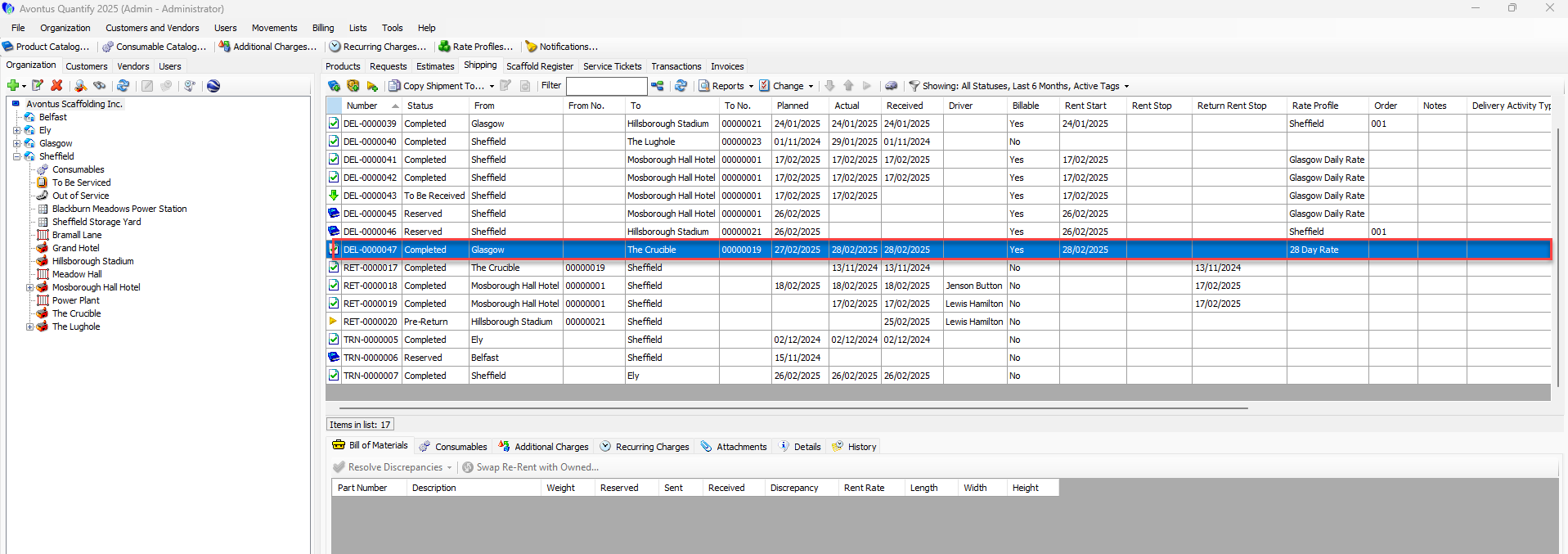
Quantify creates the Shipment and you can view it in Shipping tab for the Job Site.