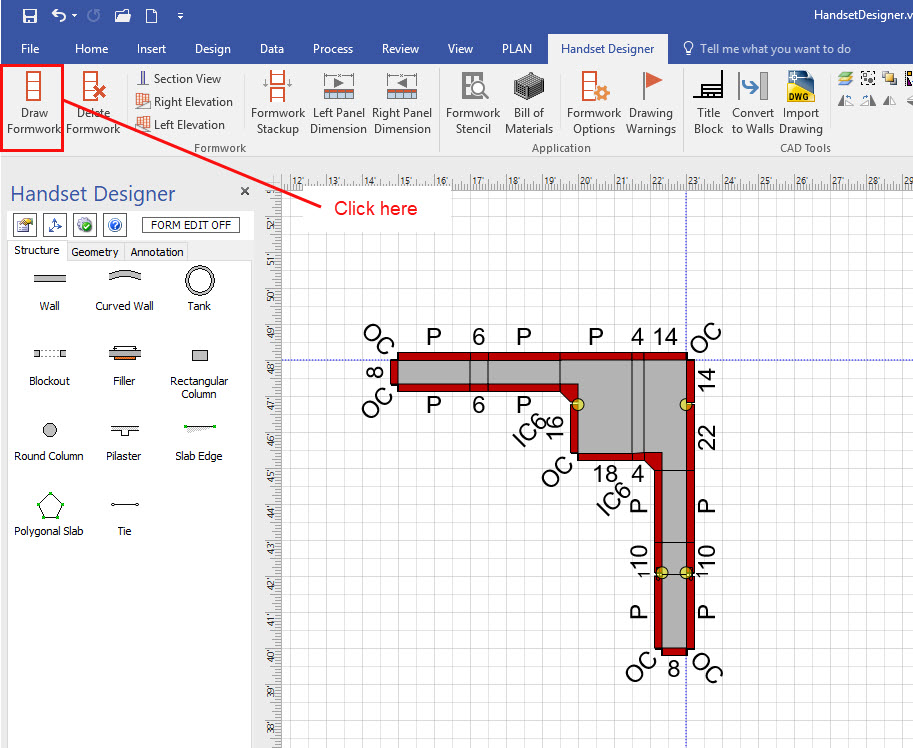
You can create an inside corner Pilaster using any corner of a Pilaster. The procedures below explain how to create an inside corner Pilaster, using the upper right-hand corner of the Pilaster. Keep in mind that the size of the Pilaster, the connection points of the Walls inside the Pilaster, as well as the Wall direction may all affect the Formwork. A poorly formed corner will produce Formwork drawing warnings. So it is helpful to draw the Formwork after you have created the Pilaster corner, to check that you have created a well-formed connection. (Refer to Correcting Formwork Drawing Warnings for more on this subject.)
To create an inside corner Pilaster:
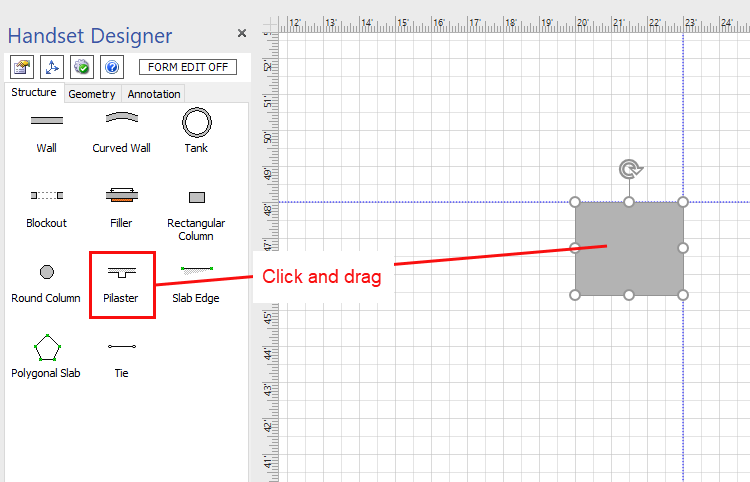
Click and drag a Pilaster shape onto the Drawing page.
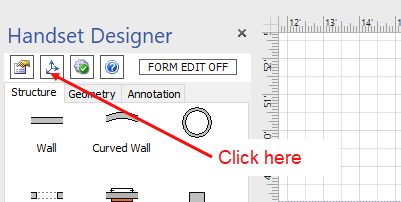
As necessary, click the Size & Position button in the Handset Designer toolbar.
The Size & Position popup appears.
Note: You can also use the Pilaster's shape handles to adjust the size of the PilasterConfigure the Pilaster.
As necessary:Click in the X text field and enter the X Axis position corresponding to the center point of the Pilaster.
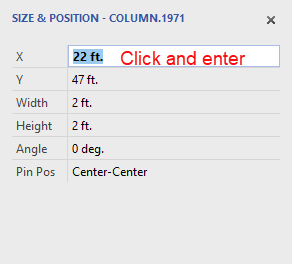
Click in the Y text field and enter the Y Axis position corresponding to the center point of the Pilaster.
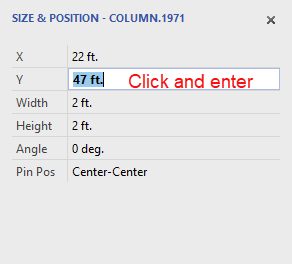
Click in the Width text field and enter the Pilaster width.
Click in the Height text field and enter the Pilaster height.
Click in the Angle text field and enter the angle.
Click the Pin Position dropdown menu and select the Pilaster pin position.
(For more information, refer to Customizing Shape Properties in Handset Designer and Setting a Column's Pin Position.)
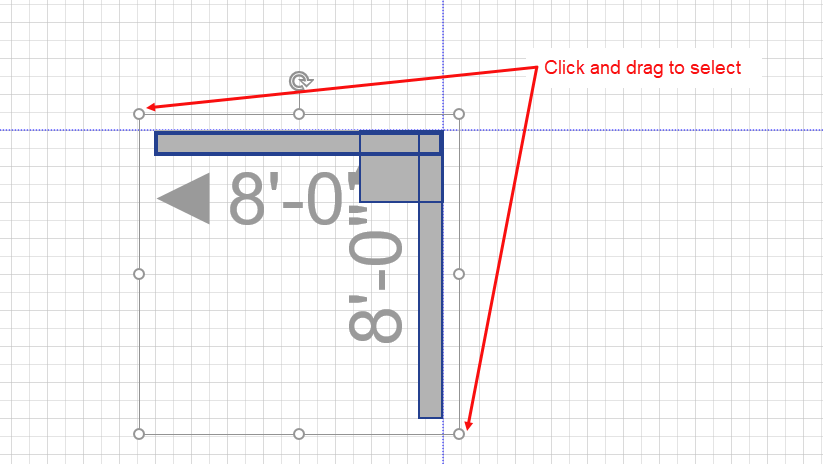
Click a Wall shape and drag it onto the Drawing Page and connect it to the Pilaster corner to corner, as shown.
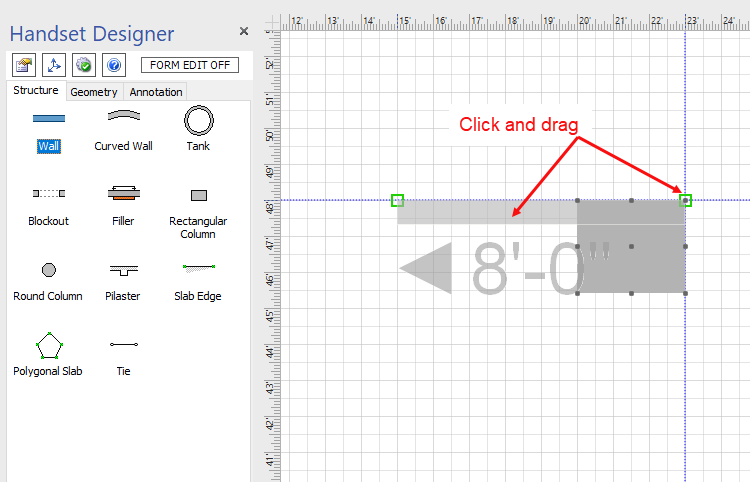
Click a second Wall and drag it onto the drawing.
Right-click the Wall and select Flip Wall on Reference Line to reverse the direction of the Wall.
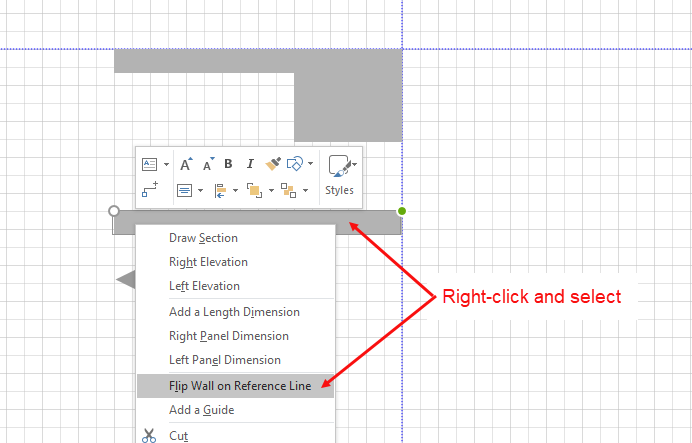
Click the Wall and use the shape handle to rotate it so that the outside of the Wall aligns with the outside of the Pilaster.
Click and drag the Wall to connect it to the Pilaster and to the other Wall, corner to corner.
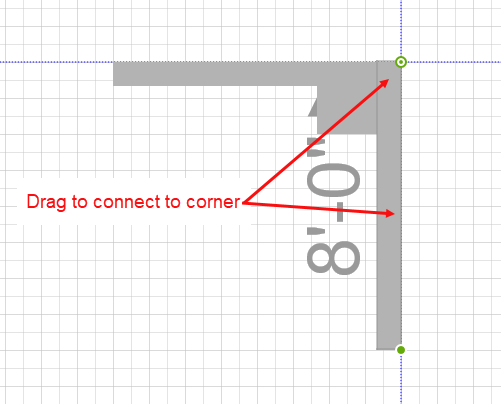
Click and drag to select the new shape and clearly see your connections.
Note: Walls must be connected properly inside the Pilaster or Drawing Warnings will occur when you draw the Formwork.
Click the Handset Designer tab and click Draw Formwork.
Note: Yellow circles indicate the need for custom fillers.