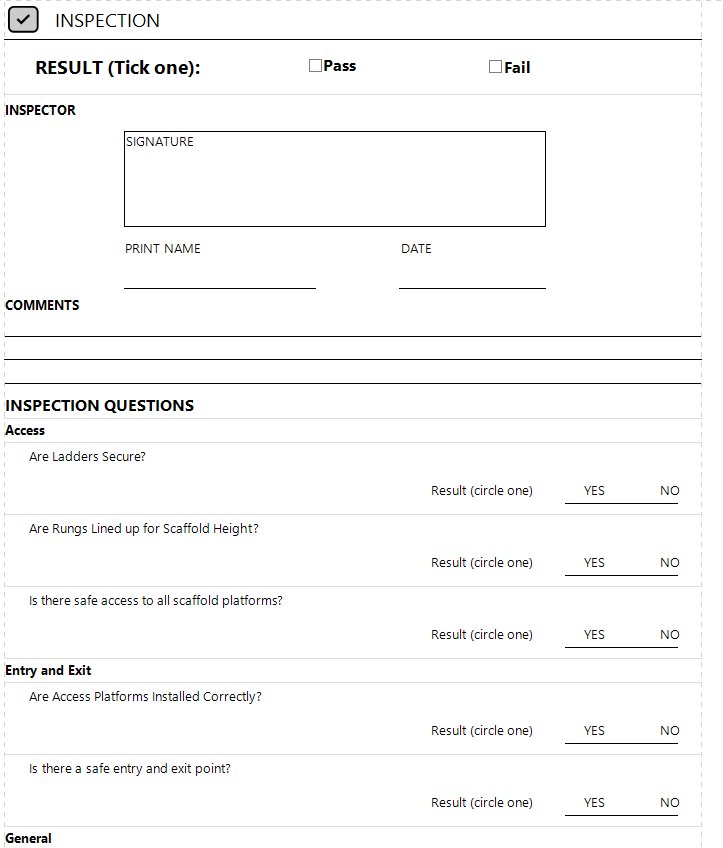
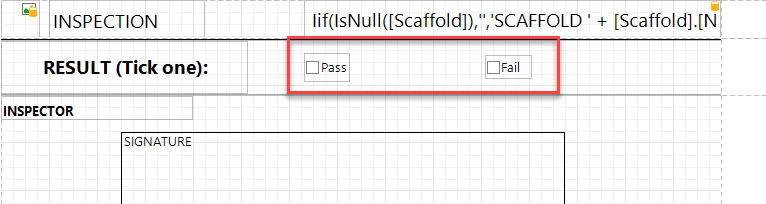
In this example, we are going to modify an original report. The change we are going to make is, instead of circling the Pass or Fail options, we are going to have the inspector tick the appropriate Pass or Fail checkbox
To do this
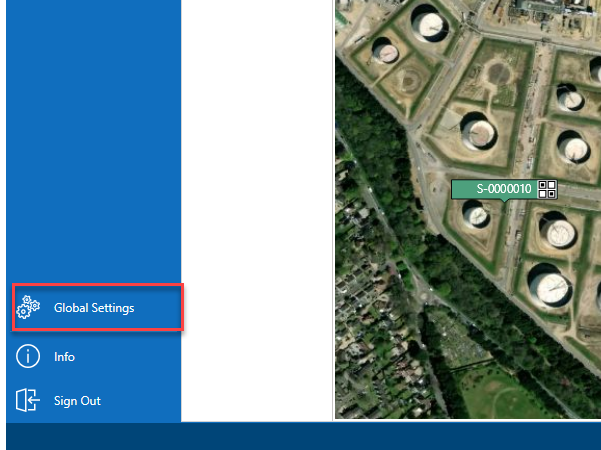
From the Map screen, select Global Settings
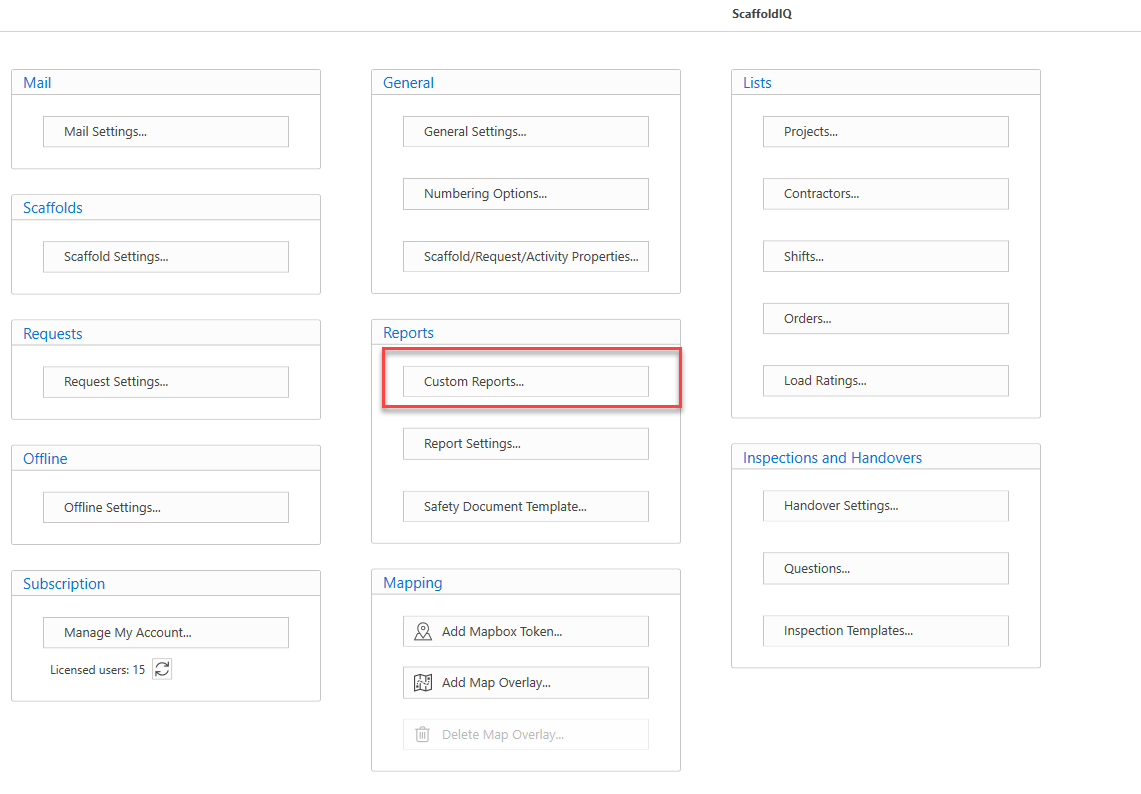
In the Settings screen, select Custom Reports.
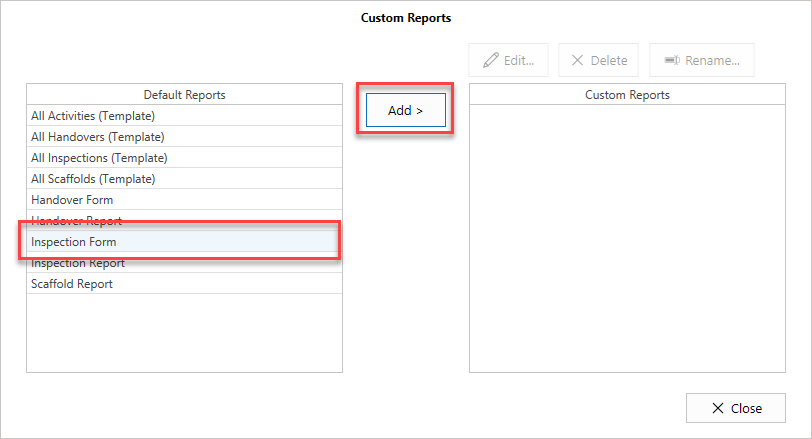
Select the Report to edit on the left, and click Add.
In the Report. delete the "Pass" and "Fail" text
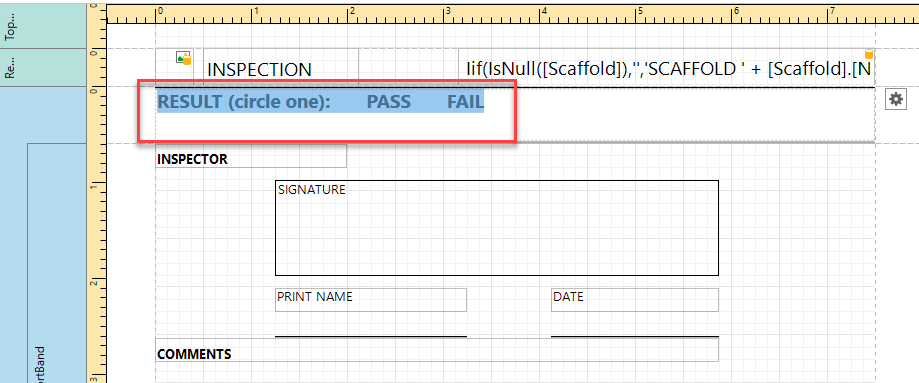
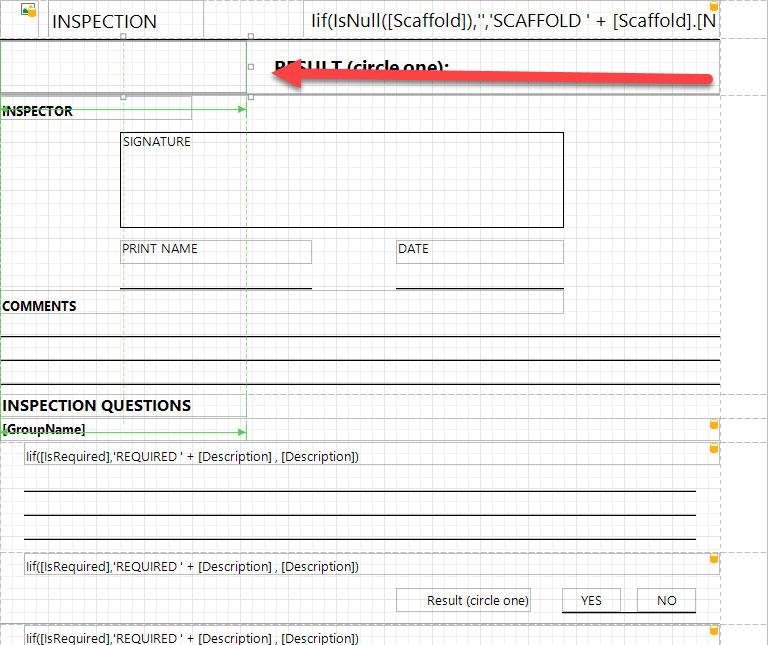
Reduce the size of the textbox
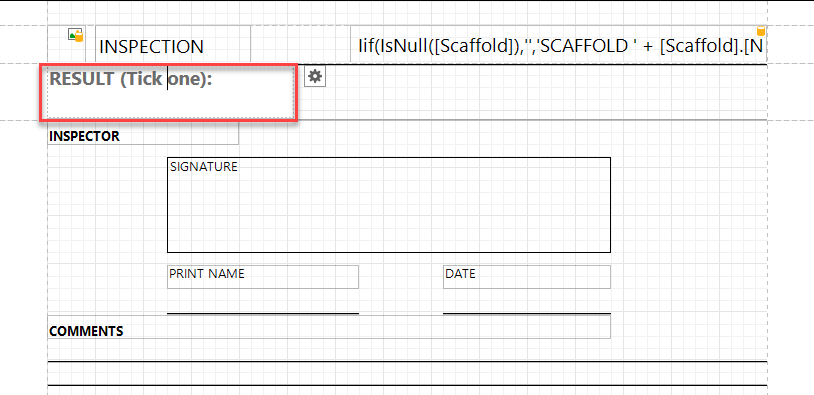
Change the text from "Circle one" to "Tick one"
Click the checkbox in the toolbox, and click and drag where you want it to go
Repeat this for the other checkbox
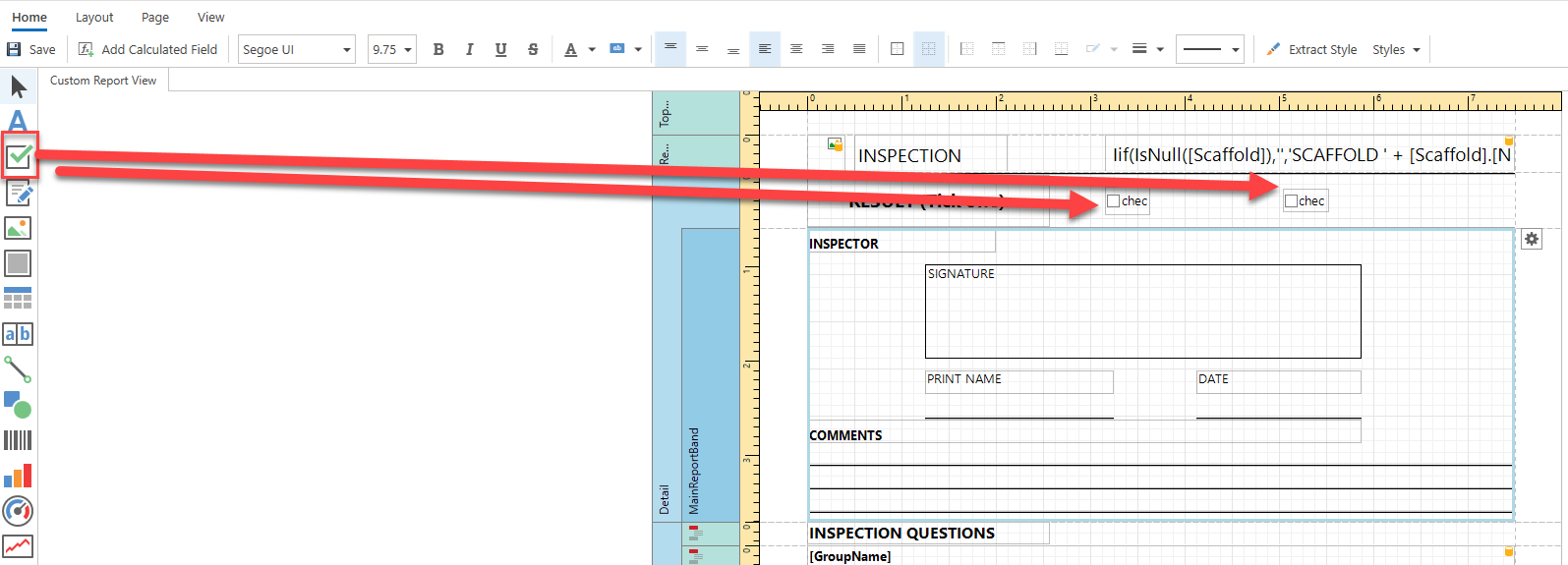
Change the Checkbox text to "Pass" and "Fail" respectively.
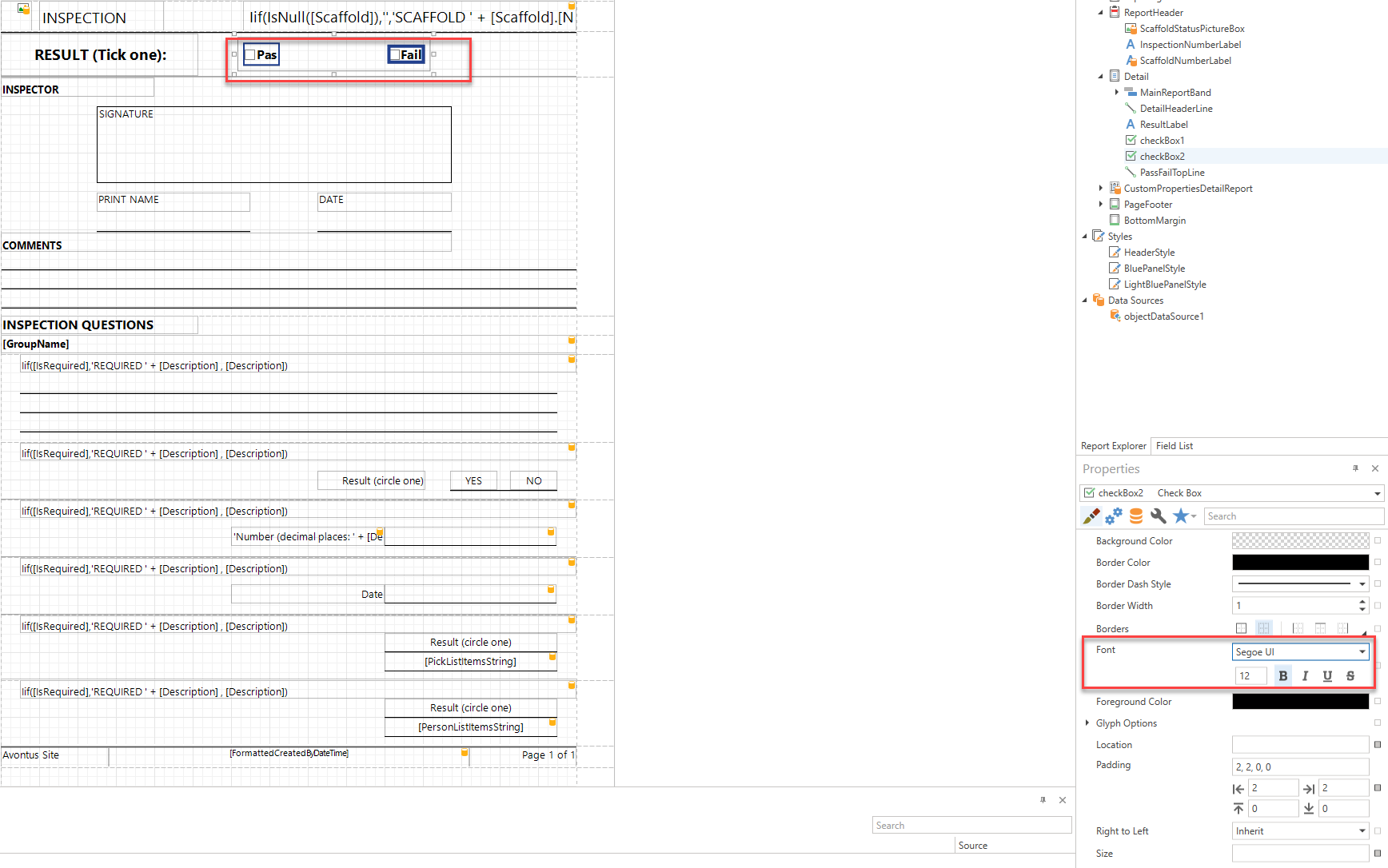
Select both checkboxes and change the text font size to match the Result (Tick one) text.
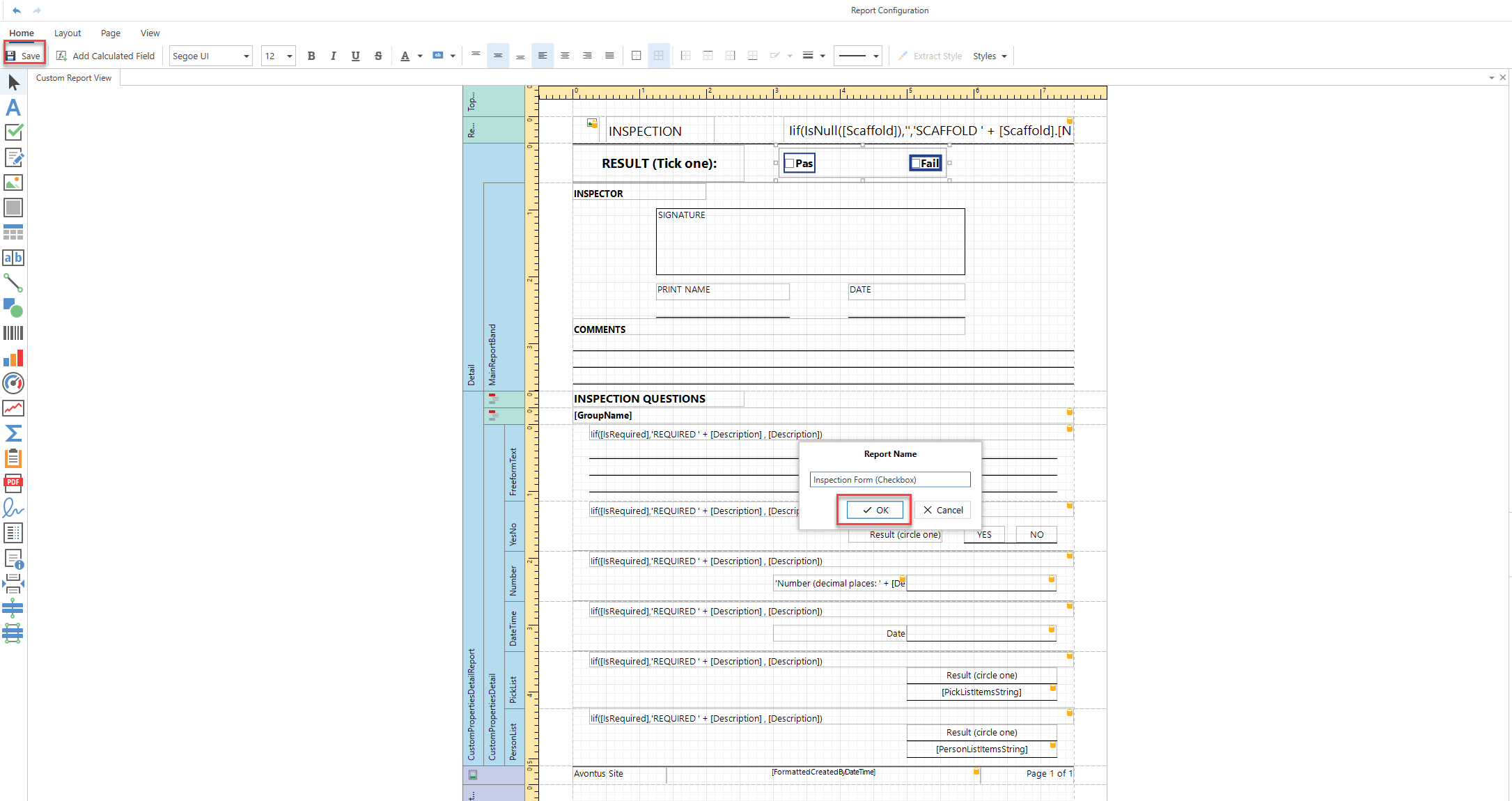
Click Save, enter a name for the Report, and click OK
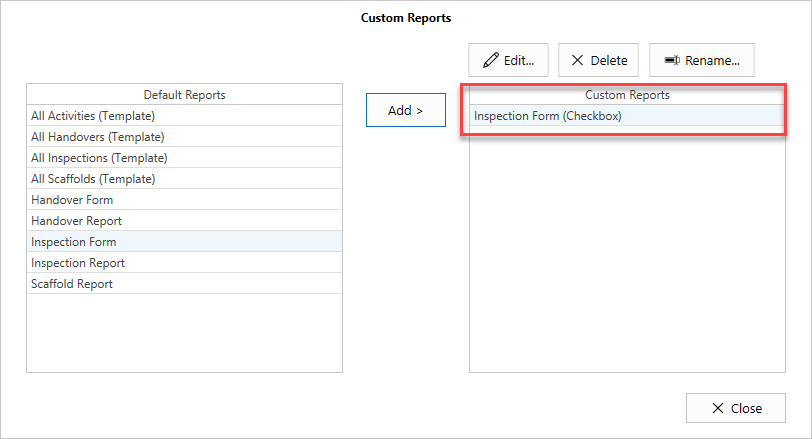
Close the Report, and you will see the new report listed on the left-hand side of the Custom Reports dialog
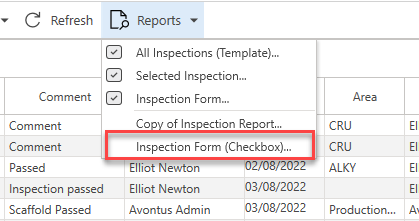
You can then launch the report from the Inspections screen.
The form will display the new changes