You create Invoices through the Invoices tab. Quantify enables you to create Invoices for a single Job Site, multiple Job Sites, all jobs under selected Branch Office(s), by Customer or for the entire company.
Note: When creating Invoices for Scaffold Tracking Job Sites, only a single job can be selected.
To generate Invoice(s) for a Branch Office:
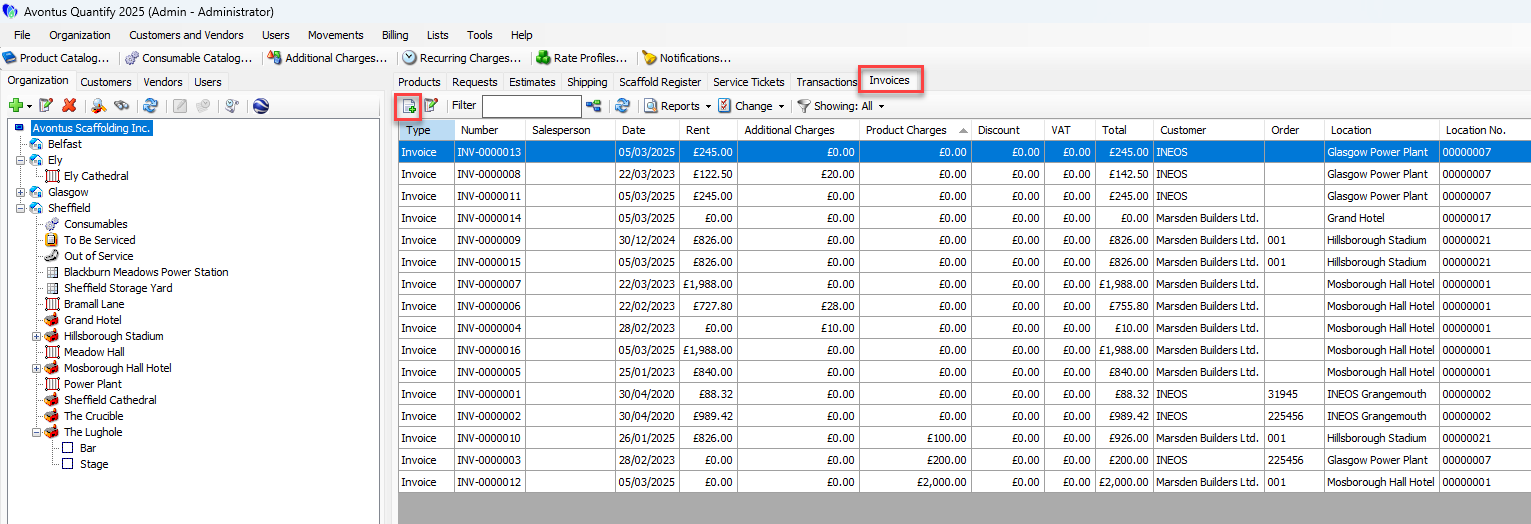
Click the Invoices tab and click the Create Rental Invoices button (
 ).
).
The Create Rental Invoices dialog appears.
As necessary, click the Invoice Up To calendar button (
 ).
).
By default, the current date appears here. Quantify uses this date to analyze what invoicing is due for the selected job sites.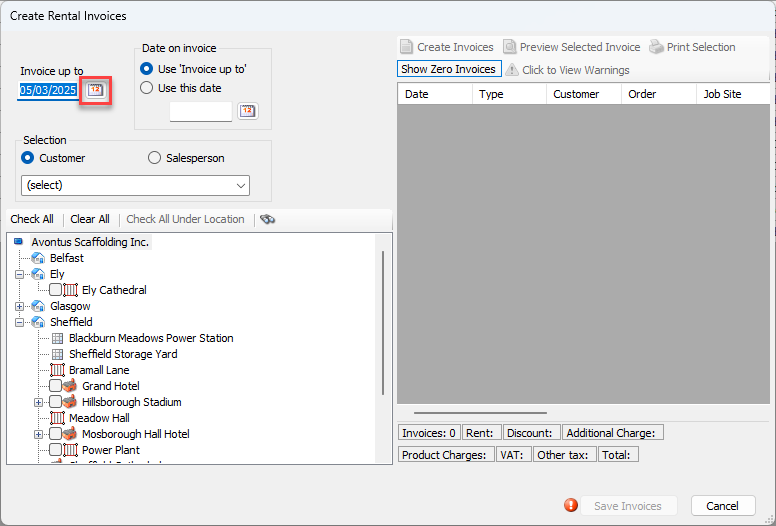
A calendar appears.
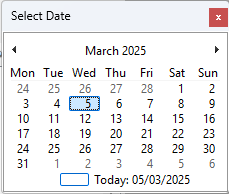
Locate and click the appropriate date.
Locate the Branch Office for which you want to create Invoices and select the Check All Under Location button.
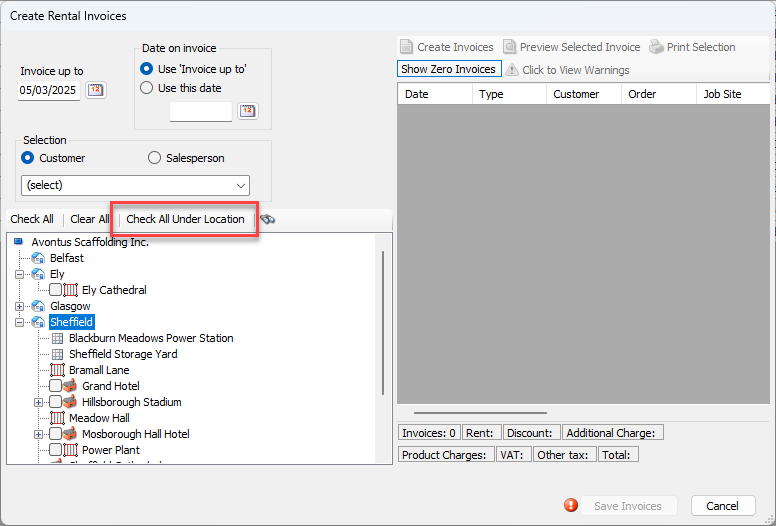
Click Create Invoices.
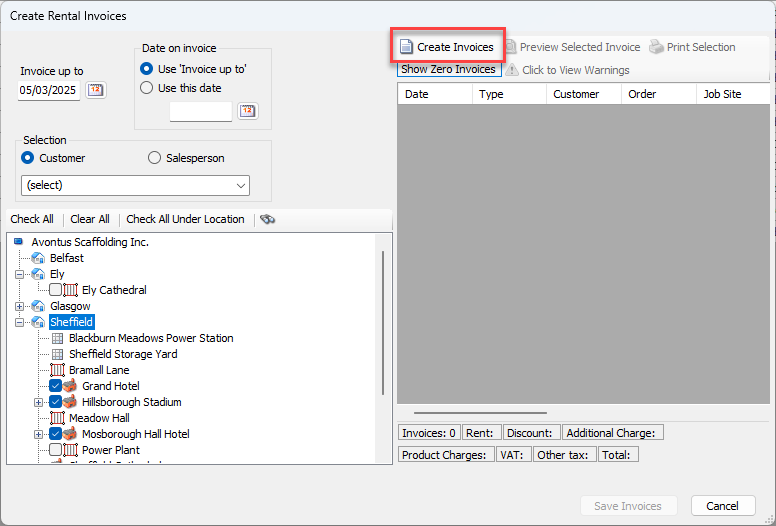
Quantify generates the Invoices that are due for the selected Job Sites under the Branch Office based on the Invoice Up To date.
Quantify displays summary information in the status bar.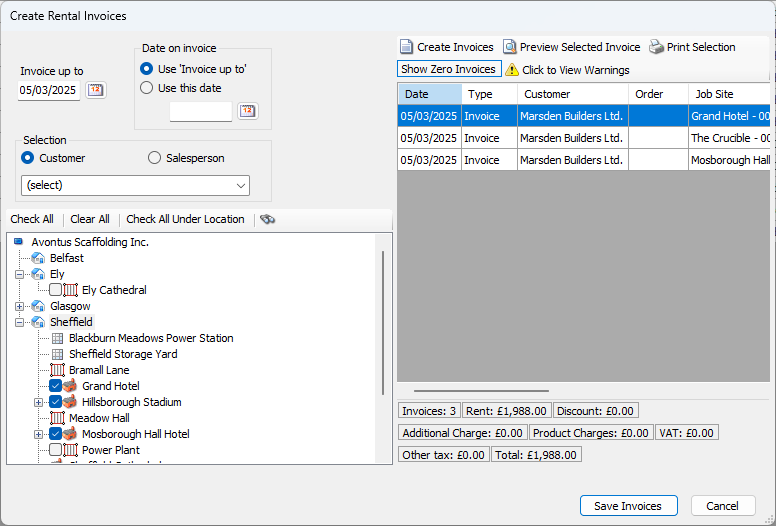
Note: Quantify may display informational messages regarding the Shipments included in the generated Invoices.
Note: For review, you can preview and print draft Invoices.To save the generated Invoice(s), click Save Invoices.
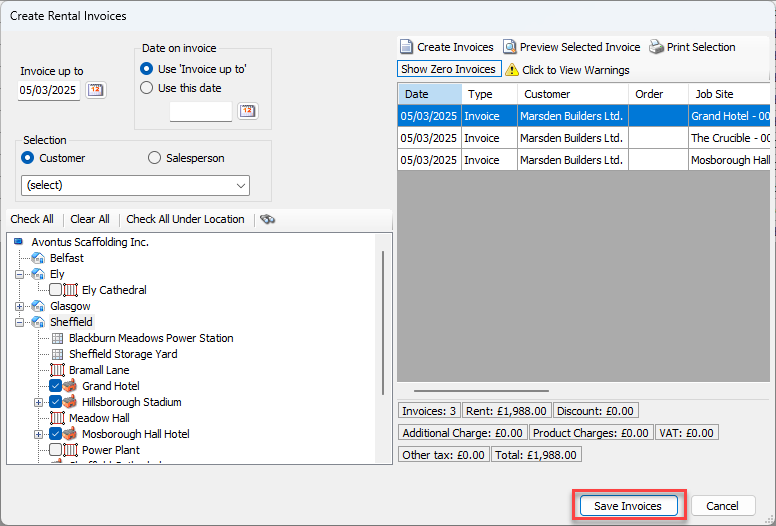
Note: Click Cancel to dismiss the Create Rental Invoices dialog and not save the Invoices.
Quantify saves the invoice(s).