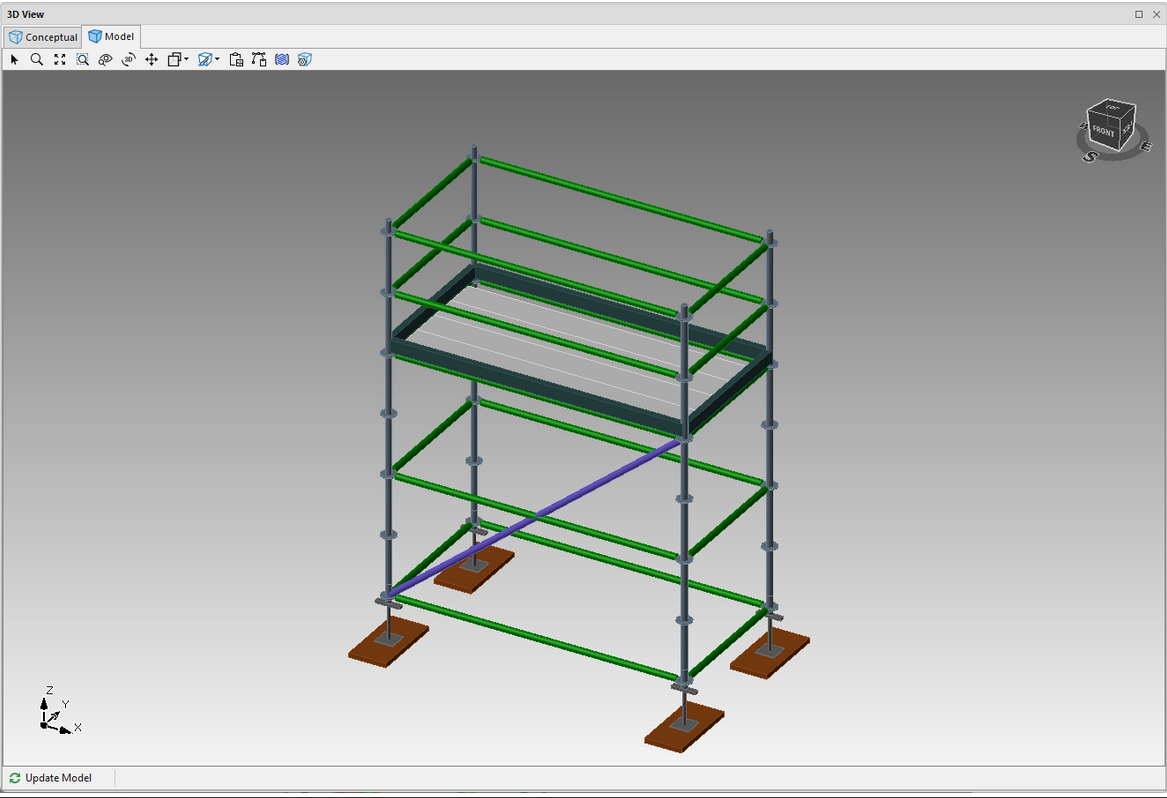
Avontus Designer enables you to isolate virtually any part of a Scaffold and combine parts from different Scaffolds in interesting ways to achieve custom designs. For example, a Scaffold may need diagonal bracing along with extra horizontal ledgers for strength. To do this, you will create a regular Bay with a second, ledgers-only Bay located mid-standard.
To create a Bay with bracing and extra ledgers:
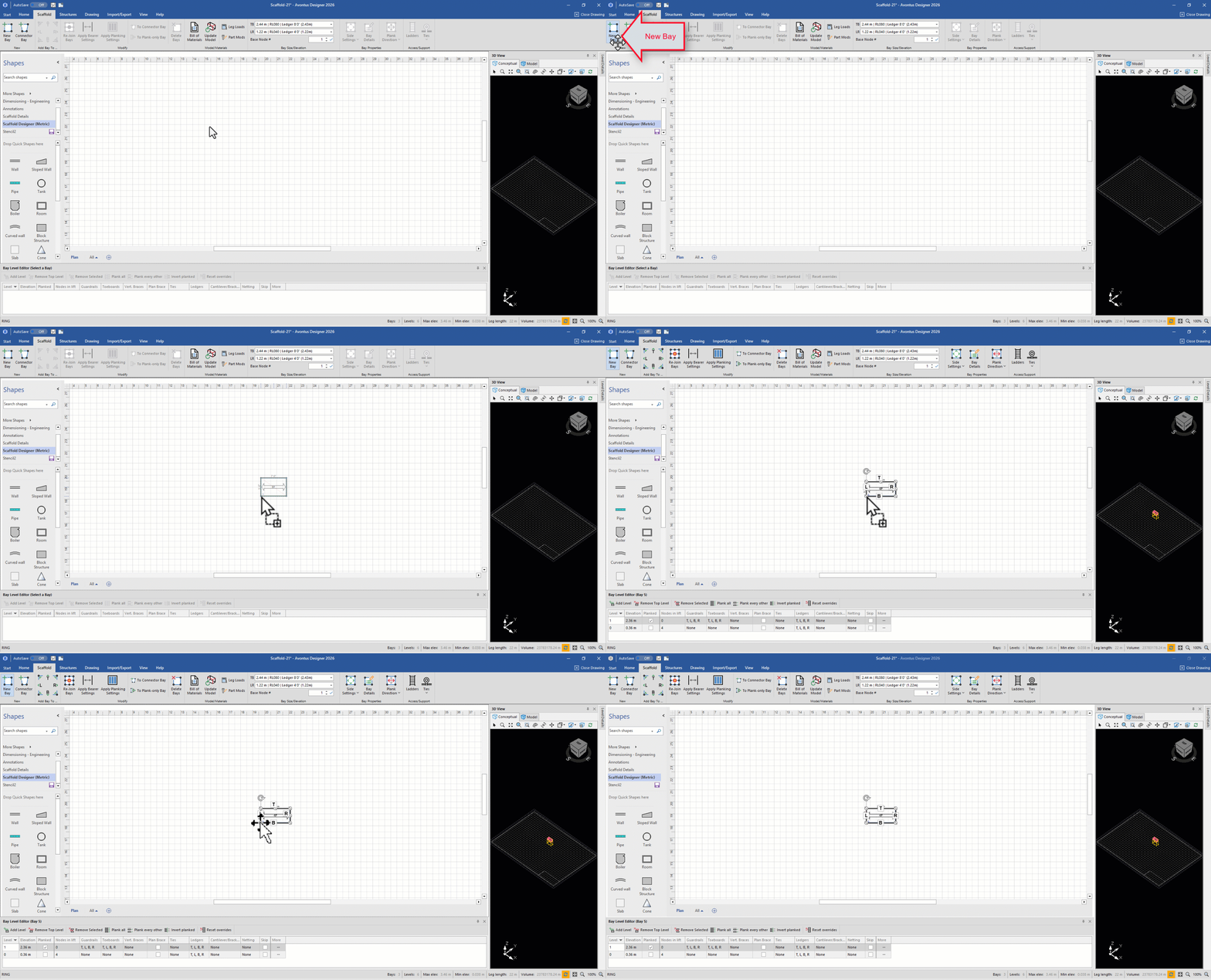
Click the Bay
In the Bay Level Editor, at Level 0, click the Vert. Braces checkbox
Select which side(s) for the braces to appear and click the tick icon
/
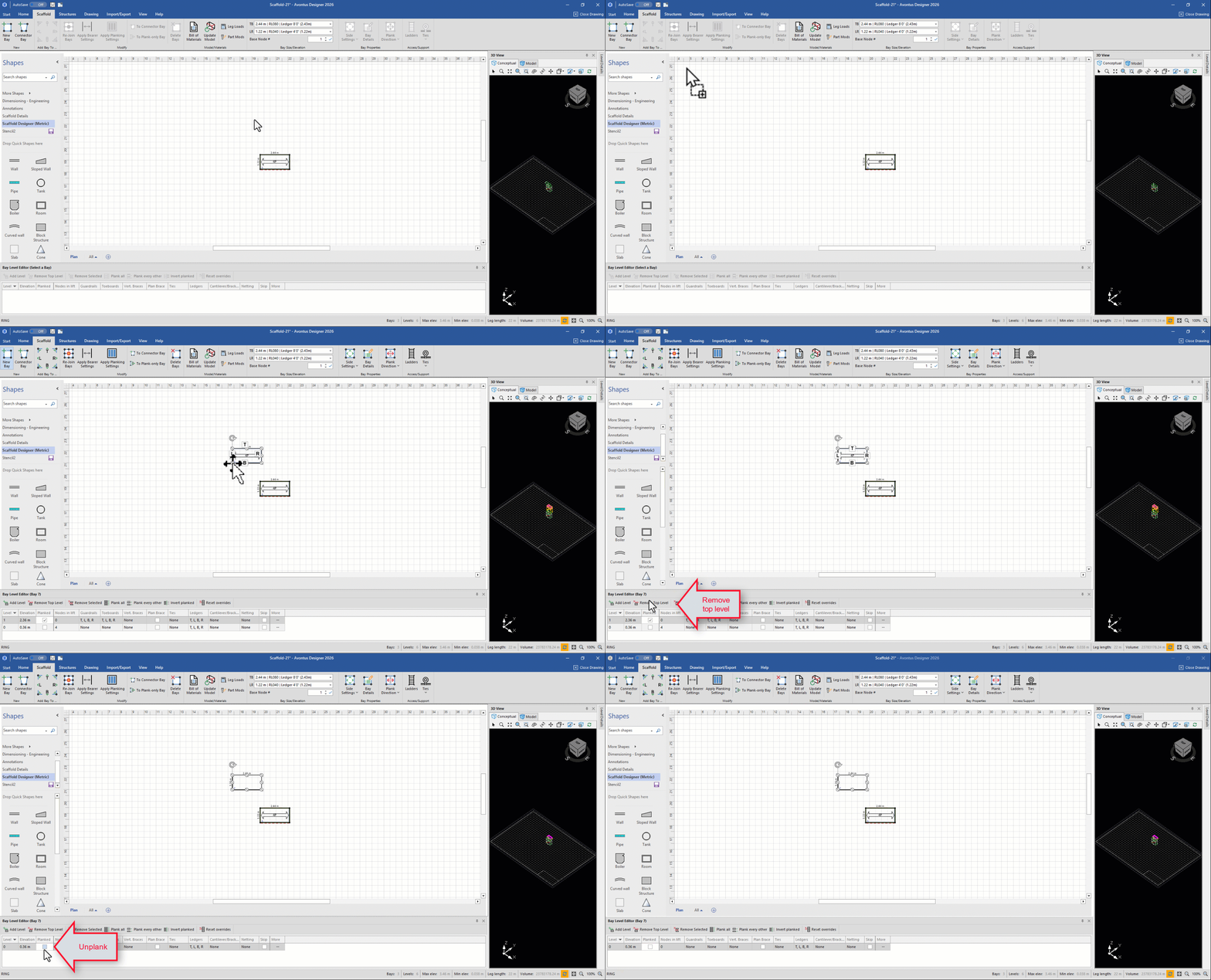
Add another Bay to the Drawing Page and make sure it is selected.
Click Remove Top Level in the Bay Level Editor.
Remove the planks from the Bay (the checkbox will be unchecked)
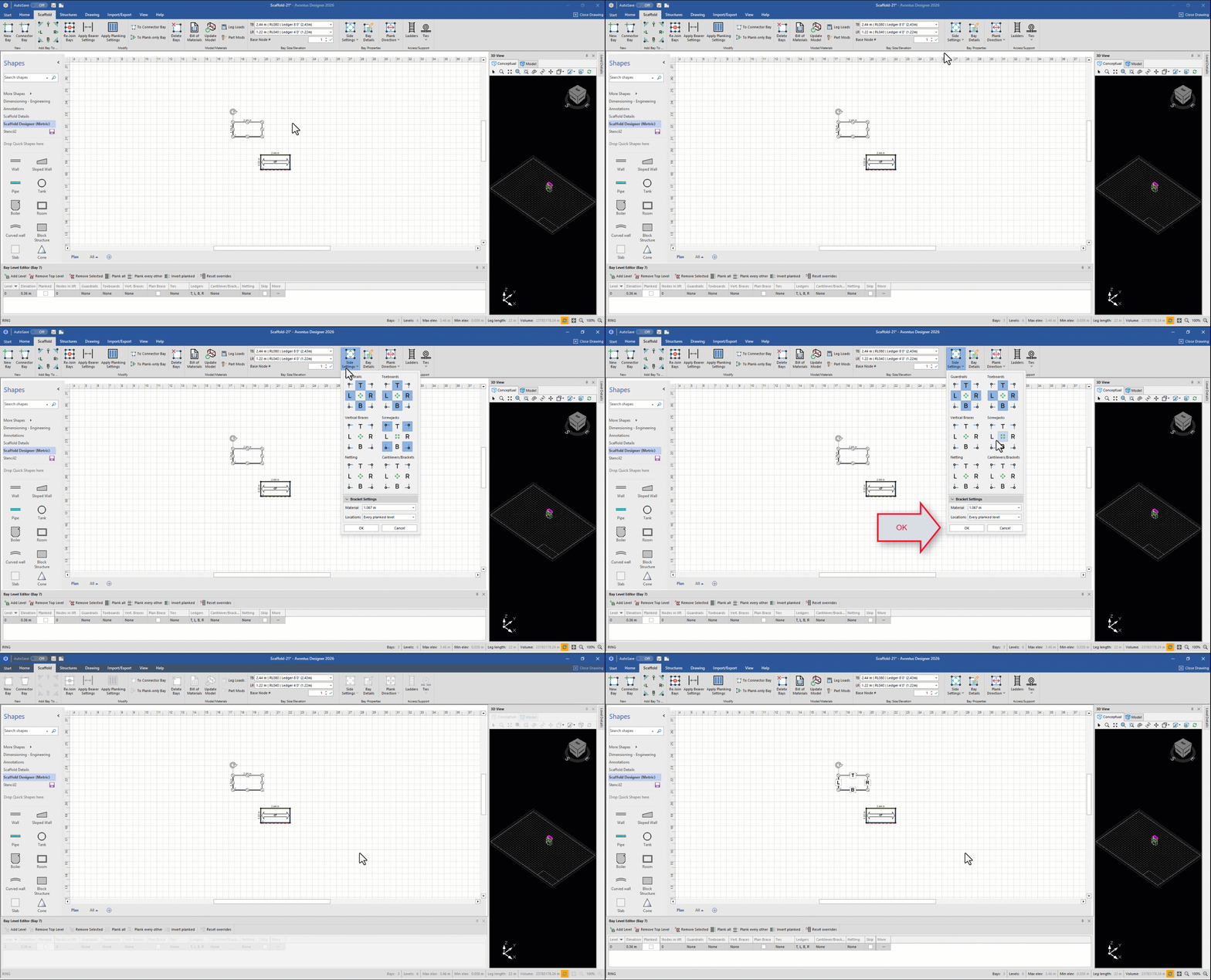
In the Scaffold tab, click the Side Settings dropdown and click the center button in the Screwjacks group, to remove the Screwjacks from the Bay
Click OK
Click Bay Details
Click the Verticals tab
Click All in the Skip Vertical row and click Close, in the lower right corner of the tab. This will remove the vertical scaffold poles.
Click Apply. This will remove the vertical scaffold poles.
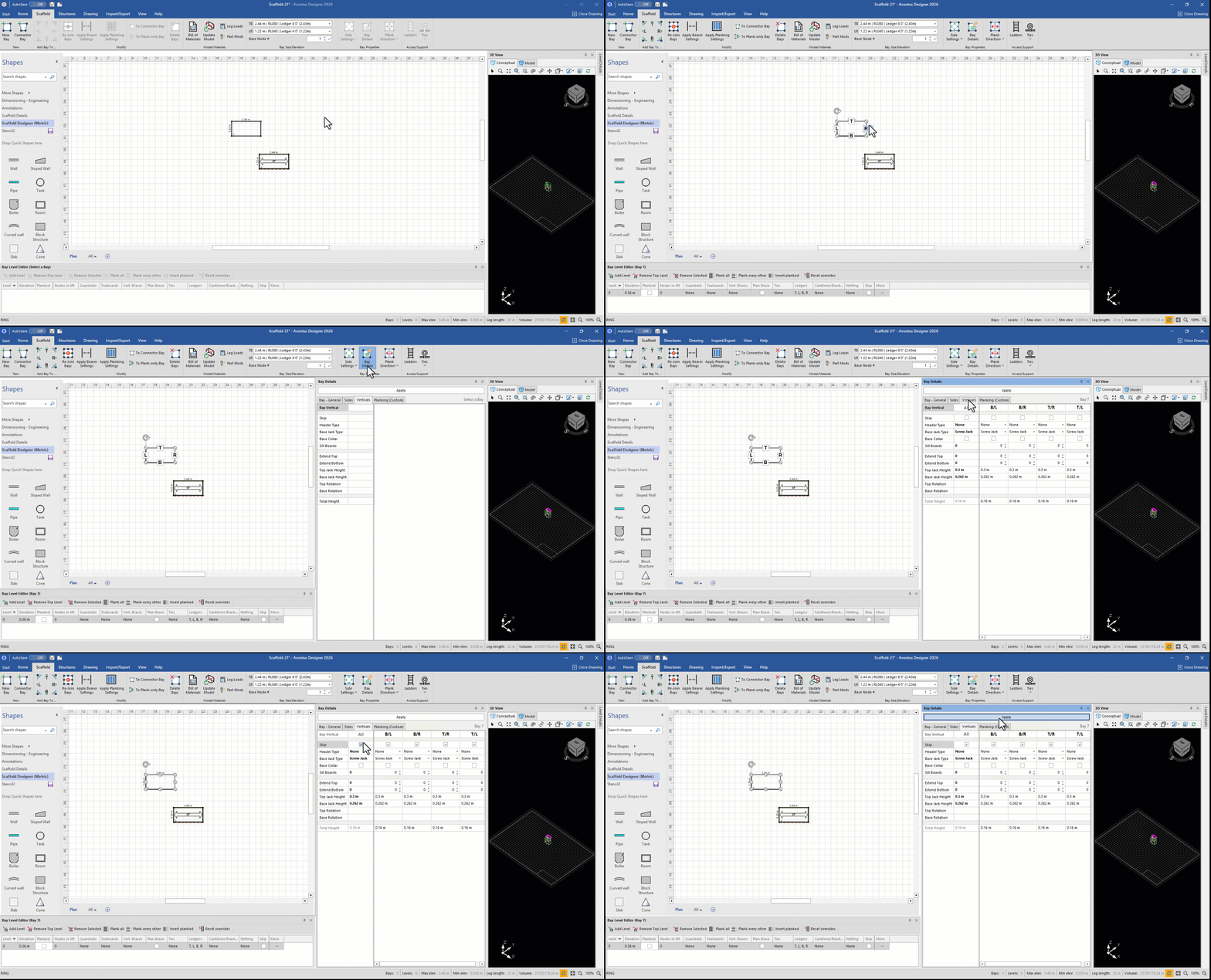
What remains is the bottom ledgers of the new Bay.
The model should look like this
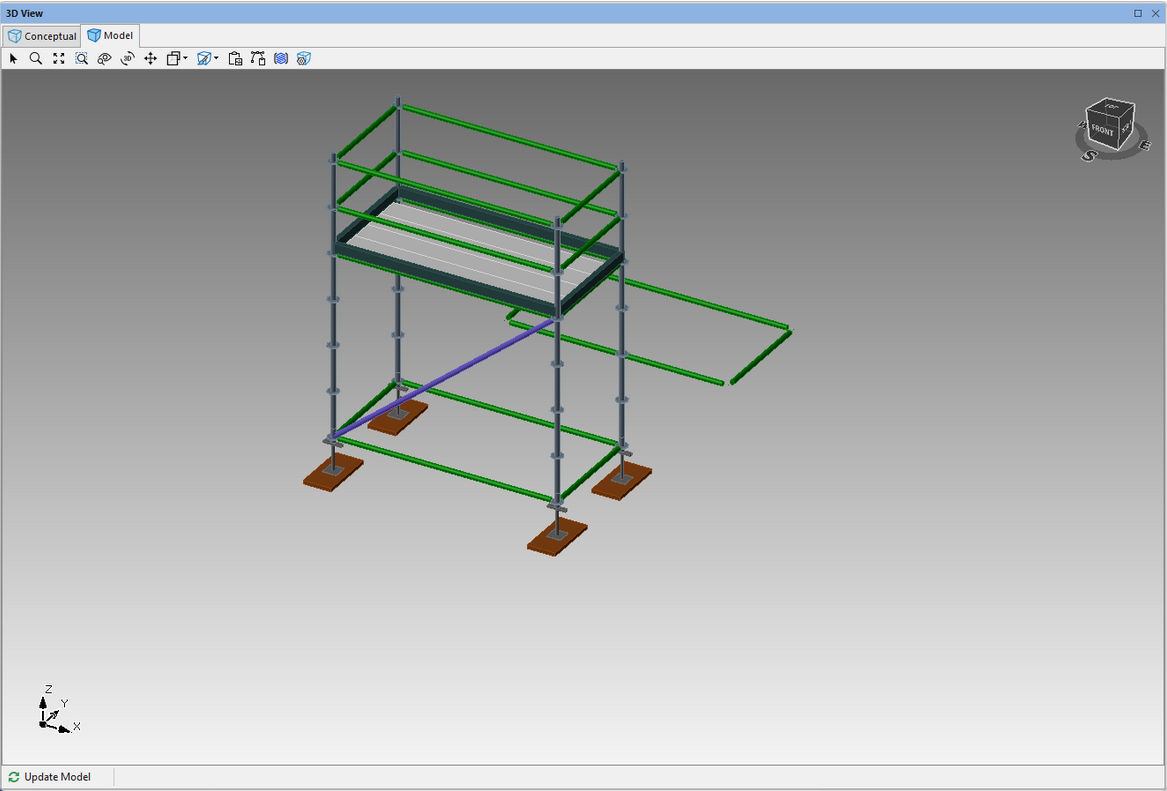
Select the ledgers and click in the Base # text field, enter 3, then click the check to the right of the text field. This will lower or increase the height of the nodes on the ledger.
Click and drag the new Bay into the first Bay you created.
.gif)
This adds additional ledgers to the Bay at the third level.