The Handset Designer ribbon makes it easy to draw an Elevation, with three mouse clicks.
To draw a right or a left Elevation:
- Click the Wall with Formwork to select it.
Note: Your selection can include multiple Walls for Elevations, but cannot include other shapes, such as dimensions or text. - Click the Handset Designer tab, then click either Right Elevation or Left Elevation in the Formwork group.

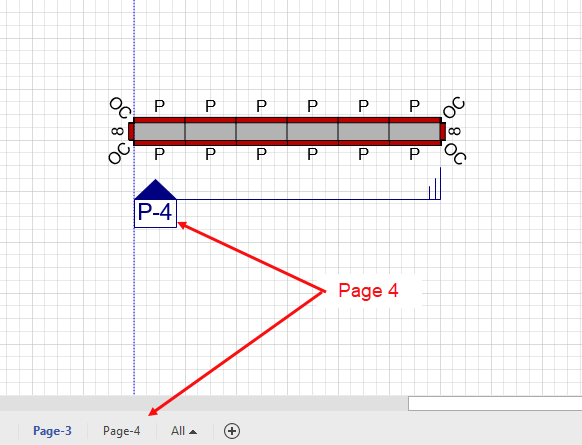
Handset Designer draws the Elevation. Once drawn, Handset Designer inserts a new page that contains the view, draws a view marker on the Wall and labels it with the name of the new page.
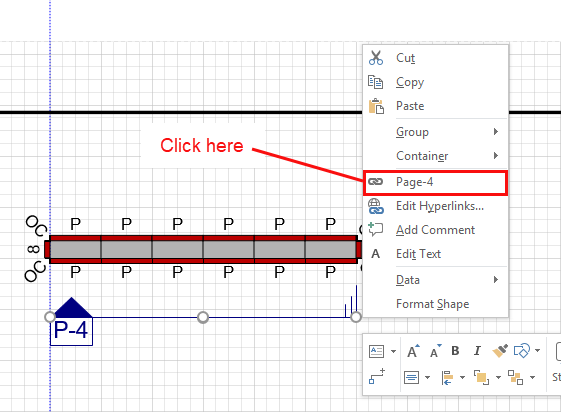
There are two ways to access this new page:
- Click the corresponding Page tab in the bottom of the window.
- Right-click anywhere on the Section View marker and select Page-# from the menu that appears.
The page opens, displaying the Elevation.
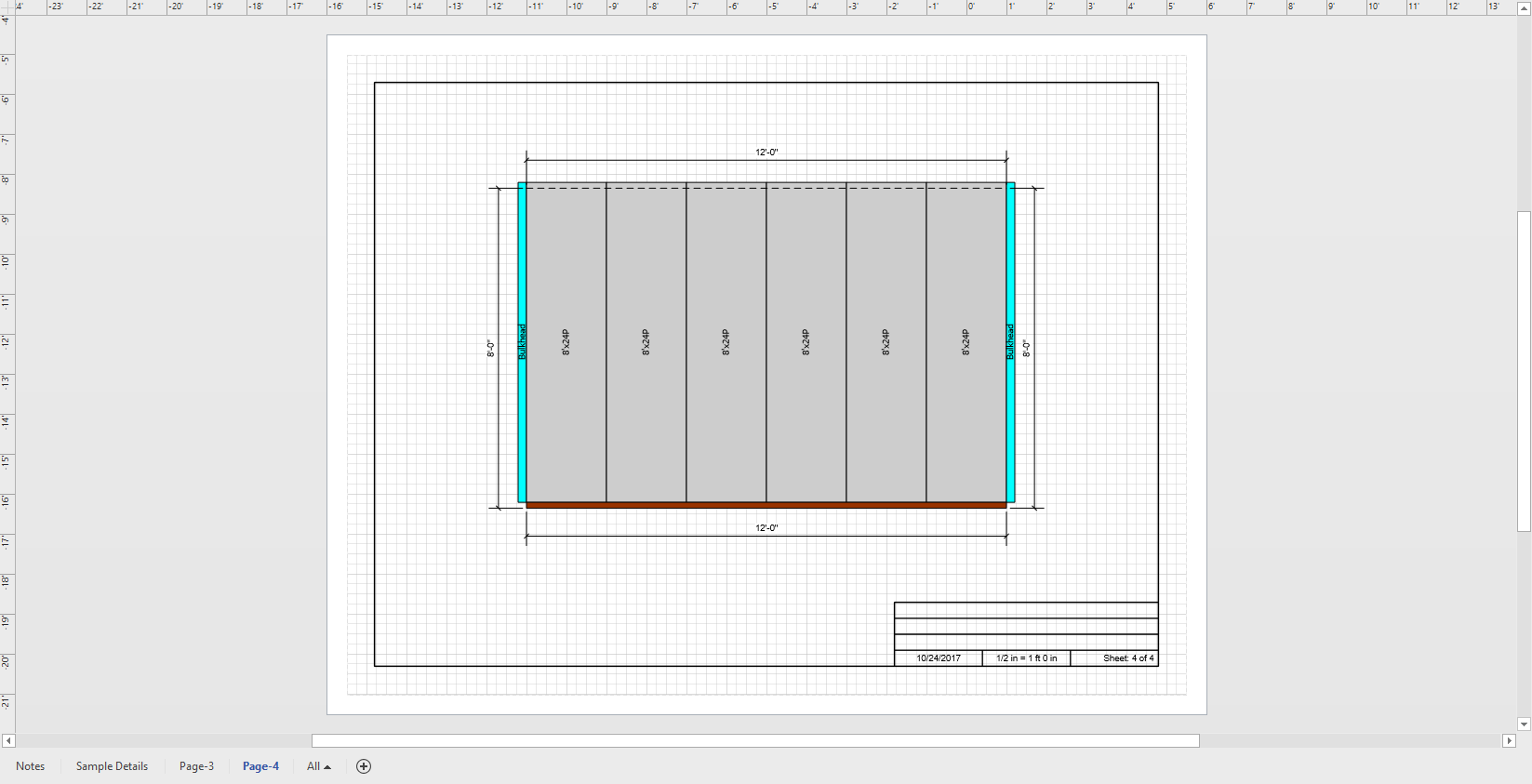
Note: You should not draw Formwork on Elevation pages, as Handset Designer automatically deletes them from time to time when changing Formwork.