Avontus Designer places a Title Block in the lower right corner of each page of a drawing, so you can print the various project properties with the drawing. This can be changed to include the Project Name.
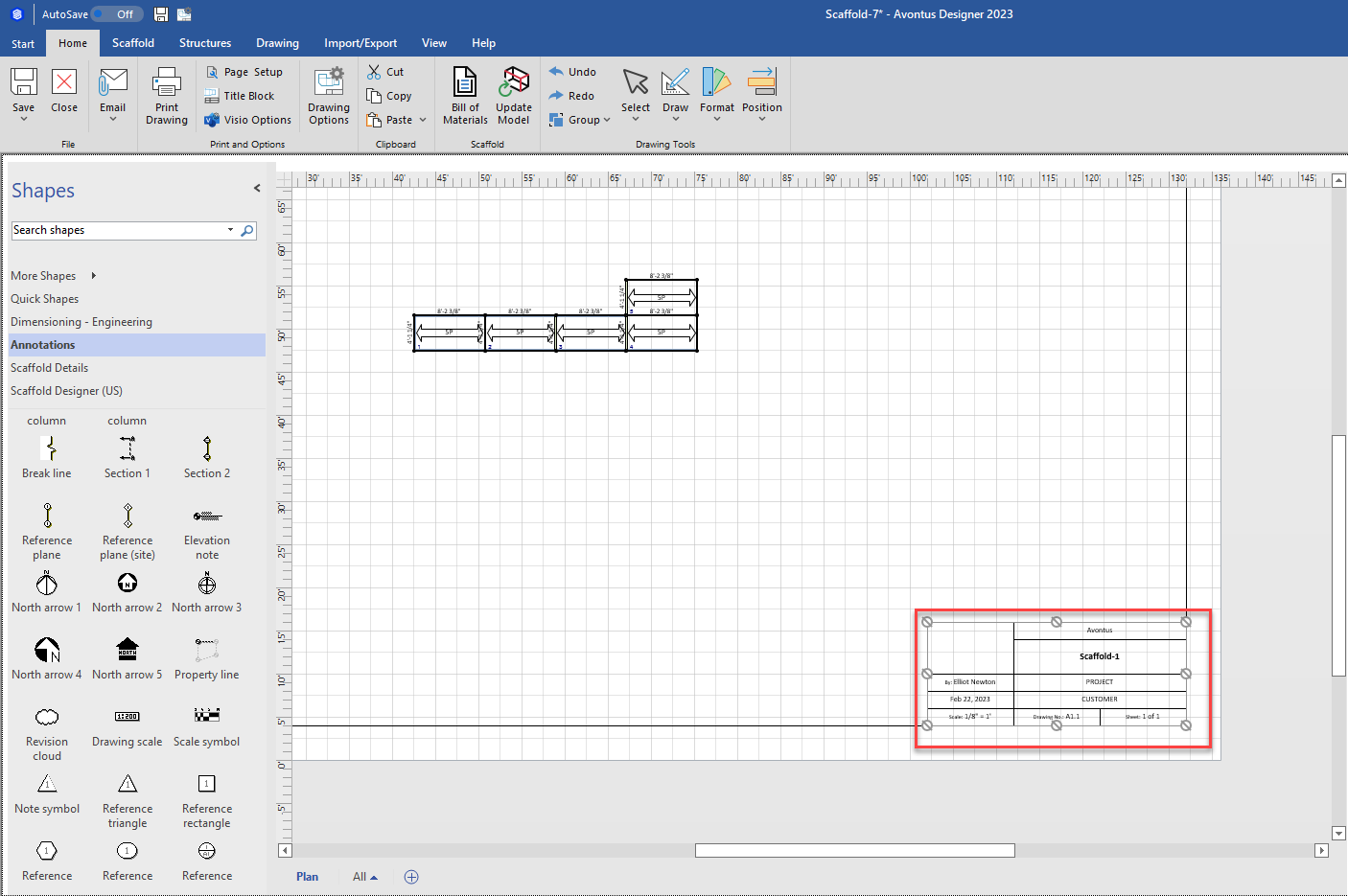
To edit the information within the Title Block:
Click the Home tab, then click Title Block.
Note: You can also double-click the Title Block itself.

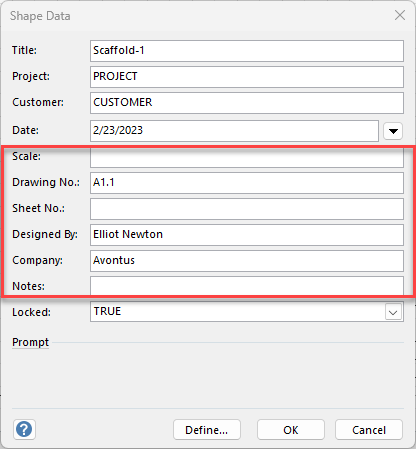
The Shape Data dialog for the Title Block appears.
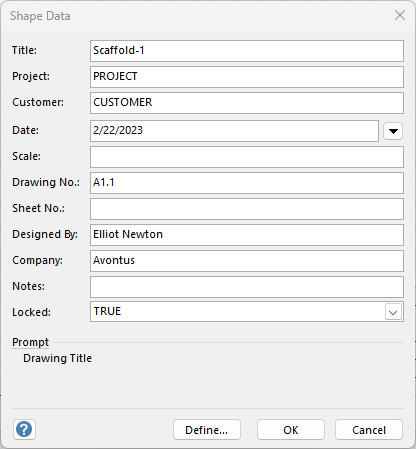
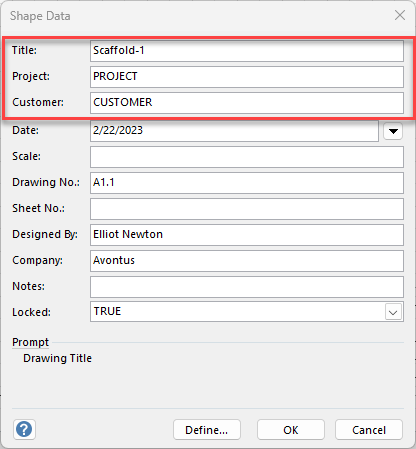
As necessary;Click in the Title text field and enter the drawing's title.
Click in the Project and enter the project's name
Click in the Customer and enter the customer's name.
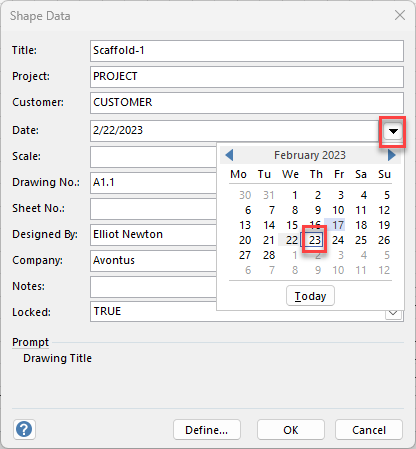
To select a new date, click the arrow to the right of the Date text field and select a new date from the calendar that appears.
Click in the Scale text field and enter the drawing's scale.
Click in the Drawing No text field and enter the drawing number.
Click in the Sheet No text field and enter the number of the current sheet.
Click in the Designed By text field and enter your name.
Click in the Company text field and enter your company's name.
Click in the Notes text field and enter notes, as necessary.
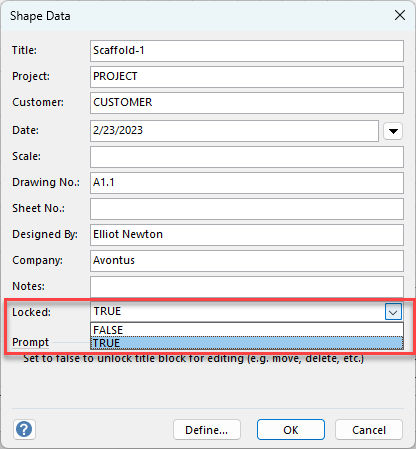
Click the Locked dropdown and select either Locked or Unlocked.
Click OK.
Note: Avontus Designer automatically updates the Scale and Sheet sections of a Title Block with the properties of a drawing.